
Have you ever stumbled upon an old WordPress site of yours and wondered, “What was that perfect theme I used back then?” You’re not alone.
Many of us have faced the frustration of trying to recall the exact theme that once made our websites shine. Imagine unlocking that memory and effortlessly bringing back the charm of your previous design. You’ll discover simple yet effective ways to find the theme you used previously in WordPress.
Say goodbye to endless browsing and guessing games. By the end, you’ll be equipped with the tools to easily retrieve that elusive theme, giving your website a fresh yet familiar look. Dive in, and let’s solve this mystery together!
Locating Theme In WordPress Dashboard
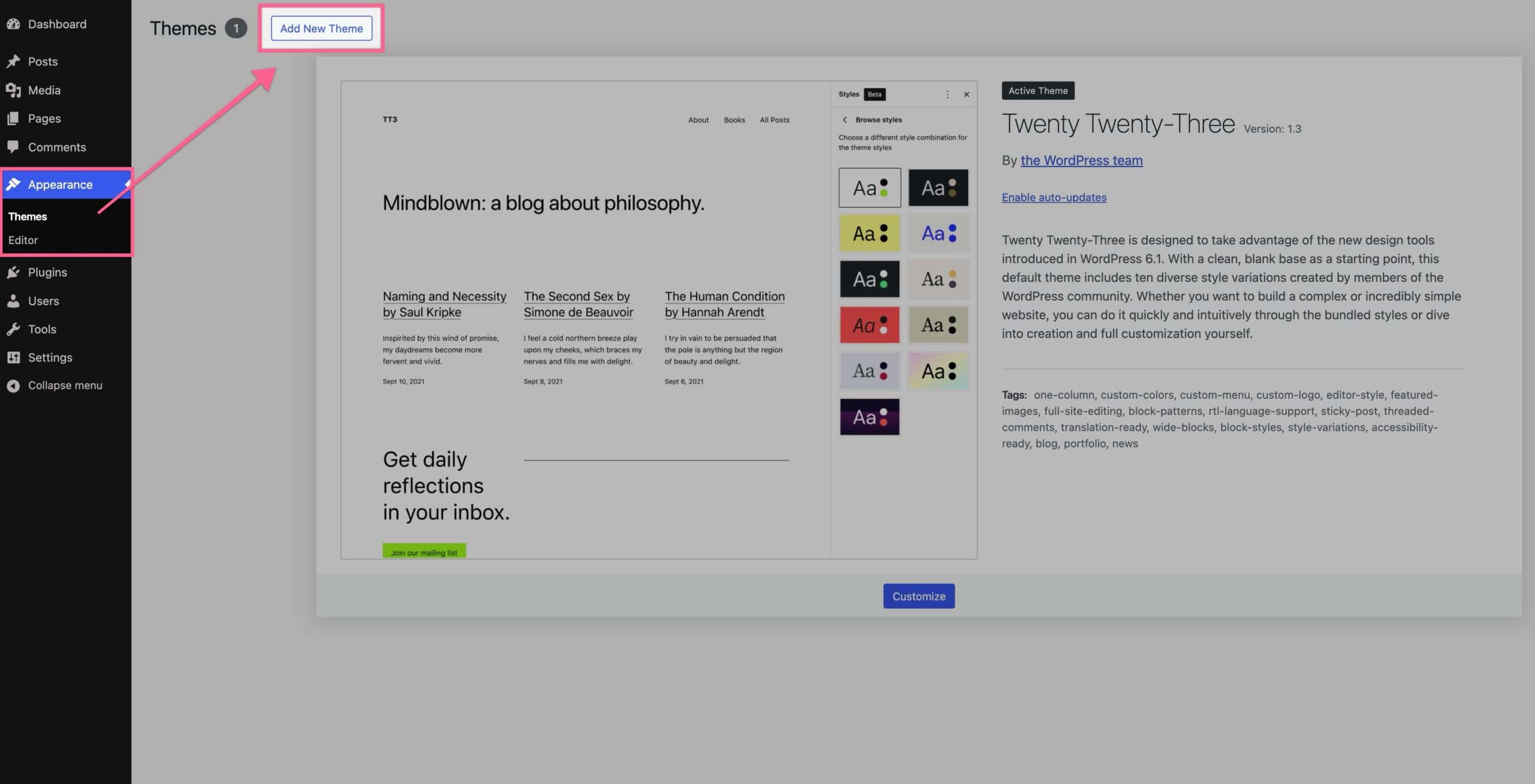
Start by logging into your WordPress dashboard. Look on the left side. You will see a menu. Find the Appearance tab. Click on it. This is the place to find your theme. The Appearance section shows all themes. Your current theme is at the top. Clicking here can help you change themes too. It’s simple and quick.
After clicking on Appearance, you see the active theme first. It has a special box around it. This is your theme in use now. Check the name and details. You can also find theme options here. Want to change it? Just click on another theme. Always remember the theme name for future use. It’s easy to find and change themes this way.

Credit: www.wordfence.com
Checking WordPress Theme History
Plugins can help you track your old themes. A theme history plugin keeps a list of all your themes. You can see the names and dates of your past themes. This is useful if you forget which theme you had before. These plugins are easy to use. Just install them and they work.
Logs show changes made to your site. Theme change logs show when you change your theme. You can find these logs in your hosting account. Look for a section called “logs” or “history”. This will help you see your previous themes. It’s a simple way to remember your old theme.
Exploring WordPress Files
Discovering which WordPress theme you used before is simple. Navigate to your WordPress files using an FTP client. Look under ‘wp-content/themes’ to find the list of installed themes. The folder name of the active theme often reflects the theme’s name.
Accessing Theme Folder Via Ftp
Finding your old theme is easy. First, open FTP. You need FTP to see WordPress files. Connect to your website using FTP. Find the folder named wp-content/themes. This folder holds all themes. Each theme has a separate folder. Look for the theme you want.
Checking Style.css For Theme Details
Inside each theme folder, find a file named style.css. Open this file. The top of the file has theme details. You will see the theme name, author, and version. These details help identify the theme. If you see the old theme name, you found it. Use these details to know more about the theme.
Credit: www.wpzoom.com
Utilizing WordPress Database
WordPress stores theme information in the database. This data is saved in a table called wp_options. You can find your old theme data here. Look for the option_name with the value template. Another name to check is stylesheet. These names will show your theme’s name.
Accessing phpMyAdmin is needed. It helps you see the database tables. You can search by typing theme name in the search box. This will show the tables with theme details. You can also explore table rows for more theme data. Always be careful while searching in phpMyAdmin.
Consulting Hosting Provider
Ask your hosting support for help. They can see your past data. Tell them you need your old WordPress theme details. Sometimes, they can provide this fast. Be ready with your account details. This helps them find your info quickly.
Log into your hosting control panel. Look for a section called File Manager. In there, find the folder named wp-content. Inside, open the themes folder. This shows all themes you’ve used. Check the folder names. They usually match theme names. Write down the theme name you need.
Credit: www.kadencewp.com
Leveraging Browser Extensions
Browser tools help find the theme. Right-click on the page. Choose “Inspect”. A panel with code appears. Look for style.css in the code. This file tells the theme name. Often, the theme is in the first lines. Check also for theme folder names.
View the page source. Right-click on a blank area. Select “View Page Source”. A new tab will open. Search for theme name in the code. Use “Ctrl + F” to find words quickly. Look for wp-content/themes. This part usually shows the theme name. Sometimes, it’s hidden. Keep searching carefully.
Frequently Asked Questions
How To Identify A Previously Used WordPress Theme?
To identify your previous WordPress theme, check your website backup files. Access the theme folder to find the theme’s name and details. Alternatively, use the WordPress Theme Detector tool online to identify the theme by entering your website URL.
Can I Restore A Deleted WordPress Theme?
Yes, you can restore a deleted WordPress theme. Access your website backup and retrieve the theme files. Upload the theme files back to your WordPress theme directory. Activate it from the WordPress dashboard to restore your previous theme settings and appearance.
Where To Find WordPress Theme History?
To find WordPress theme history, check your website’s backup logs. These logs often contain information about theme changes. Alternatively, use a version control system like Git to track theme changes over time. Always keep backups for easier theme restoration.
How To Backup WordPress Themes Effectively?
To backup WordPress themes effectively, use plugins like UpdraftPlus or BackupBuddy. These plugins automate the backup process. Schedule regular backups and store them in multiple locations, such as cloud storage and local devices. This ensures you have access to your theme files when needed.
Conclusion
Finding your previous WordPress theme can be simple. Explore your site’s dashboard for clues. Check your WordPress account for theme details. Use file backups if needed. Theme directories might have old versions. Online forums can offer advice. Consider asking your hosting provider for help.
Keeping a record of themes used is smart. It saves time when switching. Understanding theme tracking aids future site changes. Stay organized with your themes. Your site will thank you.



