
Ever installed a WordPress theme and felt puzzled because it doesn’t quite look like the stunning demo version that caught your eye? You’re not alone.
Many users dive into the world of WordPress only to find their site looking a bit off from the polished demos they admired. The good news? There’s a straightforward way to bridge that gap and transform your site to match the demo you fell in love with.
Imagine your website, not just as a functional tool, but as a dynamic showcase that mirrors the professional, sleek design you initially envisioned. Dive into this guide to unlock the secrets of aligning your WordPress theme with its demo version. It’s easier than you might think, and the results will make your site shine. Ready to see your website come to life? Let’s get started!

Credit: www.youtube.com
Choosing The Right Theme
Search for themes that match your website’s goals. Check reviews and ratings to see what others think. A good theme is easy to use and fast. Many options are out there, so take your time. Look at the theme’s demo version to see if you like it. This helps you know if it fits your needs. Try to find themes that have clear instructions. This makes setup easier for you.
Always check if the theme works with your plugins. Compatibility is important for a smooth website. Some themes might not support older plugins. This can cause problems. Check the theme’s description for compatibility notes. It should work well with the latest WordPress version. Updates matter too. Themes that update often are usually more secure. These themes fix bugs and add new features. Choose wisely.
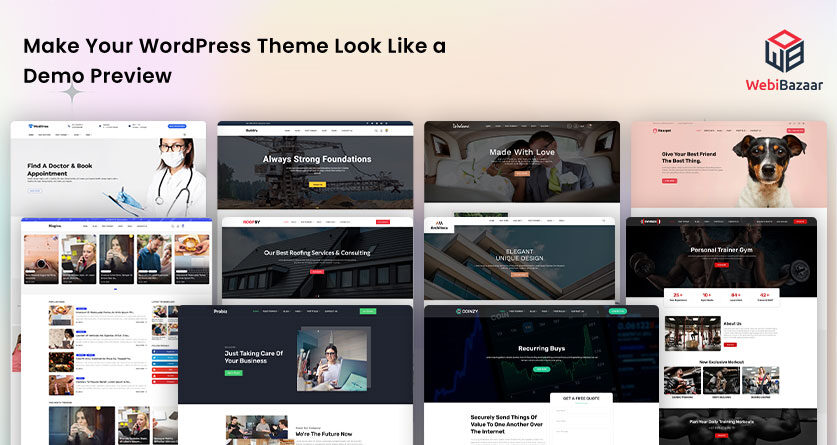
Credit: www.webibazaar.com
Installing The Theme
First, go to the theme website. Look for the download button. Click it. The theme file will be saved on your computer. Make sure you remember where you saved it. This file is usually a .zip file. Do not unzip it.
Open your WordPress dashboard. On the left side, find Appearance. Click on Themes. At the top, there is an Add New button. Click it.
Now, click Upload Theme. Use the Choose File button to find your theme file. Remember, it is the .zip file. Once selected, click Install Now.
Importing Demo Content
Many themes come with built-in import tools. These tools help you get the demo content easily. First, go to the theme settings in your WordPress dashboard. Look for an option named “Import Demo Data” or similar. Click it. Follow the steps. The tool will add the demo content for you. This includes pages, posts, and images. After importing, your site will look like the demo. Some themes may need extra plugins. Install them if asked.
Sometimes, the theme does not have built-in tools. You need to import content manually. Start by downloading the demo content file from the theme provider. It is usually an XML file. Then go to your WordPress dashboard. Find Tools, then click on Import. Choose the WordPress option and upload the XML file. Follow the instructions. This method takes a bit longer. But it works well if done carefully.
Configuring Theme Settings
Start with the Appearance tab. Click on Customize. This opens many options. You can change colors and fonts. Pick colors that match the demo. Adjust fonts to look similar. Check logo settings. Upload a logo like the demo. The header image matters too. Choose one that fits the demo style. Preview your changes before saving.
Layout options are crucial. Find the Layout section. This is under the Customize tab. Choose a layout that resembles the demo. You can change sidebar settings. Align sidebars with the demo layout. Footer settings are important. Ensure your footer looks like the demo. Use widgets wisely. Widgets help achieve the demo look. Always preview changes.
Installing Required Plugins
To make a WordPress theme resemble its demo, start by installing required plugins. These plugins ensure all features and styles are activated. Follow the theme’s documentation for a seamless setup.
Identifying Essential Plugins
Themes often need extra plugins. Plugins add special features. Make your site work better. Check the theme’s documentation. It lists all needed plugins. Some plugins are essential. Others are optional. Essential plugins make the theme look like the demo. Download these plugins from the WordPress repository. Or the theme’s website. Always use the latest version. This keeps your site safe and fast.
Activating Plugins
After installing, plugins need activation. Go to the Plugins page. Find the plugin you installed. Click activate. This turns on the plugin. Repeat for each plugin. Some plugins need settings changes. Check plugin instructions. Set them up as needed. This helps your theme work like the demo. Always test your site after activation. Make sure everything looks right.

Credit: www.bluchic.com
Troubleshooting Common Issues
Struggling to make your WordPress theme resemble the demo? Import demo content, customize settings, and tweak widgets. Explore theme documentation for specific guidance.
Missing Content
Sometimes, a theme might not show all the content. This can be frustrating. Check the WordPress settings first. Ensure the right homepage is selected. Some themes need specific plugins to work. Make sure all required plugins are active.
Maybe the demo content wasn’t imported. Use the theme’s import tool again. Check the theme documentation for guidance. If content is still missing, ask the theme support for help.
Styling Problems
A theme might look different than expected. This could be a styling problem. First, clear the browser cache. Sometimes old data causes issues. Check for any custom CSS changes. These could affect the appearance.
Make sure all theme updates are applied. Updates fix many issues. If problems persist, review the theme settings. Some themes have special styling options. Adjust these settings as needed.
Maintaining Theme Appearance
Regular Updates help keep your theme looking fresh. They fix bugs and add new features. Always check for updates. Update themes and plugins regularly. This keeps everything working smoothly. Avoid theme problems with timely updates.
Backup Strategies are important for theme safety. Always create backups before making changes. Use plugins for easy backup. Keep copies in different places. This helps restore themes if something goes wrong. Backups protect your hard work.
Frequently Asked Questions
How Do I Install A WordPress Theme Demo?
To install a WordPress theme demo, first activate your chosen theme. Then, locate the theme options or demo importer in the WordPress dashboard. Click “Import Demo Content” to automatically install the demo. Ensure you have a backup before importing to avoid data loss.
This process will help match the demo layout.
Why Doesn’t My Theme Look Like The Demo?
Your theme might not match the demo due to missing plugins or incorrect settings. Ensure all recommended plugins are installed and activated. Import demo content if available. Check theme documentation for specific setup instructions. Adjust settings to match the demo layout, focusing on widgets, menus, and homepage configuration.
Can I Customize A Demo Theme?
Yes, you can customize a demo theme using the WordPress Customizer or theme options panel. Adjust colors, fonts, and layouts to suit your preferences. Use widgets and plugins for additional functionality. Ensure changes align with your brand. Always preview modifications before saving to maintain a cohesive design.
What Plugins Are Needed For Demo Content?
Demo content often requires specific plugins for full functionality. Common plugins include page builders, sliders, and contact forms. Check the theme documentation for required plugins. Install and activate them before importing demo content. This ensures your site mirrors the demo’s features and layout accurately.
Conclusion
Getting your WordPress theme to look like the demo is simple. Follow the steps mentioned. Customize with patience. Pay attention to details. Import demo content carefully. Adjust settings to fit your needs. Use plugins wisely for added features. Regularly check theme updates for improvements.
Make your website visually appealing. Ensure it’s user-friendly. Test on different devices. This enhances user experience. Your site should look professional. Achieve the demo look with practice. Success comes from understanding your theme. Enjoy building your unique website. Keep learning and experimenting.
Your site will stand out.


