
Are you looking to elevate your WordPress site with a sleek, responsive design? Bootstrap could be your perfect solution.
With its powerful grid system and ready-to-use components, Bootstrap makes it easy to create a site that looks great on any device. But how do you actually get Bootstrap onto your WordPress theme? The process might sound daunting, but with the right guidance, you can have your site looking modern and professional in no time.
By the end of this article, you’ll know exactly how to integrate Bootstrap into your WordPress theme, making your site more attractive and user-friendly. Ready to transform your website? Let’s dive in and unlock the full potential of your WordPress theme with Bootstrap!
Getting Started With Bootstrap
Integrating Bootstrap into your WordPress theme enhances design and functionality. Start by downloading Bootstrap from its official site. Upload the files to your theme directory, then link them in your theme’s header file. This process ensures a sleek, responsive layout for your website.
What Is Bootstrap?
Bootstrap is a free tool. It helps make websites look nice. It has lots of pre-made designs. These include buttons, forms, and grids. Many people use it to save time. It works well on phones, tablets, and computers. This makes it very popular. Even beginners can use it easily. It is a great way to start building a website.
Benefits Of Using Bootstrap In WordPress
Using Bootstrap in WordPress is smart. It makes your site look good on all devices. You will find it easy to use and change. It saves time with ready-made designs. Your site loads fast. This makes visitors happy. It helps search engines like your site. Many people use it, so help is easy to find. Add Bootstrap to make your WordPress theme better.

Credit: stackoverflow.com
Preparing Your WordPress Theme
Integrating Bootstrap into your WordPress theme enhances design flexibility and functionality. Start by downloading Bootstrap files and adding them to your theme’s folder. Ensure proper linking of stylesheets and scripts in the functions. php file for seamless operation.
Checking Theme Compatibility
Before adding Bootstrap, check if your theme supports it. Some themes may already have Bootstrap. This makes things easier. Look in the theme’s documentation. It’s usually found in the theme files. If not, search online for your theme’s compatibility. This step saves time and prevents problems later.
Creating A Child Theme
A child theme is like a safe copy of your theme. It keeps your changes safe. This is important for updates. Updates can remove your changes if not done in a child theme. Start by creating a folder in your themes directory. Name it after your theme, adding ‘-child’. Inside, create a style.css file. This file needs a special code at the top. Find this code easily online. Then, activate your child theme in WordPress.
Downloading Bootstrap
Bootstrap CDN lets you use files online. It is easy. You just add a link in your theme. Local installation means downloading Bootstrap files. You save them on your computer. It gives more control. You can change files if needed. Both ways are good. Choose what fits your needs.
Go to the Bootstrap website. Find the download button. Click it to get the files. Save them on your computer. Unzip the files. Find the CSS and JS folders. These hold the important files. You need them for your theme. Keep them safe. You will use them soon.
Integrating Bootstrap With WordPress
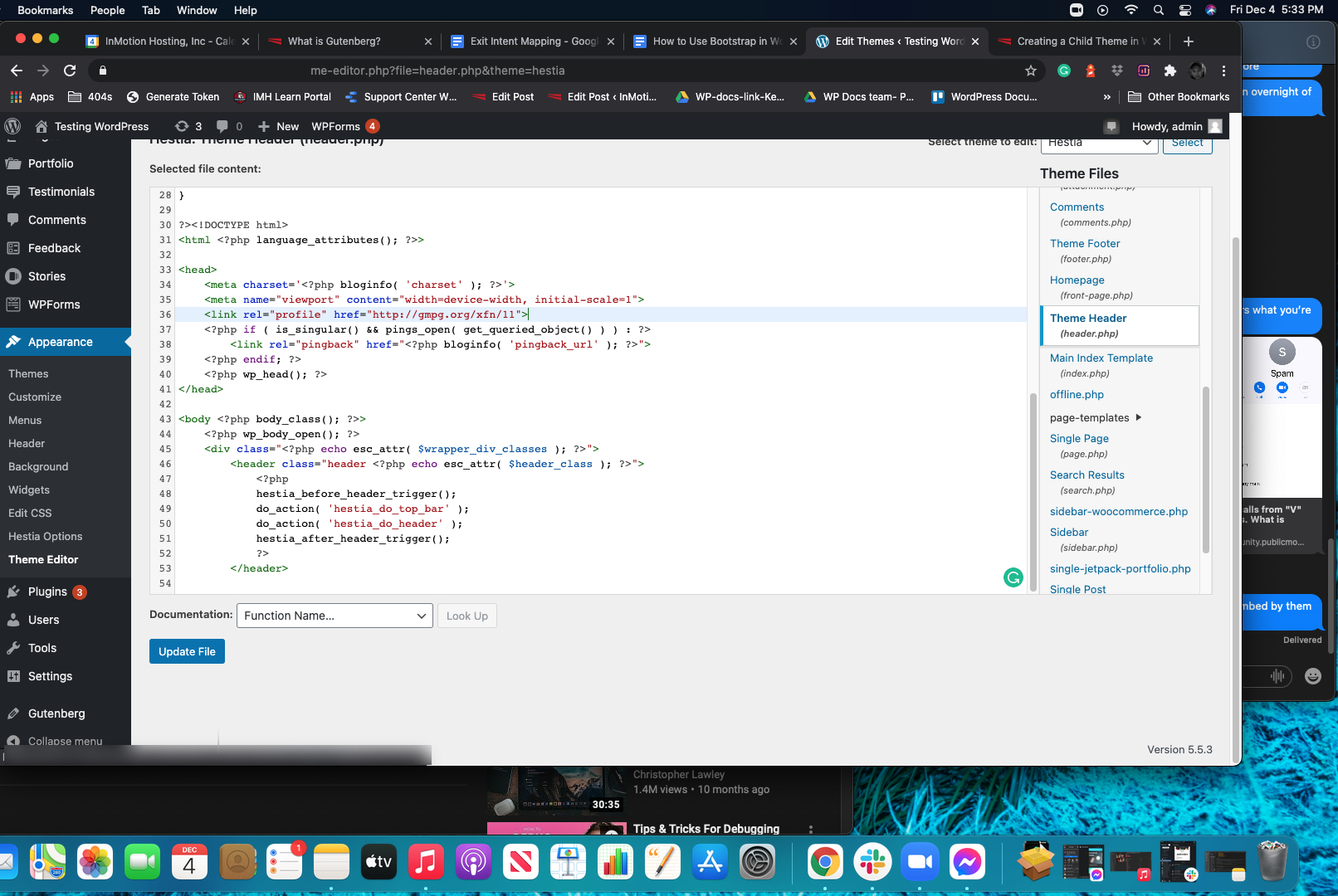
Bootstrap makes websites pretty and easy to use. To add Bootstrap, first find the functions.php file in your theme folder. This is where you add code. Write code to enqueue Bootstrap CSS and JavaScript. Use the wp_enqueue_style() and wp_enqueue_script() functions. This tells WordPress to use Bootstrap files.
Ensure you have the correct URLs for the Bootstrap files. You can find these on Bootstrap’s website. Copy them carefully. Save your changes in the functions.php file. Now your WordPress site can use Bootstrap styles and scripts.
Bootstrap comes with many styles. Sometimes you want your own look. Override Bootstrap styles with custom CSS. Add your CSS file after Bootstrap’s file. This way, your styles show up first.
To change Bootstrap elements, use CSS classes. These classes change colors, sizes, and more. Experiment with different classes to see changes. Check your site to make sure it looks right. Keep testing until happy.
Customizing Your Theme With Bootstrap
Bootstrap offers many components for your theme. Buttons, forms, and cards are popular. These make your site look modern and clean. Use them to improve your pages. Add a button to your homepage. Use a card for blog posts. Forms can collect user info. These components are easy to add. They save you time and effort. Your site will look great.
The Grid System helps design your layout. It divides the page into 12 columns. You can adjust the size and space. This makes your site responsive. It looks good on any device. Use grids to arrange text and images. Keep everything neat and tidy. Users will find it easy to read. The grid is flexible and simple to use.
Credit: www.inmotionhosting.com
Troubleshooting Common Issues
CSS conflicts can make your site look strange. First, check if your theme’s CSS is clashing with Bootstrap. Use the browser developer tools to inspect elements. This helps find problem areas. Next, try adding custom CSS to override any conflicts. Keep it simple. Also, ensure Bootstrap’s CSS is loaded before your theme’s CSS. This order is important.
JavaScript errors can break features on your site. Open the console in your browser tools. Look for any red error messages. These are clues to the problem. Ensure Bootstrap’s JavaScript files are included properly. Sometimes, plugins can cause conflicts. Deactivate plugins one by one to see if the error stops. If it does, you found the culprit. Keep your scripts up to date for fewer issues.
Enhancing Your Theme With Bootstrap
Bootstrap helps make your site look good on all devices. It adds responsive features to your theme. Your site will fit well on phones, tablets, and computers. This helps your visitors have a good experience. They can read and see things easily.
To add Bootstrap, you need to download it first. There are easy steps online. Once downloaded, you add it to your WordPress theme. You should add it in the right folder. Then, link it to your theme files. This will make your site responsive.
Utilizing Bootstrap Utilities
Bootstrap has many utilities. These help you style your site. They make it easier to add colors, sizes, and spaces. You can change the look of buttons and text. You can also add containers. This helps keep things organized.
Using utilities is simple. You just add classes to your HTML. These classes do the styling for you. Your site will look neat and clean. Bootstrap makes styling easy and fast.

Credit: themes.getbootstrap.com
Frequently Asked Questions
How Do I Add Bootstrap To WordPress?
To add Bootstrap, first download the Bootstrap files. Upload them to your theme’s directory. Then, enqueue the Bootstrap CSS and JavaScript in your theme’s functions. php file. This ensures Bootstrap’s styles and scripts are properly loaded. Finally, customize your theme using Bootstrap components.
Is Bootstrap Compatible With WordPress Themes?
Yes, Bootstrap is compatible with WordPress themes. It provides a responsive grid system, CSS styles, and JavaScript components. By integrating Bootstrap, you can enhance your theme’s responsiveness and design. Ensure to follow WordPress coding standards while implementing Bootstrap to maintain compatibility.
Can I Use Bootstrap With Any WordPress Theme?
You can use Bootstrap with most WordPress themes. It allows for better design customization and responsiveness. Ensure your theme supports custom scripts and styles. You might need to adjust some CSS to avoid conflicts. Always test changes in a development environment before going live.
Do I Need Coding Skills To Use Bootstrap?
Basic coding skills are beneficial for using Bootstrap. Understanding HTML, CSS, and JavaScript will help in seamless integration. WordPress offers plugins to simplify the process, but coding knowledge provides more customization control. It’s advisable to learn basic coding to optimize Bootstrap’s potential in your theme.
Conclusion
Integrating Bootstrap into your WordPress theme is a smart move. It enhances design flexibility and improves user experience. Follow the steps outlined to ensure a smooth integration. With Bootstrap, your site becomes more responsive and visually appealing. It helps you create a professional look without complex coding.
Remember to test your theme on different devices. This ensures everything works perfectly. Keep exploring Bootstrap’s features for more customization options. Enjoy a more dynamic and user-friendly website. Happy designing!



