
Have you ever encountered the dreaded “403 Forbidden” error on your WordPress site and felt an instant wave of panic? You’re not alone.
This frustrating message can suddenly block your access, leaving your site and your efforts hanging in the balance. But what if I told you that the culprit might be as simple as a plugin? Yes, those handy tools meant to enhance your site can sometimes trip you up.
We’ll uncover which plugins could be causing this error and, more importantly, how you can fix it and reclaim control of your website. Stay with us, and let’s turn your frustration into a quick and easy solution.
Common Causes Of 403 Forbidden Errors
Files need the right permissions. Permissions control who can see or change files. Wrong settings can block users. This leads to 403 errors. Fixing permissions can help solve the problem. Check each file’s settings. Ensure they allow access.
Security plugins protect sites. Sometimes they block access by mistake. This can cause 403 errors. Check plugin settings carefully. Some plugins have strict rules. Adjust settings to allow access. Keep plugins updated. This can help prevent errors.
The .htaccess file controls web server settings. Wrong rules can lead to 403 errors. Review the file for mistakes. Ensure rules are correct. Fix any errors found. Backup before making changes. This helps keep the site safe.
Credit: www.bluehost.com
Security Plugins And 403 Errors
Firewall settings can cause 403 errors. Firewalls block harmful traffic. But sometimes, they block good traffic too. This can stop users from reaching your website. It’s important to check the rules. Adjust them to allow safe visitors. Make sure important pages are not blocked. This helps reduce 403 errors.
Limiting login attempts is a security step. It stops hackers from guessing passwords. But strict limits can block real users too. Too many failed tries may lead to 403 errors. Balance is key. Set limits, but allow some mistakes. This will help users log in safely.
Blocking IP addresses can prevent attacks. It blocks bad users from entering your site. But sometimes, good users get blocked. This can cause 403 errors. Check the blocked list often. Remove any good IPs by mistake. This way, more people can visit your site without issues.
Caching Plugins And Access Issues
Caching plugins can lead to access problems in WordPress. They often conflict with the .htaccess file. This file controls who sees your site. If there is a conflict, users may see a 403 Forbidden error. This error stops them from viewing your site.
Cached pages can also create problems. These pages are stored copies of your site. They help load pages faster. But, if they are not updated, they can cause errors. Users might see old pages. These pages might not work well. Clearing your cache can fix this. Always update your cache regularly.
Seo Plugins And Forbidden Errors
Some SEO plugins create XML sitemaps. They help search engines find your pages. But wrong settings can cause 403 errors. Too strict permissions on files and folders can block access. This means no one can see your sitemap. Check your plugin settings. Make sure the permissions are correct.
The robots.txt file tells search engines what to do. If the file is wrong, it can cause errors. Some plugins change robots.txt settings. A bad setting can block parts of your site. This may result in a 403 error. Always review robots.txt settings. Ensure only unwanted parts are blocked. Keep important parts open for search engines.
E-commerce Plugins And 403 Errors
Some e-commerce plugins can block your product pages. This might cause a 403 Forbidden error. These plugins could have settings that stop users. They might think some users are not allowed. Security settings can be too strict. It is important to check the settings of these plugins. Make sure they let everyone visit your product pages. Adjust the settings if needed. This will help users see your products.
Checkout pages should be easy to access. Some plugins may block them. This can lead to 403 errors. Many users get stuck at checkout. They might leave your site. Ensure your plugin settings allow all users to checkout. Check for any security rules that might block access. Make changes if your settings are too strict. This helps more people buy from your site.

Credit: jobayerhossan.com
Troubleshooting 403 Errors
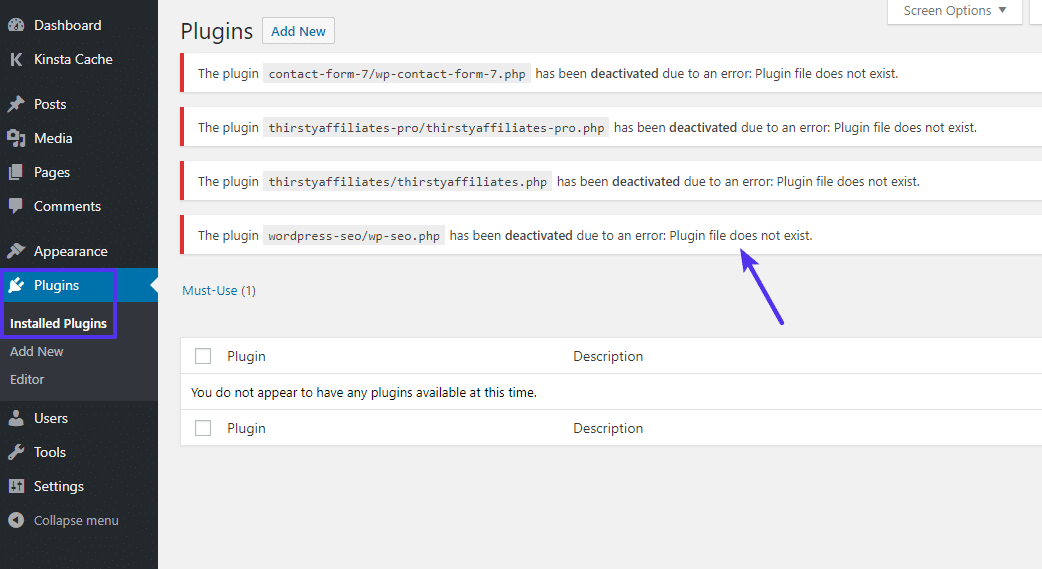
A 403 Forbidden error means access is blocked. Sometimes, a plugin can cause this. To find the bad plugin, try disabling all plugins. Then, reactivate each one slowly. Watch for the error again. The last plugin activated might be the cause. This helps pinpoint the problem.
Access your site’s dashboard. Go to the plugin section. Disable all plugins first. Check if the error vanishes. If gone, reactivate plugins one at a time. Look for the error again. Note the plugin that triggers the 403. Update or remove that plugin. Always backup your site before making changes. This keeps your data safe.
Preventive Measures
Plugins need updates to work well. An outdated plugin can cause errors. Update plugins often. This helps keep your site safe. Developers fix bugs in updates. These bugs may cause a 403 error. Always check for new updates. Use the latest versions to avoid problems.
Strong security settings keep your site safe. Set strong passwords for all users. Change passwords often. Limit login attempts to protect from hackers. Use security plugins for extra safety. They help block bad traffic. Backup your site regularly. This saves your data if something goes wrong.
Credit: kinsta.com
Frequently Asked Questions
What Causes A 403 Forbidden Error In WordPress?
A 403 Forbidden error in WordPress typically occurs due to permission issues. It can be caused by restrictive plugin settings or server configurations. Incorrect file permissions or a faulty. htaccess file can also trigger this error. Identifying the plugin or fixing permission settings can resolve the issue.
How Can Plugins Lead To 403 Errors?
Plugins can lead to 403 errors if they modify file permissions or server settings improperly. Security plugins may block access to certain files or directories. Misconfigured plugins may alter. htaccess files, causing access restrictions. It’s essential to review plugin settings and ensure compatibility with your server environment.
Which Plugins Commonly Cause 403 Errors?
Security and caching plugins are common culprits for 403 errors in WordPress. Plugins like Wordfence, Sucuri, or WP Super Cache may inadvertently block access. They might alter file permissions or modify server settings, leading to restricted access. Regularly update and configure plugins to minimize error occurrences.
How To Fix A Plugin-related 403 Error?
To fix a plugin-related 403 error, start by deactivating recently installed plugins. Check file permissions and reset them to default settings. Review and correct any changes made to the. htaccess file by the plugin. Gradually reactivate plugins to identify the culprit and adjust settings accordingly.
Conclusion
Understanding plugins that cause a 403 Forbidden error is crucial. These errors disrupt your site’s functionality. Check your plugins regularly. Ensure they are updated and compatible. Many times, conflicts arise from outdated plugins. Be proactive with plugin management. Troubleshoot issues as soon as they appear.
Use reliable sources for plugin updates. This minimizes risks and errors. A well-maintained site enhances user experience. It also improves your site’s security. Keep your WordPress site running smoothly. Regular checks and updates help. Avoid the frustration of unexpected errors.
Your site deserves the best care.



