Are you looking to enhance your WordPress site by adding a custom menu using HTML? Whether you’re a seasoned developer or a beginner exploring WordPress, understanding how to manually insert a menu can give you greater control over your website’s design.
Imagine the possibilities of tailoring your navigation to perfectly align with your brand’s aesthetic and functionality. In this guide, you’ll discover the step-by-step process to seamlessly integrate a menu into your WordPress site using HTML. Get ready to unlock the potential of your site and create a user-friendly experience that keeps your visitors engaged.
Stay with us as we delve into the details that will make your website stand out.
Credit: presscustomizr.com
Basics Of WordPress Menus
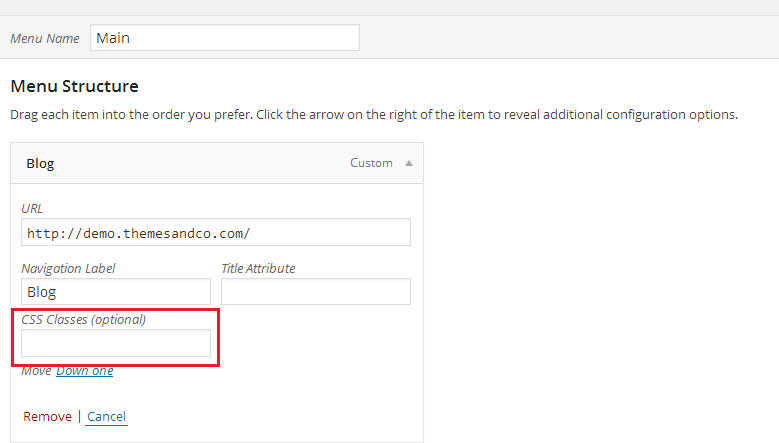
WordPress menus help users navigate a website. They are simple and useful. A menu can have links to different pages. It is easy to create and edit menus. In WordPress, go to the dashboard. Find the Appearance tab. Click on Menus. Here, you can add or remove links. You can also change the order.
Menus make websites user-friendly. They help visitors find what they need. Always keep menus clear and organized. Use short words for menu items. This helps users understand. A good menu improves the visitor’s experience.
Credit: codex.wordpress.org
Creating Menus In WordPress
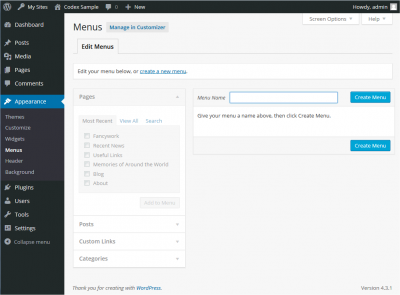
Find the Appearance tab in the WordPress dashboard. Click on it. Select Menus from the list. This opens the menu settings. You can see your current menus here. You can also create a new menu.
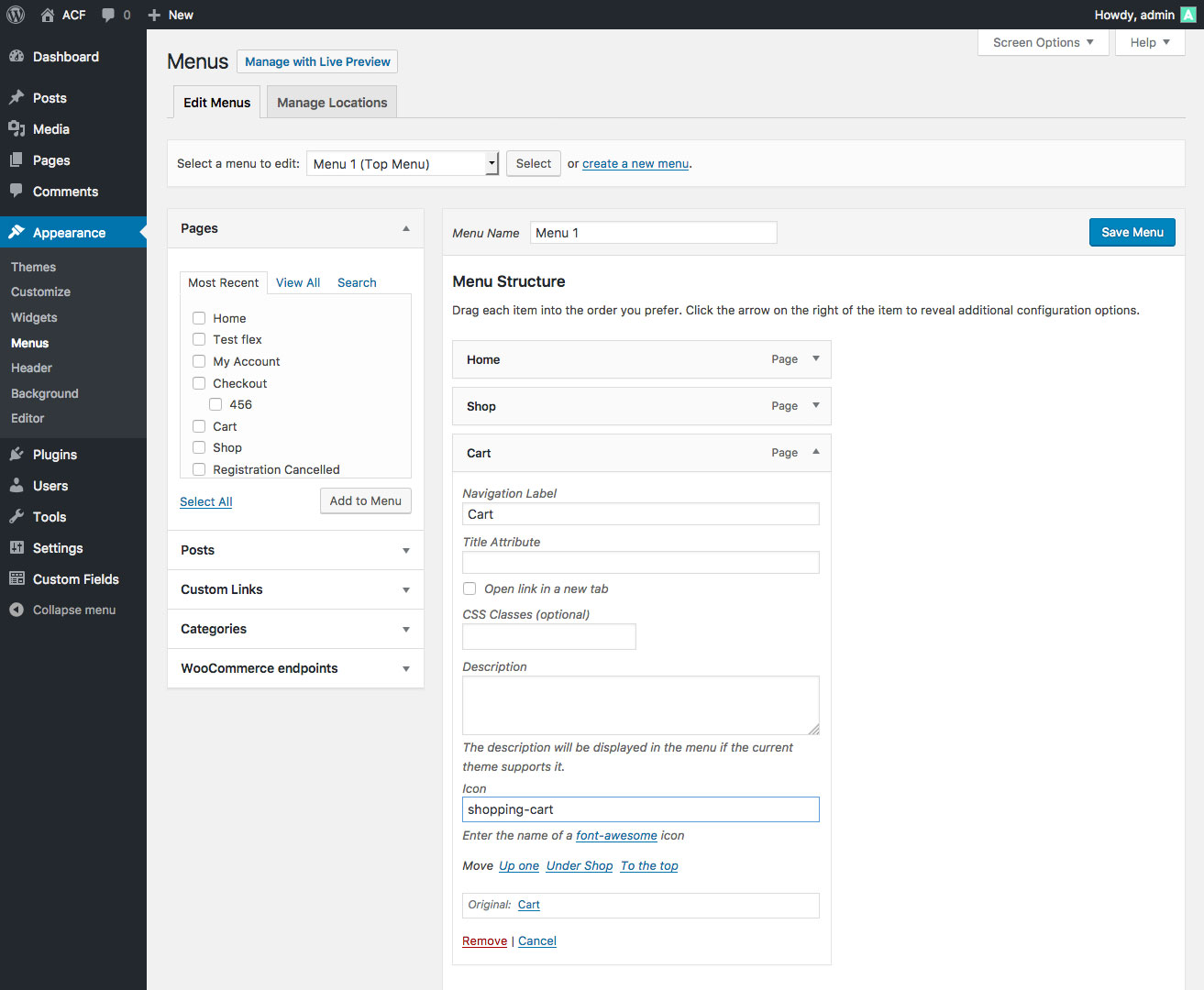
Choose the menu you want to edit. On the left, find Pages, Posts, Custom Links, and Categories. Click the checkbox next to items you want. Then, click Add to Menu. These items will appear in your menu.
Drag and drop items to change their order. Make some items sub-items by dragging them under others. This creates a dropdown menu. Save your changes by clicking the Save Menu button. Your menu is now organized.
Locating Menu Html In WordPress
To find the menu HTML in WordPress, open your website. Right-click on the page and select “Inspect” or “Inspect Element.” Look for the section of code that defines the menu. You will see or
Inspecting Source Code
Use the browser’s inspect tool to see the source code. Find the menu section. This section shows how the menu is structured. You can see the HTML elements that make up your menu.
Understanding Menu Classes
Menu items have specific classes. These classes help style the menu. Classes like .menu-item are common. They make each item look unique. Understanding these classes helps in customizing the menu.
Using Php To Insert Menus
The wp_nav_menu function is a key tool in WordPress. It helps in adding menus to your site. This function uses PHP. It fetches the menu you want to display. You just need to specify the menu name. It is simple and effective.
Menus can look just like you want them to. You can change their style. Use CSS classes to do this. You can add them in the function. This gives you control over the menu design. A good menu makes a site user-friendly.
Styling Menus With Css
CSS helps make menus look nice. Use CSS to style menu parts. List items often make up menus. Target these with the li tag. Change their color, size, and font. Use the class or ID for specific styles. Add styles like hover to make menus interactive. This adds fun effects when you move the mouse over them.
Menus should work on all devices. Use media queries in CSS for this. They help menus adapt to screen size. Large screens show full menus. Small screens need a different layout. Use CSS flexbox or grid for flexible designs. This keeps menus neat and easy to use.
Javascript Enhancements
JavaScript can make a menu lively. Adding interactivity is key. Users love menus that move. They can click and see options. This makes the website fun. A simple menu can turn into a smart menu. It’s all about the code. JavaScript can do magic here.
Adding Interactivity
Buttons and links can change. They can show hidden items. Users feel in control. They can find what they want quickly. This keeps them on the page longer. Simple clicks can open many doors. Interactive menus are cool and useful.
Handling Mobile Menus
Mobile menus need special care. Screens are small. Menus must fit well. JavaScript helps here too. Menus can shrink or slide. This keeps the menu tidy. Users can see everything without scrolling too much. A neat menu is a happy menu.
Troubleshooting Common Issues
Integrating a WordPress menu into HTML enhances website navigation. Use the function to display menus seamlessly. This code snippet ensures easy access to menu items directly from your WordPress database.
Missing Menu Items
Menus sometimes lose items. This can be frustrating. It might be a theme issue. Themes sometimes hide menu items. Check your theme settings. Make sure all items are set to show. Another cause is plugin conflicts. Plugins can hide menu items. Try disabling recent plugins. See if the menu items return. If not, look into your WordPress settings. Ensure each item is properly set. This might solve the issue. Regular checks can prevent missing items. Keep your WordPress updated. This helps avoid conflicts.
Menu Not Displaying
Sometimes, menus don’t display at all. This is a common issue. It might be due to incorrect coding. Check your HTML code. Ensure it’s correct. Themes can also cause display issues. Review your theme settings. Ensure the menu location is set. Plugins may interfere too. Disable plugins one-by-one. See if the menu appears. Incorrect menu settings can hide it. Verify your menu settings in WordPress. Set the menu to display. Regularly update your site. This helps prevent display issues.
Credit: www.advancedcustomfields.com
Frequently Asked Questions
How Do I Add A Menu In WordPress?
To add a menu in WordPress, navigate to Appearance > Menus. Click “Create a new menu,” then add your desired pages or categories. Assign the menu to a location and save changes. This process allows you to customize your site’s navigation easily.
Can I Insert A Menu Using Html In WordPress?
Yes, you can insert a menu using HTML in WordPress. Use the `wp_nav_menu()` function within your theme’s template files. This function helps display WordPress menus with custom HTML, allowing for more precise styling and placement.
Where Do I Find WordPress Menu Settings?
You can find WordPress menu settings under Appearance > Menus in the dashboard. Here, you can create, edit, and manage menus. This section allows you to organize your site’s navigation structure efficiently.
What Is A WordPress Custom Menu?
A WordPress custom menu is a user-created navigation menu. It helps organize your website’s pages, categories, and links. You can create custom menus in the Appearance > Menus section, offering greater control over site navigation.
Conclusion
Understanding how to insert a menu from WordPress is simple. You need the right HTML and a little patience. This process enhances your website’s navigation. It helps users find information easily. A well-structured menu boosts user experience. It keeps visitors engaged longer.
Remember to update menus regularly. This ensures relevant content is always accessible. Keep experimenting with different styles. You’ll find what suits your site best. With these tips, your WordPress menu will shine. Your website will feel complete and functional. More visitors will return.
That’s the goal.