Are you struggling to find the best size for images in WordPress? You’re not alone.
The right image size can significantly impact your website’s speed, appearance, and even your SEO rankings. But here’s the catch—using images that are too large can slow down your site, while images that are too small might appear pixelated and unprofessional.
So, how do you strike the perfect balance? Imagine your website running smoothly with crisp, clear images that catch every visitor’s eye. It’s possible, and it’s easier than you think. We’ll dive into the ideal image sizes for WordPress, helping you optimize your site for both aesthetics and performance. You’ll learn how to enhance your user experience, keep your visitors engaged, and potentially improve your site’s visibility on search engines. Ready to transform your website with the perfect image sizes? Let’s get started!
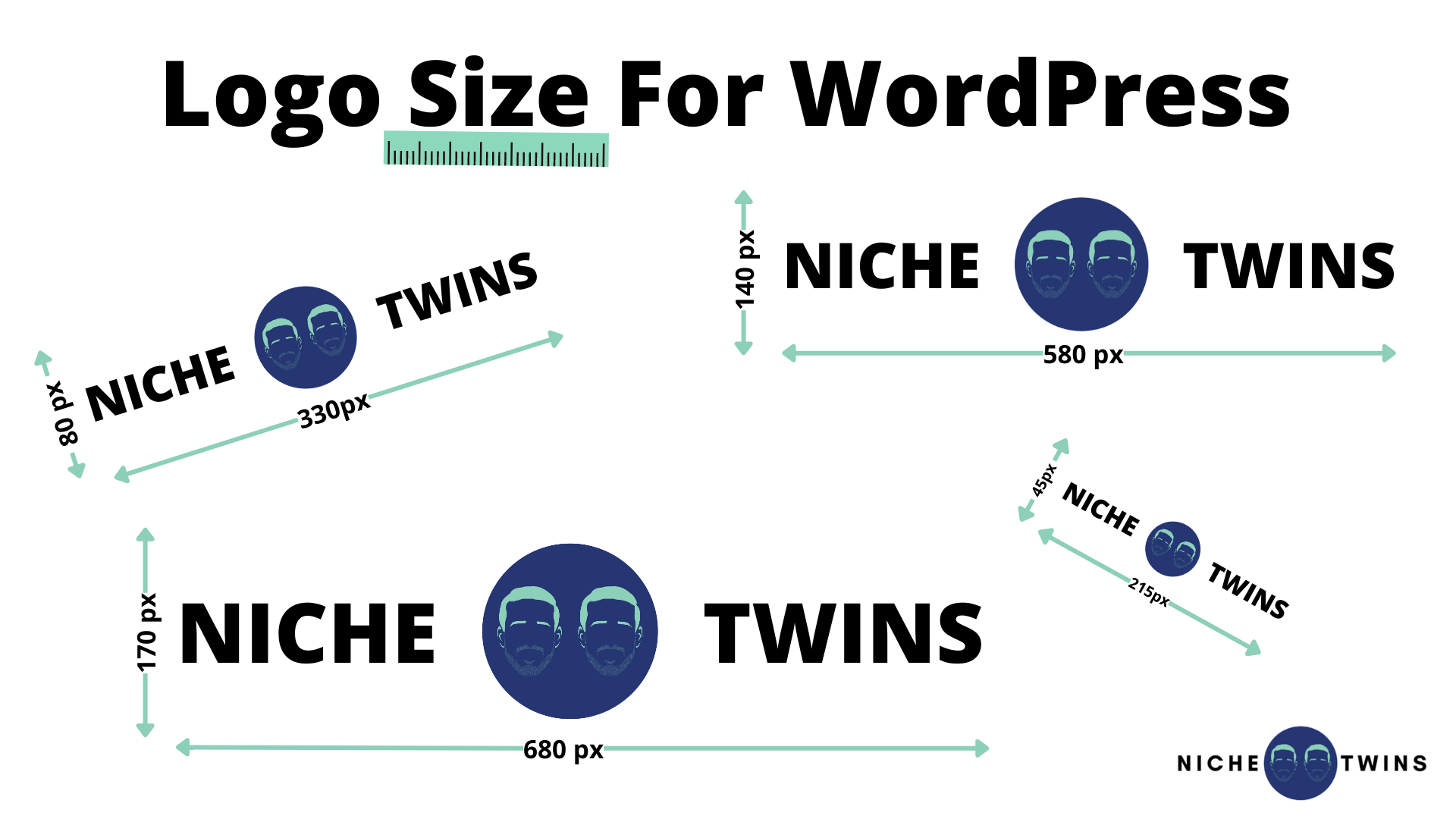
Credit: nichetwins.com
Image Dimensions Basics
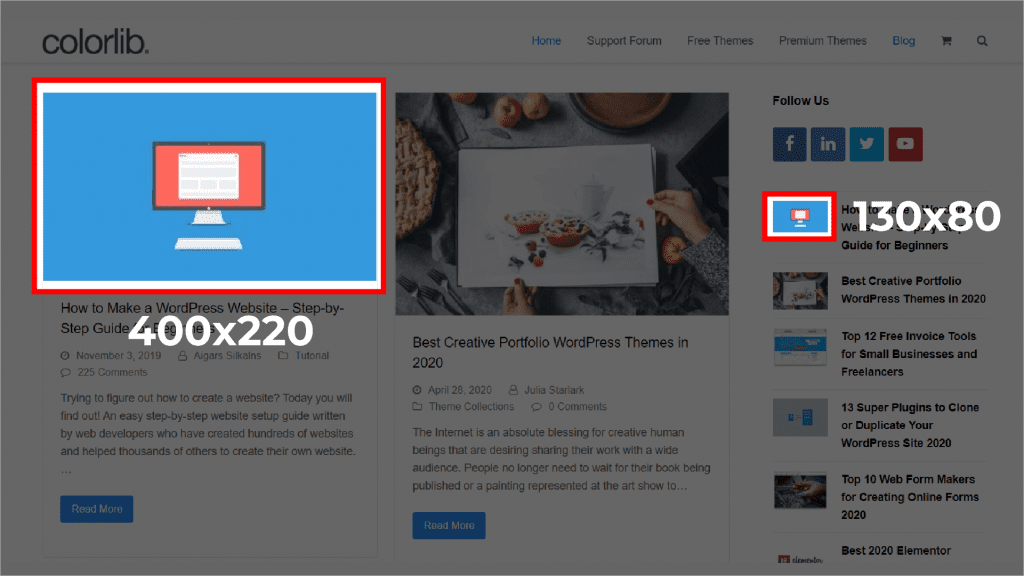
Choosing the right image size is important. It affects loading speed and quality. Small images load faster. Large images look clearer. WordPress suggests three sizes: thumbnail, medium, and large. Thumbnails are 150×150 pixels. Medium is about 300×300 pixels. Large can be 1024×1024 pixels. Pick a size that fits your site. Images should not be too big. Big images slow down your site. Too small and they look blurry. Keep your images balanced. Your site will perform better.
Credit: enginescout.com.au
Common Image Sizes
Thumbnails are small images. They often measure 150×150 pixels. Thumbnails load quickly. They are good for galleries and featured images.
Medium images are larger. They usually are 300×300 pixels. Medium images show more detail. They work well in posts and pages. They balance quality and loading speed.
Large images are even bigger. They can be 1024×1024 pixels. Large images are clear and show fine details. They are good for backgrounds and high-resolution displays.
Full-size images are the largest. They keep the original size. Full images show the best quality. They may slow down the site. Use them for high-quality showcases.
Responsive Design Considerations
Images should be small for mobile devices. Big images slow down pages. This can annoy users. Use compressed images to save space. Try to keep images under 100KB. Smaller images load faster. They make users happy. Faster pages rank better on search engines.
Retina screens need high-quality images. They show more detail. Double the image size for these screens. If an image is 300px wide, make it 600px. This keeps pictures clear and sharp. Use vector graphics where possible. They scale well on all screens. Retina displays are common now. Prepare for them.

Credit: snappa.com
Image File Formats
JPEG is great for photos. It has a small file size. This helps your website load fast. But it can lose some image quality. PNG is different. It keeps all the image details. Use PNG for logos or graphics. It supports clear backgrounds. But PNG files are bigger. Choose wisely based on need.
WebP is a newer format. It combines the best of JPEG and PNG. It has small file sizes and keeps good quality. Many browsers support WebP now. It’s a good choice for faster websites. Check if your visitors use browsers that support WebP. This format can be a smart choice for web images.
Image Optimization Techniques
Compression tools help reduce image sizes. Smaller images load faster. Faster sites rank better on search engines. Use tools like TinyPNG or JPEGmini. These tools are easy to use. Choose the right format: JPEG for photos, PNG for graphics. This choice affects quality and size. Smaller images save space. They improve user experience. Users hate slow websites. Large images slow sites down. Keep images below 100 KB for best results.
Lazy Loading delays image loading. Images load only when needed. This speeds up page load times. Users see text first, then images. This method improves performance. Lazy loading is easy to set up. Many plugins are available. Most are free. They work well with WordPress. Lazy loading reduces server load. This leads to smoother browsing. Pages feel faster. Visitors stay longer. Happy users return often.
Seo And Image Sizes
Alt text helps search engines understand images. It boosts SEO. Words in alt text should be simple. Describe the image clearly. Use keywords wisely. Keywords should not be forced. Accessibility improves with alt text. Users with visual impairment benefit. Alt text is vital for them. It enhances user experience. Search engines rank pages better with good alt text.
Large images slow down websites. Page load speed is crucial. Compress images to reduce size. Use tools like TinyPNG. Faster pages rank better in search results. Visitors leave slow websites. Optimize image sizes for better performance. Proper image size helps in user satisfaction. Web pages should load quickly. Speed impacts bounce rates too. Always aim for fast loading pages.
Plugins For Image Management
Many plugins help optimize images on WordPress. Smush is one popular choice. It compresses images without losing quality. Another is Imagify, which offers different compression levels. EWWW Image Optimizer is also favored by users. It optimizes images in bulk. These plugins save space and improve loading times.
Resizing tools are important for image management. Resize Image After Upload automatically resizes large images. Regenerate Thumbnails helps in adjusting thumbnails. ImageMagick is a powerful tool for resizing and editing. These tools ensure images are the right size. They help in maintaining the website’s speed and efficiency.
Testing And Adjustments
Choosing the right image size for WordPress can enhance site speed and user experience. Try using optimized images that balance quality and loading time. Regularly test different sizes to find what works best for your site’s layout and design.
Checking Image Quality
Images need to be clear. Blurry photos look bad. Use high-quality images. Check each image carefully. Make sure the colors are right. Look at the details. Zoom in if needed. Good quality images make your site look professional. Always aim for sharpness. Clear images attract visitors.
Adjusting For Performance
Large images can slow down websites. Fast sites are better. Resize images to a smaller size. This helps speed. Use tools to compress images. Smaller files load faster. Check your site’s speed often. Make changes if needed. Fast loading images keep users happy. Happy users stay longer.
Frequently Asked Questions
What Is The Optimal Image Size For WordPress?
The optimal image size for WordPress depends on your theme. Commonly, 1200×628 pixels works well for most themes. This size ensures clarity and fast loading times. Always check your theme’s documentation for specific recommendations to ensure the best performance and appearance on your website.
How Do I Resize Images For WordPress?
To resize images for WordPress, use an image editing tool like Photoshop or online tools like Canva. Adjust dimensions to recommended sizes like 1200×628 pixels. After resizing, compress the image using plugins like Smush or TinyPNG for faster loading times without sacrificing quality.
Why Is Image Size Important In WordPress?
Image size affects your website’s loading speed and user experience. Large images can slow down your site, negatively impacting SEO and user retention. Properly sized images ensure faster loading times, better performance, and enhanced visual appeal, contributing positively to both user experience and search rankings.
Can Large Images Affect WordPress Performance?
Yes, large images can significantly impact WordPress performance. They increase page load times, leading to slower website speeds. This can deter visitors and negatively affect SEO. By optimizing and compressing images, you enhance loading speed and overall site performance, improving user satisfaction and search engine rankings.
Conclusion
Finding the right image size for WordPress enhances your site’s appeal. Choose dimensions wisely to ensure fast loading and clear visuals. Consider your theme and layout for optimal display. Resize images before uploading for better performance. Large files can slow down your site.
Compress images to maintain quality. Use a plugin for easy image optimization. Keep images crisp and engaging. Your site will look professional and load faster. Proper image sizing improves user experience and SEO. Visitors appreciate a visually pleasing, quick site.
Make your WordPress images work for you.