Have you ever wondered what a “Page” is in WordPress and how it differs from a “Post”? If you’re diving into the world of WordPress, understanding the difference is crucial for building a well-organized website.
Imagine having a neat and tidy space where your most important information is easily accessible. That’s exactly what a Page can do for you. It acts as a static section on your site, perfect for timeless content like your “About” or “Contact” information.
Are you ready to unlock the power of Pages and elevate your website experience? Let’s explore together how mastering this simple concept can transform your site into a user-friendly haven.
Understanding WordPress Pages
WordPress pages are different from posts. Pages are static. They don’t change often. Think about an “About Us” page. It stays the same. Posts are for news or updates. Pages are for important information. Each page is separate. They don’t have dates. You can make a homepage a page. Or a contact page. Pages don’t use categories. They don’t use tags. You can have many pages. All pages are easy to find. They can be in a menu. You can link them together.
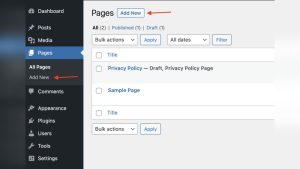
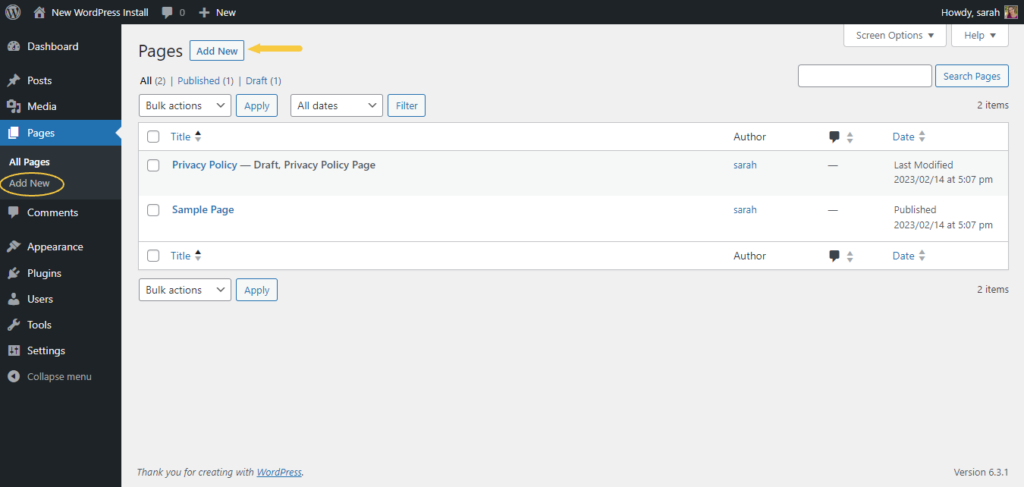
Creating a page is simple. Go to the dashboard. Click on “Pages.” Then, click “Add New.” Type a title. Write your content. Publish when ready. Pages make websites look professional. They keep information organized. Remember, pages are for information. Not for news.
Credit: solidwp.com
Differences Between Pages And Posts
Pages and Posts in WordPress are different. Pages are static. They don’t change often. Posts are dynamic. They update regularly. Pages have a timeless nature. Posts are timely and news-like. Pages are not part of a blog. Posts are part of a blog. Pages are for essential information. Posts share news or stories.
Pages do not have categories. Posts have categories and tags. Pages have no date. Posts have a date. Pages are for things like contact info. Posts are for updates and events. Pages can be used for an About page. Posts can be used for blog articles.
Pages are not social. Posts can be shared. Pages are for static content. Posts are for dynamic content. Pages are not archived. Posts are archived. Pages are for key details. Posts are for recent happenings.
Creating A New Page
Accessing the WordPress Dashboard is the first step. Use your browser to open WordPress. Enter your username and password. You will see the dashboard. It is your control center. From here, you can manage your site.
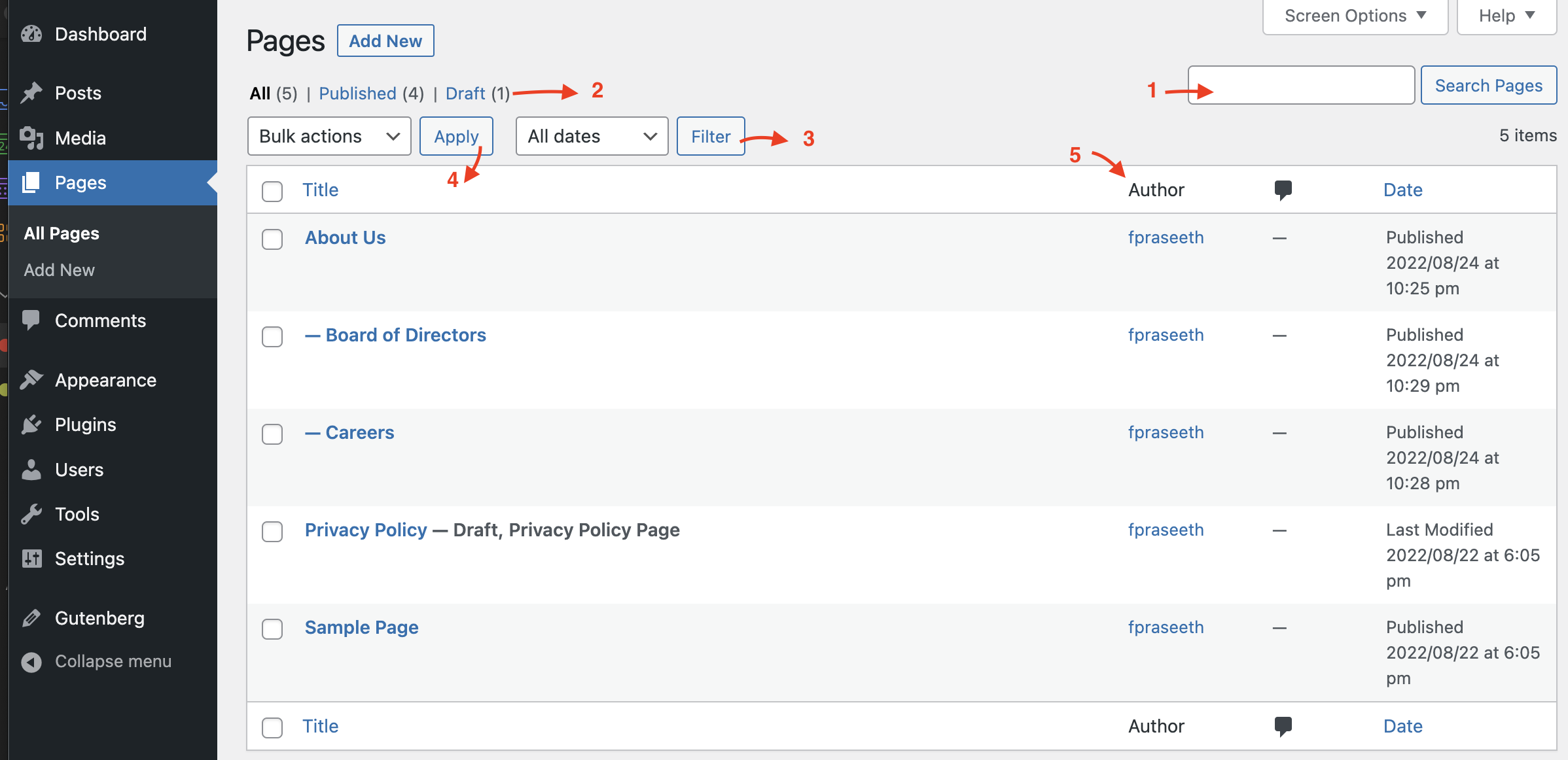
Navigating to Pages is easy. Look at the left menu. Find the “Pages” option. Click on it. You will see all your pages. This is where you can make changes.
Adding a New Page is simple. Click on “Add New.” You will see a blank page. Give it a title. Write your content in the box. You can add images and links. Click “Publish” to make it live.
Customizing Page Layouts
WordPress offers many page templates to change how pages look. These templates can make each page unique. You can choose a template for a special look. Templates help in showing different styles. Some templates are simple. Others are fancy. You can pick one that matches your website’s theme. This makes your site more personal. It is easy to switch templates. Just a few clicks, and it’s done.
Page builders are tools to design pages easily. They let you drag and drop items. You can add pictures and text blocks. They help in making pages fast. With them, you don’t need to code. Popular page builders are Elementor and Beaver Builder. They have many options. You can create pretty pages with them. It’s like playing with blocks. You just arrange them as you like.
Managing Page Settings
A page in WordPress serves as a static content holder, ideal for information that doesn’t change frequently. Examples include contact information or an about section. Unlike posts, pages do not appear in the blog feed and maintain a timeless presence on your site.
Adjusting Visibility Options
WordPress lets you control who sees your page. Choose public for everyone to see. Private pages are only for you and logged-in users. Password-protected pages need a code to view. Pick what fits your needs. This is important for privacy. Make sure you understand each option. Each setting has a purpose. Visibility is key. Control who can see your content. It’s easy to change these settings. Make sure to save your changes.
Setting Parent Pages And Order
Parent pages help organize your site. Choose a parent for your page. This makes navigation simple. Order decides where a page appears. Use numbers to set order. Lower numbers appear first. This helps users find pages easily. Organize your site well. Keep things tidy. Users like clear navigation. Structure is important. Make sure pages are easy to find. Page order affects user experience. Set parent pages wisely. Help users find what they need.
Credit: wordpress.org
Seo For WordPress Pages
Page titles help users find your content. Choose keywords wisely. Keywords should match what people search. This helps search engines show your page. Keep titles short and clear. Avoid confusing words. Titles should reflect the page’s content. Users should understand the page from the title. Easy, right?
Meta descriptions appear under titles in search results. They give a brief summary of the page. Use simple language. Make them interesting to read. Encourage users to click. Use keywords but don’t overdo it. Keep them under 160 characters. Search engines like that. Make every word count.
Best Practices For Page Design
Consistency is key in page design. It helps users feel comfortable. Use the same fonts and colors for every page. This makes the website look uniform. Repeat important elements like buttons and links. Place them in similar spots. This helps visitors find things easily.
Websites should work well on all devices. Use responsive design to make this happen. Design for computers, tablets, and phones. Pages should look good on small screens too. Images need to resize themselves. Text should be easy to read. This keeps users happy.

Credit: www.elegantthemes.com
Frequently Asked Questions
What Is A Page In WordPress?
A Page in WordPress is a static content type used for timeless information like About Us or Contact. Unlike posts, pages don’t appear in reverse chronological order. They are ideal for content that doesn’t change frequently and don’t belong to blog categories.
How Do Pages Differ From Posts?
Pages differ from Posts in their purpose and display. Posts are dynamic and appear in chronological order. Pages are static and used for timeless content. Pages don’t belong to categories or tags, while posts do. This makes pages suitable for permanent information like contact details.
Can Pages Have Comments In WordPress?
By default, Pages in WordPress don’t have comments enabled. However, you can enable comments manually in the Page settings. This allows visitors to interact with the content. Enabling comments can be useful for feedback on static information.
How To Create A Page In WordPress?
To create a Page in WordPress, go to the Dashboard. Click on ‘Pages’ and then ‘Add New’. Enter your title and content in the editor. After editing, click ‘Publish’ to make the page live. It’s a straightforward process similar to creating a post.
Conclusion
Understanding pages in WordPress helps build better websites. Pages are static content, unlike posts. They enhance organization and structure on your site. Perfect for information that doesn’t change often. For example, About or Contact pages. Simple to create and manage.
They don’t appear in your blog feed. Ideal for essential details. Knowing the difference between pages and posts is crucial. This knowledge improves your site’s layout and user experience. As you design your site, consider the role of pages. They maintain clarity and focus.
Use pages wisely. Your website’s success may depend on it.