Imagine you’re ready to dive into your WordPress site, eager to manage content or tweak settings. But first, you need to log in.
What does that login page look like, and why does it matter to you? Understanding the WordPress login screen is crucial, whether you’re a seasoned developer or a blogging newbie. This gateway to your website isn’t just functional; it’s the first step in securing your digital space and ensuring a smooth user experience.
By the end of this article, you’ll know exactly what to expect when you approach your WordPress login and how it can be customized to meet your needs. Ready to unlock the secrets behind this seemingly simple screen? Let’s explore together.
WordPress Login Page Basics
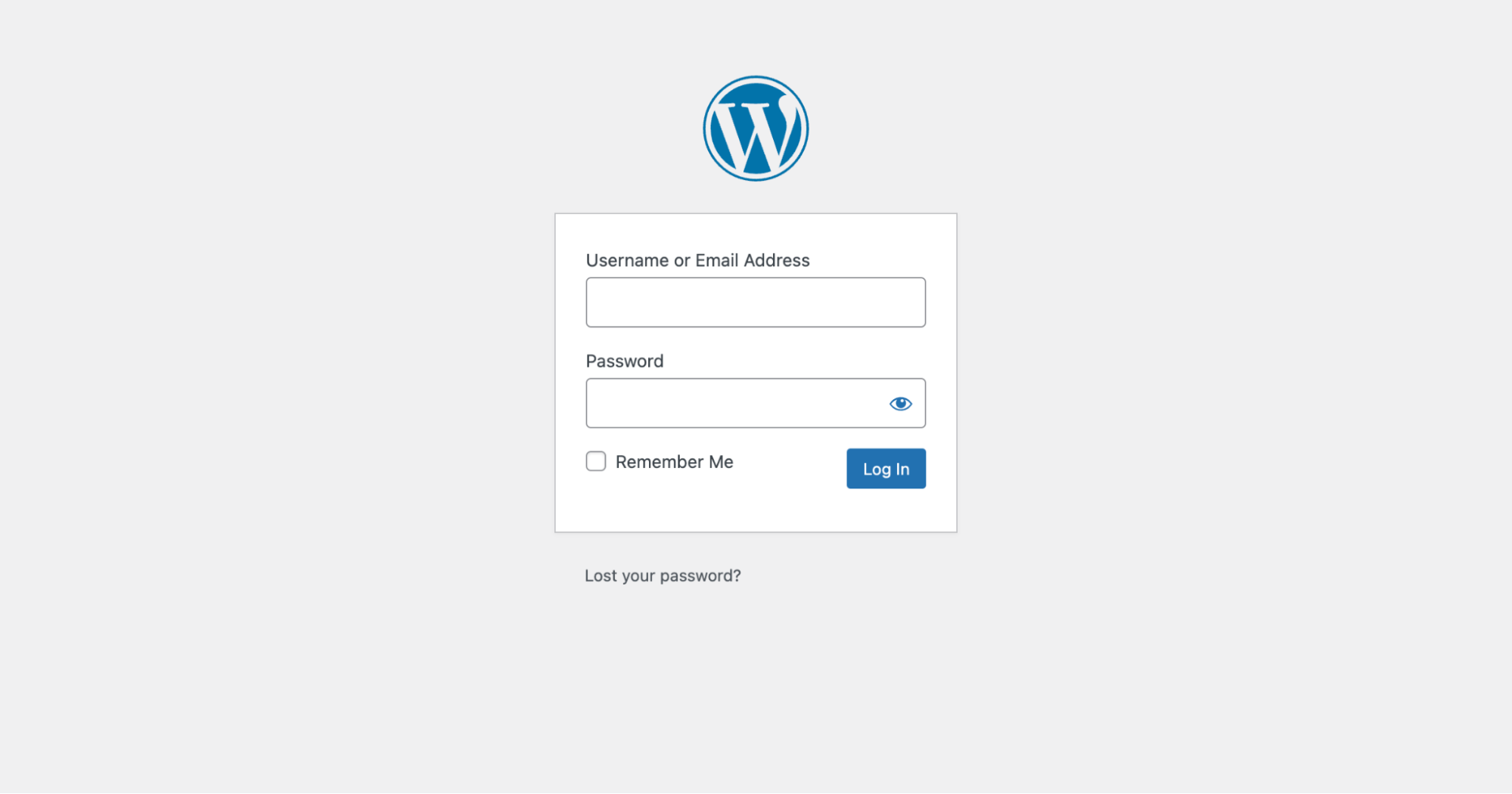
The WordPress login page is simple. Users see two fields. One for username and another for password. Below these fields, there’s a login button. You must click this to enter. Sometimes, you might see a Remember Me checkbox. This keeps you logged in longer.
If you forget your password, there’s a link. The link reads Lost your password? Clicking it will help you reset. The page often shows a logo. This can be customized. Many sites add their own logo here. The background is usually white. But it can be changed by site owners.
Credit: elementor.com
Key Features Of The Login Interface
The WordPress login page is simple and clear. Users see a white background with a WordPress logo at the top. Below the logo, there are two fields. One for username and the other for password. Users can find a “Remember Me” checkbox below the fields. It helps users stay logged in.
A “Log In” button is present to submit the details. If users forget their password, a “Lost your password?” link is available. This link helps in resetting the password.
The page is designed for easy navigation. Users can access their dashboard quickly. The layout is consistent and user-friendly. This helps new users feel comfortable. The login process is simple yet secure.
Customization Options
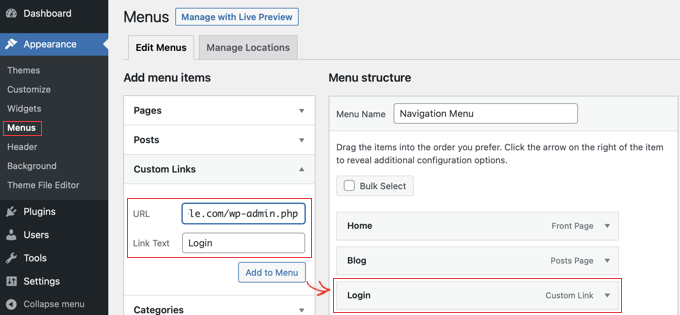
Use your own logo on the WordPress login page. This helps with branding. Go to the theme customizer. Then select the “Site Identity” option. Upload your logo there. Make sure the logo is clear. Your users will recognize it easily.
Change the background color to match your brand. Select the “Colors” option in the customizer. Pick a color that fits your style. Change the font style too. Make sure it is easy to read. Users should feel welcome on your login page.
Add a friendly welcome message. This can make users happy. Go to the login page settings. Find the option to add a message. Keep it short and sweet. Users will feel appreciated. A little message goes a long way.
Credit: www.wpbeginner.com
Security Measures
Two-factor authentication adds an extra layer of security. You need a code from your phone. This makes it hard for hackers to get in. Even if they have your password, they need your phone too. It’s like having two locks on a door. This keeps your WordPress site safer.
CAPTCHA is a tool to stop bots. It shows puzzles or words to type. Only humans can solve them easily. This stops bots from logging in. It’s a simple, yet effective way to protect your site. CAPTCHA helps keep automated attacks away.
Limiting login attempts means you can only try a few times. If you enter the wrong password too many times, you get locked out. This stops hackers from guessing passwords. It keeps your account safe. Limiting attempts helps protect against brute force attacks.
Troubleshooting Common Issues
Forgotten passwords are frustrating. Use the “Forgot Password” link on the login page. Enter your email address. Check your email for a reset link. Click it to create a new password. Make sure it’s strong but easy to remember. Avoid using your old password again.
Sometimes, login redirects cause confusion. Check your browser settings. Ensure cookies are enabled. Clear your browser cache regularly. This helps prevent redirect issues. Try logging in with a different browser. Update your browser if needed. This can solve many problems.
Errors happen. Try refreshing the page first. Check your internet connection. Make sure it’s stable. Look for error codes. Each code has a meaning. Search online for solutions. Sometimes plugins conflict. Disable unnecessary plugins. This often fixes errors quickly.
Plugins For Enhanced Login
Websites need to be safe. Security plugins help protect your site. They stop bad people from entering. This keeps your information safe. Some plugins can even alert you. They tell you if someone tries to break in. It’s like having a security guard for your site. Many people use these plugins. They are very important for all websites.
Design plugins help your login page look nice. You can change colors and fonts. Make your page unique. Customization plugins let you add your logo. This makes your site special. You can make login pages look just the way you want. This is fun and easy with these plugins. Many sites use them for a great first impression.
User management plugins help with user accounts. They let you control who can log in. You can create new user roles. This helps keep your site organized. It’s easy to manage users with these plugins. They make sure everyone has the right access. These tools are important for big websites. They help keep everything in order.
Best Practices For Login Management
Keeping your WordPress updated is crucial. Updates fix bugs and improve security. New features also come with updates. Set a schedule for updates. Automatic updates can be helpful. Remember, plugins need updates too. Check for updates often. This ensures your site runs smoothly.
Assign roles carefully. Admin roles have full access. Editor roles can change content. Subscriber roles can read posts. Know who has access. Limit roles to what is needed. This protects your site. Review roles regularly. Adjust roles as needed. Keeping roles managed is important.
Backing up your site is essential. Use backup plugins to save data. Cloud storage is a good option. Backups protect against data loss. Schedule backups often. Store backups safely. This ensures you can restore your site. Backups keep your site safe and secure. Never forget to backup.

Credit: www.greengeeks.com
Frequently Asked Questions
How To Access The WordPress Login Page?
To access the WordPress login page, add “/wp-login. php” to your site’s URL. For example, if your site is “example. com,” the login URL will be “example. com/wp-login. php. ” This page allows you to enter your credentials to access your WordPress dashboard.
What Does The WordPress Login Screen Include?
The WordPress login screen includes fields for your username and password. You’ll also find a “Remember Me” checkbox and a “Lost your password? ” Link. This simple design ensures easy access to your WordPress dashboard while maintaining security.
Can I Customize The WordPress Login Page?
Yes, you can customize the WordPress login page. Many plugins allow you to change its appearance, add logos, or even redesign it completely. This is useful for branding purposes and creating a more personalized user experience.
Why Can’t I Access My WordPress Login Page?
If you can’t access your WordPress login page, check your internet connection and URL accuracy. Sometimes, security plugins or server issues might block access. Also, ensure your site isn’t down or experiencing technical issues.
Conclusion
Exploring the WordPress login page helps users understand its features. It offers a simple design that makes navigation easy. Users can quickly enter their credentials to access their site. This login page is crucial for maintaining site security. Its straightforward layout supports user efficiency.
Regular updates improve its functionality. Beginners find it user-friendly and easy to navigate. WordPress ensures a reliable and secure login process. Understanding its layout boosts confidence in managing your site. It’s an essential tool for all WordPress users.