Have you ever wondered what lies beneath the sleek and polished exterior of your WordPress site? Imagine having the power to peek behind the curtain and explore the intricate web of files and data that bring your website to life.
Through the lens of File Manager, you can uncover the hidden layers of your WordPress site, gaining insights that could transform the way you manage and customize your online presence. Understanding what a WordPress site looks like through File Manager can empower you to take control, make informed decisions, and optimize your site for better performance.
This isn’t just technical jargon; it’s a real opportunity to enhance your website’s functionality and security. Dive into this article and discover how demystifying the structure of your WordPress site can unlock new potentials for your online journey. Are you ready to explore the unseen and harness the full power of WordPress? Keep reading to find out more.
WordPress File Structure
Core files are important. They help WordPress work. These files include wp-config.php and wp-settings.php. They set up the site. They also connect to the database. Without these files, WordPress won’t run. Always be careful with them. Changing them can break your site.
Themes give your site its look. The themes directory holds them. Each theme has its own folder. Inside, you’ll find style.css and functions.php. These files control how your site looks and works. You can change themes easily. Just pick one from this directory.
Plugins add features to your site. The plugins directory keeps them organized. Each plugin has its own folder. It includes PHP files and sometimes JavaScript. Plugins can do many things. Like adding contact forms or boosting SEO. You can activate or deactivate them anytime.
The uploads folder stores media files. Images, videos, and PDFs go here. Every upload makes a new file. WordPress organizes them by year and month. This helps find files quickly. Always keep this folder tidy. Too many files can slow down your site.
Credit: www.wordfence.com
Common File Types
PHP files are the heart of WordPress. They run the site. Functions, themes, and plugins use PHP. PHP files often end with .php. They tell WordPress how to act.
CSS files style the site. They change colors and fonts. They end with .css. JavaScript files add action. They make buttons work. These files often end with .js.
Images make the site pretty. They can be logos, photos, or icons. Common types are .jpg, .png, and .gif. These files help the site look nice.
Configuration files set rules. They control access and settings. A key file is wp-config.php. This file holds database info. It is very important.
Navigating File Manager
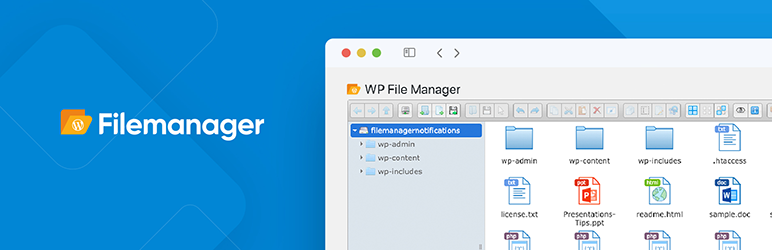
File Manager is a tool to see your website files. It’s found in your hosting panel. You need to log in to your hosting account first. Look for the File Manager icon. Click it to open. Now, you can see all your site files.
Websites have a directory hierarchy. It looks like a tree. Folders contain files. The main folder is called root. Inside root, find folders like wp-content and wp-includes. Each folder has a role. They keep your site organized.
Some files are very important. wp-config.php is one. It holds settings for your site. .htaccess is another. It helps with site rules. index.php is important too. It shows your main page. Knowing these helps manage your site.
Credit: wordpress.org
Modifying WordPress Files
Themes are the face of your WordPress site. You can change colors and fonts in theme files. Look for files with names like style.css or index.php. Templates control page layouts. They often have names like header.php or footer.php. Small changes can make big differences.
Plugins add special features to your site. Each plugin has its own folder. Files inside these folders can be edited. This lets you change how plugins work. Always be careful with changes. Wrong edits can break your site. Backup files before changes.
Media files are images, videos, and sounds. They make your site look nice. You can find them in the uploads folder. Organize them by year and month. This helps you find files quickly. Keep file names simple and clear. This helps with SEO.
Best Practices For File Management
Backing up files is very important. You never know when something goes wrong. It helps save your site data. Use tools to make automated backups. Keep copies in different places. Cloud storage is good for safety.
Protect your files from bad people. Use strong passwords for FTP access. Keep plugins and themes up-to-date. This prevents hackers from breaking in. Install security plugins to guard your site. Always be careful.
Do not delete files you need. Sometimes, important files get removed. Check before deleting anything. Make sure you have a backup first. Avoid changing file names without knowing effects. Wrong names can break your site. Always be cautious.

Credit: wordpress.org
Frequently Asked Questions
What Files Make Up A WordPress Site?
A WordPress site consists of PHP files, CSS files, JavaScript files, and HTML files. It also includes media files like images and videos. The core files, themes, and plugins are stored in the wp-content, wp-includes, and wp-admin directories.
How To Access WordPress Files In File Manager?
To access WordPress files, log into your hosting account’s File Manager. Navigate to the public_html or www directory. Here, you’ll find your WordPress files organized in various folders and files, including wp-content, wp-includes, and wp-admin.
What Is The Wp-content Folder?
The wp-content folder stores all your WordPress themes, plugins, and uploads. It’s a crucial folder for customizing your site’s appearance and functionality. You can modify or add themes and plugins here to enhance your site’s features and design.
Can I Edit WordPress Files Directly?
Yes, you can edit WordPress files directly using File Manager. However, it’s recommended to backup files first. Direct editing can affect your site’s functionality. Use it for minor changes or debugging. For major changes, use a child theme or custom plugin.
Conclusion
Exploring a WordPress site through File Manager offers valuable insights. You see the structure and files that power your site. Understanding this setup helps manage your website better. You can find important files and make necessary changes. This knowledge simplifies troubleshooting.
It also aids in optimizing your site’s performance. Regularly check your file structure to maintain order. This ensures your site runs smoothly. Remember, a well-organized site is key to success. Take time to learn and explore your site’s files. It pays off in site efficiency and ease of management.