Ever tried to make changes to your WordPress site and suddenly hit a wall with a “405 Not Allowed” message? Frustrating, right?
You’re not alone. Many WordPress users encounter this issue, and it can be a real head-scratcher. But don’t worry, you’re about to uncover the mystery behind this error. Understanding what “405 Not Allowed” means can save you time, reduce stress, and even prevent potential damage to your website.
Imagine effortlessly managing your site without these annoying roadblocks. Sounds great, doesn’t it? Stick around, and you’ll learn not only why this error occurs but also how to fix it quickly. Your website is your digital storefront, and ensuring it runs smoothly is crucial for your success. So, let’s dive in and tackle this problem together!
405 Error Basics
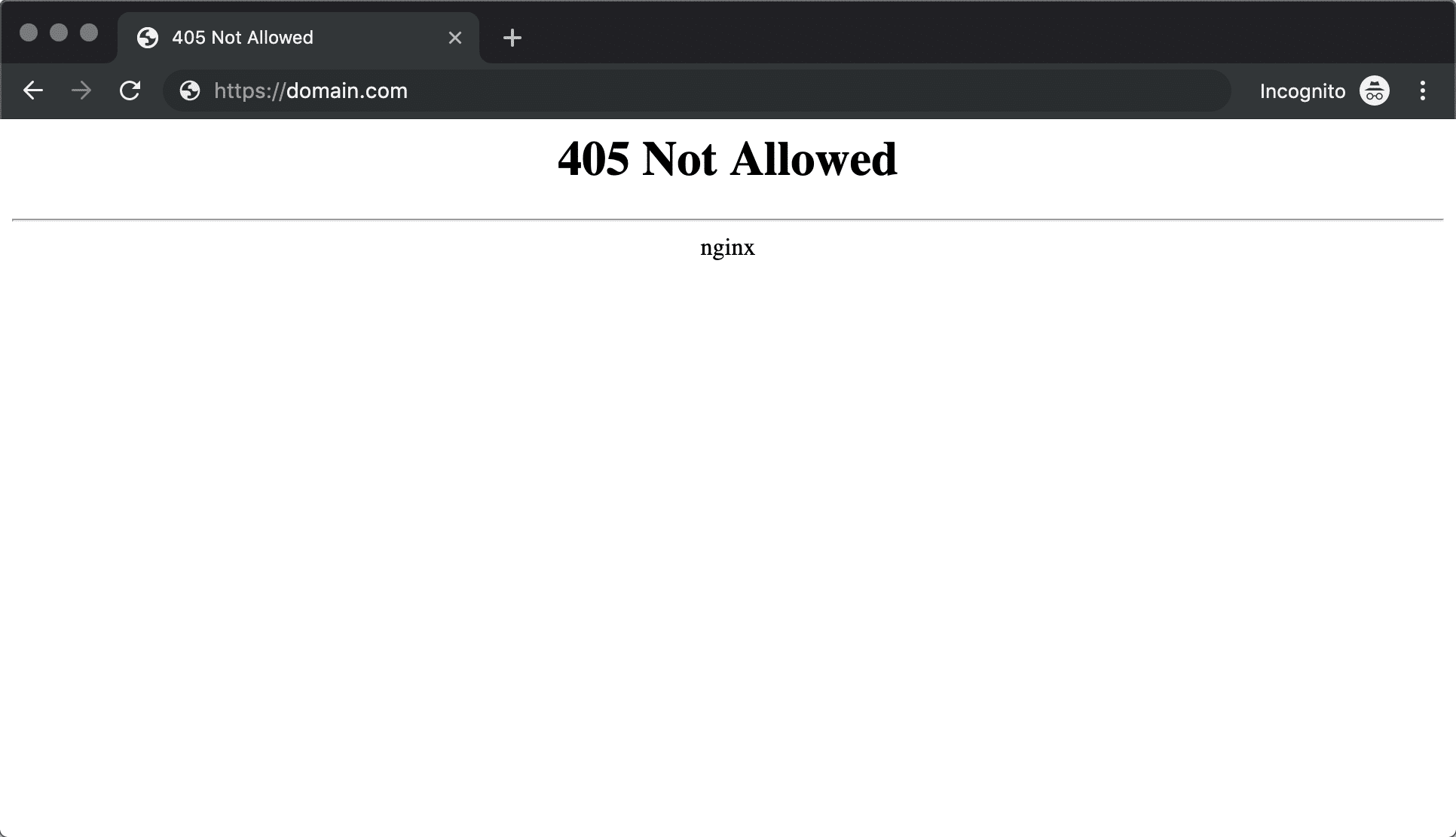
The 405 Not Allowed error shows when a request can’t be processed. This happens if the server doesn’t allow the method used. For example, a website might not allow POST requests. It shows this error to stop unwanted actions.
Many things cause the 405 Error. Misconfigured servers are common. If the server settings are wrong, errors appear. Incorrect URL requests also trigger this error. Sometimes, plugins conflict and cause it. Faulty coding can lead to this problem too.
Credit: kinsta.com
WordPress And 405 Error
Plugins can cause the 405 error in WordPress. Some plugins may conflict with each other. This can block certain actions, causing errors. Updating plugins is important. Old plugins might not work well. This can lead to problems. Using too many plugins also can be risky. They might slow the site. Or cause errors like 405 Not Allowed.
Themes might conflict with WordPress settings. This can cause the 405 error. Changing themes can sometimes solve this. Themes and plugins must work together. If they don’t, errors can occur. It’s important to choose compatible themes. This helps avoid issues. Always check theme updates. They can fix bugs. Themes affect how your site works. So, choose carefully.
Server settings play a big role. Wrong settings can cause 405 errors. Check if your server allows certain actions. Some actions might be blocked. Talk to your hosting provider for help. They can check server settings. Proper settings can solve many problems. Servers must be set up correctly. This helps your site run smoothly.
Troubleshooting Steps
Check if the server is blocking the request. Look at the server logs. See if there’s any info on the error. Sometimes, certain rules in the server can cause issues. Try to find which rule is causing the problem.
Deactivate all plugins first. Then, activate them one by one. This way, you can see which plugin causes the error. Some plugins don’t work well with others. It’s important to find the one that is causing trouble.
Change the theme to a default one. See if the error goes away. Sometimes, custom themes have errors. Review the theme settings and codes. Ensure they are set up correctly.
Server-side Solutions
The .htaccess file controls how your server behaves. Errors can occur if this file has incorrect settings. Open your WordPress root directory to find it. Edit it with care. Add or remove rules as needed. Save changes after editing. Check if the error is gone. The .htaccess file is a powerful tool. Use it wisely to fix errors.
Server permissions allow files to be read or written. Wrong settings cause errors. Check file permissions using an FTP client. Common settings are 755 for folders and 644 for files. Change permissions if needed. This can solve the 405 error. Always double-check your settings. Correct permissions are vital for security.
Sometimes, the hosting provider can help. Reach out for support if you can’t fix the error. Explain the problem clearly. They have tools to check server settings. Hosting providers have technical teams. They can find issues quickly. Use their expertise for complex problems.
Preventive Measures
Keeping your WordPress updated is essential. It helps fix bugs and improve security. Always check for new versions. Updating plugins and themes is important too. New updates often include better features and security patches. Regular updates can prevent many issues. This is a simple step to keep your site safe.
Creating backups is crucial. Backing up your site means saving all your important data. Use backup plugins for WordPress. They make the process easy. Schedule regular backups to avoid data loss. Keep your backups in safe places. Cloud storage is a good option. Backups can save you from big problems.
Security is vital for WordPress sites. Use strong passwords for your accounts. Avoid using simple passwords like “123456.” Install security plugins. They help protect your site from hackers. Scan your site regularly for threats. Keep your site clean and free from malware. Good security practices keep your site safe.

Credit: stackoverflow.com
When To Seek Professional Help
Encountering a 405 Not Allowed error on WordPress can be frustrating. Sometimes fixing it by yourself might not work. Professional help becomes essential when the error persists. Experts can dig deeper into the issue. They know how to handle complex coding problems. Hiring a developer can save time and stress. They ensure your website runs smoothly. They fix errors without damaging other parts of your site.
Security concerns arise if the error is linked to unauthorized access. This is another reason to seek help. Professionals can strengthen your site’s security. They protect it from future threats. Website performance issues might also need expert attention. They can optimize your site for better speed. A well-running site attracts more visitors. It keeps them engaged longer.
Credit: www.swhosting.com
Frequently Asked Questions
What Is The 405 Error In WordPress?
The 405 error in WordPress means a method is not allowed. It occurs when a server rejects a specific HTTP request method. Commonly, it results from incorrect configurations or plugin conflicts. Resolving it involves checking server settings, plugins, and themes for compatibility issues.
Debugging can help identify the exact cause.
How To Fix 405 Not Allowed Error?
To fix the 405 Not Allowed error, check your server configuration. Ensure that your HTTP methods are correctly set up. Examine plugins and themes for conflicts. Clear your browser cache and cookies. Consult your hosting provider for server-side issues. Regular maintenance can prevent recurring errors.
Why Does 405 Not Allowed Occur?
The 405 Not Allowed error occurs due to incorrect HTTP method usage. It often results from misconfigured server settings or plugin conflicts. It signifies that the server understands the request but refuses to authorize it. Identifying the root cause requires checking server configurations and WordPress plugins.
Can Plugins Cause 405 Error In WordPress?
Yes, plugins can cause the 405 error in WordPress. Some plugins may conflict with server settings, leading to method restrictions. Deactivating suspicious plugins can help identify the culprit. Regularly updating plugins and themes can minimize compatibility issues. Always back up your site before making changes.
Conclusion
Understanding the 405 Not Allowed error in WordPress is crucial. It often indicates a server issue or misconfigured plugin. Fixing it might involve checking file permissions or deactivating plugins. Regular updates can prevent such errors. This keeps your site running smoothly.
Always back up your site before making changes. This ensures you can restore it if needed. Troubleshooting might seem tricky. But it’s manageable with patience and care. Your website deserves the best attention. Happy blogging and error-free WordPress experience!