You’re working on your WordPress site, eager to publish new content, and then, out of nowhere, you encounter the dreaded “500 Internal Server Error.” It’s frustrating, confusing, and can leave you feeling helpless.
But don’t worry! You’re not alone in facing this common issue. This error can disrupt your site and potentially affect your visitors’ experience, but understanding its causes can empower you to fix it swiftly. You’ll discover the reasons behind the 500 Internal Server Error on WordPress and learn practical solutions to get your site back on track.
Stay with us, and you’ll soon be equipped to tackle this problem like a pro.
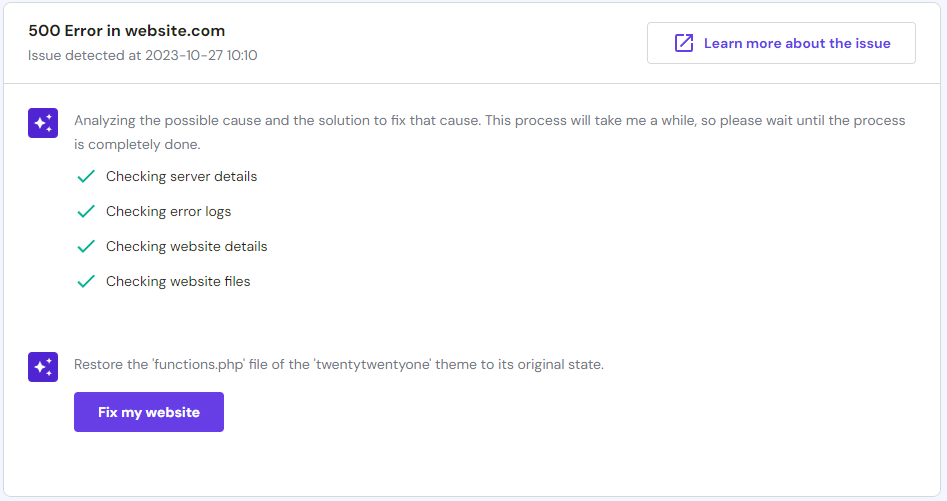
Credit: www.hostinger.com
Common Server Configuration Issues
The .htaccess file is very important. It controls your website’s settings. A corrupt file can cause errors. This can stop your site from working. Check this file often. Make sure it’s not broken. Fix it if it is. This helps your site stay online.
Websites need memory to work. PHP memory is like a computer’s brain. It helps your site run. If the memory is full, the site stops. Errors happen. Increase the memory limit. This helps the site work better. Keep an eye on memory usage. It keeps the site healthy.
File permissions tell who can see files. Wrong settings can block access. This can cause server errors. Check the permissions often. Make sure they’re right. Fix them if needed. This keeps files safe. It also keeps your website working well. Permissions are key to a safe site.
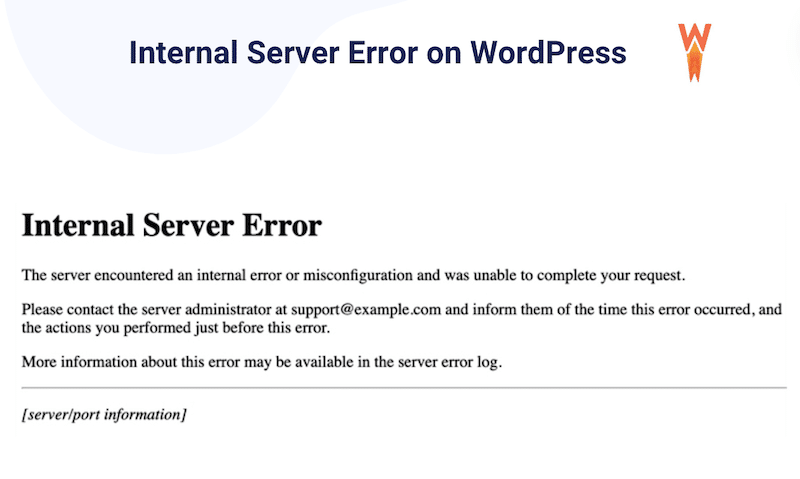
Credit: wp-rocket.me
Plugin And Theme Conflicts
Outdated plugins can cause big problems. They might not work with new software. This can make your site crash. It’s important to update plugins often. This keeps your website safe and running well.
Incompatible themes are another issue. Themes might not match with some plugins. This can lead to errors. Always check if a theme works with your plugins. Testing before use is a good idea.
Faulty custom code can break your site. A small mistake in the code can cause errors. Make sure you test any new code. Backup your site before adding custom code. This way, you can fix problems quickly.
Database Connection Problems
A corrupt database can break your website. Data might be missing or damaged. This causes a 500 Internal Server Error. Check your database for errors. Fixing errors can resolve the issue.
Using the wrong database credentials is a common mistake. Your website can’t connect to the database. Double-check your username, password, and database name. Correct information is crucial for a successful connection.
A server timeout happens when the server takes too long. This can cause a 500 error. Heavy traffic or too many requests can slow it down. Reduce load or increase server capacity to fix this.
WordPress Core File Issues
Sometimes, WordPress core files get damaged. This can happen during an update. Files can be missing or incomplete. This makes the site act weird. The server can’t find the right files. It shows a 500 Internal Server Error. Fixing these files might solve the problem.
Updates keep WordPress safe and fast. But sometimes, updates fail. The server might crash. Or the update might not finish. This can break WordPress files. The result? A 500 error. Make sure the update is complete and correct. This keeps your site safe.
Plugins and themes help make WordPress better. But they can also cause trouble. A bad plugin can break the site. Or a theme might not work well. This leads to errors like the 500 Internal Server Error. Checking these third-party tools can help. Make sure they are updated and working well.
Server Software And Hosting Configuration
Running on outdated server software can cause problems. Updates often fix bugs and improve performance. Without updates, the server might fail. This can lead to a 500 internal server error. Keeping software up-to-date is important for smooth operations.
A server can become overloaded with too many tasks. It struggles to handle all requests. The server might crash or slow down. Users may see a 500 error page. It’s important to manage server load wisely.
Incorrect settings can cause issues. These settings control how the server works. A small mistake can lead to errors. 500 internal server errors are common in such cases. Checking and fixing settings is crucial.
Credit: www.wpbeginner.com
Debugging And Troubleshooting Steps
A 500 Internal Server Error in WordPress can arise from corrupted plugins, faulty themes, or a misconfigured. htaccess file. These issues disrupt server communication, leading to the error. Identifying the exact cause requires systematic troubleshooting to restore normal website functionality.
Enable WordPress Debug Mode
Start by activating the WordPress Debug Mode. This feature helps you find errors. To enable it, open your wp-config.php file. Then, add the line: define('WP_DEBUG', true); Save the file. Now, reload your WordPress site. Errors will show on your screen. This helps in identifying the root cause.
Review Server Error Logs
Check your server error logs for more details. These logs provide information about what’s wrong. Access them through your hosting control panel. Look for recent entries. Find common error messages. This can help pinpoint the issue. Reading logs is like solving a puzzle. Each piece tells a story.
Contact Hosting Provider
If the problem persists, reach out to your hosting provider. They have access to more tools. Explain the issue to them. They can check server settings. Sometimes, it’s a server problem. They can fix it for you. Hosting support teams are there to help. Don’t hesitate to contact them.
Frequently Asked Questions
What Is A 500 Internal Server Error?
A 500 Internal Server Error indicates a problem with the server hosting your WordPress site. It often results from server overload or misconfigured settings, preventing the server from fulfilling the request. Diagnosing the exact cause can be tricky, but server logs and error messages are helpful in identifying the issue.
How Can Plugins Cause 500 Errors?
Plugins can cause 500 errors if they conflict with each other or with your theme. Outdated or poorly coded plugins are particularly problematic. Deactivating all plugins and reactivating them one by one helps identify the culprit. Always ensure your plugins are up-to-date and compatible with your WordPress version.
Can Themes Trigger 500 Internal Server Error?
Yes, themes can trigger this error if they are corrupted or incompatible. Custom themes with incorrect code or outdated elements might conflict with WordPress updates. Switching to a default theme, like Twenty Twenty-One, can help pinpoint if your theme is the issue, allowing for necessary adjustments or updates.
How Does Server Overload Cause 500 Errors?
Server overload occurs when the server receives too many requests, exceeding its capacity. High traffic spikes or inefficient scripts can lead to overload. Optimizing your server’s resources and implementing caching can mitigate this issue. Monitoring server performance helps in managing and preventing overload scenarios.
Conclusion
Understanding the 500 Internal Server Error in WordPress helps resolve issues faster. Common causes include plugin conflicts and corrupted. htaccess files. Regular backups and updates can prevent these errors. Check server logs for more detailed insights. Always test changes in a safe environment.
Troubleshoot step-by-step for effective solutions. Avoid panic when errors appear. Staying calm helps find the root cause. Seek help from WordPress communities if needed. Remember, fixing errors strengthens your WordPress skills. Keep learning and improving. Your WordPress site will thank you.