
Are you looking to enhance your WordPress site with a unique design? Creating a custom template might be just what you need.
Imagine having complete control over your site’s appearance and functionality, tailored perfectly to your vision. In this guide, we’ll walk you through the steps to create a template in WordPress, making the process simple and approachable. Whether you’re a seasoned developer or a beginner, you’ll find actionable insights that will empower you to transform your website into something truly special.
So, are you ready to take your WordPress site to the next level? Let’s dive into the essentials that will set you on the path to a beautifully crafted template.
Choosing A Theme
Picking the right theme is important for your site. It sets the look and feel. Start by exploring the WordPress theme library. Many themes are free. Some cost money. Look for a theme that fits your site’s style. Make sure it is responsive. This means it looks good on phones and tablets. Check the theme’s reviews and ratings. See what other users say. This helps you know if it’s reliable.
Try different themes in the customizer. This tool shows how your site will look. You can change colors and fonts. Make sure the theme has the features you need. For example, a shop needs e-commerce support. A blog needs a good layout for posts. Choose a theme that matches your vision and needs.

Credit: www.wpxpo.com
Setting Up A Child Theme
A child theme is like a copy of your main theme. It keeps your changes safe when the main theme updates. Without it, updates can erase your custom work. With a child theme, your changes stay. You can tweak styles, add features, and not worry. It’s easy and protects your website’s look and feel.
First, make a new folder in the themes directory. Name it after your theme, then add “-child” at the end. Inside, create a style.css file. This file links to your main theme. It also holds your custom styles. Next, add a functions.php file. This file manages extra features. Now, your child theme folder is ready. You can start customizing safely.
Configuring Template Files
WordPress uses a special order to show templates. This order is called the template hierarchy. It helps WordPress decide which template to use. For example, a single post will follow a certain path. A page will follow another. Knowing this hierarchy is important. It ensures your template works well. You can also customize it. Make your site unique.
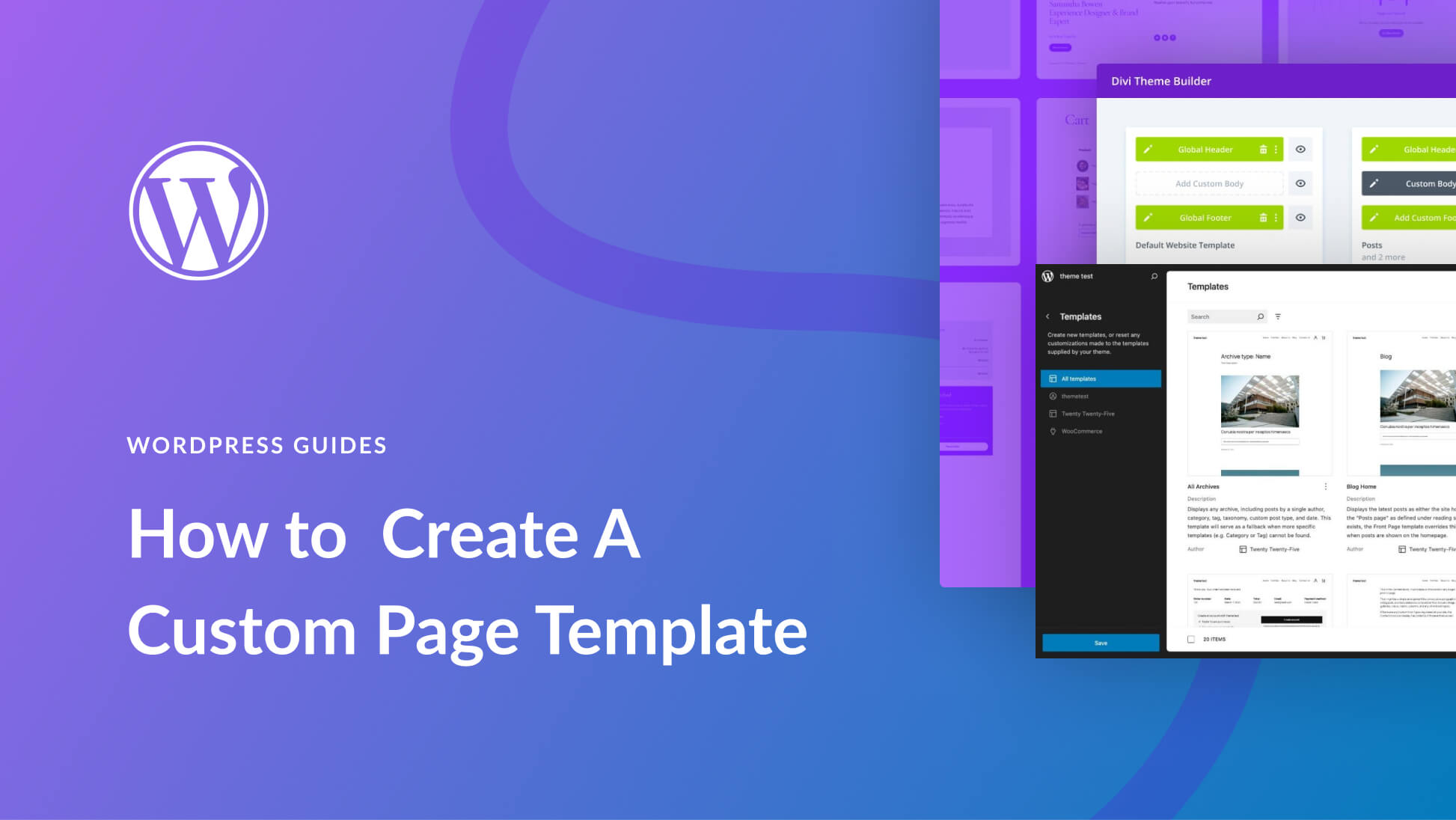
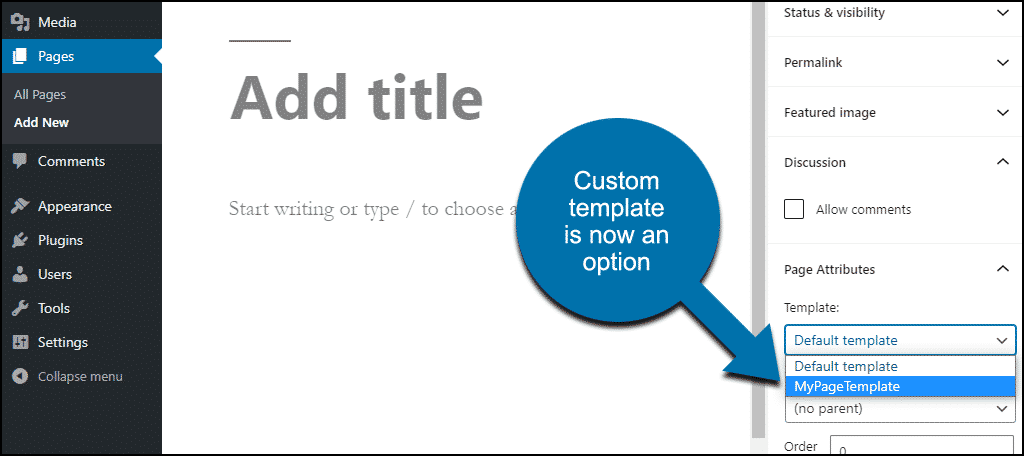
You can create your own page templates in WordPress. Custom page templates allow you to design pages the way you want. First, create a new file in your theme folder. Give it a special name. Add some PHP code at the top. This tells WordPress it is a template. Then, style it with CSS. Use HTML to add content. You can apply this template to any page. It gives your website a personal touch.
Adding Custom Styles
Enqueueing stylesheets is important. It helps manage your theme’s look. Use functions.php to add styles. This file is in your theme folder. The code snippet wp_enqueue_style() is useful. It registers and enqueues stylesheets. Don’t forget to give each style a name. This makes it easy to identify. You can specify where the CSS file is located.
A stylesheet file is often in the CSS folder. Use the right path. This ensures the styles load correctly. Always check the theme documentation. It has useful tips and examples. Following these steps ensures your site looks great. It’s easy to add styles.
CSS is vital for design. It changes how your site looks. You can modify text, colors, and layout. Use simple CSS rules. They are easy to learn. These rules help you style elements. CSS is flexible and powerful. Anyone can design with it.
Try changing fonts and colors first. This gives your site a new look. Use selectors to target elements. Each selector applies styles to specific elements. Explore different CSS properties. They help achieve various effects. Designing with CSS is fun and creative.
Incorporating Custom Scripts
JavaScript makes websites fun. To add JavaScript, use the functions.php file. This file is like a special helper. Place your script inside it. Use wp_enqueue_script to load it. This tells WordPress to use your script. Make sure the file path is correct. Double-check it. Wrong paths cause errors.
Enhance user interaction with JavaScript. It makes pages interactive and lively. Users can click and see changes. Like magic, but with code. Ensure scripts are fast. Slow scripts bore users. Keep them simple and neat.
Credit: www.elegantthemes.com
Utilizing WordPress Hooks
Creating a template in WordPress involves understanding hooks, which are essential for customizing themes. First, set up a child theme to ensure safe modifications. Next, use action and filter hooks to alter functionalities and design elements, allowing flexibility in your template’s structure and appearance.
Action Hooks
Action hooks help you add code at certain spots in WordPress. They let you run custom functions at key points. This makes your site do special tasks. Use them to add new features. For example, show a banner before a post. Or send an email when a user logs in. It gives you control over actions.
Filter Hooks
Filter hooks allow you to change data before it’s used. They are different from action hooks. With filters, you can edit text before it shows. Or change a URL before a link loads. This helps in customizing output without changing core files. Filters are useful for small tweaks. They keep code clean and organized.
Customizing The Functions File
Creating a template in WordPress involves customizing the functions file. Start by accessing your theme’s directory. Then, open the functions. php file to add custom code. This file allows you to modify theme features and add new functionalities, tailoring your WordPress site to your needs.
Modifying Functions.php
The functions.php file is like a toolbox for your WordPress site. It controls how things work. To modify it, access your theme’s folder. Find the functions.php file. Open it with a text editor. Add your custom code here. Always make a backup before changes. This prevents loss of important data. Use simple code snippets. This keeps your site running smoothly. Test changes on a development site first. Avoid editing on a live site. Errors can break your site.
Creating Custom Functions
Create custom functions to add new features. Start by opening the functions.php file. Use simple and clear code. Each function should do one thing only. Name your functions clearly. This helps you remember what they do. Test each function after adding it. Check your site to ensure everything works. If there’s a problem, remove the new code. Keep your functions organized. This makes future edits easier.
Testing And Debugging
Testing your WordPress template is crucial. It helps find errors early. Use debugging tools like the WordPress Debugging Plugin. They show errors in your code. Fix them to make your template better. Check if your template works on different devices. Some templates look good on computers but not on phones.
Using Debugging Tools
Debugging tools help find code mistakes. They make sure the template works right. Use WP Debugging to spot errors. Another tool is the Query Monitor. It helps with database issues. These tools are easy to use. They help keep the template clean.
Ensuring Compatibility
Compatibility is key for a good template. Your template should work on all browsers. Test it on Chrome, Firefox, and Safari. Also, check on mobile browsers. This ensures more people can use your site. A compatible template brings more visitors. It makes the site look nice everywhere.
Deploying The Template
Activate your new template in the WordPress dashboard. Go to the “Appearance” section. Choose “Themes” to see your list of templates. Locate your custom template. Click on it to make it active. Your website will now use this template. Check if everything looks good.
Make final adjustments to fit your needs. Update the header and footer if needed. Add or remove widgets to suit your content. Ensure all links work correctly. Preview your site to see changes. This helps catch any issues early.
Credit: www.greengeeks.com
Frequently Asked Questions
How Do I Start Creating A WordPress Template?
To start, log into your WordPress dashboard. Navigate to Appearance > Editor. You can create a new template by adding a new theme file. Use PHP, HTML, and CSS to customize your design. Ensure you follow WordPress coding standards for compatibility.
What Tools Help In WordPress Template Creation?
Tools like Elementor, Divi, and Beaver Builder simplify template creation. They offer drag-and-drop functionality. Use these tools for faster and easier design. They also come with pre-built templates to save time. Integrating plugins can enhance your template’s features.
How Do I Customize A Template In WordPress?
Access the WordPress Customizer via Appearance > Customize. You can tweak colors, fonts, and layout settings. Use CSS for detailed customization. Page builders provide advanced editing options. They allow real-time changes for immediate feedback.
Can I Create A Template Without Coding?
Yes, page builders like Elementor allow template creation without coding. These builders offer user-friendly interfaces. They provide drag-and-drop functionality for ease. Pre-designed blocks simplify customization. This makes it suitable for beginners.
Conclusion
Creating a WordPress template involves clear and simple steps. Begin with understanding your website needs. Then, sketch out your design ideas. Move on to selecting the right tools. Pay attention to the details while coding. Test the template thoroughly for usability.
Troubleshoot any issues promptly. Customize further to match your brand. Lastly, ensure regular updates for optimal performance. Following these steps makes the template creation process manageable. With practice, it becomes easier. Soon, you will craft templates confidently. Your website will reflect your unique vision and purpose.



