Imagine having the power to streamline your WordPress backend, ensuring that only the necessary menu items are visible to specific users. This control not only enhances security but also simplifies navigation for your team, making their tasks more efficient.
If you’re managing a multi-user WordPress site, you know how overwhelming the default menu can be. But what if you could tailor it to fit the exact needs of each user? By strategically limiting what menu items are visible, you can reduce clutter, minimize errors, and enhance user experience.
We’ll explore how you can customize your WordPress backend, creating a more intuitive and secure environment for you and your team. Dive in to discover how you can gain control and optimize your site’s backend like never before.
Role-based Access Control
Role-Based Access Control helps limit which menu items users can see in the WordPress backend. Admins set permissions to control access. This ensures users view only what they need, enhancing security and simplicity.
Understanding User Roles
WordPress allows different user roles. Each role has special abilities. Administrator can change everything. Editor can manage posts but not settings. Author can write and edit their own posts. Contributor can write but not publish. Subscriber can only read and comment. Knowing these roles helps control access. Assign roles based on trust and need.
Assigning Permissions
Assigning permissions helps control user access. Limit what each role can see. Administrators set permissions. Use plugins to change access rules. Limit menu visibility by role. This keeps the backend simple. It also keeps it secure. Users see only what they need. This makes the system easy to use.
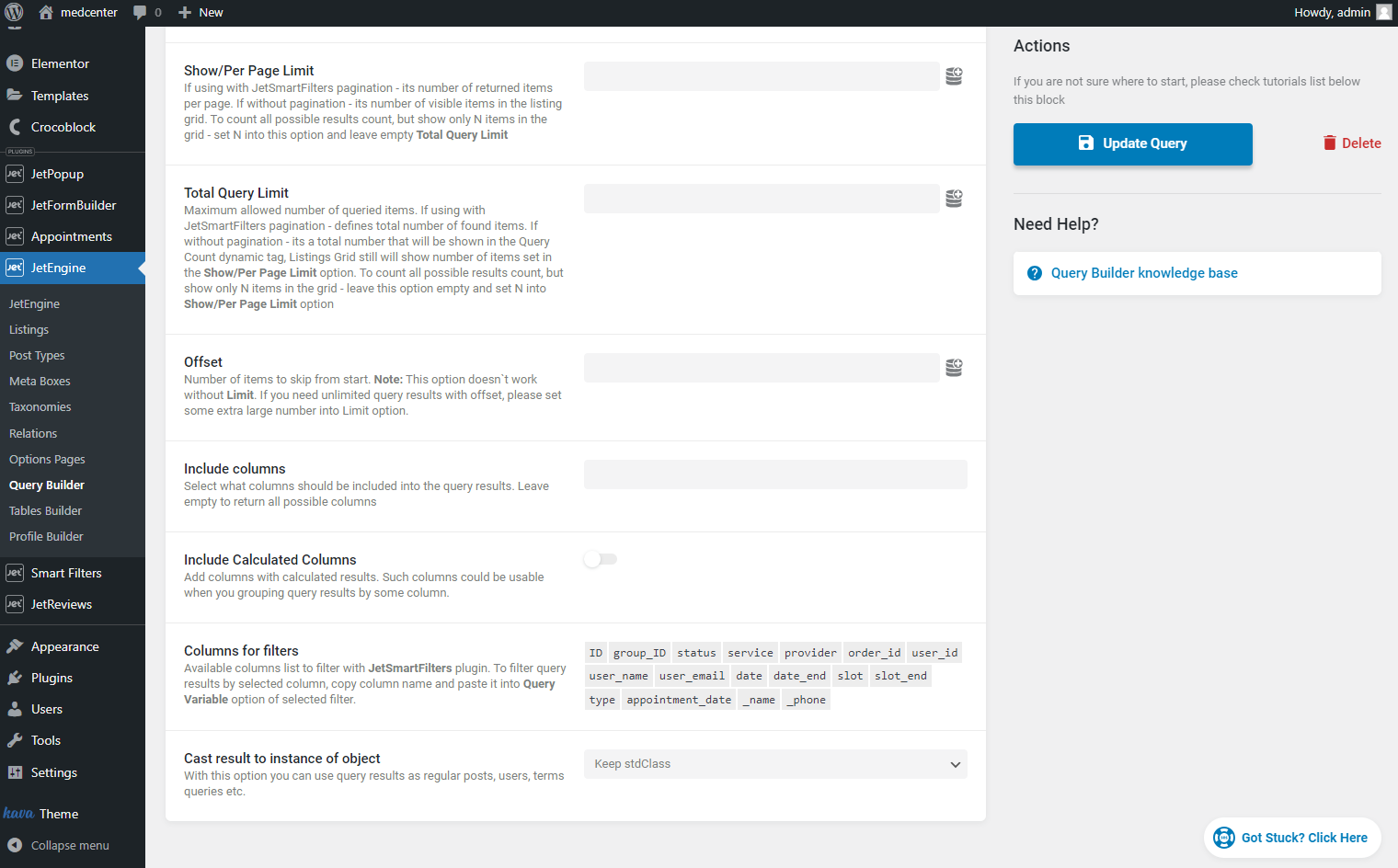
Credit: crocoblock.com
Customizing Admin Menus
Plugins make menu control easy. They offer flexibility without coding. Admin Menu Editor is popular. It lets you hide menus. You can also change menu names. User Role Editor is another option. It allows menu access based on user roles. This keeps your site secure. These plugins work with WordPress updates. They keep your site running smoothly. Choose a plugin that suits your needs.
Manual editing gives you full control. It requires coding knowledge. You can use functions.php file. This file is in your theme folder. Add code to remove menus. Use the remove_menu_page() function. This function hides specific menus. Manual editing is more complex. It needs attention and care. It ensures only necessary menus show up. Regular backups are important. They prevent loss of changes.
Implementing Code Solutions
Adding PHP code snippets can change menu views. They help in hiding options. Use custom functions to achieve this. Add these functions to your theme. You can use remove_menu_page(). It hides specific menu items. Another function is remove_submenu_page(). This targets sub-menus.
Don’t forget to check your code. Test every change you make. Mistakes can break the site. Always backup your site first. This keeps your work safe.
JavaScript can improve user experience. It can hide menus dynamically. Use simple scripts for this. Write code that runs when pages load. Use document.getElementById(). It selects menu items. Then, use style.display='none'. This hides them from users.
Check scripts in different browsers. Ensure they work smoothly. Some browsers may behave differently. Test for any bugs or errors. This ensures a better user experience.
Credit: passwordprotectwp.com
Testing Menu Restrictions
Begin with a simple checklist. Ensure each user role sees the right menus. Create a list of all menu items. Then check which roles can see them. This helps find errors fast. Ask a friend to test your site. They should try each role. See if they find any problems. This shows real-world issues.
Sometimes menus disappear or show wrong items. First, check your settings. Make sure roles are set right. Next, update all plugins. Old plugins can cause errors. Clear your browser cache. Sometimes old data stays in the browser. This can show incorrect menus. If the issue persists, contact support for help.
Maintaining Menu Visibility Settings
Keeping WordPress updated is crucial. Updates fix bugs and add features. New updates might change settings. Check settings after updates. This ensures menus stay correct. Updating plugins is also important. Plugins affect menu visibility. Regular checks help keep everything working.
Feedback helps understand problems. Users might face issues with menus. Listening to users is essential. Make changes based on feedback. Ask users about their menu experience. Their input is valuable. Adjust visibility settings as needed. This keeps menus user-friendly.
Credit: desairem.com
Frequently Asked Questions
How Can I Restrict Menu Access In WordPress?
To restrict menu access in WordPress, use a role management plugin. This allows you to customize user roles and capabilities. You can control which users see specific backend menus. This ensures a tailored experience for different roles, enhancing security and usability.
Why Limit Backend Menu Options For Users?
Limiting backend menu options simplifies the interface for users. It reduces the risk of errors and enhances security by restricting access to sensitive areas. This focused approach improves user experience and efficiency, ensuring users only see relevant options.
Which Plugins Help Manage WordPress Menu Visibility?
Plugins like User Role Editor and Adminimize help manage WordPress menu visibility. They offer tools to customize user roles and backend menus. These plugins make it easy to control what each user role can see, ensuring a streamlined and secure backend.
Can I Limit Menu Visibility Without Plugins?
Yes, you can limit menu visibility using custom code in your theme’s functions. php file. This requires coding knowledge and might affect future updates. For most users, plugins offer a safer, more user-friendly solution, enabling easy customization without code risks.
Conclusion
Simplifying the WordPress backend enhances user experience and security. Limiting menu visibility ensures only necessary items are accessible. This reduces confusion and minimizes potential errors. Users can focus on their tasks without distractions. Implementing these changes is straightforward with WordPress plugins.
They offer easy customization options for different roles. Site administrators gain control over who sees what. This approach not only protects sensitive information but also streamlines navigation. A cleaner, more organized backend leads to increased efficiency. Keep menus simple. It’s a small change with a big impact on productivity and security.