Are you ready to unlock the full potential of your web hosting setup? Imagine having the power to control your server from anywhere in the world with just a few keystrokes.
This isn’t just a dream; it’s a reality with SSH (Secure Shell). Whether you’re a seasoned developer or a curious beginner, learning how to use SSH for web hosting can revolutionize the way you manage your online presence. In this guide, you’ll discover the secrets to mastering SSH, making your web hosting experience faster, more secure, and incredibly efficient.
So, if you’re eager to take control and elevate your web hosting skills, keep reading. You’ll soon realize how empowering SSH can be, and you’ll wonder how you ever managed without it.
Basics Of Ssh
SSH, or Secure Shell, enables a secure connection to your web server. Learn how to use SSH for web hosting setup. Control your server, upload files, and manage configurations safely.
What Is Ssh?
SSH stands for Secure Shell. It’s a network protocol. SSH allows secure communication between computers. It uses encryption to protect data. SSH is widely used in web hosting. It enables remote login and command execution. Users can manage servers securely. SSH helps maintain privacy online. It prevents unauthorized access to files. SSH is available on most operating systems. It is easy to set up and use. With SSH, you can work without fear. Your data remains safe and secure.
Benefits Of Using Ssh
SSH provides strong security for online activities. It encrypts data during transfer. This keeps information safe from hackers. SSH allows remote server access. You can manage web hosting efficiently. It supports file transfers and tunneling. SSH is a trusted tool for developers. It enhances privacy and integrity. With SSH, passwords stay protected. Users can set up secure connections easily. SSH supports multiple authentication methods. It is a reliable choice for web hosting.
Setting Up Ssh
First, check if the SSH client is already on your computer. This can be done by opening the terminal and typing ssh. If you see a message, SSH is there. If not, you need to install it. On a Mac or Linux, use the terminal. Type sudo apt-get install openssh-client. On Windows, you can use an app called PuTTY. Download it from the PuTTY website. Follow the steps to install. Now, your computer can connect to servers using SSH.
SSH keys help keep your connection safe. To create them, open your terminal. Type the command ssh-keygen. Press enter to use the default file location. You can add a passphrase for extra safety. This step is optional. Two files will be created. One is public, and one is private. Keep the private one secret. Share the public one with your server. This lets you connect without a password.
Connecting To The Server
First, check your web hosting provider. You need the server’s IP address. This is a series of numbers. Also, find your username. It is usually given when you sign up. Passwords are needed too. Keep them safe.
Use a terminal on your computer. Type the SSH command. It looks like: ssh username@server_ip. Replace “username” with your actual name. Replace “server_ip” with the IP address.
If a password prompt appears, enter your password. You should see the server’s command line. You are now connected. Use commands to manage your hosting.

Credit: www.hostgator.com
Configuring The Server
First, always update your software packages. This keeps your server safe. Use the command sudo apt-get update. It checks for new updates. Then, run sudo apt-get upgrade. This installs the updates. Do this often. It keeps your server running well.
Create a new user for safety. Use the command adduser username. Replace “username” with any name. Set a strong password. This keeps the account safe. Give the user sudo access. Use the command usermod -aG sudo username. This lets the new user run important commands.
Uploading Files
SCP helps move files between computers. It’s like sending a letter. Speedy and secure. You need a username and password. The command is simple. Type “scp source destination”. Files fly from one place to another. Encrypted for safety. Only the right people can see them.
SFTP is like SCP but with more features. It’s a secure way to handle files. You can upload, download, and delete files. Connect with a username and password. Use “sftp user@host” to start. SFTP keeps files safe. It protects them from bad guys. Easy to use. Kids can do it!

Credit: www.nexcess.net
Server Security Best Practices
Firewalls are like security guards. They keep unwanted visitors out. Set up rules to allow only safe traffic. Block anything that seems harmful. Use a default deny policy. This means everything is blocked unless you say it’s okay. Make sure to update the firewall rules often. This keeps your server safe.
Fail2Ban helps stop bad guys. It watches for too many login tries. If someone tries too many times, it blocks them. This makes it harder for hackers. Install Fail2Ban on your server. Then, set up rules. Decide how many tries are too many. Once set, your server will be safer. Regular checks are important. Make sure Fail2Ban is working well.
Hosting Your Website
First, ensure your SSH connection is active. Type the command sudo apt update to refresh the server. Next, install the web server using sudo apt install apache2. This command sets up Apache, a popular web server. Apache will start automatically. You can check its status with systemctl status apache2. If it’s running, your server is ready.
Upload your website files using SFTP. These files go to the /var/www/html directory. Use scp command for file transfer. Example: scp index.html user@yourserver:/var/www/html/. This command copies your homepage file to the server. Make sure your files have the right permissions. Use chmod to set permissions. Example: chmod 755 /var/www/html/index.html. This makes the file readable.
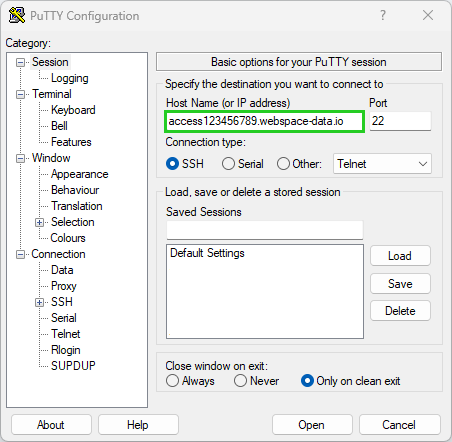
Credit: www.ionos.com
Troubleshooting Common Issues
Setting up web hosting using SSH can present challenges. Common issues include connection failures and permission errors. Resolving these often involves checking network settings and adjusting user permissions for smooth operation.
Connection Problems
Connection issues are common in SSH. First, check your internet. Is it stable? Next, verify the server address. A small typo can cause problems. Use the correct username and password. Sometimes, the server might be down. Try connecting later. Firewalls can block SSH. Ensure the firewall settings are correct. Update your SSH client. Old versions can cause trouble. Restart your device if nothing works. Sometimes, a fresh start helps.
Permission Errors
Permission errors occur due to wrong user rights. Check the file or folder rights. You need the right permissions. Use the command line to see rights. Sometimes, only the admin can change them. Contact the server admin for help. Ensure you are logged in as the right user. Wrong user means no access. Verify your SSH key. Key issues can cause permission errors. Save changes after fixing rights. Unsaved changes mean the same error returns.
Frequently Asked Questions
How To Connect To Hosting Via Ssh?
Open your terminal and type `ssh username@hostname`. Replace “username” and “hostname” with your specific details. Press Enter and provide your password. You are now connected to your hosting via SSH. Ensure SSH is enabled on your hosting account.
What Is Ssh In Web Hosting?
SSH stands for Secure Shell, a protocol used in web hosting for secure remote server access. It encrypts data, ensuring privacy and security during communication. SSH enables file management, command execution, and server configuration through a command-line interface. It’s essential for developers and administrators managing websites.
How To Establish A Connection Using Ssh?
Open your terminal. Type `ssh username@hostname`, replacing ‘username’ and ‘hostname’ with your credentials. Press Enter. If prompted, enter your password. Once authenticated, the connection is established. Ensure SSH is enabled on the server and necessary permissions are configured. Use secure passwords to maintain safety.
How Do I Connect Ssh To My Domain?
Connect SSH to your domain by using a terminal. Enter “ssh username@yourdomain. com” and press Enter. Replace “username” with your actual server username. Ensure your SSH keys are correctly configured for secure access. Follow any server-specific instructions for authentication.
Conclusion
Setting up web hosting with SSH is straightforward and secure. SSH provides a reliable connection for managing your server. Follow the steps to configure your hosting efficiently. Always ensure your SSH keys are secure and regularly updated. This ensures the safety of your website.
Troubleshooting might be needed, but it’s manageable. With practice, using SSH becomes second nature. Keep learning and exploring more about SSH features. Your web hosting setup will remain robust and secure. Happy hosting!