Unlocking the potential of your WordPress site can feel like a game-changer, especially when it comes to personalizing your design. Imagine transforming your basic website into a visually stunning platform that captures your unique style and vision.
The best part? You can do it for free. If you’ve ever wondered how to upload a theme on WordPress without spending a dime, you’re in the right place. Think of your website as a blank canvas. You have the tools at your fingertips to craft a masterpiece that stands out in the digital world.
But the question is, where do you start? The process might seem daunting, but with a few simple steps, you’ll be on your way to giving your site the facelift it deserves. Picture this: your audience landing on a site that’s not just functional but aesthetically engaging. Ready to dive in and discover how you can upload a theme for free on WordPress? This guide will walk you through the process, ensuring you not only understand each step but feel confident in executing it. Let’s transform your website into a true reflection of your brand and creativity.

Credit: interact-digital.co.uk
Choosing The Right Theme
Free themes are a good start. They are budget-friendly. Premium themes offer more features. They often have better support. Free themes may have limited options. Premium themes can be expensive. Choose based on your needs. Budget is also important to consider.
Make sure the theme works well with your version of WordPress. Check updates before choosing a theme. Some themes may not support all plugins. Always read reviews. They can help you decide. Compatibility is key for a smooth site.
Preparing Your WordPress Site
Easily upload a free theme on WordPress by navigating to the dashboard. Select “Appearance,” then “Themes,” and click “Add New. ” Choose a theme, click “Install,” and finish with “Activate. ” Your site now sports a fresh look without spending a dime.
Backup Current Site
First, make sure to backup your website. This keeps your data safe. You can use tools like UpdraftPlus. Save the backup on your computer or cloud. This way, you can always restore it if needed. Backups are like safety nets. They keep your site secure.
Check WordPress Version
Always check your WordPress version before uploading a theme. Go to the dashboard and find the version number. It’s usually in the bottom-right corner. Make sure it’s the latest version. New versions have better security. They also have more features. If it’s outdated, update it first. This ensures your site runs smoothly. A compatible version is important for a new theme.
Finding Free Themes
WordPress Theme Directory is a great place to start. It offers many free themes. Users can browse and search for themes by features or layout. Each theme comes with a preview and ratings. This helps in choosing the right one easily.
There are some steps to follow. First, log into your WordPress dashboard. Next, go to ‘Appearance’ and click on ‘Themes’. Then, click ‘Add New’ to explore the free theme options.
Third-Party Websites also provide free themes. Websites like ThemeForest and TemplateMonster offer various designs. Many of these websites list free themes along with paid ones. Always check if the theme is compatible with your WordPress version.
Some third-party sites might require registration. Be cautious while downloading from unknown sources. Stick to reputable sites for safety.
Installing A Theme Via WordPress Dashboard
First, log in to your WordPress account. Look for the Dashboard on the left. Click it to enter. The Dashboard is where you control your site. It’s easy to find themes here.
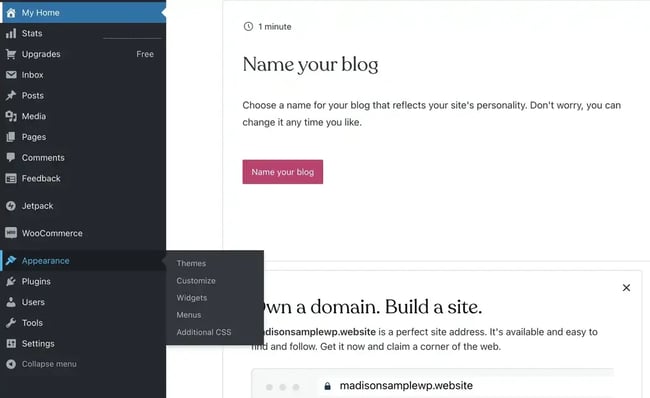
In the Dashboard, find Appearance. Click on it. Under Appearance, select Themes. You will see a button labeled Add New. Click this button. Choose Upload Theme. A box will appear. Select your theme file from your computer. Click Install Now.
After installing, find your theme in the Dashboard. Click on Appearance again. Under Themes, you will see your new theme. Click Activate to use it. Your site will now show the new theme.
Uploading A Theme Via Ftp
First, download an FTP client like FileZilla. Open it and enter your server details. You will need the hostname, username, and password. Connect to your server. Look for the public_html folder. This is where you will upload your theme files.
Find the wp-content folder in your server. Inside, locate the themes folder. Select your theme files on your computer. Drag and drop them into the themes folder. Wait for the upload to finish. This may take a few minutes.
Log in to your WordPress dashboard. Go to Appearance and then Themes. You will see your new theme listed. Click on Activate to use your theme. Your website will now display the new theme.
Credit: blog.hubspot.com
Troubleshooting Common Issues
This error means the theme file is not complete. Check the theme folder. It should have a style.css file. If missing, download the theme again. Make sure you upload the correct folder. Some themes come with extra files. Find the theme folder inside. Upload only the right one. This solves most problems.
Sometimes, the theme preview shows a blank page. Clear your browser’s cache first. This often solves the issue. Check if JavaScript is enabled. WordPress needs it for previews. Some themes need extra plugins. Install any required plugins. Follow the theme’s documentation. This ensures everything works.
Customizing Your New Theme
Discover how easy it is to upload a new theme for free on WordPress. Access the WordPress dashboard, navigate to “Appearance,” and select “Themes. ” Choose “Add New” to explore free themes, then click “Install” and “Activate” to customize your site’s look.
Using The WordPress Customizer
The WordPress Customizer helps you change your theme easily. Find it in the dashboard. Click on “Appearance” and then “Customize.” You’ll see options like colors, fonts, and layouts. Change them to match your style. Preview changes instantly. Save when you’re happy.
Adding Widgets And Menus
Widgets add extra features to your site. Go to “Appearance” and click “Widgets.” Drag items to your sidebar. Menus help visitors find pages. Create them under “Appearance” and “Menus.” Choose pages or links to add. Save your menu to display it.
Ensuring Theme Responsiveness
Checking your theme on different devices is important. Use a tablet, smartphone, and desktop. Check your theme’s look on each. Make sure it adjusts well. Each device should show your site clearly. No parts should be cut off or misplaced.
Browser tools help you check theme responsiveness. Open your site in a browser. Find the developer tools option. This tool lets you see how your theme looks on different screens. Adjust your theme settings if needed. Make sure everything fits well.

Credit: www.theclassictemplates.com
Frequently Asked Questions
How Do I Upload A Theme In WordPress?
To upload a theme in WordPress, navigate to the dashboard. Go to Appearance > Themes > Add New. Click on ‘Upload Theme’, choose your file, and hit ‘Install Now’. After installation, activate the theme to make it live on your site.
Can I Upload A Theme For Free?
Yes, you can upload themes for free on WordPress. You can choose from thousands of free themes available in the WordPress repository. Simply follow the upload steps to install and activate your chosen theme without any cost.
What File Format Should The Theme Be?
Themes should be in. zip format for uploading. WordPress only accepts themes packaged in. zip files. Ensure your downloaded theme is correctly zipped before attempting to upload it through the WordPress theme uploader.
Is It Safe To Upload Free Themes?
Uploading free themes from the WordPress repository is generally safe. These themes are reviewed for quality and security. However, ensure you download themes from reputable sources to avoid potential security risks.
Conclusion
Uploading a theme on WordPress is simple and free. Follow the steps to customize your site. Choose themes that suit your style. Explore different options to find the perfect fit. Practice makes you comfortable with the process. Remember, a good theme enhances your site’s look.
Take advantage of free themes available online. Create a unique website without spending. Update your theme regularly for best results. Enjoy the creative process and make your site stand out. Happy website building!