
Are you curious about the version of WordPress running on your website? Knowing your WordPress version is essential, especially when it comes to updates, plugin compatibility, and security.
You might think it’s a tedious task, but what if I told you it’s simpler than you imagine? In this guide, you’ll discover quick and straightforward methods to check the WordPress version installed on your site. Imagine the peace of mind you’ll gain by ensuring your site is up-to-date and secure.
So, get ready to uncover this essential piece of information and empower yourself to manage your website better. Let’s dive in and take the guesswork out of the equation.
Checking Admin Dashboard
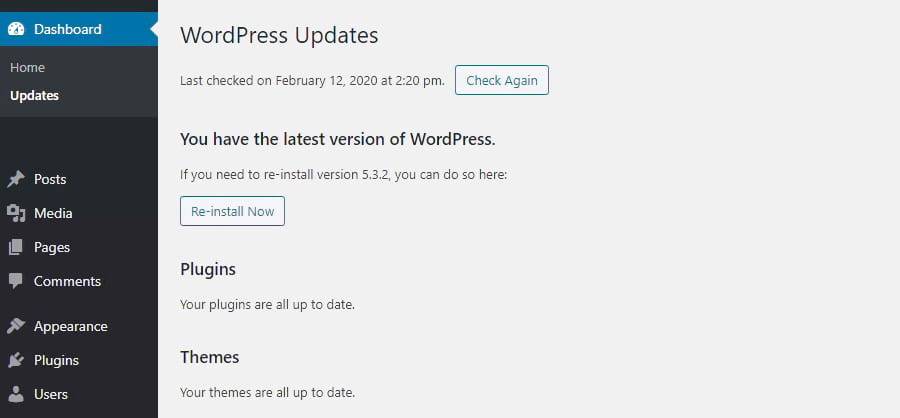
Find the WordPress version in the admin area. First, log into your WordPress Admin Dashboard. Look for the Updates option. It is usually on the left side. Click on Dashboard, then Updates. The version number appears there. Keep your WordPress updated for security.
Another way is through the At a Glance section. This section is on the main dashboard screen. It shows the site info. Look for the version number. It is displayed here. Make sure it matches the latest version for best performance.
Viewing Page Source
Open your web browser. Go to your WordPress website. Right-click on the page. Choose “View Page Source” or “Inspect” from the menu. A new window will pop up. This is your page’s source code.
Look through the source code. Find the line with “generator”. This line shows the WordPress version. It will look like this: . The number “5.8” shows your version. Different websites might show different numbers. Remember, not all sites show the version. Some hide it for safety.
Using Readme File
Finding the readme file is easy. Go to your website’s main folder. It’s where WordPress is installed. Look for a file named readme.html. This file is important. It helps find the WordPress version. You can use a file manager. Or an FTP client. Both work well.
Open the readme.html file. Use a text editor or a browser. The file has many details. Scroll down a bit. There you will see the WordPress version. It is usually near the top. This number tells you the version. Make sure to keep it secure. It’s important for website safety.
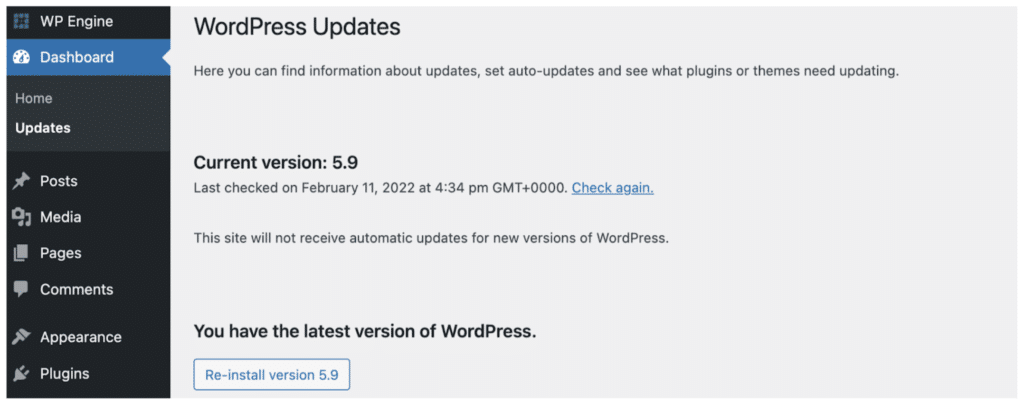
Credit: wpengine.com
Checking Version.php File
Use your hosting control panel to access the File Manager. This tool helps you see all your website files. Find the folder named public_html. This folder holds the main files of your WordPress site.
Inside public_html, open the wp-includes folder. Look for a file called version.php. It is usually near the top. This file contains the WordPress version information.
Open the version.php file. You can use a simple text editor. Search for the line that says $wp_version. The number next to it is your WordPress version. This tells you what version you have installed. Always close the file after checking.
Using Online Tools
Many online tools can help find your WordPress version. These tools are easy to use. Just enter your website URL. The tool then scans your site. Soon, it shows your WordPress version. Some tools are free. Others may charge a fee.
Some tools might not work for all sites. This happens if your site is protected. Or if you have custom settings. Be careful with unknown tools. They might not be safe. Always choose trusted ones. It’s important for your site’s safety.
Credit: kinsta.com
Via Rest Api
REST API lets you find your WordPress version. First, you must enable it. Check the settings in your WordPress dashboard. Ensure the REST API is switched on. If not, toggle it to the active state.
Now, you can get the version data. Open your browser. Type the URL of your site. Add /wp-json at the end. Press enter. This shows a lot of information. Look for the version number in the data. It usually appears near the top.
If you can’t see the version number, check your settings again. Ensure REST API is enabled. Sometimes plugins might block access. Try disabling plugins one by one. Check the version again.
Security Considerations
Knowing the WordPress version can help hackers. They might find weak spots. So, it is good to hide it. Go to the theme’s header file. Look for the line with generator tag. Remove or comment it out. This hides the version from the page source. Always keep your WordPress updated. It keeps the site safer.
WordPress security is important. Use strong passwords. Change them often. Install a good security plugin. It can scan for malware. Regularly update plugins and themes. Outdated ones can be risky. Keep your site backups. This helps if something goes wrong.
Credit: www.cloudways.com
Frequently Asked Questions
How Can I Check My WordPress Version?
To check your WordPress version, log into your admin dashboard. In the bottom right corner, you’ll find the version number. Alternatively, check the readme. html file in your site’s root directory. Both methods are quick and provide accurate information about your WordPress installation.
Is It Important To Know My WordPress Version?
Yes, knowing your WordPress version is crucial for security and compatibility. Updates may include security patches, new features, or bug fixes. Ensuring your version is up-to-date helps protect your site and improves its functionality, keeping your website safe and efficient.
Can I Find WordPress Version In Source Code?
Yes, you can find the WordPress version in your site’s source code. Open your website, right-click, and select “View Page Source. ” Search for “generator” in the meta tags. This tag typically displays your WordPress version, providing an alternative method to determine your version.
Are WordPress Updates Automatic?
WordPress updates are partially automatic. Minor updates are installed automatically by default. However, major updates require manual installation. Regularly check for updates in your dashboard to ensure your site stays secure and up-to-date, protecting against vulnerabilities and enhancing performance.
Conclusion
Knowing your WordPress version is crucial for site security. Regular updates can prevent vulnerabilities. Checking the version is quick and easy. Navigate your WordPress dashboard. Find the information in the footer or in updates. Always keep your WordPress updated. It ensures smooth functioning and better security.
Stay informed about new features. They can enhance your site’s performance. A few clicks can help safeguard your website. Protect your hard work and content. Keep your WordPress version on your radar. Stay updated for a safer online experience.



