Are you looking to run a local web host on your Windows 10 computer but don’t know where to start? Imagine having the power to test websites, experiment with coding, and manage databases right from your own machine.
It’s easier than you might think, and it doesn’t require you to be a tech wizard. Whether you’re a budding web developer or a small business owner wanting more control over your website, running a local web host offers flexibility, security, and convenience.
In this guide, you’ll discover simple, step-by-step instructions to transform your Windows 10 PC into a local web hosting powerhouse. Prepare to unlock new possibilities and take your web projects to the next level. Let’s dive in and get you set up in no time!
System Requirements
Running a local web host on Windows 10 needs some basic requirements. First, ensure your computer has at least 4GB of RAM. This helps in smooth operation. Next, check your storage. A minimum of 10GB free space is recommended. This space is for your web files and software.
The processor is important too. A dual-core processor is enough for most tasks. Finally, make sure your system is running Windows 10 version 1607 or later. Older versions may not support all web host features.
These requirements ensure a stable local host setup. Always check your system specs before starting.
Installation Options
WAMP is easy to use. It stands for Windows, Apache, MySQL, PHP. Download WAMP from its official site. Run the installer. Follow the instructions. After installation, a green icon appears. This means it works fine. Open the browser. Type localhost to see your local server. It’s simple and works well for beginners.
XAMPP is another choice. It’s a free tool. It includes Apache, MySQL, PHP, and Perl. Download it from the Apache Friends website. Start the installer. Install all components. After setup, open the XAMPP Control Panel. Start Apache and MySQL services. Open the browser. Enter localhost to access your server. It’s popular among developers.
IIS stands for Internet Information Services. It’s built into Windows 10. Go to Control Panel. Click on Programs. Select Turn Windows features on or off. Find Internet Information Services. Check the box. Click OK. Let it install. Open a browser. Type localhost to see the IIS page. It’s great for ASP.NET applications.
Setting Up Wamp
First, visit the official WAMP website. Find the download section. Choose the version for Windows 10. Click the download link. Save the installer on your computer. Make sure your computer has enough space. The file might be large. Once downloaded, locate the file. Double-click to start the installation. Follow the instructions on screen.
After installation, open the WAMP folder. Look for the configuration file. It is usually named wampmanager.conf. Open it with a text editor. Change the settings as needed. Make sure the port number is correct. Save the changes. Close the editor.
Launch WAMP from your desktop. Look for the green icon in the taskbar. If it’s red, services have not started. Click the icon. Select “Start All Services”. Wait until the icon turns green. Now, WAMP is ready. You can start building websites locally.
Setting Up Xampp
First, visit the XAMPP website to get the software. Click on the download link for Windows. The file is not too big. It won’t take long to download. Make sure your internet is stable.
After downloading, open the installer. Follow the easy steps on the screen. Choose the components you need. Most people need Apache and MySQL. Keep the settings simple for now.
Open the XAMPP Control Panel. Click on Start next to Apache. Do the same for MySQL. You can see the services running. Check the status lights. They should be green. This means XAMPP is working.
Setting Up Iis
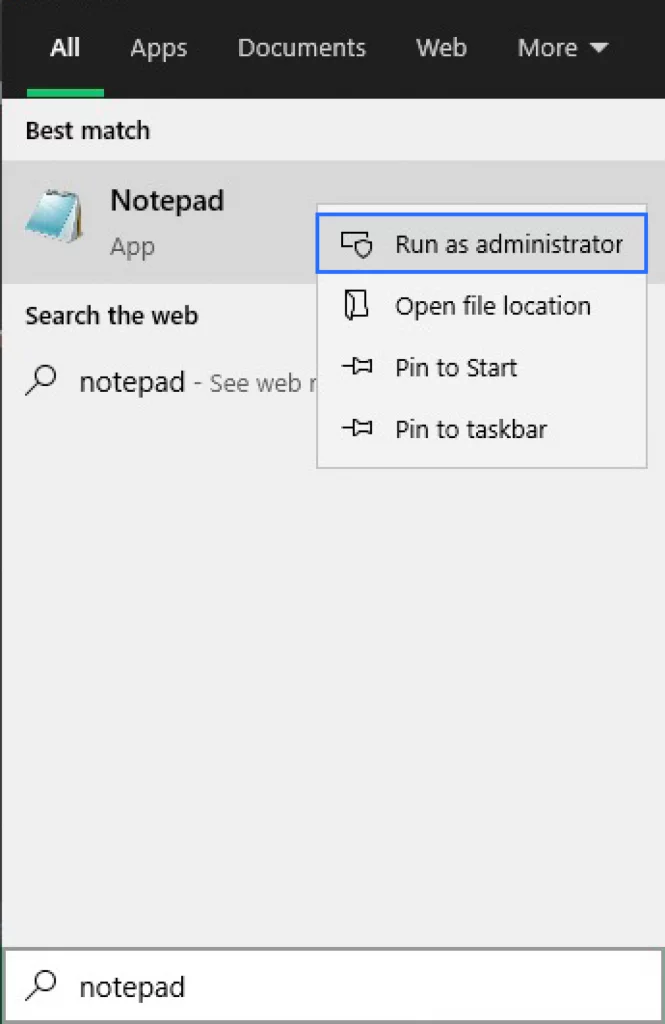
First, open the Control Panel. Find Programs and click Turn Windows features on or off. Look for Internet Information Services (IIS). Check the box next to it. IIS will be installed. This might take a few minutes. Be patient.
Now, open the IIS Manager. You can find it in the Start Menu. Click on your computer name. In the panel, click Sites. Right-click and choose Add Website. Fill in the site name. Select the physical path. Choose a folder for your files. Set the binding type. Usually, it’s http. Click OK to save.
Inside your chosen folder, make an index.html file. This is your homepage. Write simple HTML content inside. Open a web browser. Type localhost in the address bar. Your new site will appear. You have created your local website.
Credit: dreamithost.com.au
Testing The Server
Running sample files is a key step. It shows if the server works. Open the web host folder. Place a simple HTML file inside. Name it index.html. Write basic HTML code. Open your browser. Type localhost in the address bar. If the file shows, the server runs correctly. Test other files. Add CSS or JavaScript. Check if they work as expected.
Troubleshooting common errors can be tricky. Sometimes errors appear. Check file paths first. Ensure they are correct. Verify server settings. Sometimes, settings need adjustments. Restart the server. Often, this solves many issues. Look for error messages. They give clues. Use search engines. Find solutions online. Many users face similar problems. Community forums help a lot.
Managing Databases
MySQL is a popular choice for managing data. First, download the installer from the official MySQL website. Follow the steps to install. Choose the default settings for simplicity. After installation, open MySQL Workbench. This tool helps you work with databases easily.
Open MySQL Workbench. Click on “Create a new database”. Choose a name for your database. Make it simple and clear. Click “Apply” to create your database. Now, your database is ready for use. You can add tables and data.
Connecting to a database is easy. Use MySQL Workbench again. Click on “Connect to database”. Enter your database details. These include the name and password. Click “Connect”. You can now access and manage your data.
Credit: www.freecodecamp.org
Security Best Practices
Running a local web host on Windows 10 involves key security practices like using strong passwords and updating software regularly. Configuring firewalls and antivirus settings also helps protect data. Secure your server by only installing necessary applications.
Updating Software
Keep your software up to date to protect your computer. Updates fix bugs and improve security. Check for updates often. Install them as soon as possible. This helps keep hackers away.
Configuring Firewall Settings
Your firewall is a strong security tool. It blocks harmful traffic. Set it up correctly. Allow only trusted programs. Check settings regularly. Make sure it’s working well. A strong firewall keeps your data safe.
Regular Backups
Always keep backups of your data. Backups save important files. Use external drives or cloud storage. Do it weekly or daily. This ensures your files are safe. If something goes wrong, you can restore everything.
Performance Optimization
Caching makes websites faster. It saves site data for quick access. Browser caching helps load pages without delay. Server caching does the same on the server side. Both types reduce the server load. This means websites load quicker. Use caching tools like Redis or Memcached. They are easy to set up. They keep data ready for use.
Watching server resources is important. It helps find issues early. Use tools like Task Manager. It shows CPU and memory use. Resource Monitor gives more details. It shows which apps use the most resources. This helps in optimizing and fixing problems quickly.
Fast load times are key for users. Minimize image sizes and use compressed files. Less data to load means faster pages. CSS and JavaScript should be small. Use tools to reduce their size. Lazy loading helps too. It loads images only when needed. These steps make sites quicker to load.

Credit: m.youtube.com
Frequently Asked Questions
How To Host A Local Website On Windows 10?
Install XAMPP on Windows 10 to host a local website. Download XAMPP, run the installer, and start Apache server. Place website files in the “htdocs” folder. Access your site through “localhost” in a web browser. Ensure firewall allows Apache. This setup is ideal for testing and development.
How Do I Run A Local Host Website?
Install a web server like XAMPP or WAMP on your computer. Create your website files and place them in the server’s root directory. Start the server software and open your browser. Enter “localhost” in the address bar to view your website locally.
How To Create Localhost In Windows 10?
Install XAMPP on Windows 10. Open XAMPP Control Panel and start Apache service. Enter “localhost” in your browser’s address bar to access it.
How To Access Localhost On Windows?
Open a web browser and type “localhost” in the address bar. Ensure your local server (e. g. , Apache) is running. Check the hosts file for entries. Default IP is 127. 0. 0. 1. Access requires server setup.
Conclusion
Running a local web host on Windows 10 is straightforward. Start with installing the necessary software. Follow the setup steps carefully. Ensure compatibility with your system. Test your server thoroughly. This guarantees smooth operation. Troubleshooting tips help resolve common issues.
Regular updates keep your server secure. Remember to back up your data often. Explore additional resources for deeper insights. This enhances your hosting experience. With practice, hosting becomes easier. Enjoy the flexibility a local server offers. It’s ideal for testing and development.
Your skills will grow with each project. Happy hosting!