Have you ever made changes to your WordPress theme, only to wish you could go back to the way things were? Maybe that new color scheme looked perfect in your mind but didn’t quite translate on screen.
Or perhaps you just want to undo a tweak that didn’t pan out as expected. Whatever the reason, knowing how to revert changes in your WordPress theme can save you time, frustration, and maybe even a headache or two. In this guide, we’ll walk you through the steps to safely and effectively revert changes, whether you’re dealing with minor tweaks or major overhauls.
Understanding these techniques not only empowers you to experiment with your site’s design but also ensures that you never feel stuck with unwanted changes. Stay with us, and you’ll soon feel more confident navigating your WordPress theme with ease.
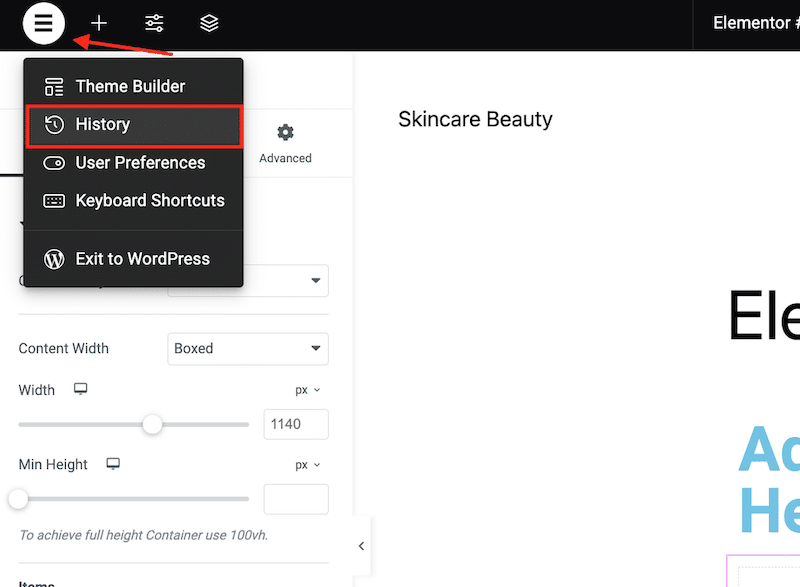
Credit: wp-rocket.me
Backup Your Theme
Backing up your theme is very important. It keeps your work safe. If something goes wrong, you can go back. You won’t lose your hard work. Think of it as a safety net.
Creating a backup is easy. First, go to your WordPress dashboard. Click on Appearance, then Editor. Find your theme files. Copy all these files to your computer. You now have a backup. Remember to do this often. This way, you always have the latest version saved. It’s very important to keep your files safe.
Use WordPress Revisions
First, open your WordPress dashboard. Find the page or post you need. Click on “Edit”. Now, look for the “Revisions” section. It’s usually on the right side. If you can’t see it, check the “Screen Options” at the top. Make sure “Revisions” is checked.
Click on the “Revisions” link. You will see a list of changes. Each change has a date and time. Click on a date to view that version. Review the changes. Decide if it’s the right version. If yes, click “Restore This Revision”. Your theme will now use this version. Simple and easy!
Revert With File Manager
Access the File Manager from your hosting account. Find the folder named public_html. This folder holds all your website files. Look for the folder called wp-content. Inside, you will see a folder named themes. This folder contains all your theme files.
Open the folder of the theme you want to fix. Check if the files look correct. Sometimes, you might need to download the theme again. This helps in getting the original files back.
Create a backup before changing anything. This is very important. If something goes wrong, you can get your website back. Use the restore option in the File Manager. This option helps you replace the bad files with old good ones.
Ask your hosting support if you need help. They can guide you. Always keep your themes up to date. This prevents many problems.
Credit: ithemelandco.com
Utilize Theme’s Customizer
The customizer in WordPress is your friend. It helps you change your theme. Use it to fix or undo changes. To start, go to your WordPress dashboard. Look for the “Appearance” option. Click on it and then select “Customize”. This opens the customizer tool.
Inside the customizer, you see many options. These options include colors, fonts, and layouts. Each change you make can be previewed. See the results instantly on your screen. If you made a mistake, don’t worry. There’s an “Undo” feature. Click it to revert changes. Your theme will return to its original state.
Remember to save your changes if you like them. If not, simply exit without saving. This way, no unwanted changes remain. The customizer is easy to use. It helps keep your site just the way you like it.
Restore From Hosting Backup
Contact your hosting provider for help. They can restore your WordPress theme. Providers keep backups of your site. They can quickly revert changes. Explain the issue clearly. Ask for a backup from a specific date. This ensures your theme returns to normal. It is a simple solution.
Use the hosting control panel to restore your theme. Log in to your hosting account. Find the backup section. Select the date of the backup. Click restore to revert changes. This process is fast and easy. Ensure you choose the correct backup date. It helps to avoid losing any new data.
Credit: www.veerotech.net
Use A Child Theme
Child themes are a safe way to modify your WordPress site. They let you change things without losing the original theme. You can update the parent theme and keep your changes. This method helps keep your site secure and efficient.
Benefits Of Child Themes
- Preserve your changes during updates.
- Improve site security.
- Simplify troubleshooting.
- Customize without risk.
Creating A Child Theme
First, create a new folder in your themes directory. Next, make a style.css file inside. Copy the template name from the parent theme. Add it to the child theme file. Include a functions.php file to handle scripts. Activate the child theme in your WordPress admin panel. It’s simple and effective.
Reinstall The Theme
First, visit the WordPress theme directory. Find the theme you used before. Click on the download button. Save the theme file to your computer. Make sure it’s the correct version.
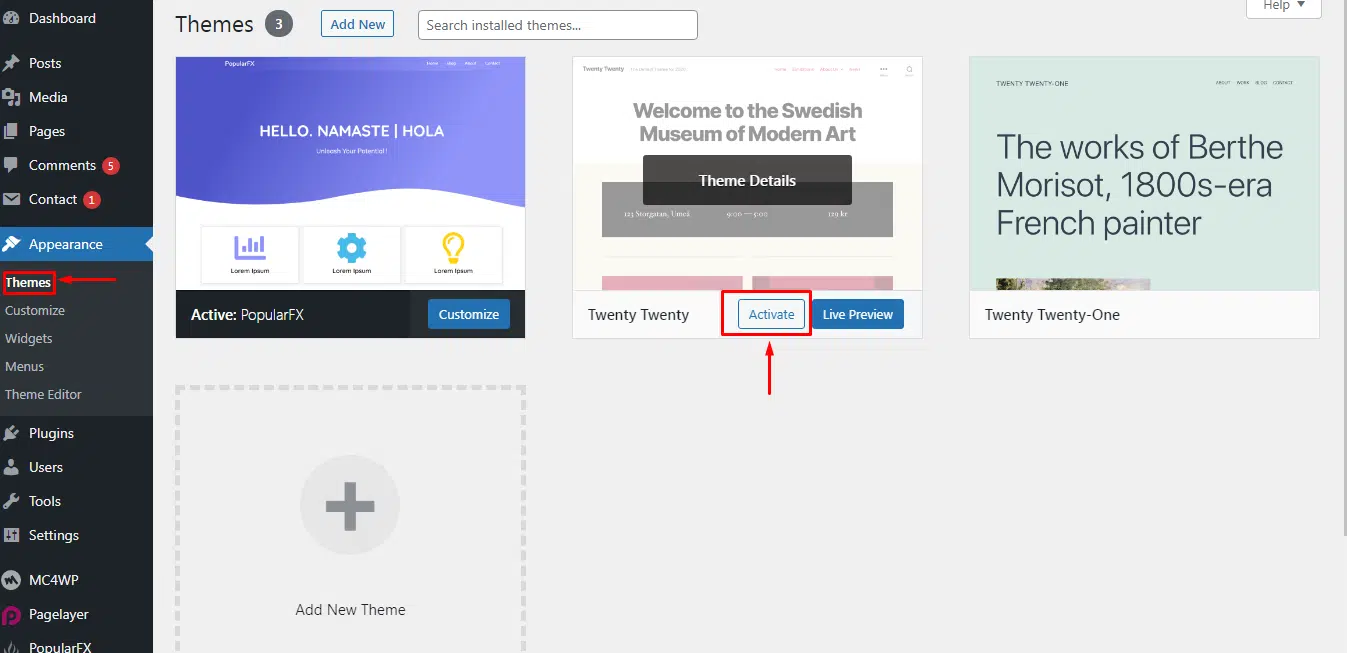
Go to your WordPress dashboard. Click on Appearance, then Themes. Find the upload option at the top. Choose the theme file you saved. Click install now. Wait for the installation to complete.
After installation, find the theme under your installed themes. Click activate to use it. Check your site to see the changes. Make sure everything looks good.
Frequently Asked Questions
How Can I Undo Theme Changes In WordPress?
To undo theme changes, go to your WordPress dashboard. Navigate to Appearance > Themes and activate a previous theme. This will revert your site to its prior design. Always back up your website before making significant changes to avoid data loss.
Can I Restore A WordPress Theme Backup?
Yes, you can restore a theme backup. Use a backup plugin like UpdraftPlus or BackupBuddy. These tools allow easy restoration of themes. Simply locate your backup file and follow the plugin’s restoration process to revert changes effectively.
Are Theme Revisions Available In WordPress?
WordPress does not natively support theme revisions. However, some plugins offer version control for themes. These plugins track changes and allow reverting to previous versions. This feature is useful for developers managing multiple theme updates.
Is It Possible To Reset A WordPress Theme?
Yes, you can reset a WordPress theme using a reset plugin. WP Reset is popular for restoring theme settings. This plugin reverts your theme to its default state, but ensure to backup your site before proceeding to prevent data loss.
Conclusion
Reverting changes in WordPress themes can seem daunting at first. But with practice, it becomes straightforward. Start with backups. Always create one before making changes. Use the WordPress dashboard for simple edits. For advanced tweaks, consider a child theme. It prevents overwriting your customizations.
Stay patient. Mistakes are learning opportunities. Seek help from online forums if stuck. Many WordPress users share helpful tips. Keep experimenting. Over time, you’ll gain confidence. Trust the process. Your skills will grow, making WordPress management easier. Happy editing!