
Are you tired of the cluttered look of your WordPress website? Does the sidebar feel more like a distraction than a helpful feature?
You’re not alone. Many website owners feel the same way and are looking for a cleaner, more focused design. Imagine your website with a sleek, modern appearance that draws visitors directly to your content. Removing the sidebar from your WordPress theme might be the key to achieving this.
In this guide, you’ll discover simple steps to remove that pesky sidebar, enhancing your site’s aesthetic and user experience. Stick around, and let’s transform your website into the streamlined platform you’ve always envisioned.
Credit: theplusaddons.com
Reasons To Remove Sidebar
Sidebars can make a website look crowded. Some users find them distracting. Removing it gives a cleaner design. It improves user focus on the main content. Websites may load faster without sidebars. This can enhance the user experience. Many people prefer simple layouts. This makes navigation easier. It can also help with readability. For mobile users, sidebars can be tricky. Removing them offers a better mobile experience. A cleaner design can boost engagement. Users might stay longer on your site. It also allows for better content visibility. This can lead to more interaction.
Choosing The Right Theme
Theme Compatibility is important. Not all themes allow sidebar removal. Always check the theme’s features. Some themes have built-in options for this. You might need to tweak settings. Look for themes with flexible layouts.
Responsive Design Considerations matter. Themes should adjust to different screens. This includes mobile phones and tablets. Make sure content stays readable. Sidebars can affect mobile views. Check how your theme looks on all devices. Always test before finalizing the theme.
Using WordPress Customizer
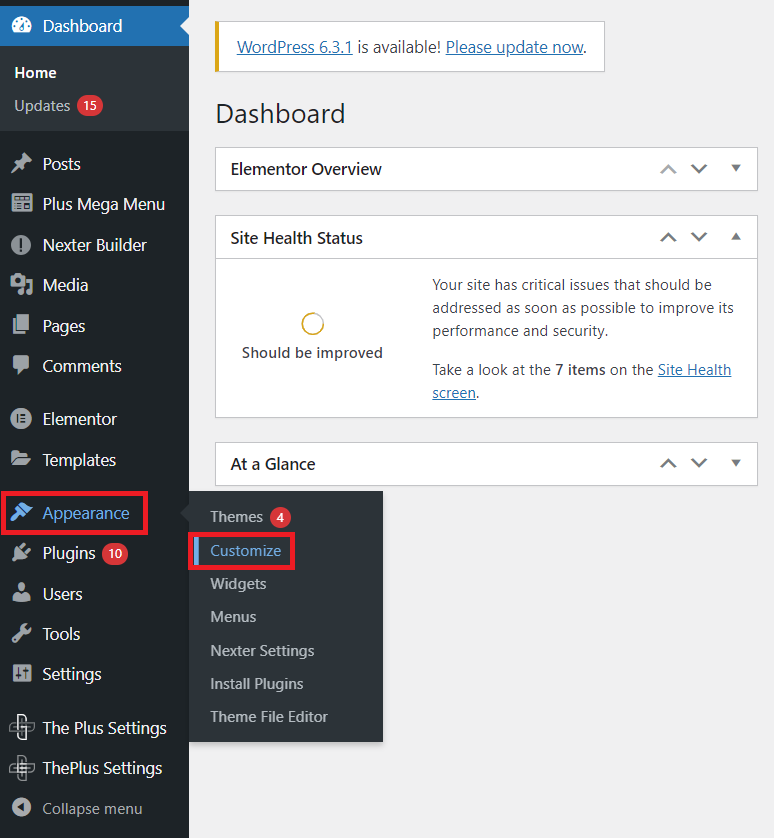
Easily remove the sidebar from your WordPress theme using the Customizer tool. Navigate to Appearance, select Customize, and find the option for sidebar settings. Choose “No Sidebar” to streamline your website’s design.
Accessing The Customizer
Find the customizer in your WordPress dashboard. Look for the Appearance tab. Click on it. You will see an option called Customize. Select it. The customizer will open. It shows your site on the left. On the right, you have options. These options help change your site.
Disabling Sidebar Widgets
Find the Widgets section in the customizer. Click on it. You will see sidebar widgets. These widgets are on the right side of your site. Click the widgets you want to remove. There is a delete button. Click it. Your sidebar will be empty. Now, there are no widgets on the side.
Editing Theme Files
First, open your WordPress dashboard. Go to Appearance and click on Theme Editor. Here you will find all theme files. Look for a file named sidebar.php. This file usually contains the sidebar code. Not all themes use this file, so check other files too. Open the file and find the HTML code for the sidebar.
Go to the style.css file in the Theme Editor. This file controls the look of your website. Find classes or IDs related to the sidebar. These might be named .sidebar or #sidebar. You can hide the sidebar by setting display: none; in these styles. Save your changes to see the effect on your site.
Employing A Child Theme
A child theme changes the look of your site. It does not touch the main theme. First, create a new folder. Name it like your main theme but add “-child”. Then, make a style.css file. Write some basic code in it. This tells WordPress it is a child theme. Next, make a functions.php file. Copy code from the main theme. This makes sure everything works well. After that, go to your WordPress dashboard. Find the new child theme. Activate it. Your site uses the child theme now. Changes will not break the main theme.
Setting Up A Child Theme
Open your file manager. Find the WordPress folder. Look for the themes folder. Create a new folder inside. Name it like your main theme with “-child”. Make a new style.css file. Write the header code. This tells WordPress this is a child theme. Save the file. Make a functions.php file. Copy the main theme’s functions.php code. Paste it here. Save the file. Now, activate the child theme. Go to your WordPress dashboard. Find your new theme. Activate it.
Overriding Parent Theme Files
Child themes let you override parent theme files. Copy the file you want to change. Paste it into your child theme folder. Edit the file as needed. Your changes will show on the site. The parent theme stays untouched. This keeps your site safe. Update the parent theme anytime. Your changes will stay. This method is easy. Your site looks as you want it.
Credit: www.wpbeginner.com
Utilizing Plugins
Plugins make removing sidebars easy. Many plugins can help you. Some popular plugins are Widget Context, Simple Page Sidebars, and Custom Sidebars. These tools are easy to use. They can be downloaded from the WordPress plugin directory. Most plugins are free. Some offer premium features.
Setting up a plugin is simple. First, go to your dashboard. Then, find the plugin settings. Each plugin has its own options. Read instructions carefully. Choose the pages where you want no sidebar. Save your changes. Check your site to see the changes. Always test on different devices. This ensures your site looks good everywhere.
Troubleshooting Common Issues
Removing the sidebar from a WordPress theme can simplify your website’s look. Access the WordPress dashboard, navigate to Appearance, then Widgets, and remove all sidebar widgets. If the sidebar persists, editing the theme’s CSS or template files might be necessary.
Restoring Default Settings
Sometimes themes get messy or broken. Restoring default settings can help. Go to your WordPress dashboard. Click on the theme settings. Look for a button that says “Reset” or “Default”. Click it to return the theme to its original state. Remember, this may remove custom changes. Always save your work first. This step is useful for fixing errors.
Checking For Theme Updates
Using an outdated theme can cause problems. Checking for theme updates is important. Go to your WordPress dashboard. Find “Appearance” on the menu. Click on “Themes”. If an update is available, you will see a notice. Click “Update” to get the latest version. Updates often fix bugs and improve performance. Keep your theme updated for a smooth experience.
Testing The Layout
Verifying Responsiveness is crucial. Ensure your website looks good on all devices. Start with your phone. Open your website and check the layout. Is everything in place? Next, try a tablet. Does the sidebar stay hidden? If it shows, you need to fix it. Use tools like browser developer tools. They help to see different screen sizes. This helps to find any problems.
Ensuring Cross-Browser Compatibility is also important. Websites should work well on Chrome, Firefox, and Edge. Open your site in these browsers. Look for any differences. Does the sidebar appear in some but not others? If yes, adjustments are needed. Browser developer tools can help here too. They show how your site looks on each browser.
Best Practices For Design
Design should always help users. Removing the sidebar can make the site clean. The main content then gets more space and attention. Without distractions, users find what they need faster.
Content focus is key. Ensure the main area is clear and easy to read. This boosts user experience. A clean design helps users enjoy your site more. They stay longer and explore more.
Credit: kinsta.com
Frequently Asked Questions
How Do I Remove The Sidebar In WordPress?
To remove the sidebar in WordPress, go to Appearance > Widgets. Drag all widgets from the sidebar to deactivate them. Alternatively, modify your theme’s code by editing the sidebar. php file. Ensure you have a child theme to prevent losing changes during updates.
Can I Disable Sidebar For Specific Pages?
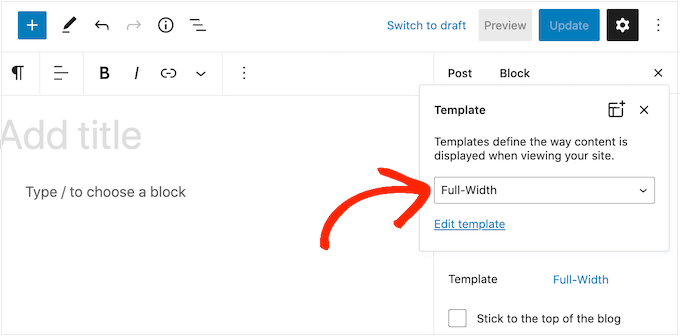
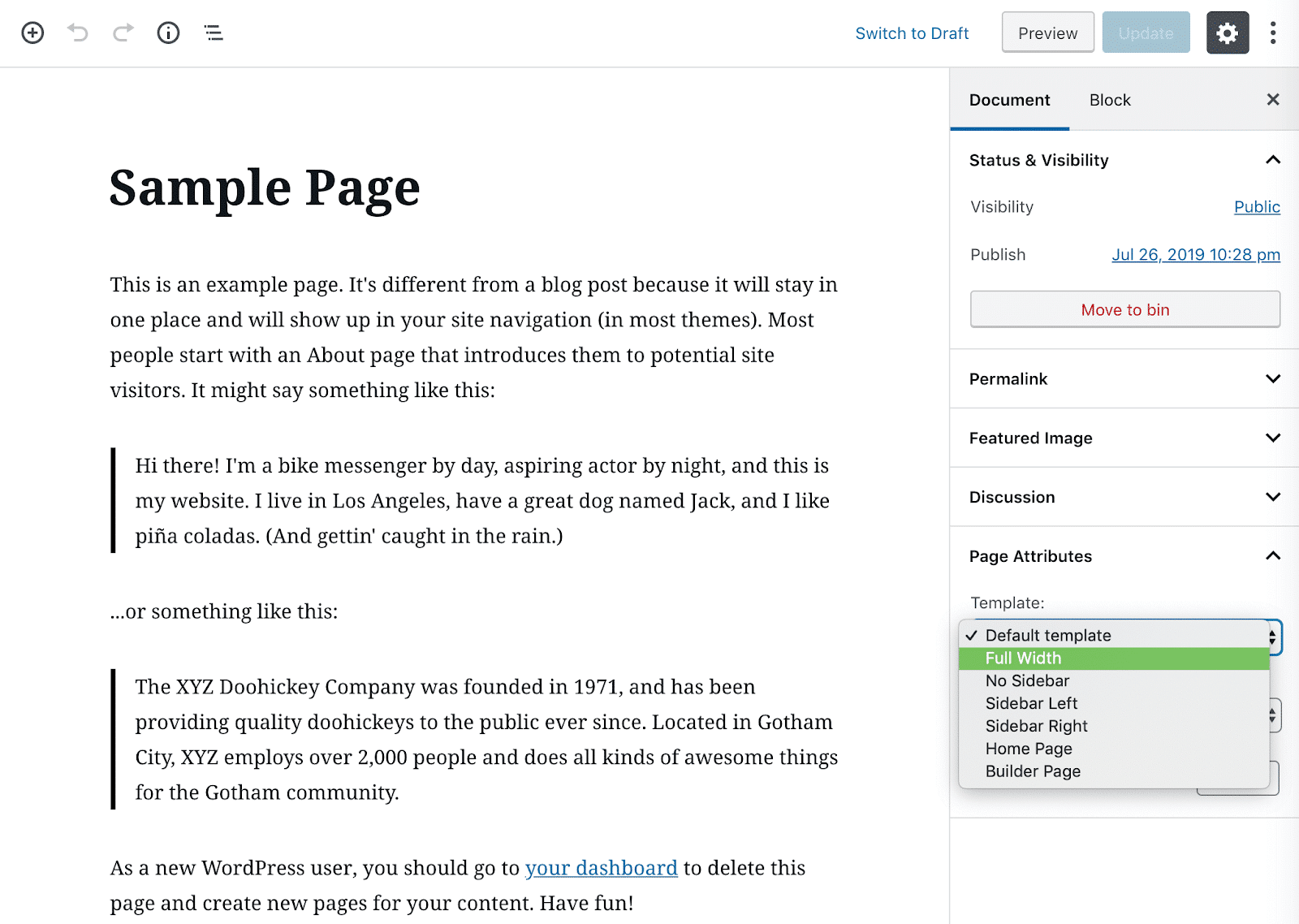
Yes, you can disable the sidebar for specific pages using page templates. Edit the page and select a full-width or no-sidebar template. If your theme doesn’t offer this, consider using a custom CSS solution or a plugin like “Content Aware Sidebars” for more control.
Is Removing The Sidebar Beneficial For Seo?
Removing the sidebar can improve user experience and focus content. For SEO, it depends on site structure and content placement. Ensure vital links and information are accessible. Always monitor analytics to see how the changes affect user engagement and rankings.
What Plugins Help Manage WordPress Sidebars?
Plugins like “Widget Logic” and “Content Aware Sidebars” offer sidebar management. They allow conditional widget display based on pages, categories, and more. These tools provide flexibility in customizing sidebar visibility, enhancing user experience, and optimizing site layout.
Conclusion
Removing the sidebar from your WordPress theme is simple. It offers a cleaner, more focused website look. Follow the steps carefully to ensure success. Check your theme options first. Some themes allow sidebar removal directly. If not, editing the code is an option.
Always back up your site before making changes. Consider using a child theme to avoid issues. This helps keep your main theme intact. Your website should now look more modern and organized. Enjoy your new layout, and make sure to test the site on different devices.
Happy blogging!


