
Have you ever found yourself frustrated with the limitations of your WordPress theme’s design? Do you wish you could customize it to better suit your brand or personal style?
You’re not alone. Many WordPress users face the challenge of overriding theme CSS to achieve the perfect look for their website. The good news is that it’s easier than you might think. With the right guidance, you can take full control of your site’s appearance, making it more attractive and engaging for your visitors.
You’ll discover simple techniques to override your WordPress theme’s CSS, empowering you to transform your website into a true reflection of your vision. Get ready to unlock the potential of your site and captivate your audience with a design that stands out.
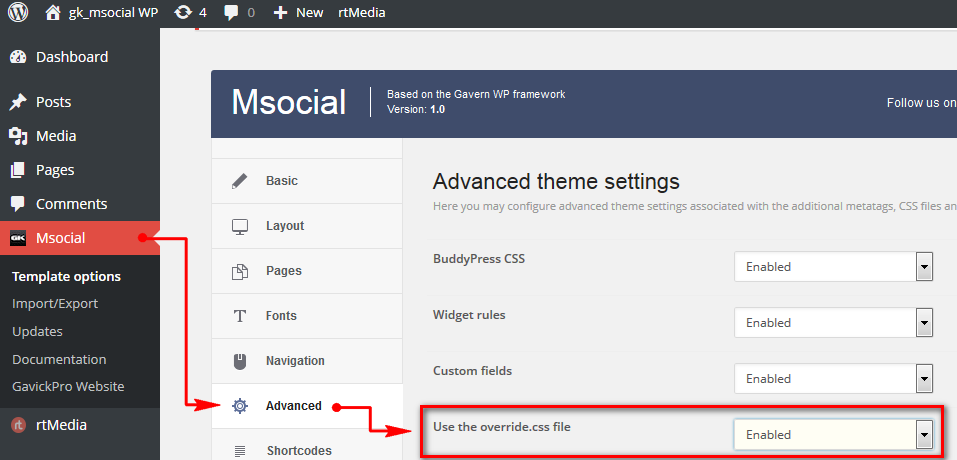
Credit: www.gavick.com
Understanding WordPress Theme Css
WordPress themes come with their own default styles. These styles control how your site looks. Sometimes, you want to change these styles. You might want a different color or font. To do this, you can override the theme CSS. This means you change the theme’s code. You can make your site look just how you like.
Start by inspecting your site. Use your browser’s inspect tool. Find the CSS you want to change. Create a child theme or use a custom CSS plugin. This lets you add your own styles. Your changes will stay safe. Even if you update the theme, your styles won’t disappear. This is a great way to customize your site.
Identifying Css Selectors
Finding the correct CSS selectors is the first step. CSS selectors are like labels. They help find the right style rules. Look at your website’s page. Right-click on the element you want to change. Choose “Inspect” from the menu. This opens the Developer Tools. In the Developer Tools, you see the HTML code. Hover over the code. The CSS selectors will highlight on the page. This helps you find the right selectors. Note them down for later use.
Make sure to copy the exact selectors you need. Wrong selectors won’t work. It’s important to get them right. Once you have them, you can use them to change styles. This is the key to customizing your theme.
Using Browser Developer Tools
Browser developer tools are very helpful. They let you see the CSS of your site. Right-click on a webpage element. Choose “Inspect” from the menu. This opens the developer tools.
Look for the “Styles” tab. Here, you will see the CSS code for the element. Scroll through the code. Find the part you want to change. You can edit it directly in the tool.
Make your changes in the “Styles” tab. This doesn’t change your actual site. It’s just for testing. Refresh the page to see the effect. If it’s good, then update your site’s CSS file.
Open your theme’s CSS file. Add the new code there. Save the file. Your changes are now live. Use this method to customize your site easily.
Creating A Child Theme
Creating a child theme helps keep your changes safe. It won’t break when the main theme updates. First, make a new folder in the wp-content/themes directory. Name it something like my-theme-child. Inside this folder, create a file named style.css. This file tells WordPress about your child theme.
Add this code at the top of your style.css file:
/
 Theme Name: My Theme Child
 Template: my-theme
/
Make sure to replace my-theme with your main theme’s folder name. Now, you need to include the parent theme’s styles. Create a file named functions.php in the same folder. Add this code inside:
php
function my_theme_enqueue_styles() {
    wp_enqueue_style('parent-style', get_template_directory_uri() . '/style.css');
}
add_action('wp_enqueue_scripts', 'my_theme_enqueue_styles');
?
This code loads the main theme’s CSS. Now, you can add your custom CSS to style.css. Your child theme is ready.
Adding Custom Css
Custom CSS lets you change your site’s look. Open your WordPress Customizer. Find the Additional CSS option. Click it. Enter your CSS code in the box. Save changes to see effects.
Use this method for simple changes. It helps to preview edits live. No coding skills needed. You can easily undo changes. Just delete the code.
Enqueuing stylesheets helps for bigger changes. Create a new file with your CSS rules. Use your functions.php file. Add code to enqueue your stylesheet.
This method is powerful. It keeps your edits safe during updates. Your custom styles load with the theme. Changes stay even after theme updates. Test on a local server first.

Credit: css-tricks.com
Utilizing Plugins For Css Overrides
Plugins can help change the look of your website. They are easy to use. WordPress offers many plugins for CSS changes. Custom CSS is a popular choice. It lets you add your own styles. Another option is SiteOrigin CSS. It provides a live editor with a preview. This helps see changes instantly.
Simple Custom CSS and JS is another plugin. It allows adding CSS and JavaScript. These plugins have free versions. Some offer premium features too. It is important to check plugin ratings. Good ratings mean users are happy. Always update plugins for best results.
Testing And Debugging Css Changes
Debugging CSS is crucial. First, check your changes in different browsers. This helps you see how your site looks. Some browsers might display styles differently. Use browser developer tools. They can help spot errors. Inspect elements directly on your page. Find the CSS code causing issues. Make changes and refresh the page. Changes might not show immediately. Use the ‘Hard Reload’ option. Clear your browser cache regularly. This ensures your changes are visible. Debugging tools highlight syntax errors. Correct these errors for smooth functioning.
Testing on mobile devices is important. Many users browse on phones. See if your changes look good on small screens. Responsive design is key. Use online tools to simulate mobile views. You can test for different devices. This helps ensure your CSS changes are effective. Remember, testing and debugging are ongoing processes.

Credit: stackoverflow.com
Best Practices For Css Overrides
Using a child theme is a smart choice. It keeps changes safe during updates. Create it before making any changes. This way, your work stays intact. Another method is using the Additional CSS option in WordPress. It’s found in the customizer. Easy to access and use. It lets you add CSS without touching main files.
Remember, too many overrides can slow the site. Keep changes minimal for good speed. Testing on different devices is important. Ensure that styles look good everywhere. Always back up your work. This avoids losing changes. Practice these tips for smooth CSS overriding.
Frequently Asked Questions
How Do I Override Theme Css In WordPress?
To override theme CSS, create a child theme or use the Additional CSS feature in the Customizer. This allows you to add custom styles without altering the original theme files. Always test your changes to ensure they display as intended across various devices.
Can I Use A Plugin To Change Theme Css?
Yes, you can use plugins like Simple Custom CSS or WP Add Custom CSS. These plugins allow you to add custom styles without modifying theme files. They provide an easy interface to manage and preview your CSS changes directly from the WordPress dashboard.
Why Should I Use A Child Theme For Css Changes?
Using a child theme prevents your custom CSS from being overwritten during theme updates. It allows you to safely make changes and add new features. This approach is recommended for maintaining a clean and manageable site appearance over time.
Is It Possible To Edit Css In WordPress Dashboard?
Yes, you can edit CSS directly in the WordPress dashboard using the Additional CSS section under Appearance > Customize. This feature provides a live preview of your changes. It’s a convenient way to make quick style adjustments without accessing theme files.
Conclusion
Mastering CSS overrides in WordPress themes boosts site customization. This skill lets you tailor your site’s look without altering core files. Always use a child theme for changes. This keeps updates easy and safe. With practice, these techniques improve your site’s design.
They ensure it stands out uniquely. Experiment with styles confidently. Remember, small tweaks can make a big impact. Keep exploring and enhancing your WordPress journey. Your site will thank you for it. Enjoy crafting a website that truly reflects your vision.
Happy styling!



