When you want your WordPress site to look exactly how you envision, activating the perfect theme is crucial. But what happens when the automatic process fails, or you need more control over the details?
Knowing how to manually activate a theme in WordPress can be your secret weapon. You’re about to unlock the potential to personalize your site to reflect your unique style and needs. Imagine the satisfaction of having a site that truly represents you, functioning flawlessly because you took charge.
In this guide, you’ll discover the straightforward steps to manually activate a theme, ensuring you have the power to make your WordPress site look and feel just right. Dive in and take control—your perfect WordPress theme is just a few clicks away!
Understanding Themes In WordPress
WordPress themes change the look of your website. They control colors, fonts, and layouts. Each theme offers a unique style. Themes are like clothes for your website. They make it stand out. Some themes are free. Others cost money. You can find many themes online. Pick one that fits your needs. Make sure it’s easy to use. And that it’s responsive. Responsive means it looks good on phones and computers. Always check the theme’s reviews. Reviews help you know if it’s good.
Once you pick a theme, you need to activate it. Activation is simple. It just takes a few steps. First, log in to your WordPress account. Then go to the dashboard. From there, click on “Appearance”. Then click on “Themes”. Find your theme and click “Activate”. Your new theme is now live. Always preview your site after activation. This ensures everything looks right. If not, you can make changes. Enjoy your new website look!
Preparing For Theme Activation
Always check if your new theme is compatible with your WordPress version. Some themes need a specific version. Updating WordPress helps. It keeps everything smooth and secure. Look at the theme’s requirements. Are plugins needed? Do you have them? Check the PHP version too. These steps help avoid problems.
Backing up your current theme is important. It saves your custom settings. You can use a plugin for backups. Many free options exist. Some make backups easy. Download your theme files. Save them to your computer. This way, changes won’t hurt your site. If something goes wrong, you can restore it.
Accessing The WordPress Dashboard
Start by opening a web browser. Type your website’s URL. Add “/wp-admin” at the end. Press enter. The login page will show up. Enter your username and password. Click on the “Log In” button. You will see the WordPress dashboard. This is where you control your site.
Look at the left side of the dashboard. Find the menu with many options. Search for “Appearance”. It is usually below “Plugins”. Click on the “Appearance” tab. A dropdown list will appear. This is where you can manage your themes. Choose the “Themes” option. You will see all the themes you have.

Credit: www.youtube.com
Installing A New Theme
To upload a new theme, start by logging into your WordPress dashboard. Click on the Appearance tab. Select Themes from the menu. You will see an Add New button at the top. Click it to begin. Choose the Upload Theme option. You will need to have the theme file ready. It should be a zip file. Click Choose File and select your theme file. Then click Install Now. Wait for the upload to finish. Once done, click on Activate to use your new theme.
The WordPress Theme Repository is a place to find themes. Click on Appearance in the dashboard. Select Themes. Click Add New. You can search for themes here. Type the theme name or a keyword. Browse through the options. Each theme has a preview. Click Install to add a theme. Once installed, click Activate. The theme will be live on your site.
Manually Activating A Theme
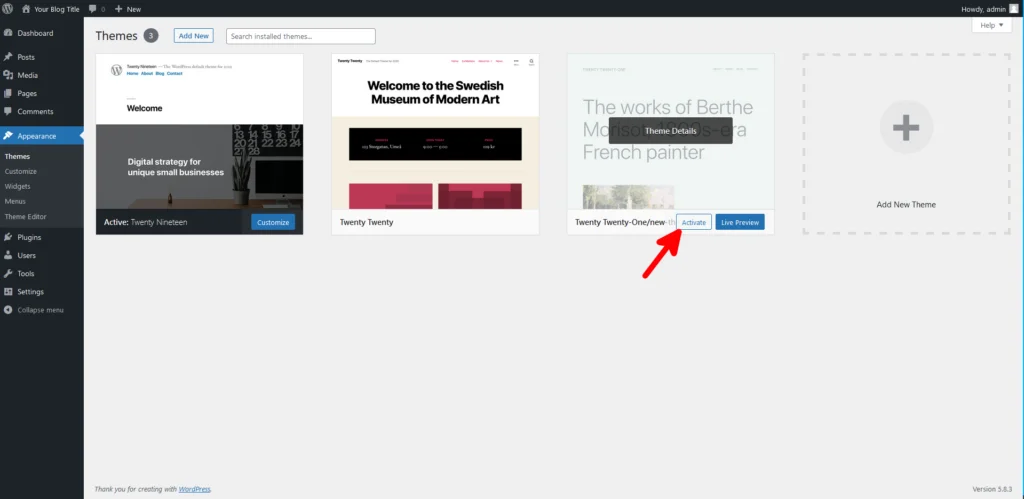
Go to your WordPress dashboard. Find the Appearance menu on the left. Click on Themes. You will see a list of themes. Choose the one you want. Hover over the theme. Click Activate. Your theme is now active. Check your site for changes.
First, open your FTP client. Connect to your website server. Go to the wp-content/themes folder. Upload your theme’s folder here. Once uploaded, go back to the WordPress dashboard. Click on Appearance. Find your uploaded theme. Click Activate. Your theme will be live now.
Credit: www.scalahosting.com
Customizing Your New Theme
The WordPress Customizer helps you change your theme easily. Go to the Appearance tab. Select the Customize option. You will see many choices. You can change colors, fonts, and layout. Preview changes before saving. This way, you know how the site will look. Do not forget to save your changes. Your website will now have a fresh look.
Sometimes, you need to edit theme files. Go to Appearance and then Theme Editor. Be careful while editing. A small mistake can break your site. Always make a backup first. This ensures you can restore it if needed. Change only what you understand. Save changes when done. Your website may show the updated design right away.
Troubleshooting Common Issues
Activating a WordPress theme manually can solve many issues. Start by accessing your dashboard and navigating to ‘Appearance’ then ‘Themes’. Select the desired theme and click ‘Activate’. This method is useful for troubleshooting theme-related problems efficiently.
Resolving Activation Errors
Activation errors can be frustrating. First, check the theme files. Make sure they’re complete. Missing files cause problems. Next, look at WordPress version. Some themes need the latest version. Update if needed. Then, check permissions on the theme folder. Incorrect permissions can block activation. Change them if necessary. Finally, deactivate plugins. Plugins sometimes cause conflicts. Try activating the theme again.
Fixing Theme Display Problems
Display problems can mess up your site. First, clear the cache. Caches can show old content. Refresh to see changes. Next, check the CSS files. Errors in CSS affect display. Fix any mistakes. Also, look at the theme settings. Wrong settings can cause display issues. Adjust them if needed. Finally, try a different browser. Some browsers handle themes differently. The theme might look fine elsewhere.
Ensuring Compatibility With Plugins
Many themes need plugins to work well. It’s important to check if your theme and plugins are compatible. Sometimes, a theme might not work with certain plugins. This can cause problems. Checking compatibility can prevent these issues.
Begin by listing the plugins you use. Check each one for compatibility. Visit the theme’s page for information. Look for reviews or FAQs. Many users share their experiences there. This helps you know if the theme will work with your plugins.
If a plugin causes issues, try another. Many plugins do similar tasks. Choose one that works with your theme. Always keep plugins updated. Updates fix bugs and improve compatibility. Regular checks help ensure everything works smoothly.
Maintaining Your Theme
Regular updates are important for your theme. They keep your site safe. Updates fix bugs and add new features. Always check for updates in your WordPress dashboard. Click on the update button to install them. This ensures your theme works well with new WordPress versions.
Following security best practices keeps your site secure. Use strong passwords for your admin panel. Limit login attempts to stop hackers. Install security plugins to monitor your site. Always backup your theme and data. This helps if something goes wrong. Regular checks keep your site safe and running.

Credit: www.youtube.com
Frequently Asked Questions
How Do I Manually Activate A WordPress Theme?
To manually activate a WordPress theme, navigate to the WordPress dashboard. Go to Appearance > Themes and find the theme you want. Click on the “Activate” button below the theme. Your theme will now be active. Ensure your theme is compatible with your WordPress version.
Can I Activate A Theme Without Ftp?
Yes, you can activate a theme without FTP. Use the WordPress dashboard to activate it. Navigate to Appearance > Themes, select your desired theme, and click “Activate. ” This method is straightforward and doesn’t require technical skills.
What Should I Do Before Activating A New Theme?
Before activating a new theme, back up your website. Check the theme’s compatibility with your WordPress version. Review its features and settings. This ensures a smooth transition and minimizes potential issues.
How Can I Troubleshoot Theme Activation Issues?
If you face theme activation issues, check for plugin conflicts. Deactivate plugins and reactivate them one-by-one. Ensure your WordPress and theme are updated. If problems persist, consider consulting support forums or a developer.
Conclusion
Activating a WordPress theme manually is simple and rewarding. You gain control over your website’s appearance and functionality. Follow the steps carefully for a seamless experience. Remember, practice makes perfect. Try different themes to find the best fit. Check compatibility and updates for smooth operation.
Themes can impact site speed, so choose wisely. Explore more to enhance your site’s look. Stay updated with the latest WordPress features. Enjoy customizing your website to reflect your brand. Happy theming!