Are you struggling to find the right way to log in to your WordPress admin panel? You’re not alone.
Accessing your admin dashboard is the first step to unlocking the full potential of your website. Whether you want to update content, manage plugins, or customize your site’s look, knowing how to log in quickly and securely is essential. In this guide, you’ll discover simple, step-by-step instructions that make logging in easy, even if you’re new to WordPress.
Keep reading, and you’ll gain the confidence to take control of your website like a pro.

Credit: www.temok.com
Locate Your WordPress Login Url
Finding your WordPress login URL is the first step to access your website’s admin area. This URL leads you to the page where you enter your username and password. Knowing the exact address saves time and avoids confusion. It also keeps your website secure by letting you access the right page quickly.
WordPress sites often use default login URLs. Some site owners change these URLs for security reasons. Understanding both types helps you find the correct login page fast.
Default Login Urls
The most common WordPress login URL ends with /wp-login.php. For example, www.yoursite.com/wp-login.php. Another popular URL is /wp-admin. Typing www.yoursite.com/wp-admin also brings you to the login page.
These URLs work for most WordPress sites. They are simple and easy to remember. If your website uses the standard WordPress setup, try these URLs first.
Custom Login Urls
Some WordPress sites use custom login URLs. This change helps protect the site from hackers. Custom URLs look different from the default ones.
To find a custom login URL, check your website setup or ask your developer. Sometimes, the login page may be like www.yoursite.com/my-login or another unique name.
Using a custom URL means you must remember the new address. Bookmark it to avoid losing access.
Enter Your Username And Password
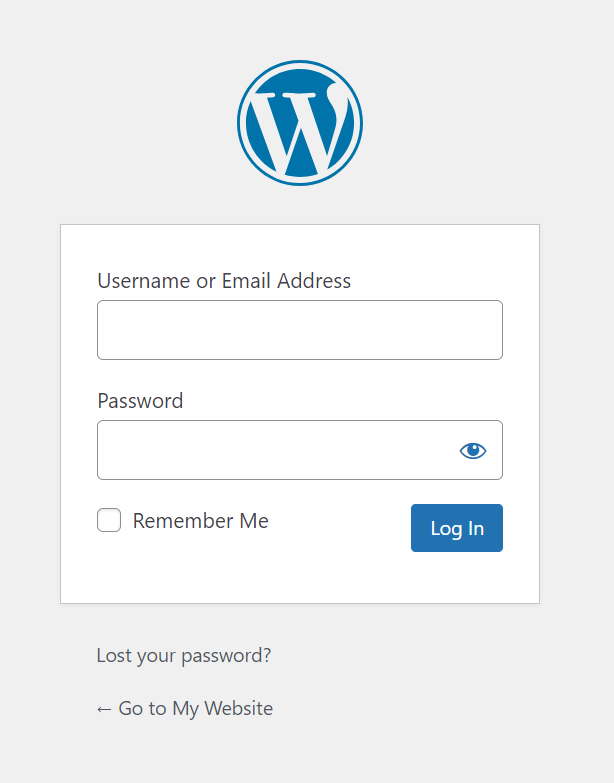
Entering your username and password is the key step to access your WordPress admin area. This step protects your website from unwanted users. You must type your details carefully to avoid errors. Always keep your login information private and secure.
Using Admin Credentials
Your admin username is the identity you use for logging in. The password keeps your account safe. Type both exactly as you created them. WordPress login is case sensitive. Use capital and small letters correctly. Avoid spaces before or after your username and password. Click the login button to proceed.
Password Recovery Options
Forgot your password? WordPress offers simple recovery steps. Click the “Lost your password?” link below the login form. Enter your username or email address to get a reset link. Check your email inbox and follow the instructions. Set a new password that is strong and easy to remember. This process helps you regain admin access quickly.
Enable Two-factor Authentication
Enabling Two-Factor Authentication (2FA) adds an extra layer of security to your WordPress admin login. It requires a second form of verification besides your password. This step helps protect your site from hackers and unauthorized access. 2FA makes your login process more secure without much hassle.
Benefits Of Two-factor Authentication
Two-Factor Authentication significantly reduces the risk of account breaches. Even if someone steals your password, they cannot access your admin area without the second verification step. This method helps stop automated attacks and phishing attempts. It also builds trust for website users and clients by keeping your site safer.
Setting Up 2fa Plugins
Several easy-to-use plugins add 2FA to your WordPress site. Popular options include Google Authenticator and Wordfence. Install a plugin from your WordPress dashboard. Follow the setup instructions to link your account with an authentication app on your phone. After setup, you enter a code from the app along with your password during login.
Troubleshoot Login Issues
Login issues can stop you from accessing your WordPress admin panel. These problems cause delays and frustration. Troubleshooting helps you regain control fast. Follow these simple steps to fix common login errors.
Clearing Browser Cache
Browsers store old data to load pages faster. Sometimes, this data blocks your login. Clear your browser cache to remove outdated files. After clearing, restart the browser and try logging in again. This step often solves loading and login issues quickly.
Resetting Password Via Database
Lost password or no reset email? Change your password directly in the database. Access your hosting control panel and open phpMyAdmin. Find the WordPress database and locate the users table. Edit your user record and update the password using MD5 encryption. Save the change and use the new password to log in.
Disabling Plugins Via Ftp
Faulty plugins can block login access. Use an FTP client to connect to your website files. Navigate to the plugins folder inside wp-content. Rename the plugins folder to disable all plugins at once. This stops plugin conflicts and lets you access the admin area. Rename the folder back to reactivate plugins one by one.
Secure Your Admin Area
Securing your WordPress admin area protects your site from hackers and unwanted access. It keeps your data safe and your site running smoothly. Simple security steps can make a big difference. Focus on strong login protections to stop attacks early.
Limiting Login Attempts
Limit the number of login tries allowed. This stops hackers from guessing passwords by trying many times. Use plugins that block users after several failed attempts. It slows down or stops brute force attacks completely. This small step greatly increases your site security.
Using Ssl For Login Pages
SSL encrypts the data sent between users and your site. It protects login details from being stolen over the internet. Make sure your login page uses HTTPS, not just HTTP. Many hosts offer free SSL certificates. Secure login pages build trust and keep information safe.

Credit: jetpack.com
Credit: www.hostinger.com
Frequently Asked Questions
How Do I Access The WordPress Admin Login Page?
To access the admin login page, add “/wp-admin” to your website URL. For example, www. yoursite. com/wp-admin. This redirects you to the login screen where you enter your credentials.
What If I Forget My WordPress Admin Password?
Click the “Lost your password? ” link on the login page. Enter your email to receive a password reset link. Follow the link to create a new password securely.
Can I Change The WordPress Admin Login Url?
Yes, you can change it using plugins like WPS Hide Login. This improves security by hiding the default login page from attackers.
How Do I Secure My WordPress Admin Login?
Use strong passwords, enable two-factor authentication, and limit login attempts. These steps protect your admin area from unauthorized access and hacking attempts.
Conclusion
Logging into your WordPress admin is simple and quick. Just follow the steps carefully. Keep your username and password safe and private. Use the correct URL to avoid confusion. Regularly update your login details for better security. Now, you can easily manage your website content.
Remember, practice makes it easier every time. Start exploring your WordPress dashboard today. Your site’s control is just a login away.