Are you ready to give your WordPress site a fresh, new look? Installing a new theme can be a game-changer for your website’s appearance and functionality.
Whether you’re looking to enhance your blog’s visual appeal, improve user experience, or simply try out a different style, learning how to install a new theme in WordPress is a skill that can elevate your website to the next level.
Don’t worry if you’re not tech-savvy; this process is easier than you might think. By the end of this guide, you’ll be able to effortlessly switch up your site’s design and make it stand out in the digital crowd. Let’s dive in and transform your website into something spectacular!
Credit: www.wpbeginner.com
Choosing The Right Theme
Think about what your site will do. A blog needs a simple look. A store needs a place to show items. Pick a theme that fits the job. This helps people enjoy your site more.
Make sure the theme works with your WordPress version. Some themes need newer WordPress. Check the theme info page. If it does not match, it can cause problems.
Look at user reviews. They tell how good or bad a theme is. High ratings mean many people like it. Check comments for common issues. This helps you pick a reliable theme.
Credit: www.wpbeginner.com
Preparing For Installation
Always backup your website before changes. This keeps your data safe. Use tools to make backups easy. Save your backup files in a secure place. This helps if something goes wrong. Restoring from a backup is simple and quick.
Updating WordPress is important. It keeps your site secure. Go to your dashboard. Look for the update button. Click it to start. Wait for the update to finish. This ensures you have the latest features.
Plugins can conflict with new themes. Go to the plugins page. Find plugins that might conflict. Deactivate them for now. This prevents issues when installing the theme. Reactivate them once the theme works fine.
Installing The Theme
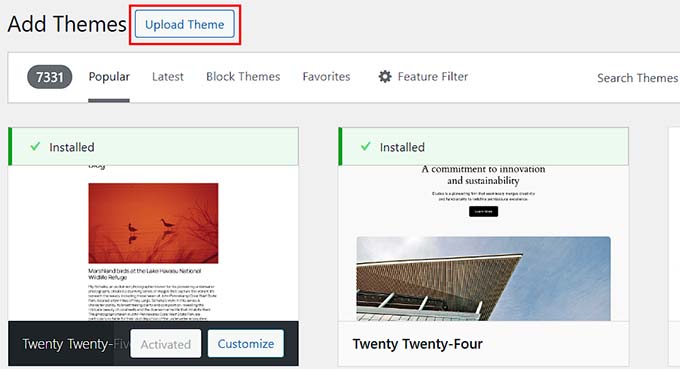
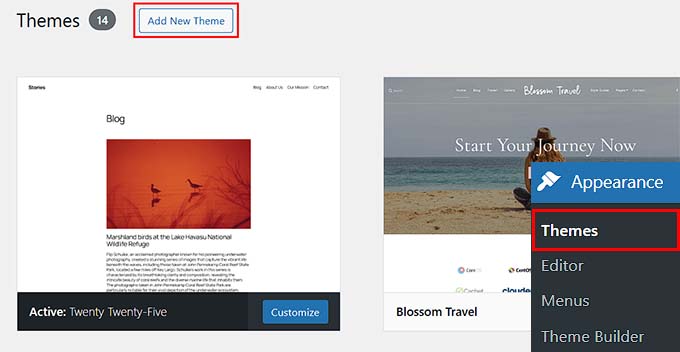
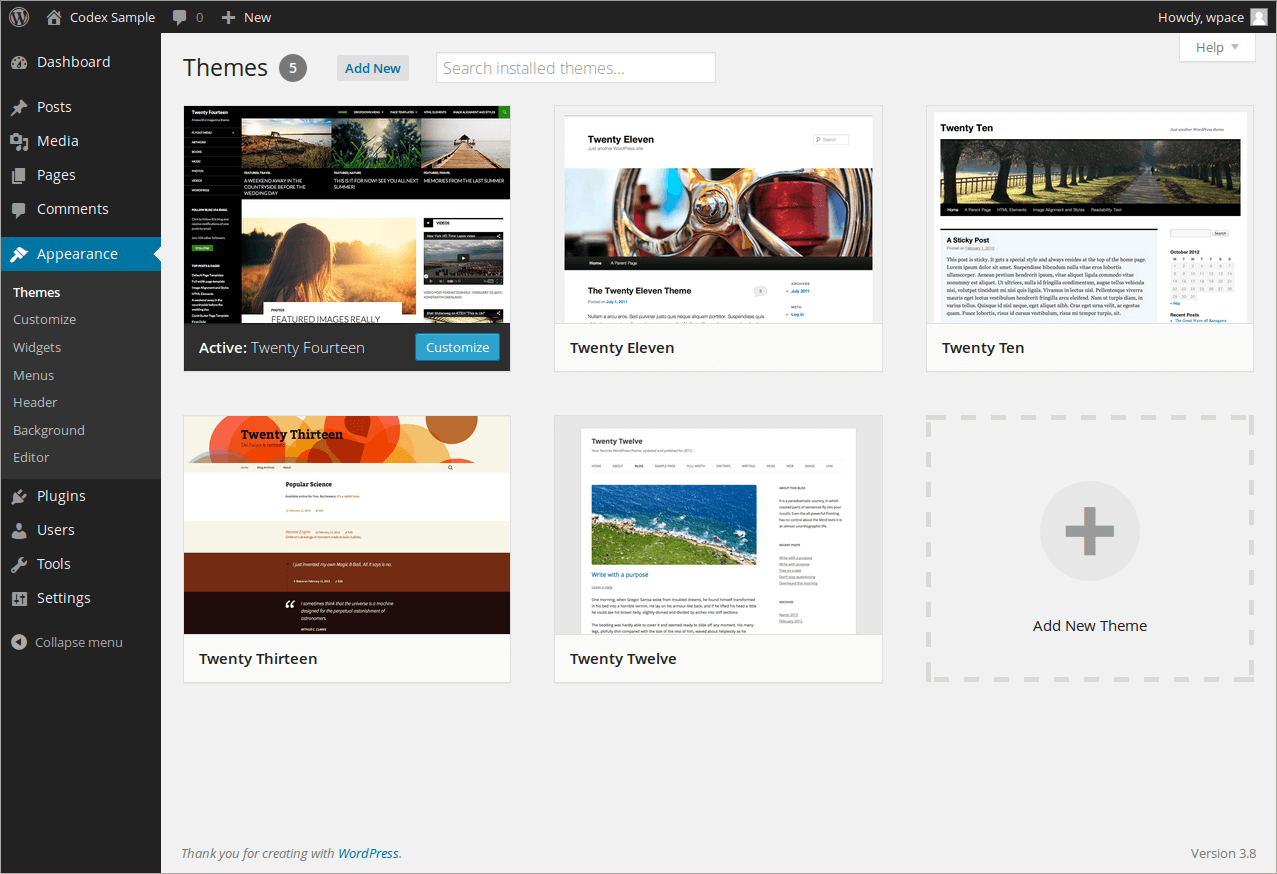
First, log in to your WordPress Dashboard. Find the Appearance option and click on Themes. You will see an Add New button. Click it. Then click on Upload Theme. A button will appear to choose your theme file. Click Choose File. Find your theme’s zip file and select it. Click Install Now. Wait a few seconds. When the theme uploads, click Activate. Your new theme is now live!
Open your FTP client. Connect to your website’s server. Find the wp-content folder. Open the themes folder inside. Upload your theme folder here. Make sure the theme is unzipped. Log into your WordPress Dashboard. Go to Appearance, then Themes. Find your new theme. Click Activate to use it. Now your theme is set!
Activating The Theme
Installing a new theme on WordPress starts by navigating to the ‘Appearance’ section. Select ‘Themes’ and click ‘Add New. ‘ After choosing your desired theme, activate it to see immediate changes on your website.
Navigate To Theme Section
To begin, open your WordPress dashboard. Look for Appearance on the left menu. Click it to see options. Find Themes and click on it. Now, you will see installed themes. To add a new theme, click Add New button at the top.
Activate New Theme
Once you find a theme you like, hover over it. Click Install to add it. After installation, click Activate. Your site will now use this theme. Check your site to see changes. Make sure everything looks good. If needed, adjust settings in the Customize section. This helps make your site look better.
Customizing The Theme
The Theme Customizer helps you change your website’s look. It’s easy to use. Open the WordPress dashboard. Find “Appearance” and click on “Customize”. You will see many options. Play with these to make changes. Adjust fonts, colors, and more. Changes update instantly. Check how they look. Simple and fun to try!
Layouts and colors add life to your site. Choose a layout that fits your style. Try different ones to see what works. Change colors for a fresh look. Make sure text is easy to read. Bright colors can make your site pop. Always preview changes. Ensure everything looks right.
Widgets are special tools. They add features to your site. Go to the Widgets section in “Appearance”. Drag and drop widgets to your sidebars. Add calendars, search bars, or recent posts. Keep it simple. Too many widgets can clutter the page. Organize well for easy navigation.
Credit: www.hostpapa.com
Troubleshooting Common Issues
Installing a new WordPress theme often involves common issues like compatibility and plugin conflicts. Ensure all plugins are up-to-date and check theme requirements. If problems persist, consider clearing your browser cache and refreshing the page.
Fixing Installation Errors
Installation errors can be annoying. Check your internet connection first. Make sure it is stable. Clear your browser cache to remove old files. It helps sometimes. Update your WordPress version. Old versions may not work well. Disable plugins if you still have issues. Some plugins may cause conflicts. Contact your hosting provider for more help.
Resolving Compatibility Problems
Themes may not work with all plugins. Check the theme’s documentation for guidance. It may list compatible plugins. Update all plugins and themes regularly. This helps avoid problems. Test your website after updates. Ensure everything works fine. Switch to a default theme if problems persist. This helps identify if the theme is the issue.
Addressing Performance Issues
Slow websites frustrate users. Optimize images to load faster. Use smaller file sizes. Use caching plugins. They make your site faster. Check for slow plugins. Some plugins can slow down your site. Update your hosting plan if needed. A better plan can improve performance. Regularly monitor your site speed. It ensures everything runs smoothly.
Frequently Asked Questions
How Do I Activate A New Theme In WordPress?
To activate a new theme, go to your WordPress dashboard. Click on “Appearance,” then “Themes. ” Find the theme you want and click “Activate. ” Your new theme will be live instantly. Make sure to preview and customize it to suit your needs before activating.
Can I Install Themes From WordPress Dashboard?
Yes, you can. Go to “Appearance” and then “Themes” in your dashboard. Click “Add New” to browse available themes. You can search, preview, and install directly from there. It’s user-friendly and doesn’t require technical skills.
How Do I Upload A Theme In WordPress?
To upload a theme, go to “Appearance” then “Themes,” and click “Add New. ” Choose “Upload Theme” and select your theme’s zip file. Click “Install Now,” then “Activate” to apply it. Ensure the theme is compatible with your WordPress version.
What Should I Do Before Changing Themes?
Before changing themes, backup your site. Check theme compatibility and note any customizations. Test the new theme in preview mode. Ensure plugins and widgets will work. This helps avoid disruptions and keeps your site running smoothly.
Conclusion
Installing a new WordPress theme is simple and rewarding. Follow the steps carefully. Choose a theme that fits your website’s style. Use the WordPress dashboard for installation. Customize settings to make it personal. Preview changes before going live. Check responsiveness on different devices.
Regular updates keep your theme secure. Always backup before making changes. Enjoy the fresh look of your site. With practice, you’ll get better at theme management. Remember, a well-chosen theme enhances user experience. Now, your website can stand out and attract visitors effectively.