
Have you ever wondered how to host a local web page right from your own computer? Whether you’re a budding web developer, a small business owner wanting to showcase your products, or simply curious about the digital world, hosting a local web page is a skill worth mastering.
Imagine having complete control over your web presence, without relying on external hosting services. Picture the convenience of testing your site before it goes live, ensuring everything is just right. This guide will demystify the process, showing you how to set up your own web page locally, in easy steps.
Get ready to take your first step into the world of web hosting with confidence and creativity. Dive in, and discover how you can make your digital dreams a reality.
Choosing The Right Tools
Picking the right web server software is important. Many options are available. Some are easy to use. Others need more experience. Apache is popular. It is open-source and free. Many people use it. Nginx is another choice. It is known for speed. It handles many users well. Lighttpd is lightweight. It uses little memory. Good for small servers.
Different software works with different systems. Apache runs on Windows, Linux, and Mac. It is very flexible. Nginx also supports these systems. It is a good choice for many. Lighttpd works on Linux and Windows. Not all software supports every system.
Credit: www.chegg.com
Setting Up Your Local Environment
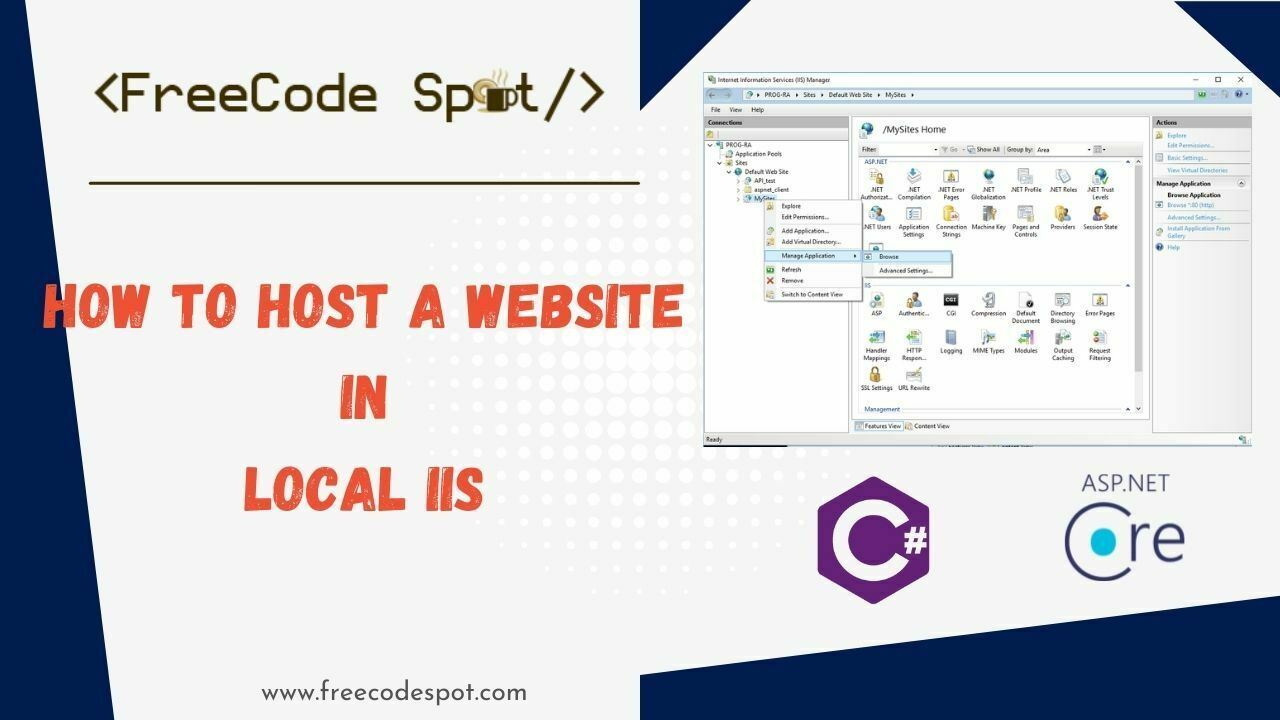
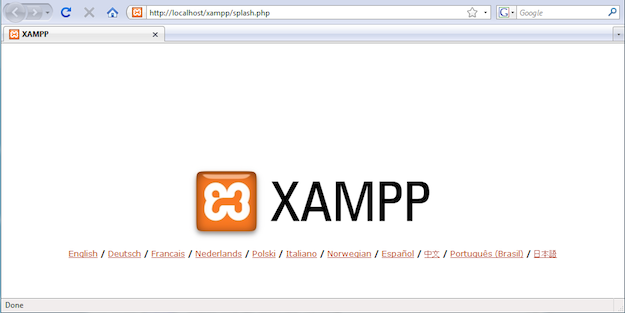
Start by downloading a web server software. Popular choices include XAMPP and WAMP. These tools are free and easy to use. They help you create a local server on your computer. Follow their instructions to install them. Make sure your computer has enough space. A few gigabytes should be enough.
Open the software and find the network settings. This is where you set up your local web page. Choose the localhost option. This makes your web page available only on your computer. No one else can see it. You can also set a port number. The default is usually port 80. Make sure other programs are not using it.
Creating Your Web Page
Begin with a simple HTML file. Use the tag to start. Inside, place the and tags. In the head, add the title of your page. The body holds your main content. Use for main headings. For smaller headings, use or . To add text, use the tag. Images can be added with the tag. Links use the tag.
CSS makes your page look nice. Use a tag in the head. Inside, you can change colors and fonts. JavaScript adds actions. Use a tag. It can make buttons do things. Keep scripts at the bottom of the body. This helps the page load faster. Both CSS and JavaScript add fun to your page.
Testing The Web Page Locally
Accessing via Localhost lets you see your web page on your computer. You type localhost in your browser’s address bar. Your computer acts like a small web server. This is great for testing your page. It shows you how your site will look online. You can make changes and see them quickly. This method is easy and helpful for new web developers.
Troubleshooting Common Issues can save you lots of time. Sometimes, your page might not show up. First, check if your server is running. Make sure your files are in the right place. Look at your code for mistakes. Small errors can cause big problems. Restarting your server can also help. Always save your work before testing.
Enhancing Security Measures
Firewalls are like guards for your web page. They keep bad people out. Set rules for your firewall. Decide who can enter and who cannot. Update these rules often. This makes your firewall strong. Strong firewalls protect your web page. They stop attacks before they begin. Use simple rules for your firewall. Complex rules can be confusing. Confusion can lead to mistakes. Mistakes are bad for security.
Use passwords that are hard to guess. Long passwords are best. Mix numbers, letters, and symbols. Change passwords often. This keeps them safe. Keep your software up to date. Updates fix security holes. Old software has weak spots. Weak spots are dangerous. They invite attacks. Use secure networks. Avoid public Wi-Fi. Public Wi-Fi is risky. Hackers can easily access it.
Advanced Features
Explore advanced features for hosting a local web page. Enhance your site with custom domain names, SSL certificates, and personalized server settings. Improve user experience with responsive design and efficient load times.
Database Integration
Databases store data for web pages. They are like a big library. Websites use databases to show user data. This makes pages smart. MySQL and PostgreSQL are popular choices. They are easy to use. Connect your web page to a database. This allows storing and retrieving data. Create a dynamic web experience for users with database power.
Dynamic Content With Php
PHP is a scripting language. It helps create changing web pages. PHP can show different content each time. It works with HTML easily. Variables in PHP store information. Loops repeat actions. Functions in PHP do tasks. PHP can talk to databases too. Use PHP for creating interactive sites. Make your page come alive.
Future Expansion
As your web page grows, you might need to scale up. Moving to an external host can help. An external host stores your web page on the internet. This makes it accessible to everyone. Pick a host that fits your needs and budget. Check for uptime and support. These are important features.
Keep your web page updated. Add new content to keep it fresh. Fix any errors you find. Regular updates make your page run smoothly. Use tools to check for broken links. These tools help maintain a good user experience. A well-maintained page is important for your visitors.
Credit: www.freecodespot.com
Credit: managewp.com
Frequently Asked Questions
How Do I Host My Website Locally?
Install a local server software like XAMPP or WAMP. Place your website files in the server’s public directory. Start the server and access your website via localhost in your browser. Ensure all necessary services, such as Apache and MySQL, are running for full functionality.
How Do I Host A Web Page?
To host a web page, choose a reliable web hosting provider and register your domain name. Upload your web files using an FTP client or the hosting provider’s control panel. Ensure the website is correctly configured and make it live.
Regularly update and maintain your site for optimal performance.
Can I Host My Website For Free?
Yes, you can host your website for free using platforms like WordPress. com, Wix, or GitHub Pages. These services offer limited features. For advanced options, consider paid plans. Ensure to choose a platform that suits your needs and provides reliable uptime.
Can I Host A Website Off My Computer?
Yes, you can host a website on your computer. Install a web server software like Apache or Nginx. Ensure your internet connection is stable and configure your firewall for access. However, this setup may lack reliability and security compared to professional hosting services.
Conclusion
Hosting a local web page is easier than it seems. Start with clear goals. Choose the right software. Set up your server carefully. Ensure your content is organized and useful. Remember to check your page’s performance. Regular updates keep your site fresh.
Follow these steps, and you’ll create a successful local web page. Always keep learning and adapting. Technology changes fast. Stay updated. Your local web page can grow with your business. Enjoy the process. It’s rewarding and beneficial.



