
A broken theme in WordPress can feel like a nightmare. You log in, and suddenly, your site looks like a mess.
Panic sets in as you wonder how this happened and, more importantly, how you can fix it. Don’t worry—you’re not alone, and this isn’t the end of the world. Many WordPress users face this issue, and there’s a clear path to getting your site back in perfect shape.
Imagine how relieved you’ll feel when your site is running smoothly again, with every element in its rightful place. This guide will walk you through the steps to diagnose and resolve theme issues effectively. You’ll learn practical solutions that you can apply immediately, ensuring you regain control and peace of mind. By the end of this article, you’ll be equipped with the knowledge to prevent future theme problems, helping you maintain a seamless and professional online presence. Ready to take the stress out of fixing your WordPress theme? Let’s dive in and get your site back to its best.

Credit: fixmysite.com
Identifying Theme Issues
Many problems can happen with WordPress themes. Themes might not show up right. Sometimes, they can break your site. This can confuse visitors. A theme might not be compatible with the latest WordPress update. Outdated themes can cause trouble. Plugins might not work well with the theme. This leads to errors and slow speed.
Error messages are common. They can look scary. The “white screen of death” is one of them. It means the site is blank. Another error is “syntax error” which shows code problems. You might see “fatal error” when something is very wrong. These errors need fixing fast. Understanding them helps solve theme issues.
Backup Your Site
Backups keep your work safe. A broken theme can cause problems. Backup files help you fix these issues. You won’t lose important data. It saves time and stress. Always make a backup before changes. This way, you can restore your site.
There are many tools to help you. Some tools are free. Others might cost a bit. UpdraftPlus is a popular choice. It’s easy to use. BackWPup is another good tool. Both help save your site safely. Choose one that fits your needs.
Check For Plugin Conflicts
First, go to the WordPress dashboard. Click on Plugins. Select Deactivate for all plugins. This stops them from running. Sometimes a plugin can break your theme. Deactivating helps find the problem. Your theme might work after this step.
Reactivate each plugin, one at a time. Check the theme after each activation. If the theme breaks, the last plugin is the problem. Keep that plugin deactivated. This method is simple and helps find the issue fast.
Review Theme Files
First, open your WordPress dashboard. Click on the Appearance option. Then select Theme Editor. Here, you can find the theme folder. It holds all the theme files. It is usually in the wp-content/themes directory. This is where you start your fix.
Next, check the PHP files inside the theme folder. These files control how your site looks and works. Look for any code errors or missing files. Fix any problems you find. If a file is missing, try to upload it again. This can solve many theme issues.
Update Or Reinstall Theme
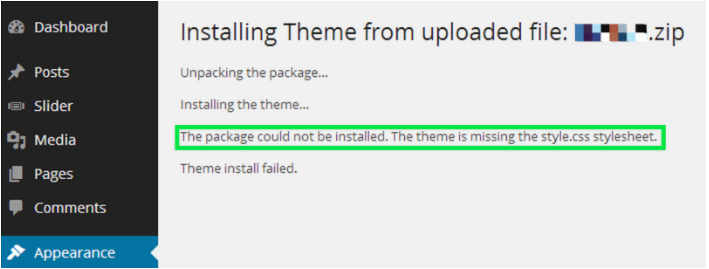
Start by logging into your WordPress dashboard. Go to the Appearance tab and click on Themes. Find the broken theme. Note its name and version. Download the latest version from a trusted source. Save the file to your computer.
Next, go back to the dashboard. Click on the Add New button. Then, click Upload Theme. Choose the new theme file you downloaded. Click Install Now. Wait for the installation to complete. Click Activate to apply the new version. Check your site to ensure the theme works properly.
Remember, always back up your site before updating. This helps avoid loss of data. If issues persist, consider contacting theme support for help.
Credit: thimpress.com
Check For WordPress Updates
WordPress gets updates often. These updates fix many issues. A broken theme might need a WordPress core update. Go to your dashboard to find updates. Look for the update notification icon. Click it to see what needs updating. Always backup your site before updating. Sometimes, updates fix theme problems. They also improve security and performance.
Themes and plugins can clash. This clash can break your theme. Check if your theme is compatible with the latest WordPress version. Visit the theme’s website. Look for any notes about updates or fixes. If a plugin causes trouble, disable it. Then, check your theme again. Find plugins that work well with your theme. This can solve many issues.
Custom Code Troubleshooting
Custom changes can break themes. Check the files for changes. Look for code that was added. It might be the reason the theme broke. Removing the code can fix the problem. Always make a backup first. This helps if you need to undo a change.
Recent edits can cause issues. Undo changes made last. Start with the most recent one. Go back step by step. Check if the theme works after each undo. This helps find the problematic change. Keep a record of what you undo.

Credit: www.youtube.com
Seek Professional Help
Broken themes can be tricky. Sometimes, fixing them needs expert eyes. Bugs and errors might appear out of nowhere. These can be hard to solve alone. If you feel stuck, a developer can help. They know the ins and outs of WordPress. Developers can spot hidden problems quickly. They save you time and stress.
Reliable support is crucial. Ask friends for recommendations. Search online for trusted developers. Reviews and ratings matter. Check their experience with WordPress. Some developers offer free consultations. This helps you understand their services. Make sure they communicate well. Clear communication avoids misunderstandings. Good support makes theme fixing easier.
Frequently Asked Questions
How To Fix A Broken WordPress Theme?
To fix a broken WordPress theme, update or reinstall it. Check for plugin conflicts and deactivate them. Clear browser cache and refresh. Use the WordPress default theme to troubleshoot. Contact the theme developer for support if issues persist.
How To Restore A Theme In WordPress?
Go to WordPress dashboard. Navigate to “Appearance” and click “Themes. ” Select your desired theme. Click “Activate” to restore it.
Why Is My WordPress Theme Not Showing Correctly?
Your WordPress theme might not display correctly due to plugin conflicts, caching issues, or outdated themes. Check for recent updates, clear browser cache, and disable conflicting plugins. Ensure that your theme is compatible with the current WordPress version for optimal performance.
How To Fix Broken Css In WordPress?
To fix broken CSS in WordPress, clear your browser cache. Check for plugin conflicts by deactivating them. Update your theme and plugins. Use custom CSS to override styles. Ensure your CSS file is correctly linked in the header. Use a child theme for customizations.
Conclusion
Fixing a broken WordPress theme can be simple. Follow the steps carefully. Check your plugins and update them. Review your theme settings. Sometimes, a small change fixes big problems. Regular backups help prevent future issues. Troubleshooting guides can offer solutions.
Remember to keep your WordPress updated. A well-functioning theme improves your site’s performance. Connect with the WordPress community for support. They offer helpful advice. Keep your site secure and running smoothly. Your audience will appreciate a seamless experience. Take time to understand your theme’s structure.
It pays off in the long run.



