Are you tired of your WordPress theme looking just like everyone else’s? Do you want to stand out and truly make your website your own?
You’re not alone. Many WordPress users are eager to customize their site’s appearance but feel intimidated by the thought of editing CSS styles. The good news is, it’s easier than you might think, and we’re here to guide you through the process.
By tweaking your theme’s CSS, you can add a personal touch and enhance user experience in a way that captivates your audience. Ready to transform your website’s look and feel? Let’s dive into the simple yet powerful world of CSS editing and unleash the full potential of your WordPress theme.
Credit: wordpress.org
Accessing Theme Files
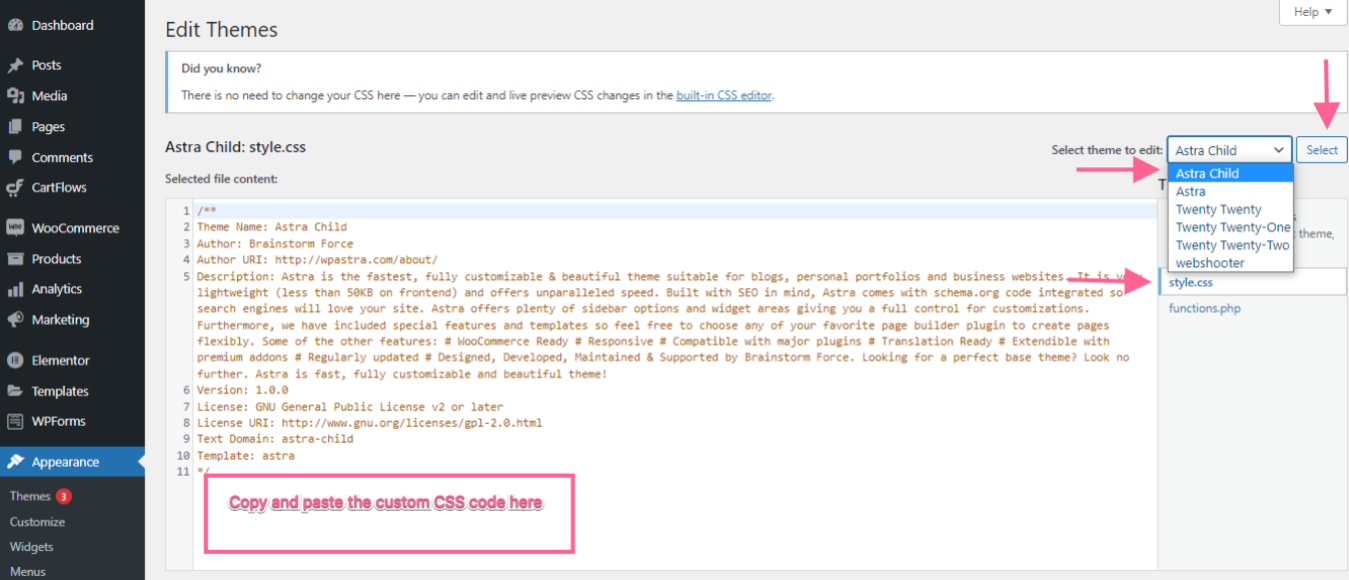
Access your WordPress dashboard. Go to Appearance. Click on Theme Editor. You see many files. The style.css file is important. It controls theme styles. Click to open it. You can edit styles here. Changes are live. Be careful. Mistakes can break the site. Save changes after editing.
Use FTP to access files. You need an FTP client. Connect to your site. Go to the wp-content folder. Find the themes folder. Open your theme’s folder. Find style.css. Download and edit it. Upload after changes. This way is safe. Always keep a backup.
Credit: www.8theme.com
Understanding Css Structure
The style.css file is crucial for your WordPress theme. It holds all the styles for your site. This file tells your browser how to display your site. Colors, fonts, and layout come from here. You can edit this file to change your site. Find the file in your theme folder. Open it with a text editor. Look for the styles you want to change. Save changes to see them live.
Some themes have extra CSS files. These files may control specific parts. Check your theme folder for these files. They might be named differently. Files like custom.css or responsive.css are common. Each file has its own purpose. You can edit them like the style.css file. Changes affect only the parts they control. Always back up your files before editing.
Using The Customizer
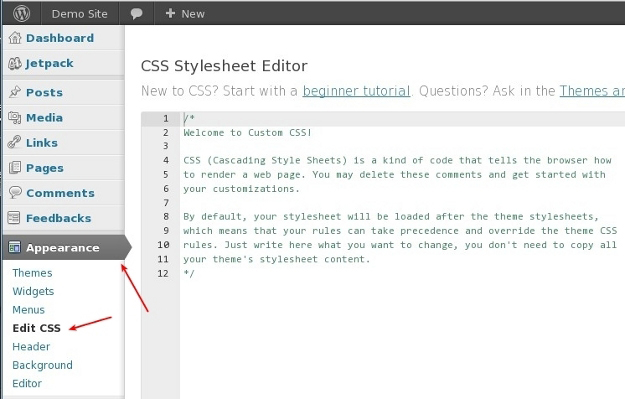
To change your theme, first, go to your WordPress dashboard. Look for the Appearance menu on the left side. Click on it. You will see an option called Customizer. Select it. The Customizer lets you see changes in real-time. You can play around with different settings here.
Once in the Customizer, find the Additional CSS section. This is where you can add your own styles. Type your CSS code in the box. Use this to make small changes to your theme. For example, change text color or size. Always preview your changes before saving. This ensures everything looks good.
Child Themes
Editing WordPress theme CSS styles becomes easier with child themes. They allow safe modifications without altering the original theme. Customize the appearance and maintain updates seamlessly. Ideal for tweaking designs and ensuring compatibility.
Creating A Child Theme
Child themes are like a safety net for your website. They help you preserve customizations even after updates. Start by creating a new folder. Name it after your main theme with “-child” at the end. Inside, make two files: style.css and functions.php. Style.css holds your custom styles. Functions.php links the child theme to the parent theme.
Benefits Of Child Themes
Child themes make website updates easier. You don’t lose changes when the parent theme updates. They allow you to experiment without breaking your site. You can learn and grow your skills safely. It keeps your site stable. It saves time and effort in the long run.
Editing Css Safely
Always back up your files before editing CSS. This is very important. It helps you keep your work safe. Use tools like FTP or file managers. Copy the original files to a safe place. This way, you can restore them if needed. It saves you from losing any changes.
Test changes on a staging site first. A staging site is like a practice website. It lets you try changes without risk. This helps you find mistakes early. Fixing mistakes is easier on a test site. After testing, you can move changes to the real site. This keeps your main site safe and running well.
Common Css Edits
Changing colors is easy in WordPress. First, open your theme’s style.css file. Find the color codes. These look like #FFFFFF or #000000. Replace the old color with a new one. Save your changes. Refresh your website to see the new colors.
Fonts make your site look better. Go to the style.css file again. Look for font-family and font-size lines. Change the font name to a new one you like. Make sure the font is available online. You can also adjust the font size. Bigger or smaller, it’s your choice.
Changing layouts can make a big difference. Find the CSS classes in your style file. These control the layout. Adjust the width and height values. Change margin and padding if needed. A small change can make it look neat.
Troubleshooting Css Changes
Sometimes, CSS changes don’t show. Clear the cache to fix this. Browsers store old data. Old data might hide new CSS styles. Go to browser settings. Find the clear cache option. Click it. Refresh the page. Check if changes appear now. Repeat if needed. This helps see new styles.
Developer tools help find problems. Right-click on your page. Choose Inspect. Look at the CSS panel. You can see all styles. Check for errors. CSS errors stop styles from showing. Fix errors you find. Refresh the page after fixing. Developer tools show real-time changes. Easy way to debug CSS.
Advanced Css Techniques
Media Queries help make your website look good on all devices. They change styles based on screen size. A large screen might show more details. A phone screen needs bigger text. Media queries use conditions like max-width or min-width. These conditions decide when styles change. This makes sites flexible and user-friendly. Users will enjoy visiting your site. It feels natural on any device.
CSS Animations bring life to your website. Text can move or change color. Buttons can spin or bounce. Animations make sites engaging and fun. They draw attention to important parts. Use animations wisely to enhance user experience. Too many can distract visitors. Simple animations can make your site memorable. They add charm without confusion. Balance is key in using CSS animations.
Resources For Learning Css
Many websites offer free CSS tutorials. These tutorials explain CSS in simple steps. Websites like W3Schools and CSS-Tricks are popular. They have easy-to-follow lessons. You can read and practice at your own pace. Each tutorial covers different CSS topics. This helps in learning basic to advanced CSS. Videos are also available on platforms like YouTube. These videos show live examples. Watching helps in understanding quickly. Learning CSS online is both easy and fun.
Community forums are great for learning CSS. Websites like Stack Overflow and Reddit have forums. You can ask questions and get answers fast. People share their knowledge freely. It’s a place to learn from others’ experiences. Forums have many CSS experts. They help solve CSS problems easily. You can also see other people’s questions. This helps in learning new things. Joining a community helps improve your CSS skills.
Credit: wpastra.com
Frequently Asked Questions
How Do I Find Css Files In WordPress?
To find CSS files, go to your WordPress dashboard. Navigate to Appearance > Theme Editor. Here, you’ll see a list of files, including style. css. This is the main CSS file for your theme. You can edit it directly to customize your theme’s appearance.
Can I Edit WordPress Css Without Coding?
Yes, you can use the WordPress Customizer. Go to Appearance > Customize in your dashboard. Click on the Additional CSS section. Here, you can add custom CSS without touching the theme files. It’s user-friendly and doesn’t require coding skills.
What Is The Safest Way To Edit Css?
The safest way is using a child theme. Create a child theme and add your custom CSS there. This ensures your changes aren’t lost during theme updates. Use FTP or a file manager to create a child theme folder and style.
css file.
How Do I Preview Css Changes In WordPress?
Use the WordPress Customizer to preview changes. Navigate to Appearance > Customize. Add your CSS in the Additional CSS section. The live preview feature allows you to see changes instantly. This helps in making real-time adjustments before saving.
Conclusion
Editing WordPress theme CSS styles isn’t hard. Start small, learn as you go. Always back up your files first. Use a child theme for safer changes. Customize colors, fonts, and layouts easily. Practice makes perfect. Check your changes on different devices.
Keep your design simple and user-friendly. Regular updates improve security and functionality. Use online resources for guidance. Experiment with different styles. Make your site unique. Enjoy the creative process. Your website reflects your personality. Stay curious, keep exploring. Happy editing!