
Imagine visiting your own website and noticing a typo or outdated information staring back at you. It’s frustrating, isn’t it?
Luckily, if your site runs on WordPress, you have the power to edit and update content with ease. But where do you start? You might be worried about breaking something or getting lost in the maze of menus and options.
Don’t worry! This guide will walk you through the simple steps to change what your website says without the headache. You’ll learn how to make your content shine and ensure your site reflects the message you want to convey. Dive in to discover how you can take control and keep your website fresh and accurate.

Credit: fullsiteediting.com
Accessing The WordPress Dashboard
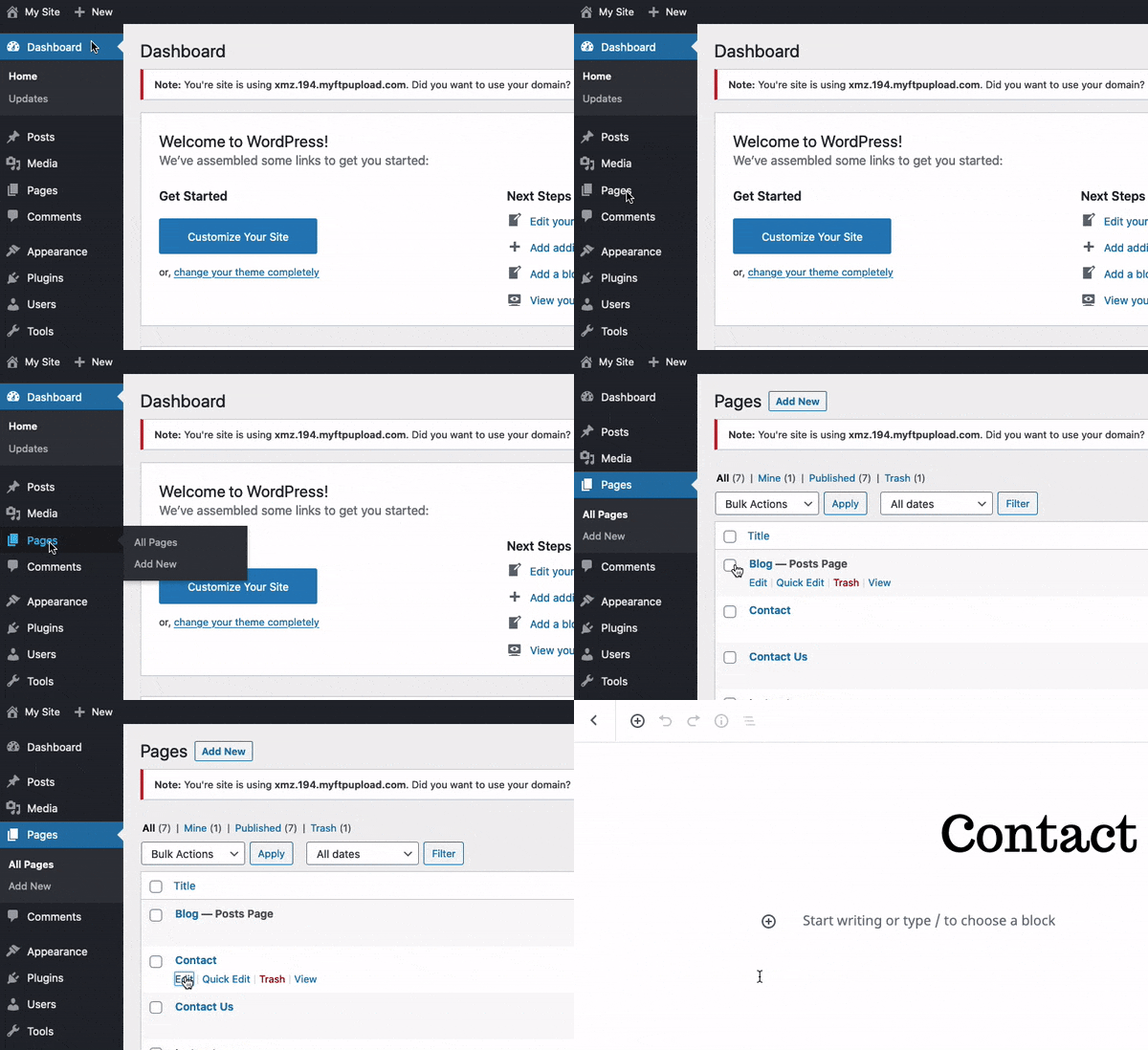
First, log into your WordPress account. Use your username and password. Click on the Dashboard link. This is your control room. You can change your website content here. Find the Pages or Posts section. Click on it. You see all your pages or posts. Select the one you want to edit. Click Edit to change it. You can add text, pictures, and links. Make sure to save your changes. Click Update or Publish to see the changes live.

Credit: m.youtube.com
Navigating To Pages And Posts
Find your WordPress dashboard first. This is where all the magic happens. Look for the menu on the left side. Click on Pages to edit a static part of your site. Need to change something on your blog? Head to Posts instead. Every piece of content on your site lives here.
Clicking on Pages or Posts shows you a list. Pick the one you want to change. Use the Edit option to make changes. It’s simple and easy to do. You can change words, add pictures, or fix mistakes. Always remember to save your changes. This is important.
Editing Page Content
The block editor helps you change your website easily. Click on the page you want to edit. You will see blocks for text, images, and more. Click a block to change it. Want to add new blocks? Press the plus (+) button. Choose what type of block you need. Text, image, or video. It’s simple.
For formatting text, click on the text block. You can make text bold, italic, or underlined. Change the text color too. Want to align the text? Left, center, or right. It’s your choice.
Images are easy to work with. Click the image block to replace it. Upload a new picture or choose from the media library. Resize images by dragging the corners. You can also add captions. This makes your website look nice.
Updating Post Content
Scheduling edits can save time. You can plan updates ahead. This helps keep content fresh. WordPress makes it easy. Use the schedule feature in the post settings. Pick a date and time. Your post will update automatically. No need to remember each edit. Just set it and relax. This is great for busy times. Keep your site up-to-date without stress.
Tags and categories organize your posts. They help readers find content. Tags are keywords. Categories are broad topics. Use tags wisely. Choose words that fit your post. Categories are like folders. Each post can have one category. Both tools improve site navigation. They boost SEO too. Users can search your site easily. More organized means more visits. Keep it simple for better results.
Customizing Widgets And Menus
Widgets help show extra information on your site. Go to the WordPress dashboard. Click on Appearance and then Widgets. Here, you can see all your available widgets. To add one, drag it to a widget area. To remove, drag it back. Remember, different themes have different widget areas. This makes your site look neat.
Menus help users find what they want. Go to Appearance, then Menus. You will see your current menus here. To add a page, tick the box next to it. Then, click Add to Menu. To remove a page, click the small arrow. Then select Remove. Remember to save changes when done. This keeps your site easy to use.
Using Plugins For Content Editing
Plugins help make website changes easy. They offer many tools for content editing. Choose plugins that are trusted and have good reviews. Some popular ones are Yoast SEO and Elementor. These plugins provide simple ways to edit your site. They also come with helpful guides. This makes learning easy for everyone.
SEO plugins improve website visibility. They help your site rank better on search engines. Yoast SEO is a great choice for beginners. It offers easy-to-understand features. These features guide you on keywords and meta tags. This helps your site get noticed online. Remember, always update your plugins. This ensures they work properly and keep your site safe.
Previewing And Publishing Changes
Preview edits before going live. This helps you see changes. Use the Preview button in WordPress. It shows how your page will look. Check every section for mistakes. Fix any errors you find. Previewing saves time and avoids problems later.
Publish updates after reviewing changes. Click the Publish button when ready. It makes your edits live. Remember, once published, everyone can see it. Double-check everything before this step. Careful review ensures your website looks professional.
Credit: www.godaddy.com
Troubleshooting Common Issues
Editing website content on WordPress can solve many common issues. Navigate to the WordPress dashboard, select “Pages” or “Posts,” and update your text. Always remember to save changes for them to reflect on your site.
Resolving Update Conflicts
Sometimes changes don’t show on your site. This might be due to update conflicts. First, clear your browser cache. Press the refresh button or use shortcuts. Next, check your WordPress plugins. One might cause the issue. Deactivate them one by one. See if the change appears. If it does, the plugin was the problem. Update or find a replacement.
Conflicts can also come from your theme. Try switching to a default theme. If the problem goes away, your theme needs an update. Always have backups before making big changes. They save you if things go wrong.
Restoring Previous Versions
Made a mistake? Don’t worry. WordPress keeps revisions of your pages. Go to the page editor. Look for Revisions on the right. Click it. Choose an older version. Compare changes and decide which version to keep. If you are happy, click Restore. Your old content is back.
Always save your work often. This creates more revisions. More revisions mean more chances to fix mistakes. Backup your site regularly. This way, your data stays safe.
Frequently Asked Questions
How Do I Update Text On My WordPress Site?
To update text, log into your WordPress dashboard. Navigate to Pages or Posts and select the one you want to edit. Click on the text block and make your changes. Remember to save or update your page to apply the changes.
Can I Edit WordPress Content Without Coding?
Yes, WordPress allows content editing without coding. Use the built-in visual editor or Gutenberg block editor. These tools provide a user-friendly interface. You can easily update text, images, and other elements. No coding knowledge is required.
How Do I Change A WordPress Page Title?
To change a page title, go to your WordPress dashboard. Click on Pages and choose the page to edit. Change the title in the editor and save your changes. The new title will appear on your site immediately.
What Plugins Help Edit WordPress Text Easily?
Plugins like Elementor, Beaver Builder, and WPBakery provide easy editing options. They offer drag-and-drop features for text and design. These tools enhance customization without requiring coding skills. Explore plugin options to simplify your editing process.
Conclusion
Editing your website on WordPress is simple and accessible. Start by locating the content you want to change. Use the WordPress dashboard to navigate and edit easily. Make sure to preview changes before publishing. This ensures your website looks as intended.
Regular updates keep your site fresh and engaging. Remember, clear and concise content resonates best with visitors. With practice, you’ll gain confidence in making changes. Stay patient and explore different features. WordPress offers tools that simplify the editing process. Your website can evolve as you learn new techniques.
Embrace creativity and keep improving your site.


