Are you ready to take control of your website and make it truly yours? Learning how to edit on WordPress is easier than you think.
Whether you want to update text, add images, or change your site’s layout, this guide will show you simple steps to get it done fast. Imagine turning your ideas into a polished, professional website without needing any technical skills. Keep reading, and you’ll discover how to make your WordPress site look exactly the way you want—effortlessly.
Getting Started With WordPress Editing
Editing content on WordPress is simple and user-friendly. This guide helps you start with confidence. Follow clear steps to edit your posts and pages. You will learn how to access the dashboard and use the editor interface. No technical skills needed. Just a few clicks and you are ready to make changes.
Accessing The WordPress Dashboard
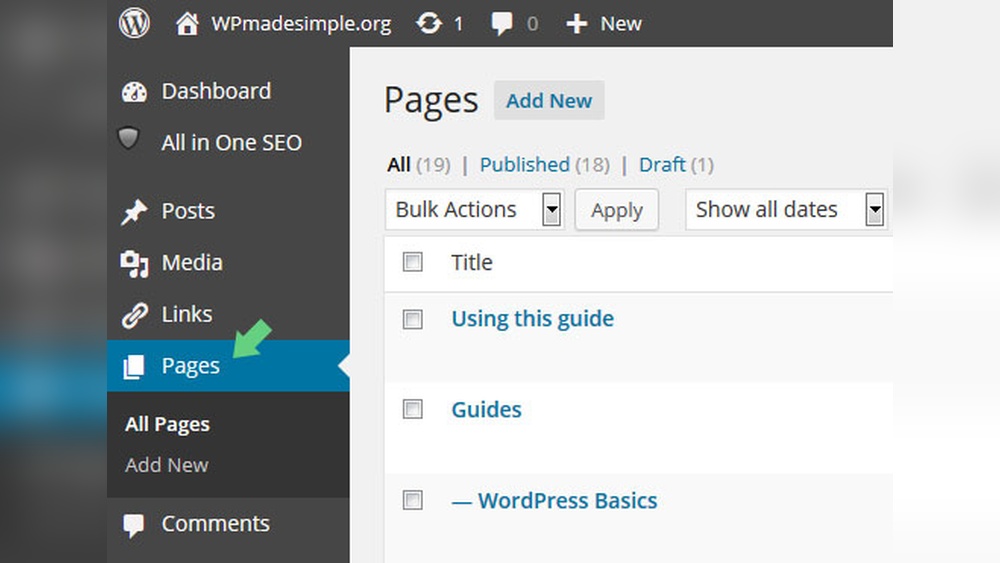
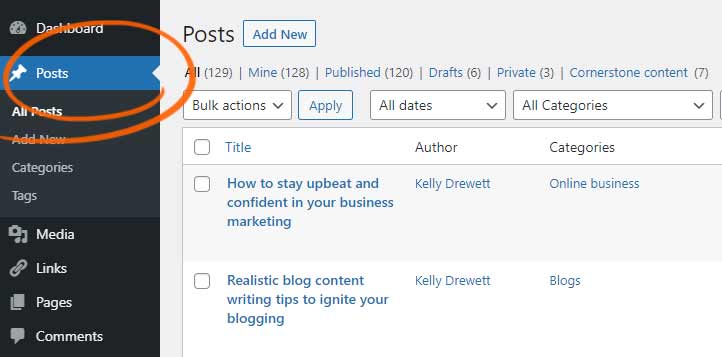
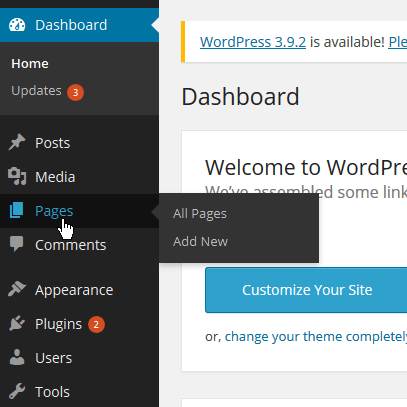
First, log in to your WordPress site. Use your username and password on the login page. Once logged in, you see the dashboard. It is the main control panel for your website. From here, you can create, edit, and manage content. The dashboard shows menus on the left side for easy access. Look for “Posts” or “Pages” to start editing your content.
Navigating The Editor Interface
After selecting a post or page, the editor opens. The editor has two main parts: the content area and the toolbar. The content area is where you write and edit text. Use the toolbar to format text, add images, or insert links. The editor uses blocks for different types of content. Each block can be moved or edited separately. This structure makes editing clear and flexible.
Editing Pages And Posts
Editing pages and posts in WordPress is simple and user-friendly. It lets you update your site content quickly. You can change text, images, and other media easily. This section guides you through the key steps of editing your content.
Selecting The Content To Edit
First, go to your WordPress dashboard. Click on either “Pages” or “Posts.” Find the content you want to edit from the list. Click the title or the “Edit” link below it. This opens the editing screen where you can make changes.
Using The Block Editor
WordPress uses the Block Editor for content editing. Each element, like paragraphs or images, is a block. Click on any block to edit its content. You can add new blocks by clicking the plus (+) icon. Rearrange blocks by dragging them up or down.
Formatting Text And Media
Highlight text to see formatting options like bold or italic. Use the toolbar to add links or change alignment. For images, click on the block to replace or resize the picture. You can also add captions and alt text for better SEO.
Customizing Your Website Design
Customizing your website design helps make your site unique. It reflects your style and brand. WordPress offers simple tools to change how your site looks. You can adjust themes, colors, fonts, and more. These changes make your site more attractive and user-friendly.
Changing Themes And Layouts
The theme controls your site’s overall look. WordPress has many free and paid themes. Choose one that fits your style and purpose. Changing a theme is easy. Go to the Appearance menu and select Themes. Click “Add New” to browse options. Install and activate your chosen theme. Some themes offer different layouts. Pick the layout that suits your content best.
Adjusting Colors And Fonts
Colors and fonts set the mood of your website. WordPress allows you to change these in the Customizer. Open Appearance and then Customize. Look for options like Colors or Typography. Pick colors that match your brand and are easy to read. Select fonts that look good and stay simple. Keep your text clear and consistent across pages.
Adding Widgets And Menus
Widgets add extra features to your site’s sidebars and footers. Examples include search bars, calendars, or recent posts. Go to Appearance and then Widgets. Drag and drop widgets where you want them. Menus help visitors navigate your site. Create menus under Appearance > Menus. Add pages, categories, or custom links. Arrange menu items to guide users smoothly.
Credit: kaydee.net
Managing Plugins For Enhanced Features
Managing plugins on WordPress helps improve your website’s functions. Plugins add new tools and features easily. They make your site more useful and user-friendly.
Choosing the right plugins lets you customize your site. You can add contact forms, improve SEO, or increase speed. Knowing how to install and set up plugins is key.
Installing Essential Plugins
Go to your WordPress dashboard. Click on “Plugins” and then “Add New.” Use the search bar to find the plugin you need. Check the plugin’s ratings and reviews. Click “Install Now” to add it to your site. Wait for the installation to finish. Then click “Activate” to start using the plugin.
Configuring Plugin Settings
After activation, find the plugin’s settings in your dashboard. Each plugin has different options to adjust. Read the instructions to understand each setting. Change the settings to fit your website needs. Save your changes before leaving the page. Test the plugin on your site to ensure it works well.
Optimizing Content For Seo
Optimizing content for SEO is essential for better visibility on search engines. It helps your website rank higher and attract more visitors. Simple steps can improve your content’s SEO without complex tools or skills. Focus on clarity, relevance, and user experience to achieve good SEO results.
Using Seo Plugins
SEO plugins simplify the process of optimizing content on WordPress. They guide you with keyword placement, readability, and meta descriptions. Popular plugins like Yoast SEO and All in One SEO offer easy settings. These tools check your content and suggest improvements instantly. Using plugins saves time and ensures your content follows SEO best practices.
Writing Seo-friendly Content
SEO-friendly content is clear, helpful, and easy to read. Use short sentences and simple words. Include your main keywords naturally in titles, headings, and text. Avoid keyword stuffing—it hurts your rankings. Break content into small paragraphs for better readability. Add descriptive alt text to images for better search engine understanding. Quality content attracts visitors and encourages them to stay longer.
Credit: xmission.com
Previewing And Publishing Changes
Editing content on WordPress involves careful review before making it live. Previewing and publishing changes help ensure your updates look right and work well. You can check your edits without affecting the live site. Publishing makes your changes visible to all visitors.
Using The Preview Function
The preview function shows how your page looks before publishing. It opens a new tab with the current edits displayed. This allows you to see text, images, and layout as visitors will see them. Use preview to catch mistakes and improve design. It works for posts, pages, and custom content.
Preview does not change your live site. You can safely experiment with different styles or content. Refresh the preview tab to see new changes after edits. This step saves time and avoids errors on your site.
Scheduling And Publishing Updates
Publishing updates makes your changes live immediately. Simply click the “Publish” button to update your site. This is useful for urgent fixes or adding fresh content fast.
You can also schedule updates to publish later. Set a date and time for your post to go live. Scheduling helps plan content ahead and keep your site active. WordPress will automatically publish your changes at the set time.
Review scheduled posts in the dashboard to manage your content. This feature ensures your site stays current without manual effort every time.
Troubleshooting Common Editing Issues
Editing on WordPress can sometimes cause small issues. These problems might stop your content from looking right or working well. Knowing how to fix common editing problems saves time and stress. It helps keep your site clean and easy to use.
Fixing Formatting Problems
Formatting problems often happen after copying text from other sources. Extra spaces, strange fonts, or broken lines may appear. Use the “Clear Formatting” button in the editor to fix this quickly.
Check your headings and lists to ensure they follow the right style. Avoid using many font sizes or colors in one post. Keep paragraphs short for easy reading on all devices.
Resolving Plugin Conflicts
Plugins can sometimes clash and cause editing errors. If your editor stops working, try disabling plugins one by one. This helps find the plugin causing the problem.
Always update plugins to the newest version. Outdated plugins often create conflicts. Use trusted plugins from reliable sources to reduce risks.
Credit: kaydee.net
Frequently Asked Questions
How Do I Start Editing A Post In WordPress?
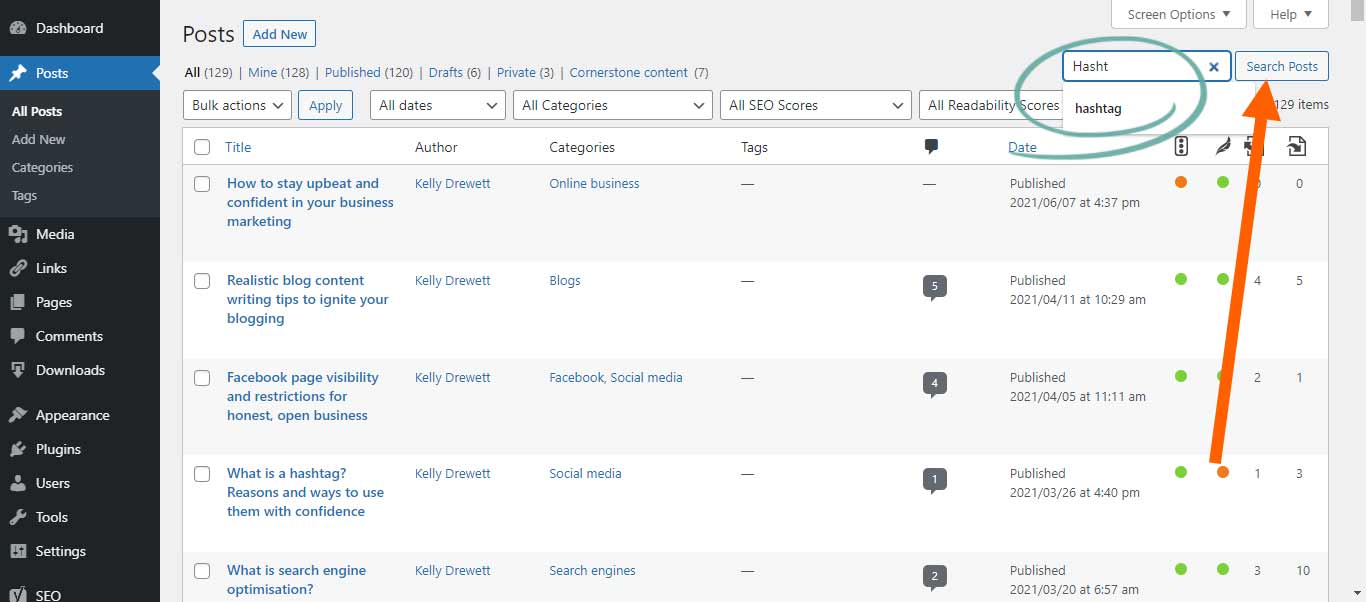
To edit a post, log in to your WordPress dashboard. Navigate to Posts > All Posts. Click “Edit” under the post you want to change. This opens the editor where you can update content, images, and settings easily.
Can I Edit WordPress Pages Like Posts?
Yes, pages are edited similarly to posts. Go to Pages > All Pages in the dashboard. Click “Edit” under your desired page. The editor interface is almost the same, allowing you to change text, images, and layout quickly.
How Can I Edit WordPress Content Without Coding?
Use the WordPress block editor (Gutenberg). It lets you add or modify blocks like text, images, and videos visually. No coding is needed as you can drag, drop, and customize elements directly on the page.
Is It Possible To Edit WordPress On Mobile Devices?
Yes, the WordPress mobile app allows post and page edits. It supports adding content, images, and managing comments. This makes it convenient to update your site on the go without a desktop computer.
Conclusion
Editing on WordPress is simple with practice and patience. Start by exploring the editor tools step by step. Change text, add images, and update pages easily. Save your work often to avoid losing changes. Try different options to see what fits best.
Keep learning to improve your website’s look and feel. This way, your site stays fresh and inviting. Remember, small changes can make a big difference. Keep your content clear and easy to read. Your visitors will appreciate a well-edited site.