Are you ready to enhance your online presence by creating a stunning page in your WordPress theme? Whether you’re launching a personal blog, showcasing your portfolio, or building a business site, mastering this skill is crucial for making your website look professional and engaging.
Creating a page in WordPress might seem daunting at first, but don’t worry—it’s easier than you think! In this guide, we’ll walk you through each step with simple explanations, ensuring you have the confidence to transform your ideas into an eye-catching reality.
By the end, you’ll not only know how to create a page but also how to make it resonate with your audience, keeping them glued to your content. Let’s get started on turning your digital vision into a captivating experience!
Credit: www.elegantthemes.com
Choosing The Right Theme
Picking the right WordPress theme is important. A good theme fits your style. It should also work well. Check if the theme is mobile-friendly. Many people use phones to view websites. You want your site to look good on all devices.
Themes often have different features. Some are simple. Others have many options. Choose a theme that matches your needs. Look at the reviews and ratings. They tell you if others like the theme.
Free themes are good for starters. Paid themes offer more tools. Always pick a theme with good support. If you have problems, support can help. Your site needs a theme that is easy to use and looks great.
Credit: docs.presscustomizr.com
Installing A WordPress Theme
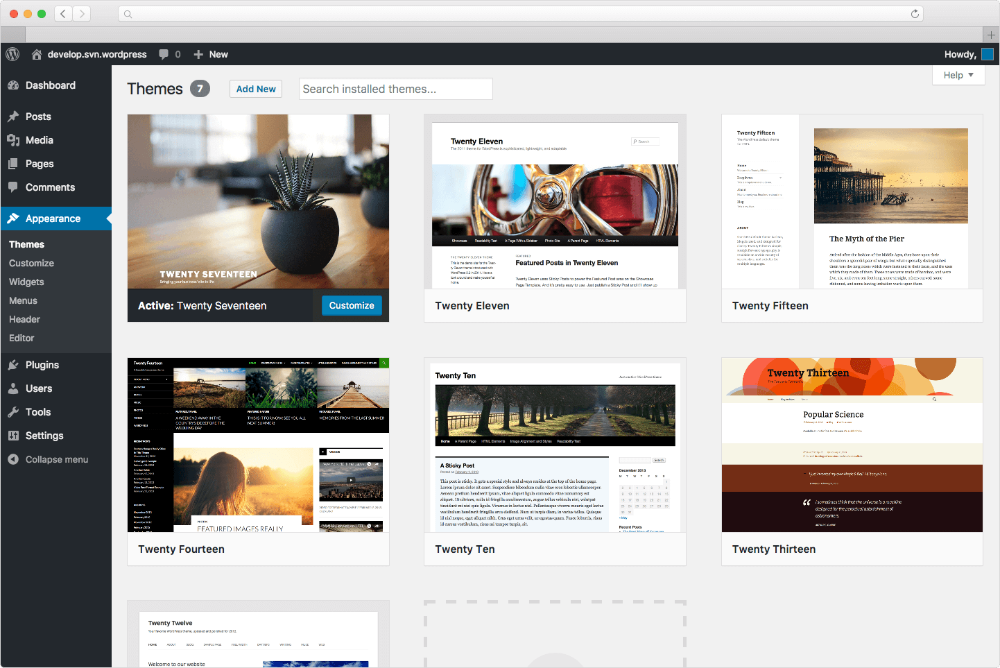
Start by opening your WordPress dashboard. Look for the Appearance section on the left. Click on Themes. You will see a list of installed themes. Click Add New to find more themes. Search for a theme using the search bar. Choose a theme that fits your style. Hover over the theme and click Install. Wait for the installation to finish. Click Activate to use the new theme.
Check the theme settings. Customize the theme to match your needs. Look for customization options under the Appearance section. Change colors, fonts, and layouts. Save your changes. Your site now looks new and fresh.
Accessing The WordPress Dashboard
Start by opening your browser. Enter your website’s URL. Add /wp-admin at the end. This takes you to the login screen. Enter your username and password. Click on the Log In button. Now you’re inside the WordPress dashboard.
The dashboard is your control center. You see various options here. Look for the PagesAdd New to start.
A blank page appears. You can write your content here. Add text, images, or videos. Use the toolbar for styling. Save your work often. This helps avoid losing content.
Navigating To The Pages Section
Start by logging into your WordPress dashboard. This is the main control center. Look for the sidebar on the left. Find the button labeled “Pages”. Click it. This takes you to the Pages section.
Here, you can see all your pages. Each page is listed. To create a new page, find the “Add New” button. It is usually at the top. Click it to start a new page.
This section is easy to use. The tools are simple. You can add text and images. You can also change settings. Everything is straightforward for beginners.
Creating A New Page
Add a new page with ease in WordPress. Start by opening your dashboard. Look for the “Pages” option on the left. Click “Add New.” This opens a blank page. You can now add a title and content.
Choose a clear title for your page. Type it in the title box. Below, add your content in the large text area. Use the toolbar for styling. You can add images or links to make it better.
Some themes offer special page templates. These can change the look of your page. Find the “Page Attributes” on the right. Select a template from the dropdown. This sets the design for your page.
Customizing Page Layout
The block editor is simple. You can add blocks like text, images, or videos. Each block can be moved around. You can change the size of blocks. Easy, right? Just click and drag. Blocks can be deleted too. You can make your page look different by using blocks. Play around with them. Try adding a list block. See how it changes things. It’s all about experimenting.
Media elements make pages fun. Add pictures or videos. They are easy to include. Use the media block. Click to select a picture. You can upload from your computer. Or choose from the media library. Videos can be added too. Just paste the link. Make sure it fits well. Adjust the size if needed. Media keeps the page lively. It attracts more people. Use media to tell your story. It’s a nice touch.
Applying Theme Settings
Creating a page in a WordPress theme involves selecting the right theme settings. Choose a template, adjust the layout, and customize design elements to fit your style. This process ensures your page aligns with your website’s overall look and feel, enhancing user experience.
Adjusting Page Attributes
Every page needs its own style. Page attributes help to set this style. Page templates offer different layouts. Choose the one that fits. Order decides which page shows first. Use numbers to set this order. Parent pages link other pages. This makes pages easy to find. It creates a clear structure. Always check the settings before saving.
Selecting Featured Images
Featured images make pages look nice. These images show on top. They catch the eye. Pick images that match your content. Good images make people want to read. Use high-quality pictures. They should be clear and bright. Avoid blurry images. You can add images from your library. Or you can upload new ones. Check the image size. Make sure it fits well. Featured images create the first impression.
Adding Plugins For Enhanced Functionality
SEO plugins help websites get more visitors. These tools make pages appear higher in search results. Using them is simple. Install from the WordPress Plugin store. Some popular choices are Yoast SEO and All in One SEO Pack. They guide users to make pages better for search engines. Adding titles and descriptions becomes easy. These plugins offer tips to improve content. They even check for broken links. This helps keep pages neat and tidy.
Connecting social media boosts website engagement. Plugins make sharing easy. Visitors can share posts with one click. Display feeds from platforms like Facebook or Twitter. This keeps content fresh and interesting. Choose plugins like Jetpack or Social Media Share Buttons. Setting up is quick and straightforward. Enhance visibility and reach. More shares mean more visitors. Social media brings a community feel to websites.
Previewing And Publishing The Page
First, go to the top right of the screen. Click on the Preview button. This lets you see how the page looks. Make sure everything is in place. Check the text and images. Are they correct?
If all looks good, find the Publish button. Click on it to make your page live. Now everyone can see it. Did you make a mistake? No worries. You can always edit the page later. Just go back and fix it.
Want to keep your page private? Choose the Visibility option. Select Private or Password Protected. This way only certain people can see it.
Remember, you can always update your page. Go back, make changes, and click update. This keeps your content fresh.
Troubleshooting Common Issues
Theme conflicts can cause many problems. They make your site look wrong. Updating the theme often fixes these issues. Sometimes, plugins cause conflicts too. Deactivate plugins one by one. Check if the issue goes away. If it does, the plugin is the problem. Contact the theme developer for help. They can provide solutions. Always keep a backup of your site. This prevents data loss during troubleshooting.
Broken links make visitors unhappy. They hurt your site’s SEO. Use a tool to find them. Replace or remove broken links. Check your site’s internal links. Make sure they work. External links may break too. Keep them updated. Always test links after changes. This ensures they work well. Fixing links improves your site’s user experience.
Maintaining Your WordPress Page
Creating a page in a WordPress theme is simple. Access the dashboard, click on “Pages,” and select “Add New. ” Customize with themes and plugins for a unique look.
Regular Updates
Updating your WordPress page is very important. It keeps your site safe and fresh. New updates fix bugs and improve features. They also protect your site from hackers. Always back up your page before updating. This ensures you don’t lose any data. It’s easy to update. Just click on the update button in your WordPress dashboard. Make sure your plugins are up to date too. Updates keep everything running smoothly.
Monitoring Page Performance
Check your page speed often. A fast page keeps visitors happy. Use tools like Google PageSpeed Insights. This tool shows how fast your page loads. It also gives tips to improve speed. Look at your page’s bounce rate. A high bounce rate means users leave quickly. Improve content to keep them longer. Check for broken links. Fix them to help users navigate easily. Regular monitoring helps maintain a healthy page.
Credit: crocoblock.com
Frequently Asked Questions
How Do I Create A Page In WordPress?
To create a page in WordPress, go to your dashboard. Click on “Pages,” then select “Add New. ” Enter your page title and content, and customize using the editor. Finally, click “Publish” to make your page live on your site.
Can I Customize WordPress Page Templates?
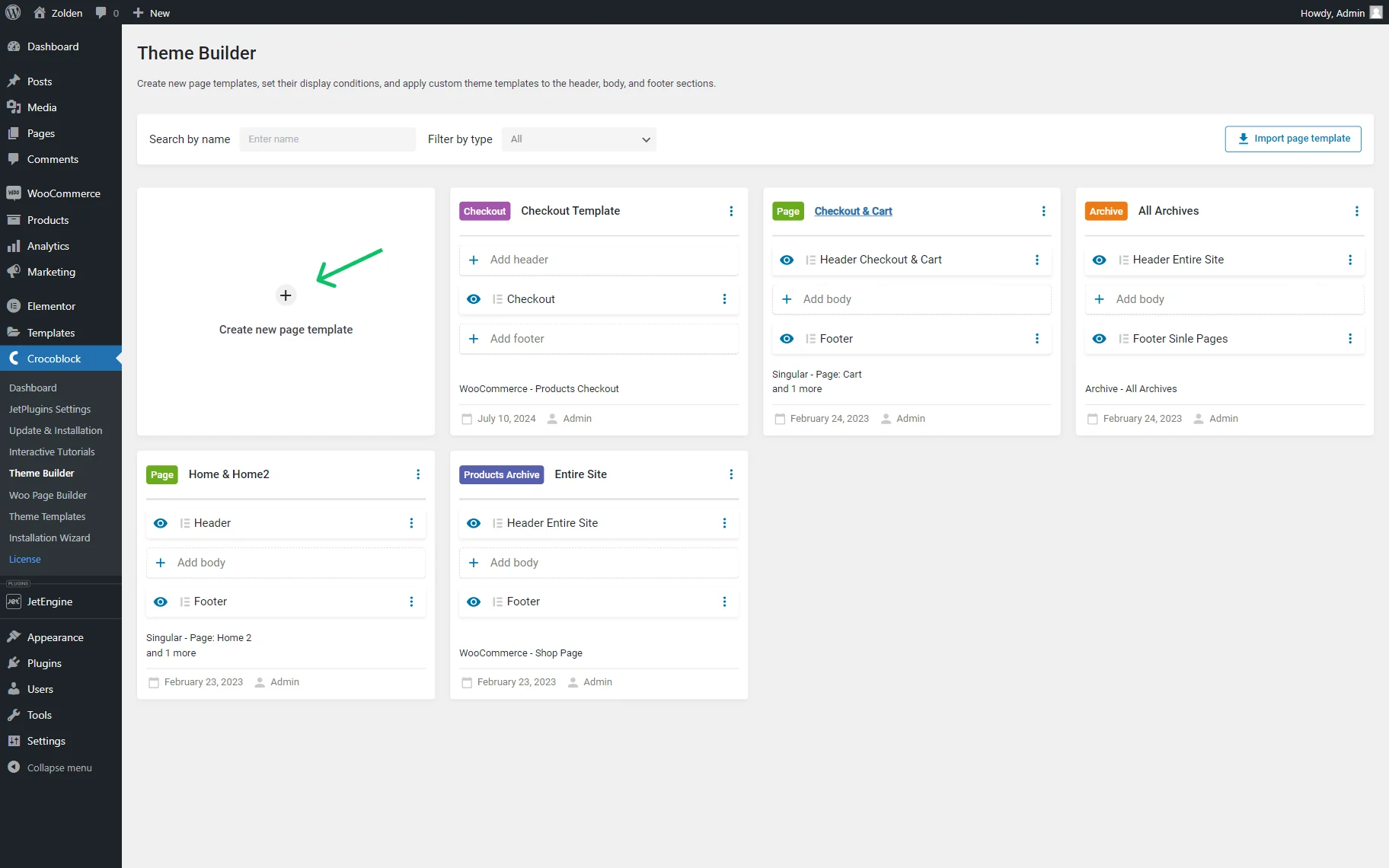
Yes, you can customize WordPress page templates. Access the template files through your theme editor or child theme. Modify the HTML, CSS, or PHP code to suit your design needs. Alternatively, use page builder plugins for a more intuitive customization experience.
How Do I Set A Homepage In WordPress?
To set a homepage, navigate to “Settings” and choose “Reading. ” Select “A static page” and pick the desired page as your homepage. Save changes to update your site’s homepage, ensuring it’s the first page visitors see.
What Plugins Help With WordPress Page Creation?
Popular plugins for page creation include Elementor, Beaver Builder, and Divi. These offer drag-and-drop interfaces, making it easy to design and customize pages. They provide templates, widgets, and features to enhance your WordPress page-building process.
Conclusion
Creating a page in a WordPress theme is simple. Follow the steps. Choose a theme. Open your dashboard. Click “Pages” then “Add New”. Add your content. Save and preview. Adjust settings to fit your needs. WordPress offers many customization options.
Explore them to make your page unique. Practice these steps to gain confidence. Keep your design clean and user-friendly. Use visuals and headings wisely. Your pages will look professional. With time, you’ll build great pages. Enjoy creating and sharing your content.
WordPress makes it easy for everyone. Now, start building your own page today!