
Are you ready to take your WordPress site to the next level? Changing your theme code is one of the most effective ways to customize your website and make it truly your own.
Whether you want to tweak the design, improve functionality, or enhance user experience, diving into theme code can open up a world of possibilities. But don’t worry, you don’t need to be a coding expert to make these changes. In this guide, we’ll walk you through the process, step-by-step, ensuring you have the confidence and know-how to modify your theme just the way you like it.
So, if you’re eager to learn how to transform your WordPress site and captivate your audience, keep reading!

Credit: www.youtube.com
Choosing A New Theme
Think about what you want from your website. Do you need a simple design or something more detailed? Write down the features you need. Do you want a photo gallery or a contact form? Knowing your needs helps you find the right theme. It makes the search easier and more focused.
WordPress has many themes. Some are free and some are paid. Look at the ratings and reviews of each theme. This helps you see if others like it. Try to pick a theme that matches your needs. You can change it later if you don’t like it. Take your time to explore the options.
Credit: www.easywp.com
Backing Up Your Website
Switching theme code in WordPress can enhance your site’s look, but it requires caution. Always backup your website to prevent data loss during changes. This simple step ensures you can quickly restore your site if needed.
Using Backup Plugins
Backup plugins help save your website data. They are easy to use. Choose a plugin that fits your needs. Install it on your WordPress site. Activate the plugin after installation. Set a backup schedule. You can choose daily or weekly. Check if the backup is successful. Store backups on cloud or local storage. Restore data easily if needed. Plugins like UpdraftPlus are popular. Read reviews before choosing one.
Manual Backup Methods
Manual backup is another option. Access your website files via FTP. Download all files to your computer. Export your database using phpMyAdmin. Save exported files securely. Create a folder for backups. Label folders with dates. Repeat the process regularly. Manual backup takes time. Ensure backups are correct before deleting old ones. It’s a safe way to protect your data.
Accessing Theme Files
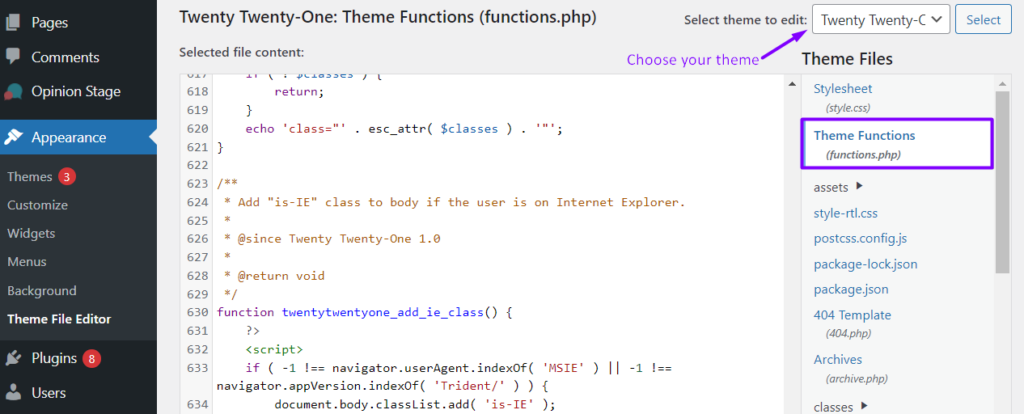
The WordPress dashboard is easy to use. First, log in to your account. Next, find the Appearance tab on the left. Click on it. Now, choose Theme Editor. A warning message may appear. Be careful when making changes. You can see different theme files here. Click on any file to edit it. Remember to save your changes after editing. Always have a backup before editing.
FTP helps access files directly. Download an FTP client like FileZilla. Open it and enter your FTP credentials. Connect to your website server. Look for the wp-content folder. Inside, find the themes folder. Open it to see your theme files. You can now edit these files. Always backup your files first. After editing, upload the files back to the server.
Editing Theme Code Safely
A child theme is a copy of your main theme. It keeps your custom changes safe. First, create a new folder in the themes directory. Name it after your main theme, with “-child” at the end. Next, add a new file named style.css. In this file, write a small code snippet. This will tell WordPress to use the child theme. Finally, activate the child theme in your WordPress dashboard.
Code editors help you change code easily. Popular editors include Notepad++ and Sublime Text. These tools highlight code. This makes reading and editing easier. Always save a copy of the original file. This way, you can undo changes if needed. Safe editing keeps your site running smoothly.
Modifying Css Styles
CSS styles change how your website looks. Customizing appearance is easy with CSS. You can make text bigger or change colors. Find the style.css file in your theme folder. Edit this file with a code editor. Save changes to see results. Always backup your files before editing. Mistakes can break your site.
Customizing Appearance
Change font size to make text readable. Use colors to match your brand. Borders can highlight sections. Add padding for better layout. Use CSS classes for styling groups. Try different styles to see what looks best. Test on different devices for consistency.
Testing Changes
View changes on your website. Refresh the browser to update. Check on mobile and desktop. Look for errors or broken styles. Fix issues promptly. Test different browsers. Chrome and Firefox are popular choices. Ensure all users see the same design.

Credit: kinsta.com
Updating Php Files
Template files are the building blocks of a WordPress theme. Each page uses a specific template. Home pages, posts, and archives have their own templates. Knowing which file controls which page is key. You can find these files in the theme folder. Make sure to backup your files before editing. A small mistake can break your site.
Custom functions allow you to add new features to your theme. You can place them in the functions.php file. Be careful with the code. Even a tiny error can cause problems. Test your changes on a local server first. This avoids issues on your live site. Always keep a backup of the original file.
Incorporating Javascript
Adding JavaScript to your WordPress theme can make it more interactive. JavaScript can create sliders, pop-ups, and animations. Always add JavaScript in a clean and organized way. Place your scripts in the right folder. Use the wp_enqueue_script function to load them. This keeps your code neat and your site fast. Remember to check your changes. Use the browser’s developer tools. Fix any errors you see. This will help your site work well for everyone.
Enhancing Interactivity
Interactivity makes a website fun to use. Add buttons that change color when clicked. Create forms that show messages when filled. Use JavaScript to add these features. Make sure they work on phones and computers. Test them on different devices. This ensures everyone has a good experience. Happy users will visit your site more often.
Ensuring Compatibility
Your theme must work on all browsers. JavaScript can sometimes cause problems. Check your site on Chrome, Firefox, and Safari. Fix any issues you find. Use tools like BrowserStack for testing. This helps ensure everyone sees your site the same way. Keep your JavaScript up-to-date. This prevents future problems.
Testing And Debugging
Changing theme code in WordPress involves editing files like style. css or functions. php. Always create a child theme first to avoid losing changes during updates. Use an FTP client or WordPress editor for safe modifications.
Checking For Errors
Changing theme code can cause errors. It’s important to check for errors after making changes. Use the WordPress preview option to see changes. If you see anything wrong, note it down. Look for error messages in the WordPress dashboard. These messages help find problems. Sometimes, plugins can cause conflicts. Disable plugins one by one to see if they are the issue. Fixing errors is like solving a puzzle. Take your time and be patient.
Ensuring Mobile Responsiveness
Many people use phones to view websites. The theme should work well on all devices. Check how the site looks on a phone and tablet. Make sure buttons and text are easy to click and read. If something looks off, adjust the code for better mobile responsiveness. Use tools that show how your site looks on different screens. Always aim for a site that is easy to use on any device. This keeps visitors happy and engaged.
Finalizing And Publishing
Changing theme code in WordPress involves editing files for customization. Navigate to the WordPress dashboard, then access the Appearance menu. Make changes in the Theme Editor, ensuring to save your edits.
Reviewing Changes
Check your theme changes carefully. Look at every page. Make sure everything looks right. Bold words and colors should match your design. Test links and buttons too. They must work properly. If something seems off, go back and fix it. This step is important. It saves time later.
Pushing Updates Live
After reviewing, it’s time to publish. Go to your WordPress dashboard. Click the “Publish” button. This makes your changes live. Your website now shows the new theme. Friends and visitors can see it. Check again after publishing. Ensure all changes are still correct. If there’s a problem, fix it quickly. This keeps your site looking nice.
Frequently Asked Questions
How Can I Access Theme Code In WordPress?
To access the theme code in WordPress, navigate to Appearance > Theme Editor. This area lets you edit theme files directly. Always ensure you have a backup before making changes. Alternatively, use FTP to access files on your server for safer editing.
What Precautions Should I Take Before Editing Theme Code?
Before editing theme code, always create a backup of your site. This prevents data loss if errors occur. Consider using a child theme for modifications. This ensures updates won’t overwrite changes. Testing on a staging site can also help avoid live site issues.
Can I Change Theme Code Without Coding Skills?
Yes, you can use page builders or plugins to customize your theme without coding. These tools offer drag-and-drop interfaces. For more advanced changes, learning basic HTML and CSS can be beneficial. Online tutorials and resources can assist beginners.
How Do I Ensure Theme Updates Don’t Affect Changes?
Use a child theme to preserve customizations during updates. Child themes keep modifications separate from the parent theme. This ensures updates don’t overwrite your changes. Alternatively, document changes to reapply them post-update if needed.
Conclusion
Changing theme code in WordPress boosts your site’s uniqueness. It allows customization. Tailoring your theme can enhance user experience. Start with small tweaks. Gradually, you gain confidence. Always back up your files before editing. This prevents data loss. Explore forums for helpful advice.
Online communities offer support and insights. Practice often to improve skills. Familiarize yourself with coding basics. Use trial and error method. Mistakes teach valuable lessons. Stay patient and persistent. Your efforts will pay off. Make your WordPress site truly yours.
Happy coding!



