Are you tired of the default font in your WordPress theme and eager to give your website a fresh look? Changing the header font can make a significant impact on your site’s overall design, enhancing its appeal and readability.
Whether you’re aiming for a bold statement or a subtle elegance, customizing your header font is easier than you might think. In this guide, you’ll discover simple steps to transform your WordPress theme’s header font, making your site truly unique.
Imagine the satisfaction of seeing your header reflect your brand’s personality and style. Stick around to learn how you can make this change effortlessly, capturing your visitors’ attention right from the first glance.

Credit: docs.themeisle.com
Accessing Theme Settings
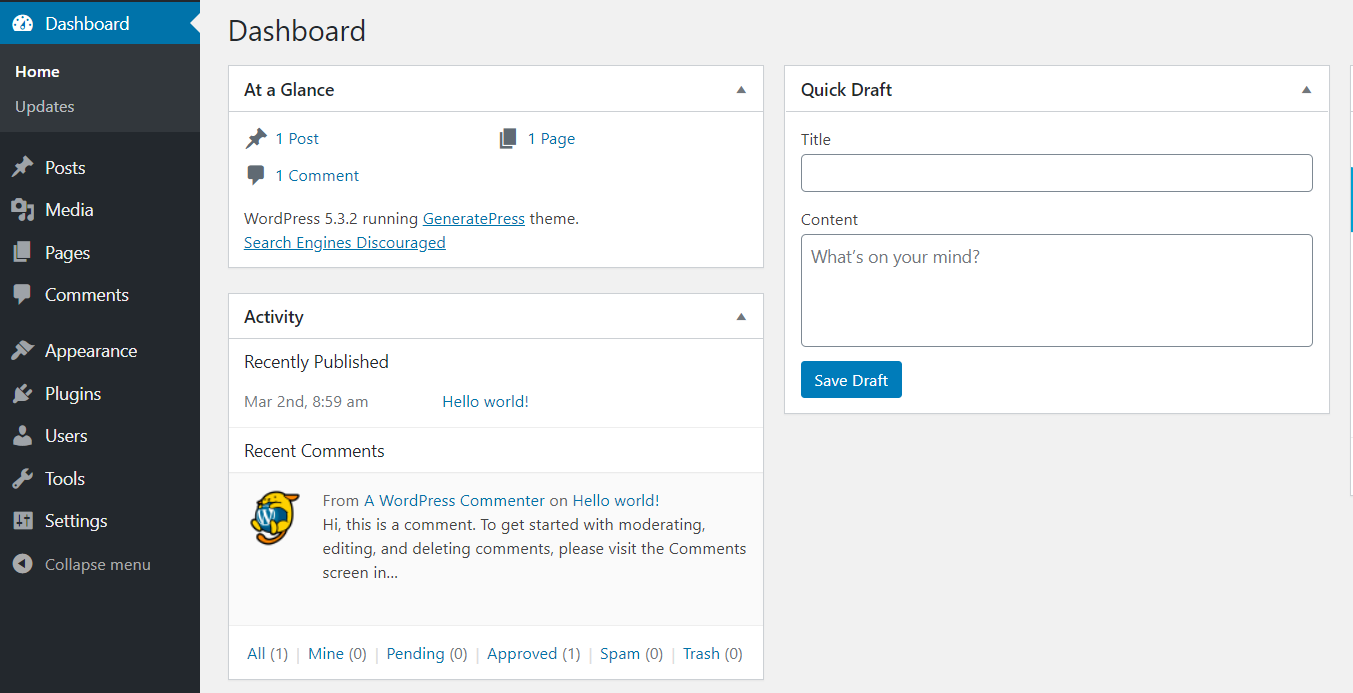
To find the Theme Customizer, start by logging into your WordPress dashboard. From there, look for the Appearance option on the left menu. Click on it. A drop-down menu will appear. Select Customize from the options. This will take you to the Theme Customizer.
In the Theme Customizer, different settings appear on the left side. One of these is the Typography option. Click on it to explore font choices. You will see different sections for font styles. Locate the section for Header Font. This section allows changes specifically to the header.
Within Typography, you can change the header font style. Choose from various fonts. Each font changes the look of the header. Choose one that fits your theme. After selecting a font, preview it on your site. If you like it, hit Publish to save the changes.
Credit: quadlayers.com
Using Custom Css
WordPress themes have an Additional CSS section. You find it in the Customizer. Go to your WordPress dashboard. Click on Appearance, then Customize. Look for Additional CSS. It’s usually at the bottom. You can add code there.
You can change the header font with custom CSS. Use the Additional CSS section. Type your CSS code. Write h1, h2, h3 { font-family: 'YourFontName'; }. Replace YourFontName with your chosen font. Save your changes. Refresh your site to see the new font. You may need to try different fonts. Find the one you like best.
Installing A Custom Font
First, pick a web-friendly font for your site. Choose a font that looks good on screens. Google Fonts offers many free options. Visit their site and browse through different styles. Once you find a font you like, click on it. You will see a download button. Click to get the files.
Choosing A Web-friendly Font
Think about the readability of the font. Some fonts are fancy but hard to read. Keep your readers in mind. You want them to enjoy your site. Simple fonts are usually best. They work well on most devices.
Uploading And Integrating The Font
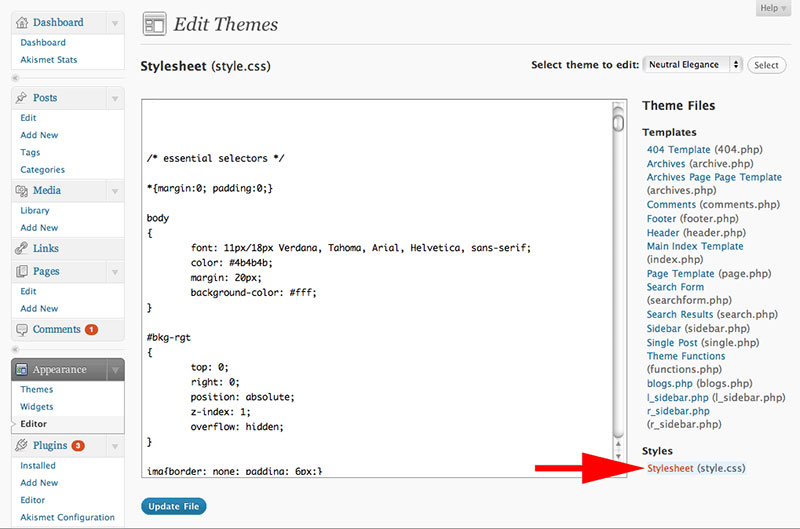
After downloading, you need to upload the font files. Go to your WordPress dashboard. Find the “Appearance” menu. Click on “Editor.” Here, you can upload the font files. Now, you must tell WordPress to use the new font. Add some code to the CSS file. It will change the header font.
Utilizing WordPress Plugins
Picking the right plugin is important. Look for one with good reviews. Popular options include Easy Google Fonts and Fontsy. These plugins make font changes easy. Installation is simple. Go to your WordPress dashboard. Click on “Plugins” then “Add New”. Search for the plugin you want. Click “Install Now”. Then activate it. It’s ready to use.
Open your plugin settings page. This is where you make changes. Choose your new header font. Preview the font before saving. Adjust font size and style. Make sure it looks good on your site. Save your changes. Refresh your website to see the new header font.
Child Theme Modifications
Changing the header font in a WordPress theme involves creating a child theme. This ensures your customizations are safe during updates. Edit the child theme’s CSS file to modify the font styles for the header, allowing for a personalized look while maintaining theme integrity.
Creating A Child Theme
To change the header font, create a child theme. First, make a new folder in your themes directory. Name it something like “child-theme.” Inside this folder, create a style.css file. This file will hold your changes. You also need a functions.php file. This file helps link your child theme to the parent theme.
In the style.css file, add a comment at the top. Write the theme name, template, and version. This tells WordPress about your child theme. Your child theme will now appear in your WordPress dashboard. Activate it to start making changes.
Editing The Style.css File
Open the style.css file in your child theme folder. Find the CSS rule for your header font. It might be in the parent theme style.css file. Copy that rule to your child theme’s style.css. Change the font-family value to your new font choice. Save the changes. Visit your site to see the new header font.
If the font doesn’t change, check your file paths. Ensure the child theme is active. Double-check your CSS syntax. Small errors can cause big problems.
Troubleshooting Common Issues
Changing header font in a WordPress theme often requires accessing the theme’s customization settings or adding custom CSS code. Navigate to Appearance, then Customize, and locate Typography settings. Adjust header font to suit your style and preview changes before saving to ensure a polished look.
Font Not Displaying Correctly
Fonts might not show as expected. This can confuse users. Check if the font file is uploaded correctly. Sometimes, themes may not support certain fonts. Use a font plugin for more options. Ensure the font URL is correct in the CSS file.
Clear the browser cache to see changes. This helps load the updated font. Always preview changes before finalizing. This ensures everything looks right. Try different browsers to test. Some fonts work differently across them.
Overriding Theme Defaults
Default fonts might not be what you want. Use custom CSS to change them. Add the CSS in the theme customizer. This will override the default settings. Always back up your site first. This prevents data loss if something goes wrong.
Themes often have a style.css file. Edit this carefully. Look for the header font section. Change the font family to your choice. Save changes and refresh the site. Changes should appear immediately. Test on different devices for consistency.
Credit: wpdatatables.com
Frequently Asked Questions
How To Locate Theme Header Settings?
To locate header settings, navigate to Appearance > Customize in your WordPress dashboard. Look for Header or Typography settings. Different themes might have varied names, but you can usually find these options to adjust the header font and style. Always save changes to view updates on your site.
Can I Change Header Font Without Coding?
Yes, you can change the header font without coding by using the WordPress Customizer. Navigate to Appearance > Customize, then find the Typography or Header settings. Here, you can select fonts from available options. Some themes offer extensive font libraries to customize without editing code.
What Plugins Help Change Header Font?
Several plugins can help change header fonts, such as Easy Google Fonts and Custom Fonts. These plugins integrate with WordPress Customizer, allowing you to select and apply different fonts effortlessly. They offer a wide range of font options to enhance the visual appeal of your website.
Are Header Font Changes Theme-specific?
Yes, header font changes are typically theme-specific. Each WordPress theme has its own customization options. When changing fonts, your options might vary depending on the theme’s design and flexibility. Always check theme documentation for specific instructions on altering header fonts and styles.
Conclusion
Changing your WordPress header font is straightforward. Start by identifying your theme’s customization options. Use the WordPress Customizer for easy access. Try out different fonts and preview changes instantly. Don’t forget to save your work. Experiment with font sizes and styles.
A unique font can make your site stand out. Keep the design cohesive and readable. Always test on different devices. Make sure the font enhances your site’s message. Regularly update your theme and plugins. This ensures compatibility with new fonts.
Enjoy your refreshed site look. Engage your visitors with a polished header design.