
Are you eager to give your WordPress site a fresh new look? Adjusting themes is a powerful way to transform your website’s appearance and make it stand out.
Whether you’re looking to enhance user experience or simply refresh your brand’s image, customizing your theme can make a significant impact. But where do you start? The process might seem daunting, but with the right guidance, it’s easier than you think.
Imagine your website capturing visitors’ attention at first glance, drawing them in with a captivating design that reflects your unique style and message. By tweaking your WordPress theme, you can achieve just that. You don’t need to be a tech wizard; you just need to know a few key steps. In this guide, we’ll walk you through the process, ensuring you feel confident and inspired to make your website truly yours. Ready to dive in and see your vision come to life? Let’s get started!
Choosing The Right Theme
Picking a theme is important for your website. Visual appeal is key. Choose colors that match your brand. Make sure the theme is responsive. It should look good on phones and computers. Loading speed matters too. A slow theme can annoy visitors. Check if the theme supports plugins you need. Some themes offer more options. Ensure it is SEO-friendly. This helps your site rank better on search engines. Consider customer support. You may need help setting it up. Also, check for regular updates. This keeps your site secure.
WordPress has many theme sources. ThemeForest is a popular choice. It offers many designs. Elegant Themes is another good source. They have themes like Divi. StudioPress offers themes built on Genesis. This is good for SEO. WordPress.org has free themes. They are easy to find and use. TemplateMonster offers a wide range of themes. All these sources offer both free and paid themes. Choose based on your needs and budget.
Credit: 10web.io
Installing A New Theme
The WordPress Repository is a great place to find themes. It has many themes. You can choose from free options. Go to your dashboard. Click on Appearance, then Themes. You will see a button that says Add New. Click it. Now, search for themes. Look at ratings and reviews. Find a theme you like. Click Install. After installation, click Activate. Your new theme is ready.
Custom themes are unique. You can find them online. Buy or download your theme. Save it on your computer. Go to your dashboard. Click on Appearance, then Themes. Click the Add New button. Choose Upload Theme. Select your theme file from your computer. Click Install Now. After installation, click Activate. Your custom theme is now active.
Customizing Theme Settings
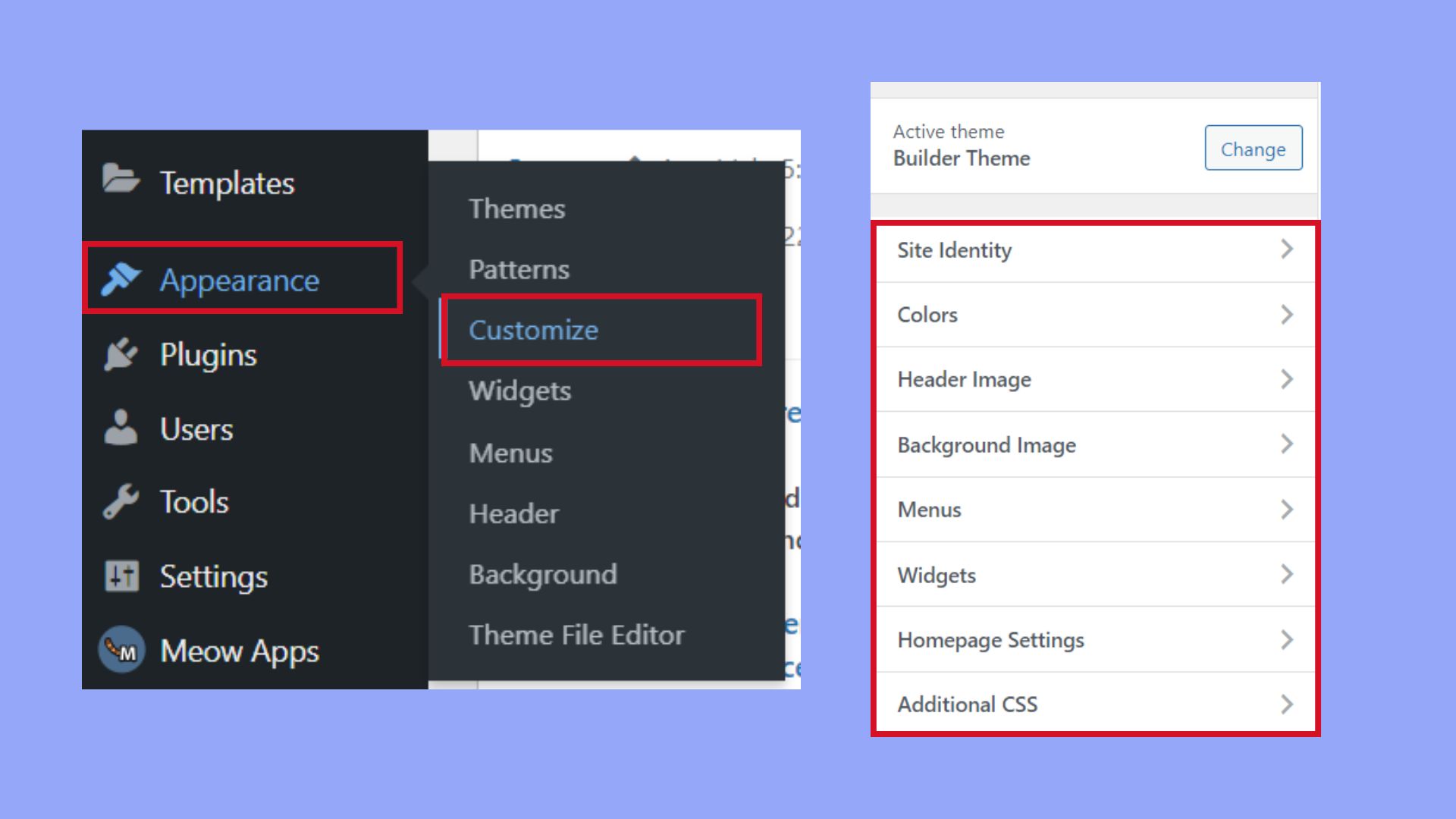
The WordPress Customizer lets you change themes easily. You can see changes live. Preview before you save. This tool helps you edit many parts of your site. It is simple and quick.
Colors and fonts change your site’s look. Pick colors that fit your theme. Make sure fonts are easy to read. Bold fonts can stand out. Use matching colors for a clean style.
Layout changes how your site is organized. Choose sidebar or no sidebar. Pick how many columns you want. Check layout on different devices. Keep it simple for easy navigation.

Credit: wordpress.com
Using Theme Widgets
Widgets make your site more fun. They add special features. Adding a widget is easy. Go to the dashboard. Find the Appearance tab. Click on Widgets. Drag a widget to your sidebar. Now it is live on your site. Want to remove a widget? Drag it back to the widget area. Now it’s gone. Widgets can change how your site looks. Experiment with different ones. Find what suits your site best.
Every widget has settings. You can change them. Click on the widget. Settings will appear. Adjust the title if needed. Some widgets have more options. You might see colors or layouts. Change these to match your theme. Always save changes. Saving is important. Check your site after. Make sure it looks good. Widgets help make your site unique.
Editing Theme Code
Adjusting themes in WordPress involves editing theme code to customize appearance and functionality. Access the theme editor through the WordPress dashboard to make changes. Ensure you backup files before editing to prevent data loss.
Accessing Theme Files
Access theme files from the WordPress dashboard. Navigate to Appearance and select Theme Editor. Locate the file you want to edit. Ensure you have backed up your theme. This avoids losing changes. Keep a copy on your computer. Use a child theme for safety. This prevents losing edits after updates. Always check each file before editing.
Making Safe Code Changes
Safe code changes need careful steps. Make changes in small parts. Test each change before saving. Use a staging site for testing. Avoid editing live sites directly. This keeps your site running smoothly. If unsure, ask for help from experts. Mistakes can break your site. Use online guides for help. Practice and learn coding basics. This helps in making safe changes.
Credit: www.wpzoom.com
Implementing Child Themes
Child themes protect your work during updates. You can keep changes safe. Updates won’t affect your theme edits. This helps in maintaining design. Custom styles remain intact. Child themes offer flexibility. You can experiment easily. They provide a sandbox for testing. Mistakes won’t harm the main theme. This ensures better stability. Child themes improve organization. They separate custom code from the main theme. This makes managing code simpler.
First, create a folder for the child theme. Name it wisely. Next, add a style.css file. This file controls design. Inside style.css, include theme details. Mention the parent theme. Create a functions.php file. This file adds extra features. Copy the parent theme styles into style.css. Use code to link the parent theme. Activate your child theme. Check for any errors. Test your changes carefully. Your child theme is now ready.
Testing And Previewing Changes
Preview mode is useful. It lets you see theme changes before they go live. Click the preview button in WordPress. You will see how your site looks with new changes. This helps you spot any mistakes. Make sure everything is perfect. Visitors will see a well-crafted site. Preview mode saves time. It prevents errors from reaching your audience. Test each change carefully. Double-check colors, fonts, and layout. Your site will look better.
Mobile compatibility is important. Many people browse on phones. Check your theme on mobile devices. Make sure it looks good. Use WordPress tools to test mobile view. Your site should be easy to read on small screens. Text should be clear. Buttons should be easy to click. A mobile-friendly site attracts more visitors. Keep mobile users happy. They will stay longer on your site.
Troubleshooting Theme Issues
Adjusting themes in WordPress can solve display problems. Start by accessing the dashboard, selecting ‘Appearance,’ and choosing ‘Themes. ‘ Make necessary changes to enhance your site’s look and functionality.
Common Problems And Fixes
Many face issues with WordPress themes. Sometimes, the theme doesn’t display right. This can be due to incompatible plugins. Try deactivating your plugins. Then, activate them one by one. This will help find the troublesome plugin. Another problem is missing styles. This happens if the theme’s CSS file is not loaded. Check if the file is in the right folder.
Slow website speed can also be a problem. Large images or scripts might cause this. Optimize images and reduce scripts. This will help improve speed. If you see a blank page, it might be a PHP error. Check the error logs for clues.
When To Seek Professional Help
Some issues need expert help. If the website crashes, call a professional. Theme updates can sometimes break things. Experts can fix these issues quickly. If you can’t solve a problem, it’s best to seek help. Professionals know how to handle complex issues. They can save time and avoid frustration. Security threats also need expert attention. Never ignore them. Protect your website with professional advice.
Frequently Asked Questions
How To Change WordPress Theme Color?
To change your theme color, go to your WordPress dashboard. Navigate to Appearance > Customize. Look for the ‘Colors’ section and adjust the colors to your preference. Always preview changes before saving to ensure your site looks as desired.
Can I Edit WordPress Themes Without Coding?
Yes, you can edit themes without coding. Use the WordPress Customizer found under Appearance in your dashboard. It allows you to change layout, colors, and fonts easily. Install plugins like Elementor for more advanced customization without coding.
How Do I Install A New WordPress Theme?
To install a new theme, go to your dashboard and select Appearance > Themes > Add New. Browse or search for a theme, then click ‘Install’ and ‘Activate’. Ensure your theme is compatible with your version of WordPress before activating.
Why Is My WordPress Theme Not Changing?
Your theme might not change due to caching issues. Clear your browser cache or check caching plugins in WordPress. Ensure the theme is correctly activated under Appearance > Themes. Sometimes, server-side caching might also prevent changes from appearing immediately.
Conclusion
Adjusting WordPress themes is straightforward and rewarding. Users can customize their sites easily. Start by exploring theme options available. Test different layouts to find the perfect fit. Ensure your choice aligns with your brand’s message. Utilize the WordPress dashboard for quick changes.
This helps keep your site fresh and engaging. Remember to check theme compatibility with plugins. This avoids any functionality issues. Regular updates keep themes secure and optimized. Your website’s appearance impacts visitor impressions greatly. So, invest time in theme selection.
It’s crucial for an effective online presence.



