Are you tired of your website’s header not looking quite right? The Astra Theme in WordPress offers incredible flexibility, but sometimes adjusting the header to fit your unique style can seem daunting.
Don’t worry, you’re in the right place. Imagine having a header that perfectly reflects your brand’s identity and enhances your visitor’s experience. In this guide, you’ll discover simple steps to tweak the header in the Astra Theme like a pro.
Get ready to transform your site’s first impression effortlessly. Dive in to unlock the potential of your WordPress site and create a header that captivates every visitor!
Accessing The Astra Theme Settings
Start by logging into your WordPress dashboard. Look for the Appearance menu. Under this menu, find Astra Options. This is where all theme settings are. Click on it to open the settings page. You’ll see many options here.
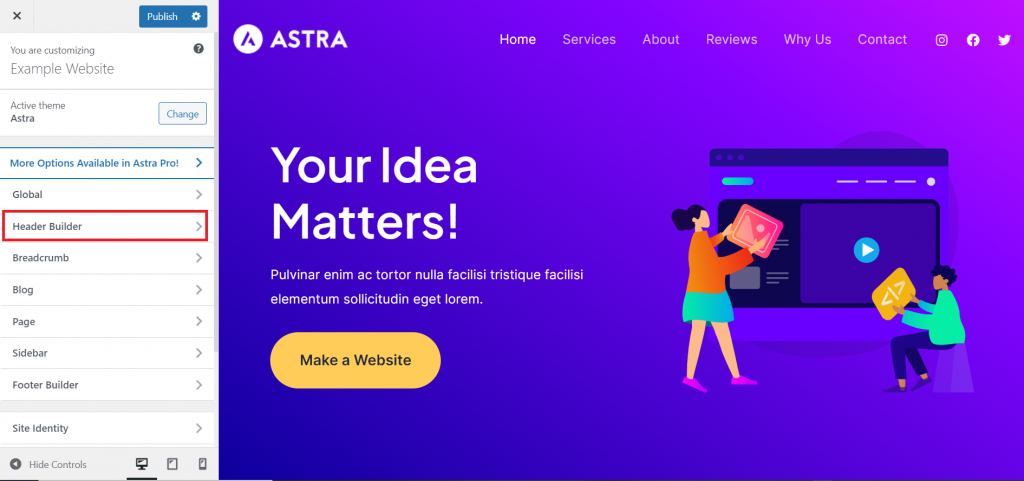
To change the header, go to the Header Builder. It’s found under the Customize section. This tool lets you add or remove header items. You can change their positions too. Adjust colors and fonts to match your style. Make sure to save changes after editing. Your new header will be live on your site.

Credit: wpastra.com
Customizing Header Layout
Headers make your site unique. Astra offers different header types. You can choose a sticky header for a modern look. A transparent header makes your site fresh. For a simple design, try a basic header. Each type changes your site’s look. Pick one that matches your style.
Header width affects how your site looks. Make the header wider to fill the screen. Or keep it narrow for a clean design. Use settings to change the width easily. A wide header can show more menu items. A narrow header gives focus to your content.
Header height influences the site’s feel. A tall header can show logos well. A short header keeps things tidy. Adjust height in the settings. Tall headers are good for detailed designs. Short headers are best for simple sites. Find the perfect height for your vision.
Changing Header Background
To change the header color in Astra, go to the WordPress Customizer. Find the Header section. Click on Header Background. Choose a color you like. Make sure the color fits your site’s style. Once happy, click Publish. You will see the change instantly. The new color should look nice and clear.
Adding an image is easy. Go to the Customizer. Find the Header section. Click on Header Background. Choose Image instead of color. Upload a picture from your computer. Make sure it fits well. Use high-quality images. Click Publish to save. The image will now show in the header. Ensure it doesn’t make text hard to read.
Editing Header Text And Fonts
To adjust the font style in Astra Theme, go to the WordPress dashboard. Click on Appearance, then Customize. In the Header section, find Typography. You can choose different fonts like Arial or Times New Roman. Pick a style that suits your website’s theme. It’s simple and quick.
For changing font size, stay in the Typography settings. Look for the size option. Use the slider to make the text bigger or smaller. Larger text can be easier to read. Smaller text can fit more words in one line. Adjust until it looks just right.
Aligning text is also easy. In the Typography section, find the alignment option. Choose left, center, or right. Centered text looks neat in headers. Left-aligned text is common. Right-aligned text is unique. Pick the one that fits best.
Incorporating Header Logo
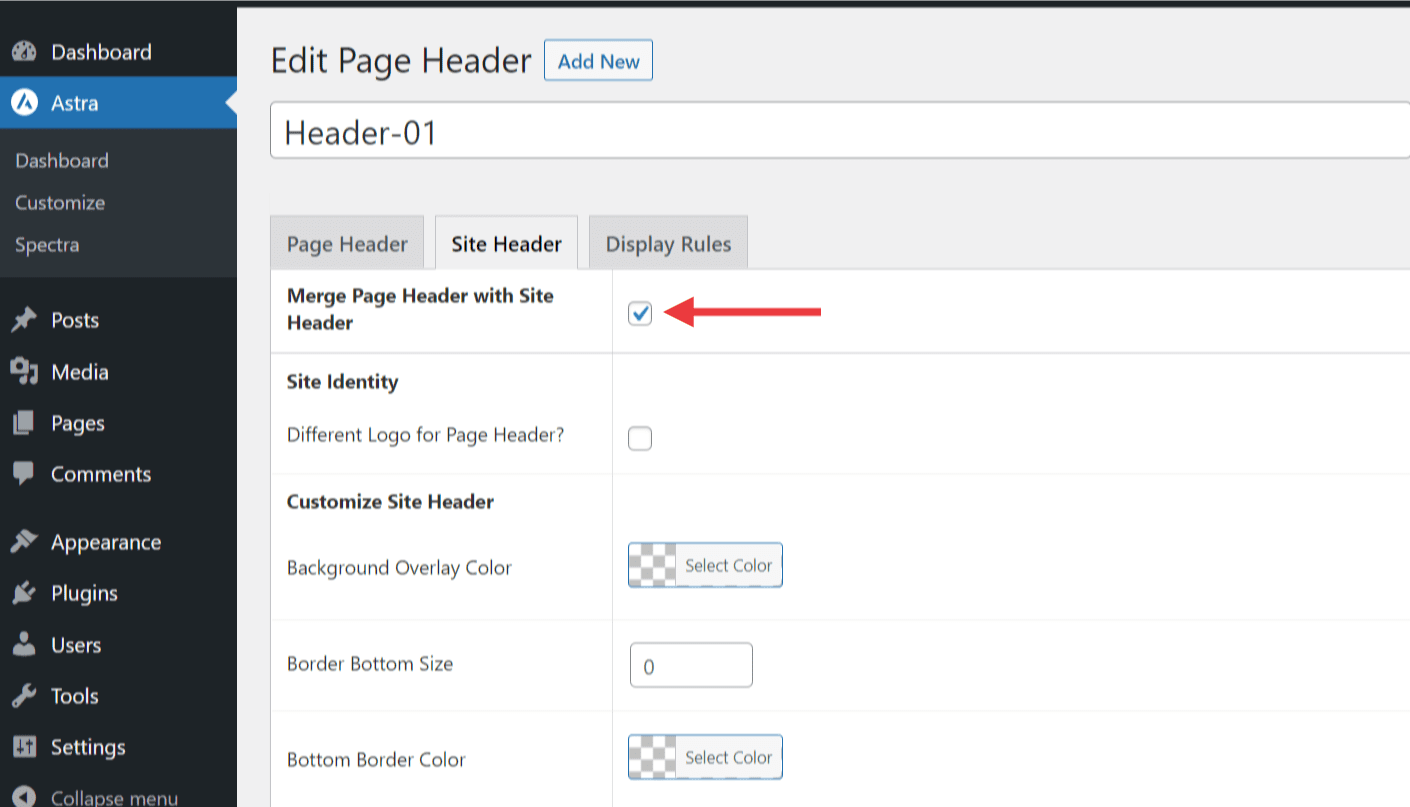
To add a logo, go to the WordPress dashboard. Find the Appearance tab. Click on Customize. Choose Header and then Site Identity. Upload your logo by clicking the Select Image button. Use a clear and simple image. Ensure it represents your brand well.
Adjusting the logo size is easy. In the same Site Identity area, find the Logo Width slider. Move the slider to change the size. Make sure the logo fits well in the header. Not too big, not too small. Preview the changes to see how it looks. Save your changes by clicking Publish.
Credit: wpastra.com
Configuring Header Menu
First, open the WordPress dashboard. Go to Appearance, then click on Menus. Here, you can see a list of pages. Select the pages you want. Click Add to Menu. Your selected items will appear on the right. Make sure to save your changes.
Drag items to change the order. Want a sub-menu? Drag an item slightly to the right under another. This makes it a sub-item. You can create as many sub-items as you need. Always remember to click Save Menu after making changes. This keeps your menu organized.
Visit Appearance and then Customize. Go to Header and click on Primary Menu. Here, you can change the font style and color. Want bold text? Choose a bolder font weight. You can also change the background color. This makes your menu look unique and matches your site’s style.
Utilizing Advanced Header Features
Adjusting headers in Astra Theme WordPress offers flexibility in design. Use customization options to change layouts, colors, and fonts easily. Personalize your site’s look, enhancing user experience without complex coding.
Implementing Sticky Header
A Sticky Header stays at the top when you scroll. This makes navigation easy. To enable it, go to the Astra Theme Customizer. Find the Header section. Click on Sticky Header. Turn it on. Now, your header sticks. It helps users see menu options always.
Enabling Transparent Header
A Transparent Header can look clean and modern. It blends with the page background. To activate it, visit the Customizer. Select Transparent Header under the Header section. Enable it. Choose the pages where you want it. This style works well with images. It gives a smooth look to your site.
Saving And Previewing Changes
Click the save button after making changes to your header. This action ensures your adjustments are not lost. After saving, find the preview option. Click it to see your header live. Check if everything looks good. If not, go back and edit. It’s simple and quick. The preview helps you make sure the header is just right.
Remember to save each time you edit. This keeps your changes safe. Saving and previewing are important steps. They help you get the perfect header on your site. Adjustments are easy with these tools.
Troubleshooting Common Header Issues
Headers sometimes don’t show correctly. This can be confusing. Check the visibility settings in Astra. Make sure header is visible on all pages. Also, check the customizer settings. Any wrong setting can cause display issues. Verify the header’s position and layout too. Correct positioning can solve many problems.
Headers should look good on all devices. Sometimes, they don’t. For fixing this, use the responsive settings in Astra. These settings help headers look perfect on mobile and desktop. Check the padding and margins. They affect how headers appear on small screens. Adjust them to improve looks. Also, test using different devices. This ensures headers are responsive.
Credit: www.hostinger.com
Frequently Asked Questions
How To Change Header Size In Astra Theme?
To change the header size in Astra, navigate to Appearance > Customize > Header. Adjust the height by using the slider tool available. This allows you to set a custom size that fits your design preference. Ensure to save changes to see the effect on your website.
Can I Customize Header Background In Astra?
Yes, customizing the header background in Astra is easy. Go to Appearance > Customize > Header > Design. Here, you can select a color or upload an image. This customization enhances the visual appeal of your header, making it more attractive to visitors.
How Do I Add A Logo To The Header?
Adding a logo is straightforward in Astra. Go to Appearance > Customize > Header > Site Identity. Click on ‘Select Logo’ to upload your image. Ensure the logo is clear and fits within the designated area. This helps in branding and makes your site recognizable.
Is It Possible To Have A Sticky Header?
Astra allows sticky headers by enabling the feature under Appearance > Customize > Header > Sticky Header. This feature keeps the header visible when scrolling, improving navigation. It’s beneficial for user experience, making it easier for visitors to access menu items.
Conclusion
Editing your header in Astra theme is straightforward. It enhances your site’s appearance. Follow the steps for a seamless process. Customize colors, fonts, and layouts easily. Make your site unique and attractive. Keep experimenting with different styles. This improves user experience and engagement.
Astra provides flexibility for creative designs. Regularly update your theme settings. This ensures your website stays fresh and relevant. Remember, a well-designed header creates a strong first impression. Optimize it for better navigation and aesthetics. Happy designing!