Are you ready to give your eCommerce website a fresh look? Adding a new WordPress theme to your live eCommerce database can do just that.
But if the thought of making changes to your live site makes you anxious, you’re not alone. You might worry about downtime, data loss, or even impacting your sales. However, with the right approach, you can transform your site smoothly and effectively.
Imagine capturing your customers’ attention with a visually appealing and functional design that not only looks great but also enhances their shopping experience. We’ll guide you step-by-step on how to seamlessly integrate a new WordPress theme into your live eCommerce platform, ensuring minimal disruption and maximum impact. Ready to revitalize your online store without breaking a sweat? Let’s dive in!

Credit: themeforest.net
Choosing The Right Theme
Picking the right theme is important. It can affect your store’s success. Speed is crucial. A slow site can lose customers. Responsive design is key. It helps your site look good on phones and tablets. SEO-friendly themes help you rank better in search results. Check for theme support. This is useful if problems arise. Review theme updates. Regular updates fix bugs and improve security.
Many themes work well for ecommerce. Astra is lightweight and fast. It has many customization options. OceanWP offers great speed and features. It is also very flexible. Storefront is a popular choice for WooCommerce. It is free and easy to use. Divi is another great option. It has a drag-and-drop builder. This makes it easy to design your site.
Backing Up Your Database
Backing up your database is very important. It keeps your data safe. Sometimes, things go wrong. Your data can get lost. A backup helps you get it back. It saves time and trouble. You can avoid big problems. Your business stays safe. Customers trust you more.
There are tools that help with backups. UpdraftPlus is one tool. It is easy to use. It saves your data well. BackupBuddy is another tool. It also works well. It has many features. VaultPress is good for backups too. It is made by WordPress. All these tools protect your database. They are simple to use. They make sure your data is safe.
Installing A New Theme
First, log into your WordPress Dashboard. Use your admin username and password. The dashboard is your control center. Here, you manage your website.
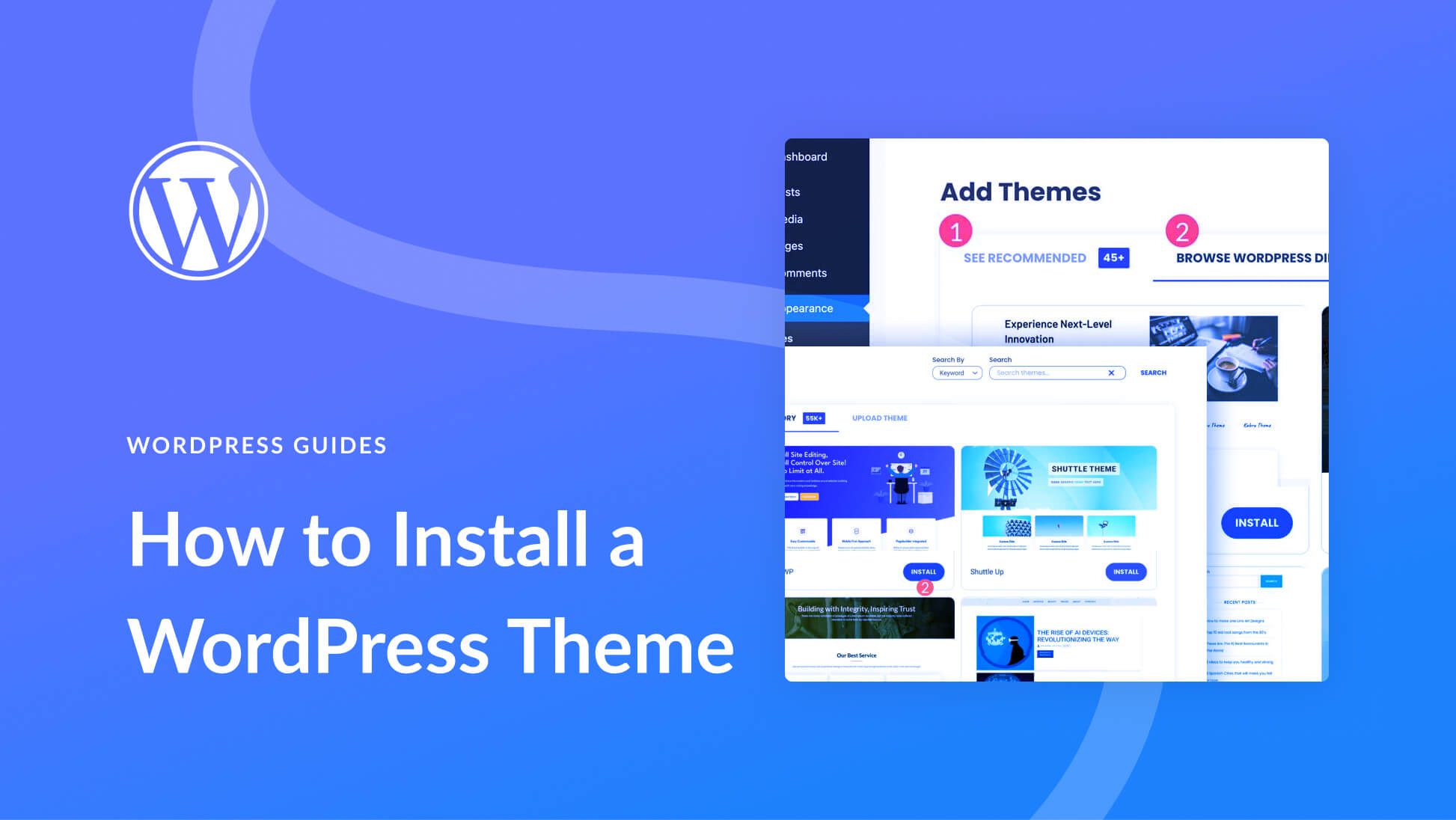
Go to Appearance on the left menu. Click on Themes. Then, click the “Add New” button. You can now upload your new theme. Choose a ZIP file of the theme. Click “Install Now”. Wait for the upload to finish.
Once uploaded, a button will appear. Click on “Activate”. This will make the theme live. Now your website has a fresh look. Check your site to see the changes.
Customizing Theme Settings
Explore seamless integration of WordPress themes into live ecommerce databases. Customize theme settings for enhanced functionality and aesthetic appeal. Ensure optimal performance and user experience while maintaining database integrity.
Adjusting Layout And Design
Choose a theme you like. Open the theme settings. Find the layout options. Pick a layout that fits your store. Arrange the elements. Ensure they look good and clear. Change colors to match your brand. Choose fonts that are easy to read. Check your changes on a preview. Make sure everything looks right. Save your settings when happy.
Integrating Ecommerce Features
Add ecommerce plugins to your theme. These plugins help with online sales. Look for features like product listings. Also, check for payment gateways. Ensure they are safe and secure. Add a cart and checkout page. Make sure they work smoothly. Test all features before going live. Customers should have a good shopping experience.
Testing The New Theme
Installing a WordPress theme onto a live eCommerce database can refresh your site’s look. First, backup your current database to prevent data loss. Then, choose a theme compatible with your existing plugins and features, ensuring seamless integration.
Checking For Compatibility Issues
Before using the new theme, check for compatibility issues. Different themes may have conflicts. Look for plugin errors. Check if the theme works well with your eCommerce database. Run tests to see if everything functions smoothly. Fix any problems you find.
Ensuring Responsiveness
A responsive theme is crucial for your site. It helps your website look good on mobile devices. Test the theme on different screens. Check if the layout changes correctly. Make sure buttons and links work. Responsiveness improves user experience. Your customers will have a good time shopping. Responsive designs keep visitors happy.
Credit: www.elegantthemes.com
Optimizing For Performance
Fast websites attract more visitors. They keep users happy. Slow sites lose customers. Many tools help speed up your site. Image compression is essential. It reduces file size. It speeds up loading. Use plugins to automate this process. Minify CSS and JavaScript files. This removes unnecessary code. It makes files smaller. Quicker loading is the result. Enable browser caching. This saves site data on user devices. Faster access when users return.
SEO improves site visibility. Use keywords wisely. Include them in titles and headings. Focus on meta descriptions. They tell search engines about your content. Alt text is important for images. It helps search engines understand pictures. Keep content fresh. Update regularly to keep users engaged.
Monitoring And Maintenance
Regular Updates keep your ecommerce site running smoothly. Update your WordPress theme often. This helps fix bugs and improve security. New updates can bring new features. Always check for updates in the WordPress dashboard. Set reminders to check regularly. Updates protect your site from hackers. They also keep your site fast and easy to use.
Security Checks are crucial for your ecommerce database. Hackers look for weak spots. Regular checks can stop them. Use tools to scan for malware. Change your passwords often. Strong passwords are hard to guess. Limit access to sensitive areas. Only trusted people should have access. Backup your database often. If something goes wrong, backups can save your data.

Credit: themeforest.net
Frequently Asked Questions
How Do I Upload A WordPress Theme?
To upload a WordPress theme, navigate to the ‘Appearance’ section in your WordPress dashboard. Click ‘Themes’, then ‘Add New’. Select ‘Upload Theme’, choose your theme file, and click ‘Install Now’. Once installed, activate the theme to apply it to your site.
Can I Change Themes Without Losing Data?
Yes, you can change themes without losing data. WordPress stores your content separately from themes. Switching themes affects design elements, not your posts or pages. However, some widgets and settings may need adjustment, so always backup your database before making changes.
Is It Safe To Add Themes To Live Sites?
Adding themes to live sites is generally safe. Ensure you’re using a reputable theme from a trusted source. Always backup your site before installation. Test the theme in a staging environment to avoid potential issues. Regularly update themes to maintain security and performance.
How Do I Ensure Theme Compatibility?
To ensure theme compatibility, check the theme’s documentation for supported WordPress versions and plugins. Update WordPress and plugins to the latest versions. Test the theme in a staging environment for functionality and appearance. Consult forums and support if issues arise.
Conclusion
Adding a WordPress theme to your live ecommerce database can be simple. Follow the steps carefully. Each step helps enhance your site’s look and function. Make sure to backup your data first. This prevents any loss during installation. Test your site after applying the theme.
Ensure everything works smoothly. A well-chosen theme boosts user experience. It can attract more visitors and increase sales. Regular updates keep your theme secure and fresh. Stay informed on new features and improvements. Your online store deserves the best visual appeal and functionality.