Want to make your WordPress site more engaging and easy to connect with? Adding social media icons to your footer is a simple yet powerful way to do that.
It helps your visitors find and follow you on different platforms without any hassle. In this guide, you’ll learn exactly how to add those icons step-by-step, even if you’re not a tech expert. By the end, your website will look more professional, and you’ll boost your online presence effortlessly.
Ready to get started? Let’s dive in!
Choose The Right Social Media Icons
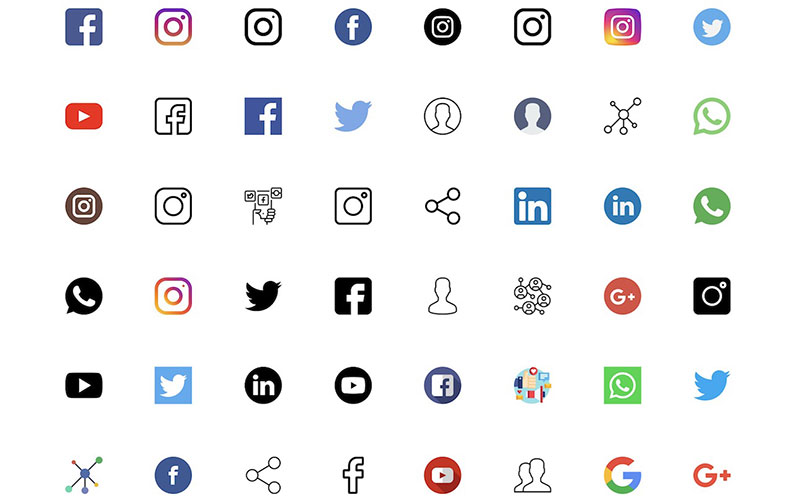
Choosing the right social media icons for your WordPress footer matters a lot. These icons guide visitors to your social profiles. They should fit your website’s look and feel. Picking icons that are clear and attractive helps visitors find your social pages easily. The right icons also improve your site’s overall design and user experience.
Free Vs Premium Icons
Free icons are easy to find and use. Many websites offer free social media icon sets. They come in simple designs and common styles. Free icons work well for small sites or blogs. Premium icons cost money but offer more features. They include unique styles and better quality. Premium icons often come with customization options. Choose premium if you want a professional and unique look. Free icons suit basic needs and tight budgets.
Icon Styles And Sizes
Icon style should match your website’s theme. Flat, outline, and colored icons are popular styles. Flat icons are simple and modern. Outline icons look clean and minimal. Colored icons attract more attention. Keep icon sizes balanced with your footer design. Too big icons can look messy. Too small icons can be hard to see. A size between 24px and 48px usually works well. Consistent size and style create a neat footer appearance.
Prepare Your Social Media Links
Preparing your social media links is an important step before adding icons to your WordPress footer. Clean and correct links ensure visitors reach your profiles easily. This preparation also helps track how many people click your social media icons.
Collecting Urls
First, gather the exact URLs of your social media profiles. Visit each platform and copy the full web address. Check that the links lead directly to your page, not to login or error pages. Keep these URLs ready for the next steps.
Shortening And Tracking Links
Shorten long URLs for a cleaner look and easier management. Use link shorteners like Bitly or TinyURL. These tools also offer tracking features. Tracking shows how many users click your links. This data helps improve your social media strategy over time.
Add Icons Using WordPress Widgets
Adding social media icons to your WordPress footer helps visitors find your profiles easily. Using WordPress widgets is a simple way to place these icons. Widgets allow you to add content blocks without coding knowledge. This method works well for beginners and saves time.
Accessing The Footer Widget Area
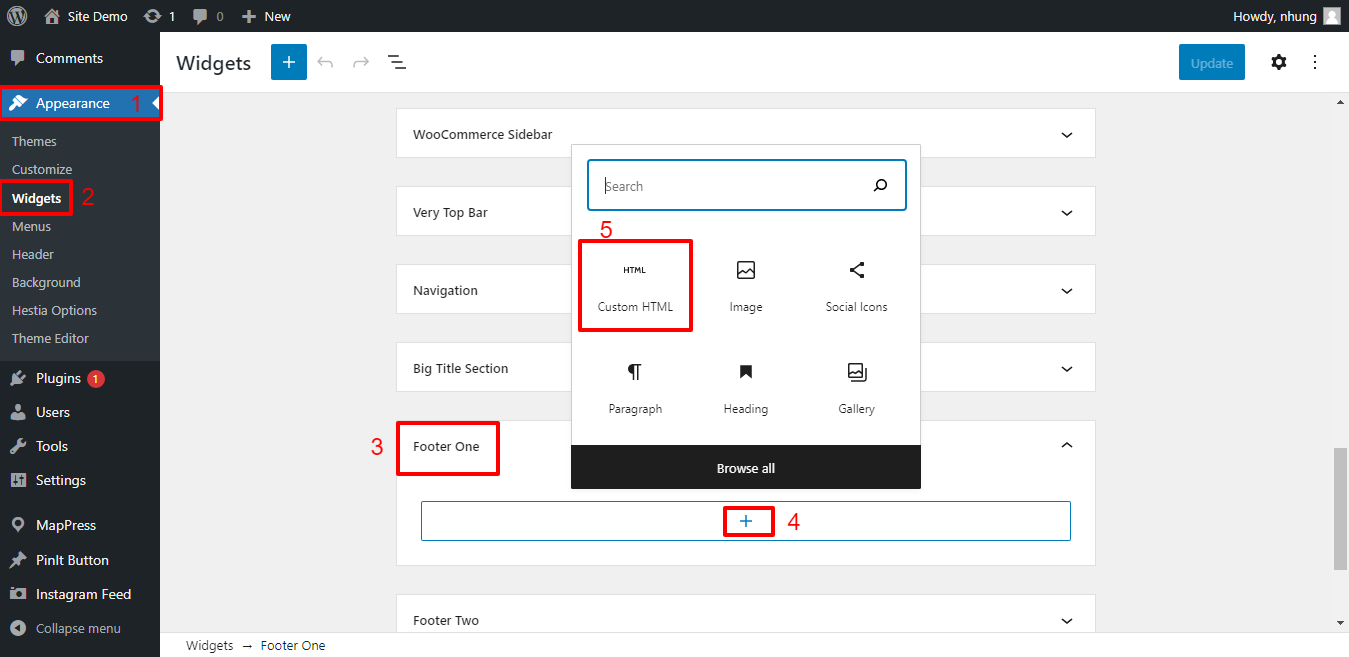
Start by logging into your WordPress dashboard. Navigate to Appearance and select Widgets. Look for the footer widget area. The name may vary depending on your theme. It could be called Footer, Footer Area, or Footer Widgets.
Click on the footer area to open its settings. This is where you will add your social media icons.
Adding Custom Html Or Text Widget
Click Add a Widget inside the footer section. Choose either the Custom HTML or Text widget. Both options allow you to insert code or simple text. The Custom HTML widget is best for adding icon code.
Drag the widget into the footer area. Then, open the widget settings to prepare for your icon code.
Inserting Icon Html Code
Find the HTML code for your social media icons online. Many icon libraries offer free code snippets. Paste the code into the Custom HTML or Text widget box.
Make sure the code uses the correct links to your social profiles. Save the widget changes. Visit your website to check if the icons appear in the footer.
Credit: wpdatatables.com
Use A Social Media Plugin
Using a social media plugin is a simple way to add icons to your WordPress footer. Plugins save time and make the process easy, even for beginners. They offer many styles and options to fit your site’s look. You can link your social media profiles directly through the plugin. This method helps keep your site organized and professional.
Top Plugins For Footer Icons
Several plugins work well for adding social media icons in the footer. Popular choices include “Social Icons Widget,” “Simple Social Icons,” and “WP Social Icons.” These plugins are lightweight and easy to use. They offer customizable icon styles and support many social networks. Choose one that matches your design and needs.
Installing And Activating The Plugin
Start by going to your WordPress dashboard. Click on “Plugins” then “Add New.” Type the plugin name in the search box. Click “Install Now” next to your chosen plugin. After installation, click “Activate” to enable the plugin on your site. The plugin will now appear in your dashboard menu.
Configuring Icon Appearance And Links
Go to the plugin settings page in your dashboard. Here, you can choose icon styles and sizes. Pick colors that match your site’s theme. Add your social media profile URLs to the correct fields. Save your changes and check the footer on your website. Adjust settings if needed to get the perfect look.
Customize Icon Style With Css
Customizing social media icons in your WordPress footer helps match your site’s style. CSS lets you change colors, sizes, and add effects. These small tweaks make your icons more visible and attractive. They improve user experience and keep visitors engaged. Below are simple CSS tips for styling your icons.
Changing Icon Colors
Use CSS to set icon colors that fit your brand. Target the icon class or ID in your stylesheet. For example, color: 333; changes the icon color to dark gray. You can set different colors for normal and active states. This helps visitors recognize clickable icons easily.
Adjusting Size And Spacing
Modify icon size by changing the font size or width and height. Use font-size: 24px; for bigger icons. Add space between icons with margin-right or padding. Proper spacing avoids clutter and makes the footer neat. Keep sizes consistent for a balanced look.
Adding Hover Effects
Hover effects make icons interactive and fun. Use CSS like :hover { color: 0073e6; } to change color on mouseover. Add smooth transitions with transition: color 0.3s ease;. You can also apply scale or shadow effects. These subtle changes encourage clicks and improve engagement.

Credit: wpindigo.com
Test And Optimize Footer Icons
Testing and optimizing your footer icons ensures they work well on all devices. It improves user experience and keeps visitors engaged. Small tweaks can make a big difference in how users interact with your social media links.
Checking Responsiveness
Check how your icons look on phones, tablets, and desktops. Icons should resize properly and stay easy to tap. Use tools like browser developer mode to test different screen sizes quickly. Make sure icons do not overlap or disappear on smaller screens.
Ensuring Accessibility
Add alt text to each social icon for screen readers. Make sure icons have enough color contrast for easy visibility. Use keyboard navigation to test if icons can be reached without a mouse. This helps all users, including those with disabilities, to access your links.
Performance Considerations
Keep icon file sizes small to speed up your site. Use SVG icons instead of large images for better quality and faster load times. Avoid adding too many social icons, which can slow your footer. Fast loading icons keep visitors happy and improve SEO.
Credit: ltheme.com
Frequently Asked Questions
How Do I Add Social Media Icons To WordPress Footer?
To add social media icons, use a plugin or your theme’s footer widget area. Upload icon images or use built-in icon sets. Link each icon to your social profile URL for easy access.
Which Plugins Are Best For Footer Social Icons?
Popular plugins include Smash Balloon, Social Icons Widget, and Simple Social Icons. These are user-friendly, customizable, and compatible with most themes.
Can I Customize Social Media Icons In The Footer?
Yes, most plugins and themes allow icon size, color, shape, and hover effects customization. This helps match your site’s design and branding.
Is It Necessary To Use Plugins For Social Icons?
No, you can manually add icons using HTML and CSS in the footer. However, plugins simplify management and provide better design options.
Conclusion
Adding social media icons to your WordPress footer is simple and useful. These icons help visitors find your profiles quickly. They also make your site look more professional and connected. Follow the steps carefully, and you will have your icons working in no time.
Keep your site updated and check that the links work. This small change can improve user experience and keep people engaged. Give it a try and see the difference on your website.