Are you ready to take your WordPress website to the next level? Adding plugins to your custom WordPress theme can unlock a world of possibilities.
Imagine enhancing your site’s functionality, improving user experience, and optimizing your workflow with just a few clicks. Whether you’re looking to boost your site’s speed, enhance security, or add exciting new features, plugins are your best friend. But how do you seamlessly integrate them into your custom theme without causing chaos?
Don’t worry, we’ve got you covered. You’ll discover simple, step-by-step instructions to add plugins to your WordPress theme effortlessly. Keep reading to transform your website into a powerhouse and keep your visitors coming back for more.
Choosing The Right Plugins
First, make a list of what you need. Plugins can add features to your site. Think about what is missing. Do you need a contact form? Or a gallery? Each need can have a specific plugin. Prioritize the most important ones. This helps you stay focused.
Search for plugins in the WordPress directory. Read reviews and check ratings. Find out what others say about them. Look at the number of active installations. More installs often mean a reliable plugin. Don’t forget to check the last update date. Regular updates mean the plugin is maintained.
Ensure the plugin works with your theme. Check the plugin’s requirements. Is it compatible with your WordPress version? Test the plugin on a staging site first. This prevents any issues on your live site. Always back up your site before adding new plugins.
Preparing Your Theme For Plugins
Always back up your theme files. Keep a copy safe. Use a reliable tool for backups. You can save time and prevent data loss. Backup is essential before making changes. Avoid potential issues with plugins.
Create a child theme for your site. This preserves changes. It keeps your original theme intact. A child theme is easy to set up. It allows safe experimentation. You can modify without risk. Use it to test plugins safely.
Check your theme’s compatibility with plugins. Some plugins might not work. Verify before installing. Compatibility ensures smooth operation. It prevents errors and conflicts. Read plugin documentation carefully. Make informed choices to maintain site functionality.
Installing Plugins
Start by visiting the WordPress Plugin Directory. It’s easy to find. Use the search bar to look for a plugin. Click on the plugin you like. Check its ratings and reviews. These help you choose the best one. Press the “Install Now” button. Wait for a few seconds. The plugin will download and install. You must activate it next. This makes the plugin work on your site.
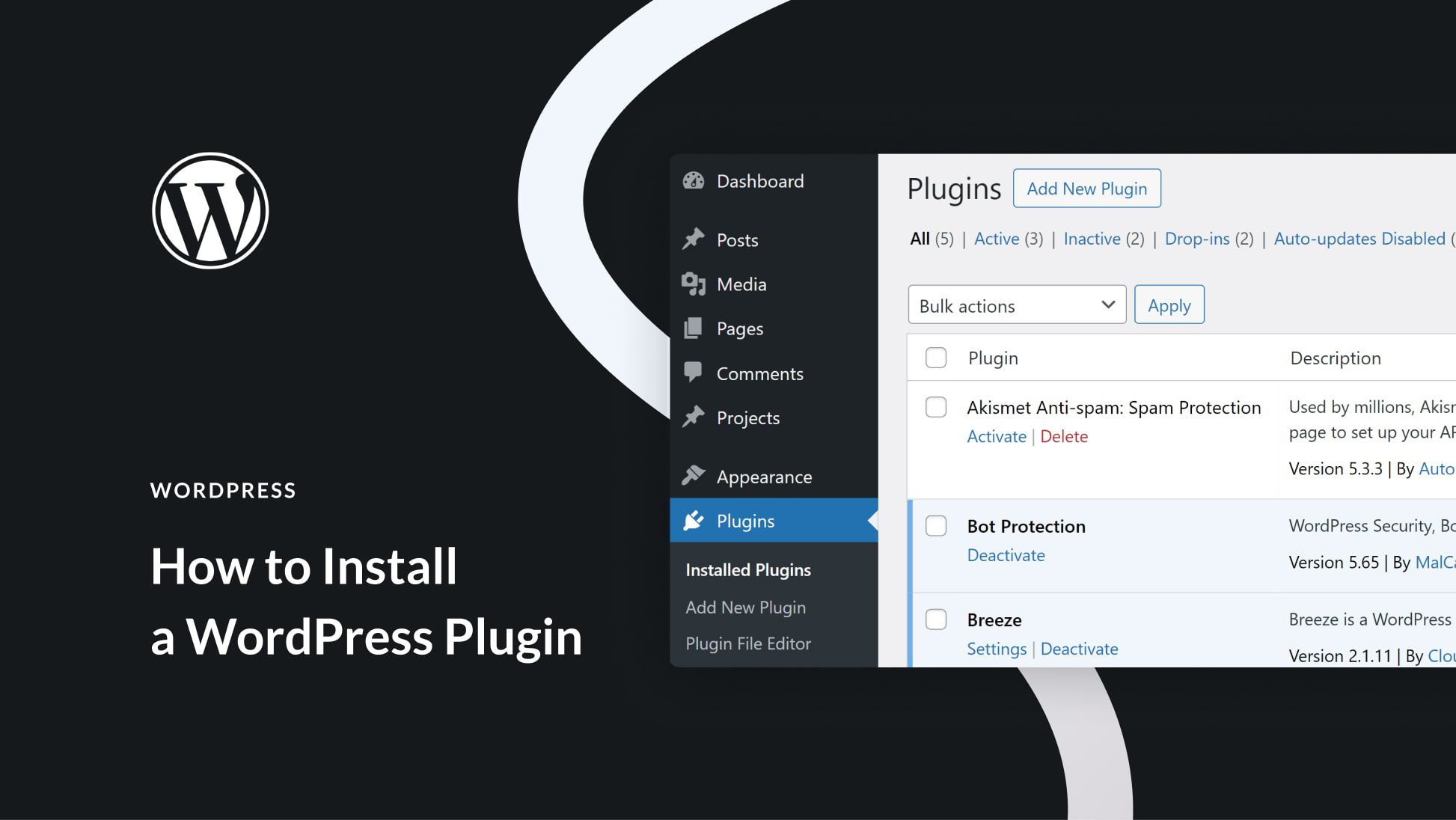
Download the plugin as a .zip file. Save it on your computer. Go to your WordPress dashboard. Find the “Plugins” section. Click “Add New”. Choose “Upload Plugin” at the top. Select the .zip file you saved. Press “Install Now”. Wait a moment. The plugin will upload and install. You need to activate it after.
Go to the “Plugins” page in your dashboard. Find the plugin you installed. Click “Activate” next to it. This makes the plugin live. Some plugins need extra settings. Check the plugin’s settings page. Adjust options as needed. Save any changes you make. Your plugin is now ready to use.
Credit: www.elegantthemes.com
Customizing Plugin Functionality
Hooks and filters are like magic tools. They let you change how plugins work. Hooks let you add new actions. Filters help change data before it shows up. Use them to make plugins fit your theme. This way, plugins do what you want without breaking anything.
Sometimes you need to change plugin files. Be careful with this. Always make a backup first. This keeps your site safe. Check the plugin guide for help. Some plugins have files you can change easily. Only change what you need. This keeps things simple and tidy.
Plugins might look different from your theme. Use CSS to fix this. CSS is like a paintbrush for your site. Match plugin styles to your theme styles. This makes your site look nice and neat. Keep styles simple and clean for the best effect.
Managing Plugins
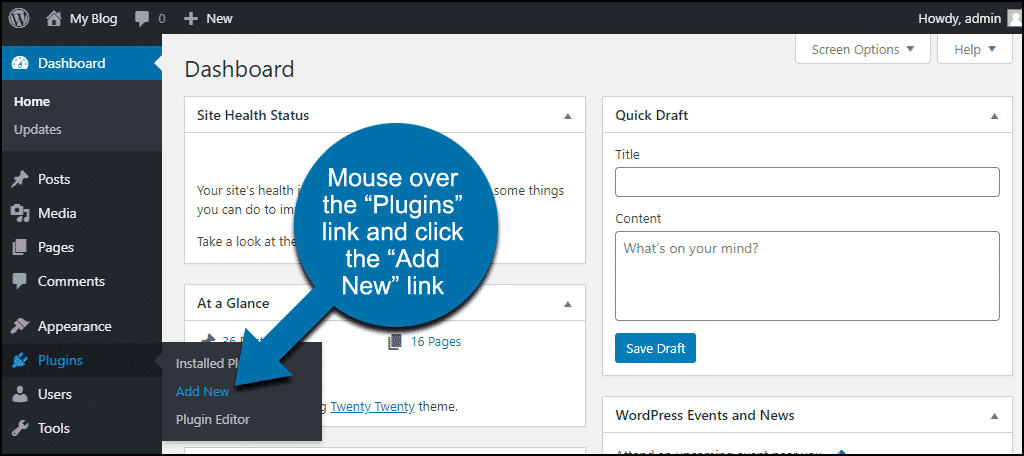
Integrating plugins into your custom WordPress theme enhances functionality and design. Access the admin dashboard, navigate to ‘Plugins’, then ‘Add New’. Search for desired plugins, click ‘Install Now’, and activate them to customize your site effortlessly. Enjoy seamless enhancement without complex coding.
Updating Plugins Safely
Plugins are software tools. They help your WordPress site. Keeping them updated is key. An outdated plugin can cause problems. Always check for updates. Use the WordPress dashboard. Update plugins one at a time. This prevents errors. Backup your site first. Safety is important. Test the site after updates. Make sure everything works fine.
Handling Plugin Conflicts
Plugins sometimes conflict. This can break your site. Find the problem plugin. Disable one plugin at a time. Check the site after each change. This helps find the problem plugin. Read plugin reviews. They can warn about conflicts. Use plugins from trusted sources. Good plugins reduce conflicts.
Removing Unused Plugins
Unused plugins slow down your site. Remove them for better speed. Go to the plugin menu. Find plugins you don’t use. Click on “Delete”. This removes them. Clean up your site often. Fewer plugins mean faster loading. A clean site runs better.
Credit: www.greengeeks.com
Testing Plugin Performance
Adding plugins to your custom WordPress theme can boost performance and functionality. Ensure compatibility by testing plugin performance regularly. Keep your site running smoothly with updated and well-integrated plugins.
Monitoring Site Speed
Plugins can make your site slow. Use tools like Google PageSpeed Insights. Check your site’s speed often. A fast site keeps users happy.
Ensuring Security
Some plugins can be risky. Always update plugins for safety. Check plugin reviews before installing. A secure site protects your data.
Checking For Broken Features
Sometimes plugins can break features. Test your site after adding a new plugin. Make sure everything works well. Fix any broken parts quickly.
Best Practices For Plugin Use
Too many plugins can slow your website. Keep it simple. Use only necessary plugins. Each one should have a clear purpose. Fewer plugins mean fewer problems. Your site will run better with less clutter.
Choose quality plugins over many options. Popular plugins are often well-made. They get regular updates and support. Quality plugins keep your site safe. They also work better with your theme.
Check your plugins often. Make sure they are up to date. Remove plugins you don’t need. This keeps your website safe. It also makes the site faster. Review helps you find better plugins too.
Credit: www.elegantthemes.com
Frequently Asked Questions
How To Safely Add Plugins To A Theme?
To safely add plugins, first ensure they are compatible with your theme. Use a child theme to prevent overwriting changes. Always backup your site before installing new plugins. Regularly update plugins to maintain security and functionality. Test plugins in a staging environment before deploying them to your live site.
Can Plugins Affect Site Performance?
Yes, plugins can impact site performance. Some may slow down loading speeds or cause conflicts. Choose lightweight, well-coded plugins to minimize issues. Regularly update and deactivate unused plugins to optimize performance. Monitor site speed after adding new plugins to ensure they don’t negatively affect user experience.
Are All Plugins Compatible With Custom Themes?
Not all plugins are compatible with custom themes. Compatibility depends on coding practices and WordPress version. Check plugin documentation for compatibility details. Test plugins in a staging environment before adding them to your live site. Consult developer forums or support if you encounter issues with compatibility.
How Do I Choose The Right Plugins?
Choose plugins based on your site’s needs and compatibility with your theme. Prioritize well-reviewed, frequently updated plugins from reputable sources. Consider the plugin’s impact on performance and security. Test plugins in a staging environment before adding them to your live site.
Regularly review your plugin list to ensure relevance and functionality.
Conclusion
Adding plugins to your custom WordPress theme is straightforward. Start by identifying your needs. Choose plugins that enhance your site’s functionality. Ensure compatibility with your theme to avoid issues. Regularly update your plugins for security and performance. Backup your site before making changes.
These steps help maintain a smooth-running WordPress site. Remember, a well-chosen plugin boosts your site’s user experience. With careful management, your custom theme stays efficient and secure. Empower your website with the right tools. Keep it updated. Keep it safe.
Your site is ready for success.