Are you looking to make your WordPress site truly yours? Adding custom code to your WordPress theme is a game-changer.
It allows you to personalize your site beyond the limits of standard themes and plugins. Imagine having the power to tweak layouts, enhance functionality, and create a unique user experience that aligns perfectly with your vision. This guide is crafted just for you, to unravel the secrets of seamlessly integrating custom code into your WordPress theme.
Whether you’re a seasoned developer or a curious beginner, unlocking this skill could transform your website. Curious to find out how? Let’s dive in and get your site the custom touch it deserves.
Choosing The Right Theme
Choosing a theme that fits your needs is key. Compatibility with your plugins is important. Some themes may not work well with certain plugins. Check if the theme is updated often. Regular updates mean better security. Also, see if the theme has good support. Having help when needed is a big plus.
| Theme Name | Pros | Cons |
|---|---|---|
| Theme A | Easy to use, lots of features | Can be slow |
| Theme B | Fast and simple | Limited customization options |
| Theme C | Highly customizable, great support | Can be complex |
Creating A Child Theme
Creating a child theme in WordPress allows you to add custom code safely. This method preserves your changes during theme updates. It’s a simple way to customize your site without risking losing custom edits.
Why Use A Child Theme
A child theme keeps your changes safe. Updates won’t erase your custom code. Use a child theme for easy edits. It helps maintain original design. You can add new features. Your site stays secure and stable.
Steps To Create A Child Theme
First, make a new folder. Name it after your theme and add “-child”. Inside, create a style.css file. Write your custom styles here. Next, create a functions.php file. This is for custom code. Connect your child theme to the parent theme. Add this line in style.css: @import url("../parent-theme/style.css");.
Activating Your Child Theme
Go to your WordPress dashboard. Click on Appearance, then Themes. Find your child theme. Click Activate. Your child theme is now active. It runs alongside your parent theme. Custom changes appear live. You can now add more code safely.
Locating Theme Files
Finding the right theme files is essential for adding custom code to your WordPress theme. Navigate through the theme editor in the WordPress dashboard to locate specific files like header. php or functions. php. Carefully add your custom code to enhance your website’s functionality and design.
Understanding WordPress File Structure
WordPress has many files. These files help your site work. Themes use special files. Each file has a job. Some files handle looks. Others handle functions.
Identifying Key Theme Files
Theme files are important. style.css makes your site look good. functions.php adds features. header.php sets up the top of your pages. footer.php controls the bottom part. Every file helps your site. Each file has its place.
Credit: www.wpbeginner.com
Using The WordPress Theme Editor
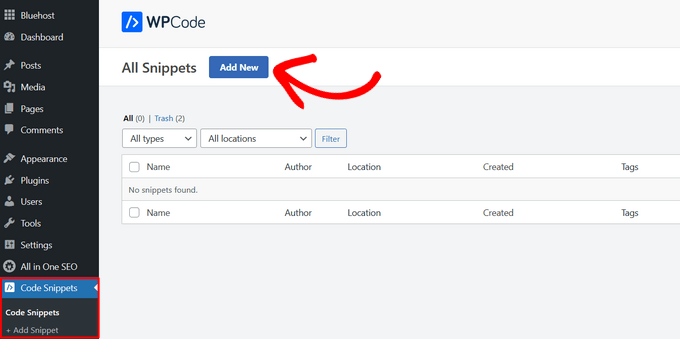
To add custom code, first, access the WordPress Theme Editor. Start by logging into your WordPress dashboard. Find the menu on the left side. Click on Appearance and then click on Theme Editor. A new page will open. Here, you can see the theme files. Each file has a different purpose. Choose the right file to edit.
Editing theme files needs care. Always make a backup before changes. This keeps your site safe. Use Child Themes to avoid losing edits. A child theme is like a copy. It lets you change things without harm. When editing, check the code twice. Small mistakes can break your site. Use comments to note changes. This helps you remember what you did.
Adding Custom Css
Customizing a WordPress theme with CSS enhances its look. Access the theme editor in the dashboard. Paste your CSS code into the “Additional CSS” section. Save changes to view the updates.
Inline Css Vs. External Stylesheets
Inline CSS is written inside HTML tags. It affects only one element. This method is quick for small changes. But it can make your code messy. External stylesheets keep CSS in separate files. These files are linked to HTML. They help keep code clean and organized. For bigger projects, external stylesheets are best. They make managing styles easier.
Best Practices For Custom Styles
Use clear names for CSS classes. This helps identify styles quickly. Avoid using IDs for styling. They can create conflicts. Group similar styles together. This makes reading easier. Use comments in your CSS. Explain what each section does. It helps others understand your code. Test styles on different devices. Make sure they look good everywhere.
Credit: wpfactory.com
Incorporating Custom Php
PHP is the heart of WordPress. Themes and plugins use PHP. It connects the database to the site. PHP helps in dynamic content. Adding custom PHP can change your site. It can make your site unique. Always backup before adding PHP code. Check for errors after adding code. Use a child theme for safety. This protects your main theme.
- Change the login page design.
- Show extra fields on user profiles.
- Modify the footer text.
- Add a custom widget to the sidebar.
- Create a custom post type.
Utilizing Action And Filter Hooks
Actions let you add custom code to WordPress. They are like special events. You can run your code at these events. This helps make your site unique. Filters change data on your site. Before it shows up. You can change text or images. This helps make your content better.
Both hooks help in different ways. Actions add features. Filters change existing ones. Knowing both is key to customizing WordPress.
Here are some common hooks you can use. ‘wp_head’ is an action hook. It runs code in the head section. ‘the_content’ is a filter hook. It changes the post content. ‘init’ lets you add code when WordPress starts. ‘wp_footer’ runs code in the footer.
Using these hooks can make your site better. They help add or change features easily. Remember to test your code. This ensures everything works well.
Credit: elfsight.com
Testing Custom Code
Testing code is important. It helps find errors. Many tools can help. CodeLint checks for mistakes. PHPStorm is good for PHP code. WordPress Debug is useful too. These tools can save time. They make sure your code works.
Code must work with your theme. Old themes can break new code. Check theme version first. Use Child Themes for safety. They keep the main theme safe. Check code in a Sandbox. This is a safe place to test. Compatibility is key. It helps your site run smoothly.
Backing Up Your Theme
Backing up your theme is very important. It protects your work. You can use a plugin to help. Plugins like UpdraftPlus make it easy. They save your theme to the cloud.
Manual backup is another way. You copy your files to a computer. This way you always have a copy. Remember to do backups often.
Restoring is easy if you have a backup. Plugins can help here too. They can restore files with a click. Manual restore takes more steps. You need to copy files back.
Always test after restoring. Make sure everything works well. If something is wrong, try restoring again.
Troubleshooting Common Issues
Adding custom code to a WordPress theme often leads to common issues. Ensure you use a child theme to prevent losing changes. Always back up your site before editing files to avoid data loss.
Dealing With Syntax Errors
Syntax errors can stop your code from working. Check your code carefully. Look for missing semicolons or brackets. These tiny mistakes can cause big problems. Make sure every command is spelled right. If errors persist, use a code validator. It helps identify where issues are. Correct these errors to see your changes on the website.
Resolving Plugin Conflicts
Plugins sometimes conflict with custom code. This can break your site. Disable all plugins first. Then, activate them one by one. Watch for errors after each activation. If you find a problem, the last activated plugin may be the cause. Consider changing settings or finding a different plugin. Keep your plugins updated to reduce conflicts. Regular updates help prevent issues.
Frequently Asked Questions
How Do I Add Code To My WordPress Theme?
To add custom code, use the WordPress admin panel. Navigate to Appearance > Theme Editor. Select the theme file where you want to insert the code. Carefully add your code snippets and save the changes. Always backup your theme files before making any modifications.
Is It Safe To Modify WordPress Theme Code?
Modifying theme code can be risky if not done correctly. Always create a child theme to avoid losing changes during updates. Backup your site and test changes in a staging environment before applying them to your live site. Consider hiring a professional for complex modifications.
Can I Use Plugins For Custom Code?
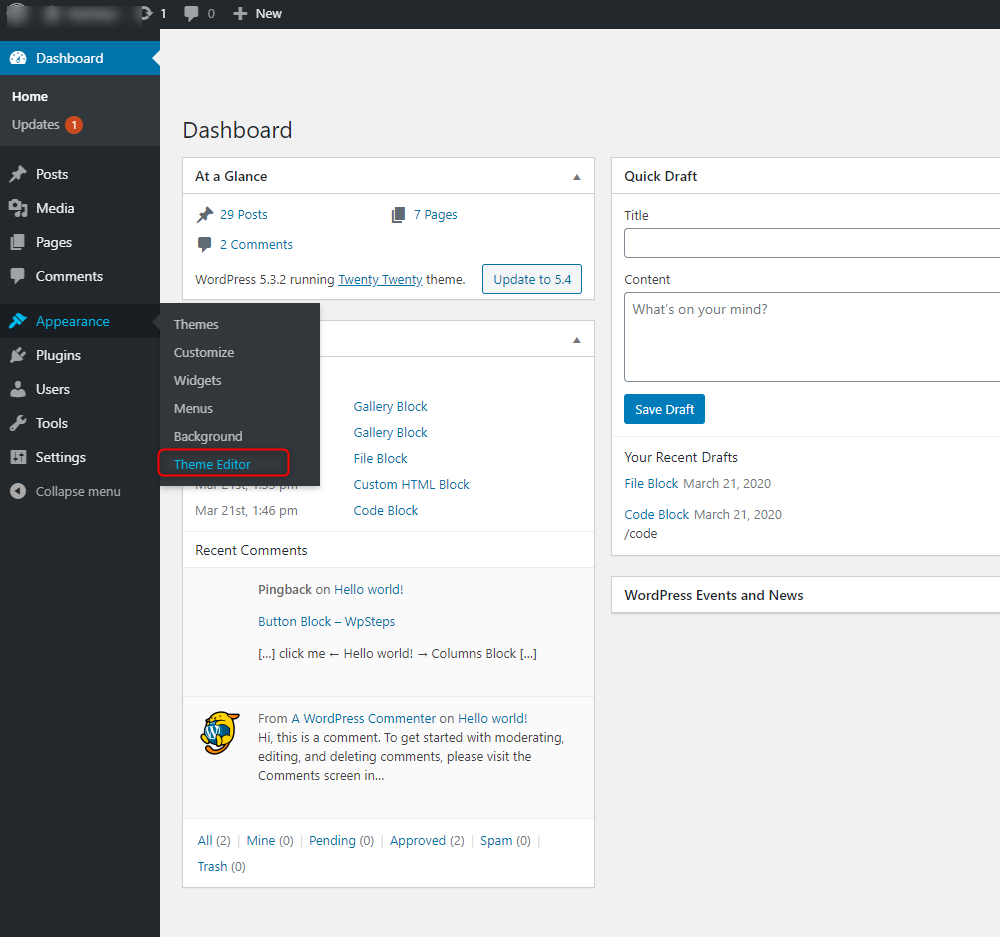
Yes, plugins like Code Snippets allow you to safely add custom code without editing theme files directly. They provide a user-friendly interface and keep your modifications organized. This method reduces the risk of errors and preserves your changes even after theme updates.
What Types Of Code Can I Add?
You can add PHP, HTML, CSS, and JavaScript code to customize your theme’s functionality and appearance. Ensure the code is compatible with WordPress standards and doesn’t conflict with existing theme or plugin code. Testing thoroughly minimizes issues and improves site performance.
Conclusion
Customizing WordPress themes with code is straightforward. Follow safe practices to avoid errors. Always back up your site before changes. Use child themes to keep your edits secure. Code snippets can enhance your site’s functionality. Test changes thoroughly to ensure everything works well.
Online forums offer valuable advice and solutions. Start small and gradually increase complexity. Gain confidence through practice. Your unique site awaits your creative touch. Embrace the journey of learning and adapting. Your WordPress theme is now ready for personal flair.
Enjoy the process and make your site truly yours.