Are you struggling to add captions to your featured images in WordPress? You’re not alone.
Many website owners want to give their images context but don’t know the simple steps to do it. Adding captions can boost your site’s appeal, keep visitors engaged, and even improve your SEO. You’ll learn exactly how to add captions to your featured images quickly and easily—no complicated tricks or extra plugins needed.
Keep reading, and you’ll have your images speaking for themselves in no time.

Credit: www.wpbeginner.com
Why Add Captions To Featured Images
Adding captions to featured images improves your blog’s clarity and user experience. Captions provide context and explain what the image shows. They help readers understand the image’s purpose quickly. Captions also make your content more accessible to all users, including those with disabilities.
Search engines use captions to better understand your content. This can help improve your site’s ranking. Captions give extra information that supports your main text. They can also encourage readers to stay longer on your page. This lowers bounce rates and increases engagement.
Improves User Understanding
Captions tell readers more about the image. They explain details that the image alone cannot. This helps readers grasp your message faster. Clear captions reduce confusion and questions.
Boosts Seo Performance
Search engines read captions as part of your content. Good captions add relevant keywords naturally. This helps your page rank better in search results. It increases your site’s visibility and traffic.
Enhances Accessibility
Captions help people with visual impairments. Screen readers use captions to describe images aloud. This makes your site usable for all visitors. Accessibility improves your site’s reputation and reach.
Increases Reader Engagement
Captions capture attention and keep readers interested. They invite readers to explore your content further. Engaged readers spend more time on your site. This can lead to higher conversions and shares.

Credit: www.youtube.com
Prepare Your Caption Text
Start by writing a clear and short caption for your featured image. Keep it simple and related to the picture. This helps visitors understand the image quickly.
Understand The Purpose Of Your Caption
A caption explains the image to your readers. It adds context and helps visitors understand what they see. Think about the message you want the image to convey. Keep the caption clear and simple. Avoid long sentences or complicated words.
Write A Brief And Clear Caption
Short captions work best. Use easy words and keep sentences under 12 words. Focus on the main point of the image. Make sure your caption matches the image content. This makes your blog more user-friendly and readable.
Include Relevant Keywords
Use keywords that relate to your blog topic. This helps search engines understand your content. Add one or two keywords naturally in the caption. Do not stuff keywords. Keep the text natural and useful for readers.
Check Grammar And Spelling
Correct grammar and spelling improve your blog’s quality. Errors can confuse readers or make your site look unprofessional. Read your caption aloud to catch mistakes. Use simple sentences and clear language.
Add Caption Using WordPress Media Library
Adding a caption to your featured image can give extra information to your readers. It helps explain the image’s purpose or source. WordPress makes it easy to add captions using the Media Library. This method works well for both new and existing images.
Captions show right below the image. They improve user experience and SEO. Let’s see how to add captions step-by-step inside the WordPress Media Library.
Open Media Library
First, go to your WordPress dashboard. Find the “Media” tab on the left menu. Click on it to open the Media Library. This area stores all your uploaded images and files. You can browse or search for the image you want to edit.
Edit Image Details
Click on the image you want to add a caption to. A window will open showing image details. Look for the “Caption” box below the image preview. Type your caption text here. Keep it short and clear. This caption will appear with the image on your site.
Save Caption
After typing the caption, find the “Save” or “Update” button. Click it to save your changes. The caption is now linked to your image. When you use this image as a featured image, the caption will display below it. You can repeat this process for other images anytime.
Insert Featured Image With Caption In Post
Adding a caption to your featured image helps explain the image’s context. It also makes your posts more engaging. WordPress does not show captions under featured images by default. You need to follow some steps to add and display captions properly.
Set Featured Image
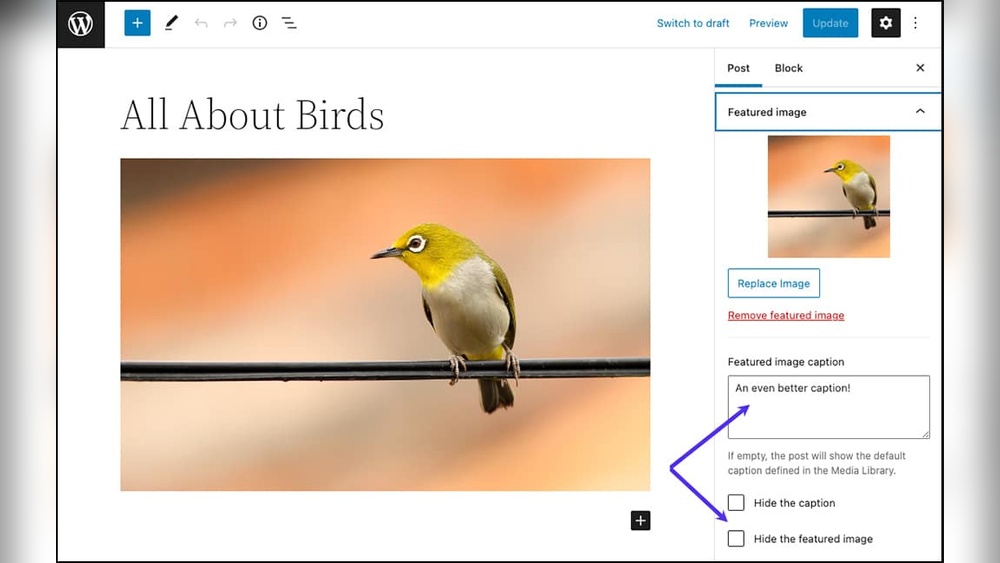
Open the post editor in WordPress. On the right side, find the “Featured Image” panel. Click “Set Featured Image” to open the media library. Upload or choose an image you want to use. After selecting, add a caption in the “Caption” field below the image. Click “Set Featured Image” to save it. The caption is now saved with the image but will not show on the post yet.
Display Caption In Theme
The caption does not appear automatically under the featured image. The theme controls how featured images show on the site. You need to edit the theme files to display captions. Access your theme’s single post template file, usually called single.php. Find the code that displays the featured image. Replace the code with a custom function that shows the image and its caption. Use the code get_post_thumbnail_id() to get the image ID and then wp_get_attachment_caption() to get the caption text. Add HTML to show the caption below the image. Save the changes and refresh your post page. The caption should now appear under the featured image.
Modify Theme To Show Captions
Modifying your WordPress theme to display captions under featured images enhances your site’s visual appeal and user experience. Many themes do not show captions by default. Changing this requires a few simple edits in your theme files. This process involves editing code carefully to avoid breaking your site.
It is best to work with a child theme to keep your changes safe. This way, theme updates won’t erase your edits. Below are clear steps to help you modify your theme and add caption support for featured images.
Edit Theme Files
First, access your theme files via the WordPress dashboard or an FTP client. Locate the file that controls the featured image display, usually single.php or content.php. Open this file to add caption support. Find the code where the featured image is called, often using the_post_thumbnail().
You will need to modify this part to include the image caption. Be careful and back up your files before making changes.
Use Child Theme
Create a child theme to protect your edits from theme updates. A child theme uses its own files while inheriting the parent theme’s styles and functions. Copy the file you want to modify into the child theme folder. Make your changes there, not in the original theme files. This keeps your site safe and easy to update.
Add Caption Code
To show captions, add this PHP code where the featured image appears:
php $thumbnail_id = get_post_thumbnail_id(); $thumbnail_caption = wp_get_attachment_caption( $thumbnail_id ); the_post_thumbnail(); if ( $thumbnail_caption ) { echo '' . esc_html( $thumbnail_caption ) . ''; } ?> This code gets the caption of the featured image and displays it below the image. Wrap your image and caption in a
Use Plugins For Caption Management
Adding captions to featured images in WordPress can be tricky without the right tools. Plugins help simplify this task. They offer easy ways to manage captions without coding knowledge. Using plugins saves time and improves your site’s look. Let’s explore how to use plugins for caption management.
Recommended Plugins
Several plugins make caption management easy. “Featured Image Caption” is popular for its simple interface. “WP Caption” supports various image types and styles. “Simple Image Caption” adds captions directly below images. Choose a plugin that fits your needs and is regularly updated.
Plugin Installation
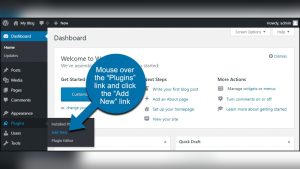
To install a plugin, go to your WordPress dashboard. Click “Plugins” then “Add New.” Search for the plugin by name. Click “Install Now,” then “Activate.” The plugin will appear in your dashboard menu. Some plugins add settings under “Settings” or “Appearance.”
Configure Caption Settings
After activation, open the plugin’s settings page. Set where captions should appear on images. Customize font size, color, and alignment if available. Save changes and test on a post or page. Adjust settings until captions look clear and neat.
Troubleshooting Caption Issues
Adding captions to featured images in WordPress is simple. Sometimes, captions do not appear as expected. Troubleshooting helps solve these common problems quickly. Understanding common issues saves time and effort. This section covers the main problems and solutions for captions on featured images.
Caption Not Showing
Sometimes the caption does not show under the featured image. This happens because WordPress does not display captions by default. The theme might not support captions for featured images. Check if your theme allows captions for featured images. Use a plugin or custom code to enable captions if needed. Also, confirm the caption text is entered correctly in the media library.
Formatting Problems
Captions may appear but look strange or broken. Incorrect formatting can cause this. CSS styles from the theme may conflict with caption styles. Check the CSS code for any issues affecting captions. Use simple HTML tags in the caption to avoid errors. Make sure the caption text is plain and does not contain unsupported characters.
Compatibility Tips
Some plugins or themes may block caption display on featured images. Test with default WordPress themes like Twenty Twenty-One. Disable plugins one by one to find conflicts. Update WordPress, themes, and plugins to the latest versions. Use trusted plugins designed for captions on featured images. Compatibility improves with regular updates and tested tools.

Credit: www.wpbeginner.com
Best Practices For Captions
Captions for featured images play a key role in enhancing your WordPress posts. They offer extra details and context to readers. Good captions improve both user experience and search engine ranking. Following best practices ensures captions are clear, useful, and accessible.
Keep Captions Clear
Write captions that are short and easy to understand. Avoid complex words and long sentences. Be specific about what the image shows or why it is important. Clear captions help readers grasp your message quickly. They also encourage users to stay longer on your page.
Seo Benefits
Captions help search engines understand your content better. Use relevant keywords naturally in your captions. This boosts your page’s ranking for those terms. Captions also increase the chance of your images appearing in search results. Optimized captions bring more traffic to your site.
Accessibility Considerations
Captions improve accessibility for all users. They assist people with hearing or visual difficulties. Use simple language and avoid jargon in captions. Screen readers can read captions aloud to help users. Proper captions make your site more inclusive and user-friendly.
Frequently Asked Questions
How Do I Add A Caption To A Featured Image In WordPress?
To add a caption, first upload your featured image in the post editor. Then, click on the image and enter the caption text in the caption field below the image. Save or update your post to display the caption on your featured image.
Can I Customize The Caption Style For Featured Images?
Yes, you can customize caption styles using CSS. Add custom CSS rules targeting the featured image caption class in your theme. This allows you to change font size, color, alignment, and spacing to match your site’s design.
Does WordPress Support Captioning For Featured Images By Default?
By default, WordPress does not display captions for featured images on the front end. You need to customize your theme or use a plugin to enable and show captions below featured images.
Which Plugin Helps Add Captions To WordPress Featured Images?
Plugins like “Featured Image Caption” can help add captions easily. These plugins enable caption fields for featured images and display captions on posts or pages without coding.
Conclusion
Adding captions to featured images helps readers understand your content better. It also improves your website’s look and feel. You can easily add captions using WordPress tools and plugins. Keep captions clear and relevant to your images. This small step makes your posts more engaging and professional.
Try it today to enhance your blog’s appeal. Simple changes like this can make a big difference.