
Want to make your WordPress site more dynamic and engaging? Adding an embed code is one of the easiest ways to do just that.
Whether it’s a video, a social media post, or a custom widget, embedding content can bring your site to life and keep visitors hooked. In this guide, you’ll learn exactly how to add embed codes to your WordPress site—step by step and without any confusion.
By the end, you’ll have a powerful tool to boost your site’s appeal and keep your audience coming back for more. Ready to get started? Let’s dive in.
Prepare Your Embed Code
Preparing your embed code is the first step to add content to your WordPress site. The code must be correct to work properly. This section helps you find and copy the right code. Follow these simple steps to avoid errors and make your site look great.
Find The Right Embed Code
Start by visiting the site with the content you want to share. Look for the “Embed” or “Share” button. It usually shows a box with code inside. This code lets you place videos, maps, or posts on your site. Pick the code that matches what you want to add.
Check the code format. It should be in HTML or iframe. These types work best in WordPress. Avoid codes with extra scripts or unusual tags. They might cause problems or slow down your page.
Copy The Code Correctly
Click inside the embed code box to highlight it. Use the copy command on your device. On a computer, press Ctrl+C or Command+C. On mobile, tap and hold, then select copy. Make sure you get the entire code. Missing parts can break the embed.
Paste the code into a plain text editor first. This removes hidden formatting. Hidden styles can stop the embed from working. After cleaning, copy the code again. Now it is ready to add to your WordPress site.
Credit: kb.hosting.com
Add Embed Code Using Block Editor
Adding embed code to WordPress using the Block Editor is simple and quick. This method lets you place videos, widgets, or other content directly into your posts or pages. No need for extra plugins or complex steps.
The Block Editor gives you a clean, visual way to add custom HTML. It fits perfectly with WordPress’s modern editing style. Below are easy steps to add your embed code using this editor.
Open The Block Editor
Start by opening your WordPress dashboard. Navigate to the post or page where you want to add the embed code. Click “Edit” to open the Block Editor. The editor will load with your content ready for changes.
Insert A Custom Html Block
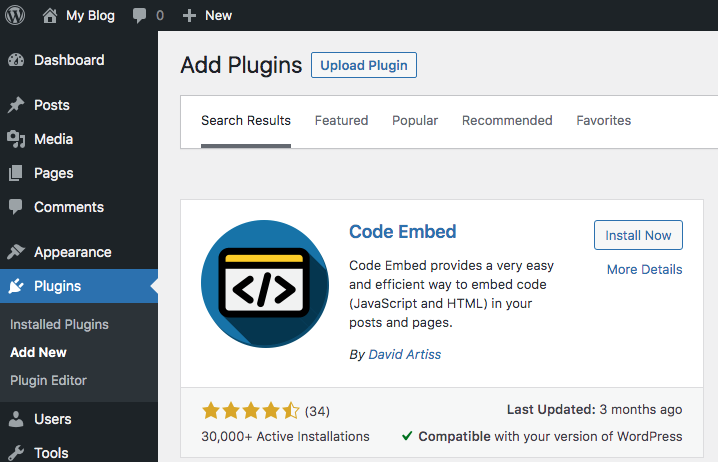
Inside the editor, click the plus (+) icon to add a new block. Search for “Custom HTML” in the block library. Select the Custom HTML block to insert it into your content area. This block allows you to paste any embed code safely.
Paste And Preview The Code
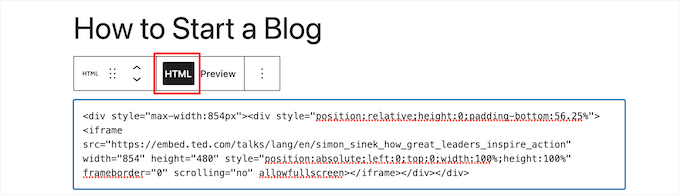
Click inside the Custom HTML block. Paste your embed code exactly as you copied it. Switch to the “Preview” tab to see how your embedded content looks. Make sure it displays correctly before saving or publishing your page.
Add Embed Code Using Classic Editor
Adding embed code to WordPress using the Classic Editor is simple. This method lets you insert videos, maps, or other content directly into your posts.
The Classic Editor gives full control over your content. You can switch between visual and text modes easily. This makes pasting embed codes straightforward and safe.
Switch To Text Mode
Open your WordPress post in the Classic Editor. Look for the tabs on the top right of the editor box. Click the tab labeled “Text” to switch modes. This mode shows the HTML code of your post. It allows you to paste embed codes without errors.
Paste The Embed Code
Copy the embed code from the source you want to include. Place your cursor in the editor where you want the content. Paste the embed code directly into the text mode. Make sure the code is complete and not altered.
Save And Preview
Click the “Update” or “Publish” button to save changes. Use the “Preview” option to check how the embed looks. This step ensures your content appears correctly. Adjust the code if the embed does not display as expected.
Embed Code In Widgets
Embedding code in widgets lets you add custom content easily. Widgets appear in sidebars, footers, and other widget-ready areas. This method helps to display videos, forms, or other interactive elements without editing theme files.
Using embed code in widgets gives you flexibility. You can show third-party tools or custom scripts quickly. It works well for non-technical users who want to enhance their site’s functionality.
Access Widget Area
First, log in to your WordPress dashboard. Go to Appearance and click on Widgets. This opens the widget management screen. Here, you see all available widget areas and current widgets.
Choose the area where you want to add your embed code. Common areas include the sidebar or footer. Each theme may have different widget areas.
Add Custom Html Widget
In the widget area, find the Custom HTML widget. Drag it to your chosen widget section. This widget lets you add HTML, JavaScript, or embed codes safely.
Custom HTML widgets do not alter your theme files. They keep your site secure and easy to update.
Paste Code And Save
Open the Custom HTML widget you added. Paste your embed code into the content box. Double-check the code to avoid errors.
Click the Save button to store your changes. Visit your site to see the embedded content live. Adjust or remove the widget anytime from the widget area.
Troubleshooting Common Issues
Adding embed codes to WordPress can sometimes cause issues. These problems often stop the content from showing properly. Understanding common errors helps fix them quickly. This section covers frequent problems and simple solutions.
Embed Code Not Showing
Sometimes, the embed code does not display on your page. This may happen because WordPress blocks certain scripts. Check if the code is copied correctly. Make sure you are in the Text editor, not Visual. Paste the embed code there to avoid errors.
Clear your browser cache and refresh the page. Some themes or settings might hide embedded content. Test your site on a different browser or device to see if the problem persists.
Content Security Restrictions
Some websites block their content from being embedded elsewhere. This is due to security rules set by the site owner. If your embed code comes from such a site, it might not load. Check the source website’s policy about embedding.
Using HTTPS on your WordPress site helps avoid mixed content warnings. Mixed content can stop embedded content from showing. Ensure both your site and the embedded source use HTTPS.
Conflicts With Plugins
Plugins can interfere with embed codes. Some security or caching plugins block scripts from loading. Temporarily disable plugins to find the cause. After identifying the problematic plugin, adjust its settings or find alternatives.
Keep your plugins and WordPress updated. Updates often fix compatibility issues. Use only trusted plugins to reduce conflicts. Testing embeds after each plugin change helps catch problems early.
Credit: www.wpbeginner.com
Best Practices For Embed Codes
Embed codes let you add videos, maps, and other content to your WordPress site. Using them correctly improves user experience and site performance. Follow these best practices to ensure your embeds work well and keep your site safe.
Use Trusted Sources
Only use embed codes from reliable websites. Trusted sources reduce the risk of broken links or harmful content. Popular platforms like YouTube, Vimeo, and Google Maps offer safe embed codes. Avoid unknown sites to protect your site and visitors.
Check Mobile Responsiveness
Make sure embedded content looks good on all devices. Mobile-friendly embeds adjust size automatically for smaller screens. Test embeds on phones and tablets. Responsive design keeps your site user-friendly everywhere.
Keep Code Updated
Embed codes can change over time. Check for updates regularly to avoid errors. Updated codes improve security and performance. Remove old or broken embeds to keep your site clean and fast.
Credit: wordpress.org
Frequently Asked Questions
How Do I Add Embed Code To WordPress Posts?
To add embed code, switch to the WordPress editor’s HTML or Custom HTML block. Paste your embed code there and update the post. This method ensures your content displays correctly and safely.
Can I Embed Videos Using WordPress Embed Code?
Yes, WordPress supports embedding videos from platforms like YouTube and Vimeo using embed codes. Simply paste the video’s embed code into a Custom HTML block to display the video on your site.
What Is The Best Way To Embed Code In WordPress Pages?
Use the Custom HTML block in the WordPress block editor. Paste your embed code directly into this block. It allows clean integration without affecting your page’s layout or performance.
Are There Any WordPress Plugins For Embedding Code?
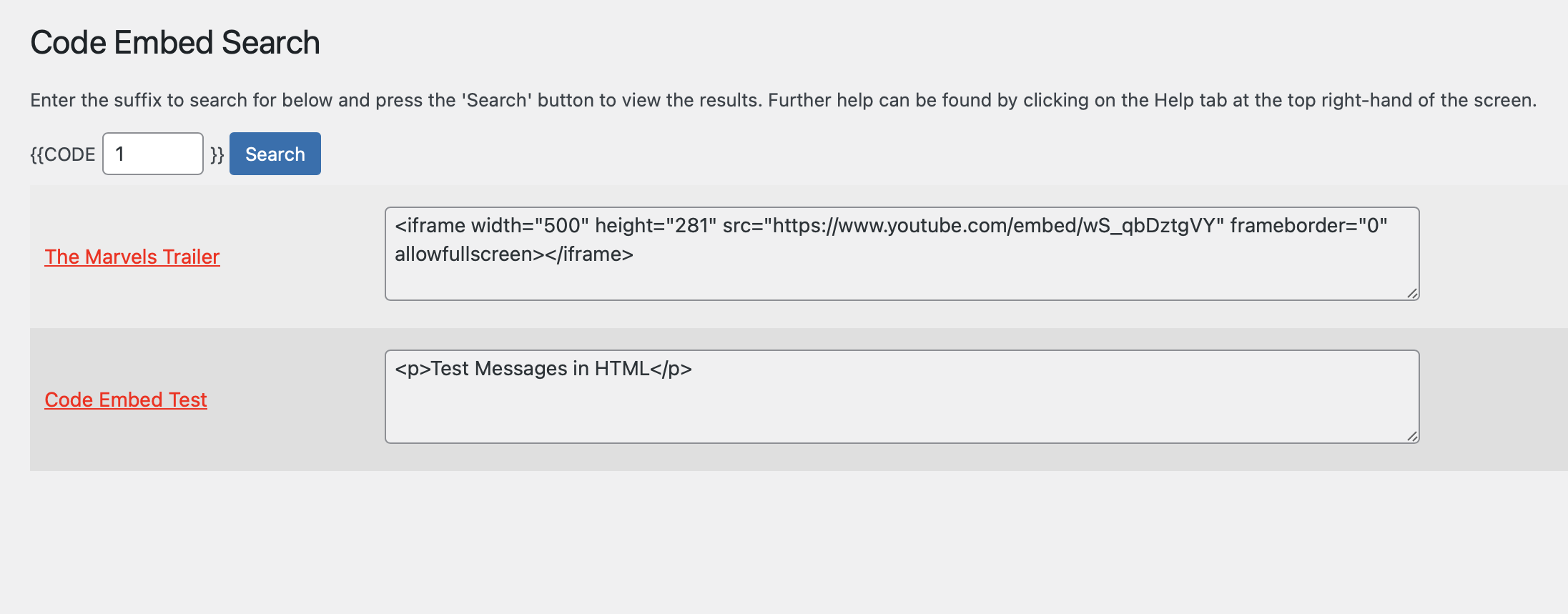
Yes, plugins like “EmbedPress” and “WP Embed Code” simplify embedding content. They offer user-friendly interfaces to add and manage embed codes without manual HTML editing.
Conclusion
Adding an embed code to WordPress is simple and quick. Just copy the code and paste it into the right place. This helps you share videos, maps, and other content easily. Keep your website fresh with new and useful items.
Practice a few times to feel confident. Soon, embedding will become a natural part of your site work. Enjoy making your WordPress pages more lively and interactive.


