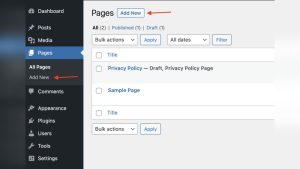
Are you looking to customize your WordPress site and make it truly unique? Accessing the CSS of your WordPress theme is the key to giving your website a personal touch and enhancing its design.
Imagine the power of transforming your site’s appearance with just a few tweaks. But where do you start? This guide will walk you through the simple steps to access and edit your theme’s CSS, even if you’re not a coding expert.
By the end of this article, you’ll not only understand how to navigate your theme’s CSS but also feel confident in making changes that reflect your brand’s personality. Stay with us to unlock the full potential of your WordPress website.
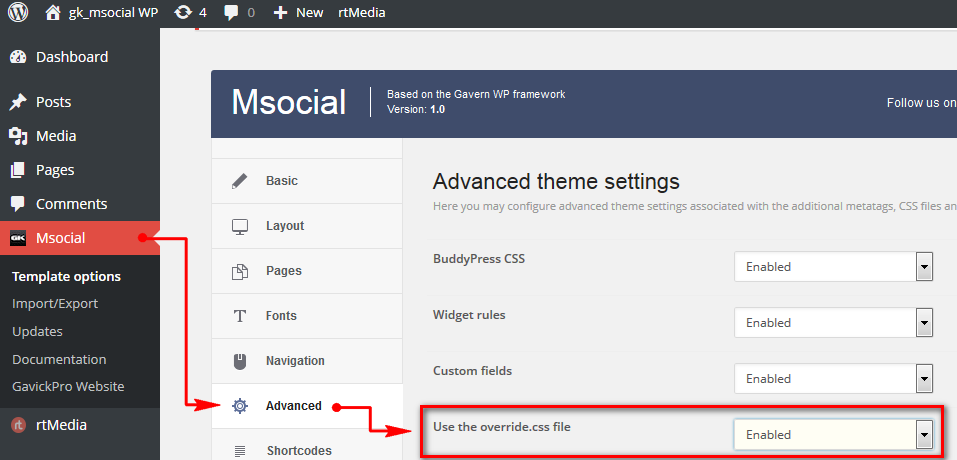
Credit: www.gavick.com
Accessing WordPress Dashboard
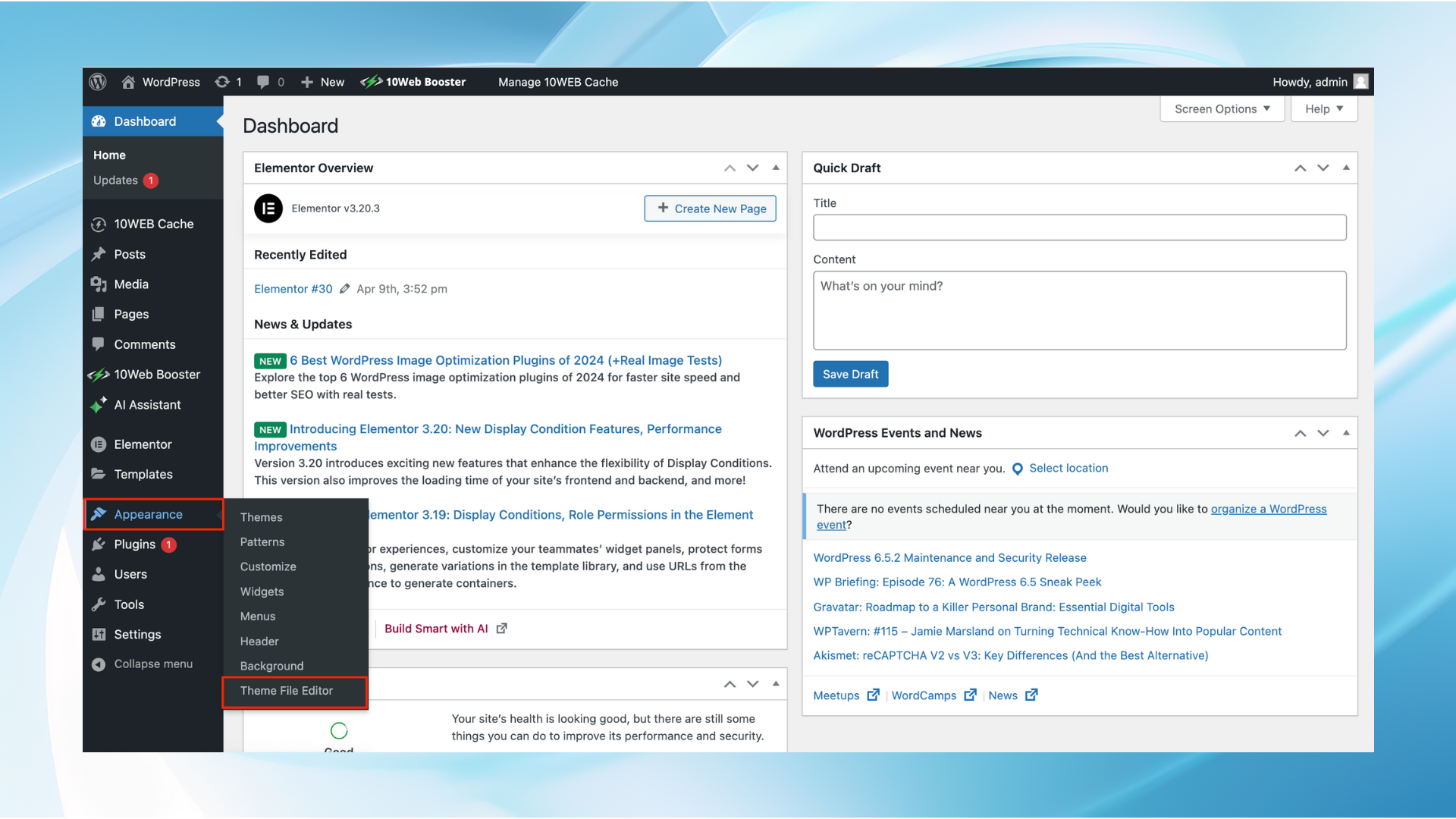
First, log in to your WordPress dashboard. Enter your username and password. Now, you are inside the dashboard. This is where you control your site. Find the Appearance tab on the left side. Click on it to expand the menu. Look for the Theme Editor option. Click on Theme Editor. You will now see your theme files.
On the right side, find the style.css file. This is the main CSS file. It controls your site’s look. Click on style.css to open it. Now, you can see and edit the CSS. Always make a backup before changes. This keeps your site safe.

Credit: wordpress.com
Locating Theme Editor
Find the Theme Editor in WordPress. First, go to your dashboard. Click on Appearance in the menu. Next, choose Theme Editor. This opens the editor page. You see theme files on the right side. Look for the file named style.css. This file holds the CSS code. Click on it to view the code. Edit the code to change your theme’s look. Make sure to save changes. It’s important to backup before editing. This prevents loss of work.
Exploring Appearance Menu
The Appearance Menu in WordPress is important. It helps you change how your site looks. First, find it in the dashboard. It’s on the left side. Click on it. You see options like Themes and Customize. These let you change your site’s look.
Themes are like clothes for your website. You can pick one you like. Customize lets you adjust details. It’s like changing the color of a shirt. You can also add widgets. These are small tools for your site. They help you show more information to visitors.
Credit: 10web.io
Navigating Theme Files
WordPress themes contain many files. Each file has a role. The main file for styles is the stylesheet. This file is often named style.css. It controls how your site looks. Colors, fonts, and layout are set here.
Look for the style.css file in the theme folder. The folder is inside wp-content/themes. Open this folder. You will see many themes. Choose the active theme. Inside, find style.css. This is the stylesheet file.
Understanding Stylesheet Structure
The style.css file starts with theme info. Creator name, theme version, and description are listed. Below this, you find the CSS rules. These rules decide element styles. Each rule has selectors and properties. Selectors choose HTML elements. Properties change how they look.
Identifying Stylesheet File
To find the stylesheet file, open WordPress Dashboard. Go to Appearance. Click on Theme Editor. On the right, locate style.css. This file is the stylesheet. It holds the CSS code. Make changes to update site design.
Editing Css Safely
Creating a child theme is a smart way to edit CSS. You keep the main theme safe. A child theme is like a small copy. It uses parts of the main theme. You make changes in the child theme. This means updates won’t erase your work. Child themes help with easy CSS changes. They make your site unique. You need a folder with style.css file. Link it to the main theme. This is how you create a child theme. It’s simple and safe.
WordPress Customizer allows CSS changes without much hassle. Find Customizer in the Appearance menu. Use the ‘Additional CSS’ tab. Type your CSS codes here. It’s easy. You see changes live. This helps in making quick edits. No need for FTP or file access. Customizer is a handy tool. It simplifies CSS editing. You can try new styles and see the result instantly. It’s very user-friendly.
Utilizing Plugins For Css
Accessing the CSS of a WordPress theme becomes easier with plugins. These tools help you customize and tweak styles without digging into code. Just install a plugin, and you can edit your theme’s appearance effortlessly.
Advantages Of Css Plugins
CSS plugins are very helpful for WordPress sites. They make changes easy. With plugins, you don’t need to know coding. This saves time. Adjusting styles becomes simple. Plugins offer lots of design options. You can quickly change fonts, colors, and layouts. This helps your site look better. Using plugins also means fewer mistakes. They offer a safety net. Many plugins get regular updates. This keeps your site secure and fast. User-friendly interfaces make them easy for beginners. Overall, CSS plugins are a smart choice for site styling.
Popular Css Plugins
| Plugin Name | Features |
|---|---|
| Simple Custom CSS | Easy to use, quick styling changes |
| SiteOrigin CSS | Visual editor, live preview |
| CSS Hero | Point-and-click interface, responsive design |
| Yellow Pencil | Visual editor, animation effects |
Inspecting Elements With Browser Tools
Browsers have special tools to see CSS. These tools are called Developer Tools. They help you find the CSS for any part of a webpage. Right-click on the part you want to check. Choose “Inspect” from the menu. A panel will open. It shows the HTML and CSS. The CSS is on the right side. You can see all the styles. Look at fonts, colors, and sizes. It’s like a magic window into the webpage.
You can try changing the CSS in Developer Tools. Click on a CSS line. Edit it and see changes live. This helps test new styles. It does not change the real page. It’s only for testing. If you like the change, add it to your WordPress theme. Always remember to save your work.
Troubleshooting Css Issues
Accessing the CSS of a WordPress theme requires navigating to the Appearance menu. Select the Theme Editor option. This allows you to view and edit the CSS files directly, facilitating quick troubleshooting of design issues.
Common Errors
CSS errors can make your site look messy. A missing semicolon can break styles. Check for typos in your code. Wrong selectors lead to unexpected results. Always use correct class names. Avoid inline styles for cleaner code. Use browser tools to inspect CSS. They help find errors quickly.
Effective Debugging Strategies
Start by clearing browser cache. This ensures changes show up. Use developer tools to check CSS. They show what’s wrong. Compare your changes with live site. Check for conflicting styles. Use CSS validators online. They point out errors. Keep backups of original files. Always test changes on a local server first.
Frequently Asked Questions
How To Access Theme Css In WordPress?
Access theme CSS in WordPress via the WordPress Dashboard. Go to Appearance > Theme Editor. Select “style. css” under the Theme Files section. Always backup your files before making changes.
How Do I View Css In WordPress?
To view CSS in WordPress, navigate to the WordPress dashboard. Go to “Appearance” and click “Customize”. Select “Additional CSS” to view and edit the CSS. Alternatively, use a browser’s “Inspect” tool to see CSS styles on your website.
How Do I Change The Css Style Of My WordPress Theme?
Edit your WordPress theme’s CSS by accessing Appearance > Customize > Additional CSS. Add or modify styles there. For advanced changes, use a child theme or a custom CSS plugin. Always back up your site before making changes to avoid data loss.
How Do I Get Css In WordPress?
Access WordPress Dashboard. Navigate to “Appearance” > “Customize”. Click “Additional CSS” to add custom CSS styles. Save changes.
Conclusion
Understanding how to access your WordPress theme’s CSS is essential. It allows you to customize your site’s appearance easily. Start by accessing the WordPress dashboard. Then, navigate to the Theme Editor under Appearance. From there, you can find the style.
css file. Make sure to back up your site before making changes. This ensures safety in case something goes wrong. Practice makes perfect. Experiment with small changes. Over time, you’ll get more comfortable. These steps will help you tailor your website’s look to your needs.
Happy editing!