
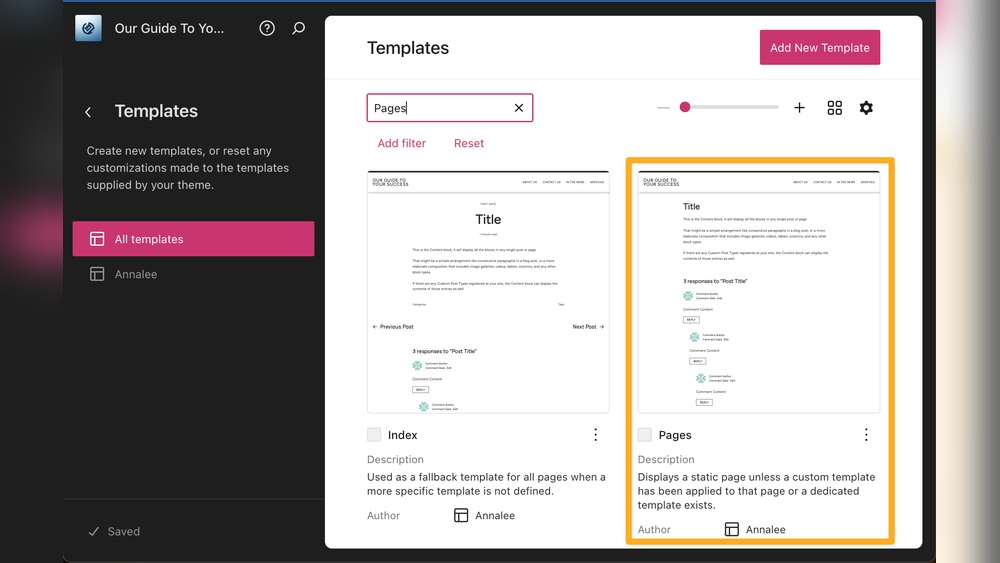
Are you struggling to make your WordPress site look exactly the way you want? Editing a template might seem tricky at first, but once you know the right steps, it’s easier than you think.
Imagine having full control over your website’s design without needing to hire a developer. You’ll discover simple, clear methods to edit your WordPress template and make your site truly yours. Keep reading, and you’ll unlock the secrets to customizing your site quickly and confidently.
Choosing The Right Template
Choosing the right template is a key step in creating a WordPress website. It affects your site’s look, speed, and user experience. A good template matches your content and goals. It also should be easy to edit and update. Understanding the differences between templates helps make a smart choice.
Free Vs Premium Templates
Free templates are a good start for beginners. They offer basic features and designs. Many free templates are simple and easy to use. Premium templates cost money but offer more options. They often include better support and updates. Premium templates have advanced features and unique designs. Choose based on your budget and needs.
Template Compatibility
Templates must work well with WordPress versions and plugins. Compatibility ensures smooth site performance. Check if the template supports popular plugins like SEO tools or page builders. A compatible template avoids errors and slowdowns. Always test the template before fully committing.
Responsive Design
Responsive design means your site looks good on all devices. Phones, tablets, and desktops show your site correctly. A responsive template improves user experience and SEO. Google prefers mobile-friendly websites. Pick a template that adjusts to different screen sizes automatically.
Credit: wordpress.org
Accessing The Template Editor
Editing a template in WordPress starts with accessing the template editor. This editor lets you change the look and feel of your website. Knowing how to find and open the editor is the first step in customizing your site. The process is simple and does not require advanced skills.
Using The WordPress Dashboard
Log in to your WordPress dashboard to start. The dashboard is the control center for your site. It has all the tools you need to manage your content and design. After logging in, look for the menu on the left side. This menu guides you to different settings and options.
Navigating To Appearance Settings
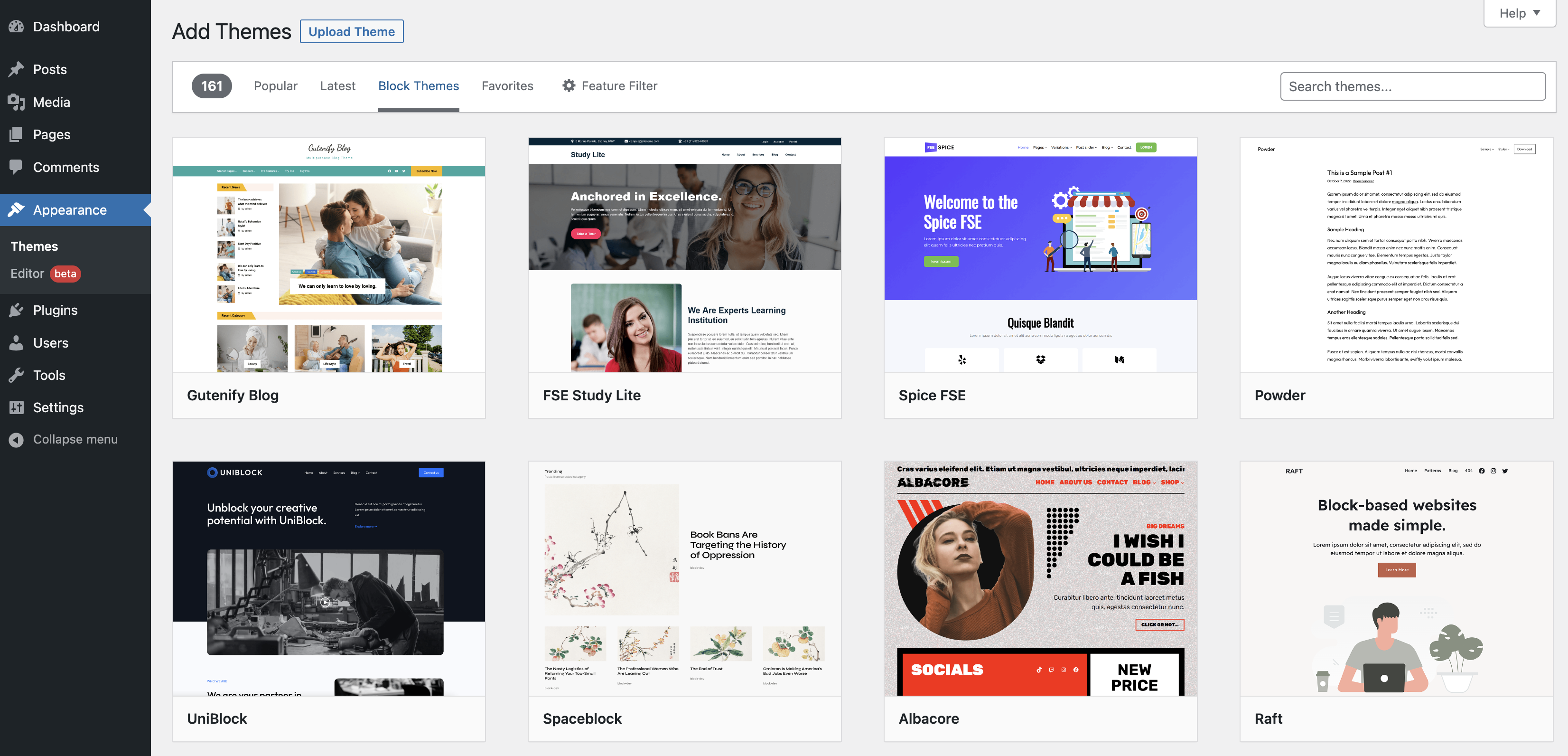
In the dashboard menu, find the “Appearance” section. Click on it to open more options. One of these options is “Editor” or “Theme Editor.” Click there to open the template editor. Here, you can edit the code or use the block editor to change templates easily.
Customizing Template Layout
Customizing the template layout is key to making your WordPress site look unique. Changing the layout helps match your brand style and improves user experience. It also lets you organize content in a way that works best for your visitors.
You can change many parts of a template. This includes the header, footer, sidebars, and even page templates. Each part controls how your site looks and feels.
Editing Header And Footer
The header and footer appear on every page of your site. The header usually shows your logo and menu. The footer often contains contact info and links.
To edit these, go to the WordPress dashboard. Choose “Appearance” and then “Customize.” Here, you can change text, colors, and layout.
Some themes let you drag and drop items in the header or footer. Others offer simple settings to add or remove elements.
Adjusting Sidebars And Widgets
Sidebars hold widgets like search bars, recent posts, or social media links. Adjusting sidebars changes what visitors see on the side of your pages.
Go to “Appearance” then “Widgets” to add or remove items. Drag widgets to the sidebar area you want.
You can also move widgets between sidebars or reorder them. This helps you highlight important content.
Changing Page Templates
Page templates control the layout of individual pages. Some pages may have full-width layouts, while others show sidebars.
Edit pages in the WordPress editor. Look for the “Template” option in the page settings.
Select a different template to change the page look. This helps create varied designs across your site.
Modifying Colors And Fonts
Changing colors and fonts can make your website look unique and match your style. Colors set the mood, while fonts affect how easy it is to read your content. WordPress offers simple ways to adjust these elements without needing advanced skills.
You can update colors and fonts quickly using built-in tools. For more control, adding custom CSS gives you freedom to fine-tune every detail. Both methods help create a polished and professional website.
Using The Customizer Tool
The Customizer tool in WordPress lets you change colors and fonts live on your site. Open it from the dashboard by clicking “Appearance” then “Customize.”
Look for options like “Colors” or “Typography.” These sections let you pick new colors for backgrounds, text, and links. You can also choose different fonts for headings and paragraphs.
Changes appear immediately in the preview window. Adjust settings until the look feels right. When done, click “Publish” to save your changes.
Adding Custom Css
For more detailed changes, use Custom CSS. This method adds code to control styles beyond basic settings.
Go to “Appearance” then “Customize,” and select “Additional CSS.” Enter CSS rules to change colors and fonts exactly how you want.
For example, use body { font-family: Arial, sans-serif; } to set the main font. Or a { color: ff0000; } to make all links red.
Preview the changes live. Click “Publish” to apply your custom styles to the site.
Editing Template Content
Editing template content in WordPress is simple. It lets you make your site look unique. You can change images, text, and links easily. This helps your website match your style and message.
Replacing Images And Media
Start by clicking the image you want to change. A toolbar will appear with options. Select “Replace” or “Edit” to upload a new image. You can also choose from your media library.
Make sure the new image fits well. Check the size and alignment for a neat look. Adding videos or other media works the same way. Click the media block and swap the file.
Updating Text And Links
Click on the text you want to edit. Delete old words and type new ones directly on the page. Keep your sentences short and clear for easy reading.
To update links, highlight the text and click the link icon. Enter the new URL and save it. Test links to ensure they work correctly on your site.
Using Plugins For Template Editing
Using plugins for template editing in WordPress is a simple and flexible way to change your site’s design. Plugins let you customize templates without writing code. They offer tools to edit layouts, colors, fonts, and more. This method saves time and helps you create a unique look for your website.
Page Builder Plugins
Page builder plugins let you drag and drop elements on your pages. You can add text blocks, images, buttons, and other features easily. These plugins often include ready-made templates to start with. They work well for beginners and those who want quick changes. Popular options include Elementor, Beaver Builder, and Divi. Page builders give you control over your layout without coding.
Template-specific Plugins
Template-specific plugins are designed to work with certain WordPress themes. They add extra customization options for that theme’s templates. These plugins often allow changes to headers, footers, sidebars, and more. They keep your site consistent with the theme’s style. Using these plugins ensures your edits fit well with your current design. Check your theme’s documentation to find compatible plugins.
Previewing And Saving Changes
Previewing and saving changes in WordPress templates is vital for a smooth editing process. It helps you see your edits before they go live. This step avoids mistakes and ensures your site looks perfect. Taking time to preview and save carefully keeps your website professional and user-friendly.
Using The Preview Mode
Preview mode lets you view your template changes without publishing. It shows how your site will look to visitors. This way, you can check colors, fonts, and layout updates. Use preview mode often to catch errors early. It saves time and avoids broken pages on your live site.
Publishing Updates Safely
Save your changes only when you are sure they are correct. WordPress allows you to save drafts or schedule updates for later. Use these options to avoid sudden changes on your site. Always double-check your edits before clicking the publish button. This careful approach keeps your website stable and trustworthy.

Credit: wordpress.org
Common Issues And Fixes
Editing a WordPress template can sometimes lead to common issues. These problems can stop your site from showing changes or cause design problems. Knowing how to fix these helps keep your site looking good and working well.
Template Not Updating
Sometimes changes to a template do not show on your site. This happens because of browser cache. Clear your browser cache and reload the page. Also, clear your WordPress cache if you use a caching plugin. This forces the site to show the latest version.
Check if you are editing the right template file. Some themes use child themes, so edits should be made there. Double-check the file path in your theme editor.
Broken Layouts
Editing templates can break your site’s layout. This happens if code is missing or incorrect. Always backup before making changes. Use a code editor to avoid syntax errors.
Disable plugins one by one to see if they cause conflicts. Sometimes plugins add styles that clash with your template. Fix or remove the conflicting plugin to restore the layout.
Restoring Default Settings
If edits cause many issues, restore the template to its default state. You can do this by replacing the edited file with the original from the theme package. Download the theme again if needed.
Use the WordPress Customizer to reset settings to default. This helps undo changes without touching code. Always keep backups to avoid losing important custom work.

Credit: docs.themeisle.com
Frequently Asked Questions
How Do I Access WordPress Template Files?
To access WordPress template files, go to your dashboard. Navigate to Appearance > Theme Editor. Here, you can select and edit specific template files safely.
Can I Edit A WordPress Template Without Coding?
Yes, you can edit templates using WordPress page builders like Elementor or Beaver Builder. These tools allow drag-and-drop customization without coding knowledge.
What Is The Safest Way To Edit WordPress Templates?
The safest way is using a child theme. This prevents losing changes when the parent theme updates. Always back up your site before editing.
How Do I Customize WordPress Templates Via The Customizer?
Go to Appearance > Customize in your dashboard. Use available options to change site identity, colors, menus, and widgets. It’s user-friendly and real-time.
Conclusion
Editing a template in WordPress is simple with the right steps. You can change colors, fonts, and layout easily. Always save your work to avoid losing changes. Testing your edits on different devices helps ensure a good look everywhere. Keep practicing to feel more confident with WordPress tools.
This way, your website will look just how you want it. Stay curious and keep improving your site little by little.


