Are you ready to transform your WordPress site with the powerful Divi Theme? Installing this versatile theme can open up a world of creative possibilities for your website.
Whether you’re building a blog, an online store, or a professional portfolio, Divi offers flexibility and a user-friendly design that can help you stand out. But first, you need to know how to upload it correctly. This article will guide you through the steps, making the process simple and stress-free.
You’ll soon be on your way to creating a website that truly reflects your vision. Keep reading to ensure you don’t miss any crucial steps and to learn some tips that can enhance your site’s performance and style.
Preparing Your WordPress Site
It’s important to ensure your WordPress site meets basic requirements. Check your WordPress version. Make sure it’s the latest. Update if needed. PHP version matters too. It should be at least 7.4. Check your MySQL version. It should be 5.6 or higher. These ensure your site runs smoothly.
Always back up your site before changes. Use a plugin for easy backup. Save your data on your computer. Keep copies of your files. Your backup helps if things go wrong. Restoring is easier with a backup. Protect your hard work.
Credit: diviflash.com
Getting The Divi Theme
First, visit the Elegant Themes website. This is where you will buy the Divi theme. Look for the pricing page. Choose a plan that fits your needs. You can select a yearly or lifetime plan. Once you select, click the purchase button. Follow the instructions to complete the payment. After that, you will get access to your account.
Log in to your Elegant Themes account. Look for the Downloads area. Here, you will see the Divi theme. Click on the download button. This will save the Divi theme as a .zip file on your computer. Remember, do not unzip the file. You will need this .zip file to upload to WordPress.
Uploading Divi Theme
Log into your WordPress Dashboard. You will need your username and password. The dashboard is the first screen you see. It’s like the control room for your website.
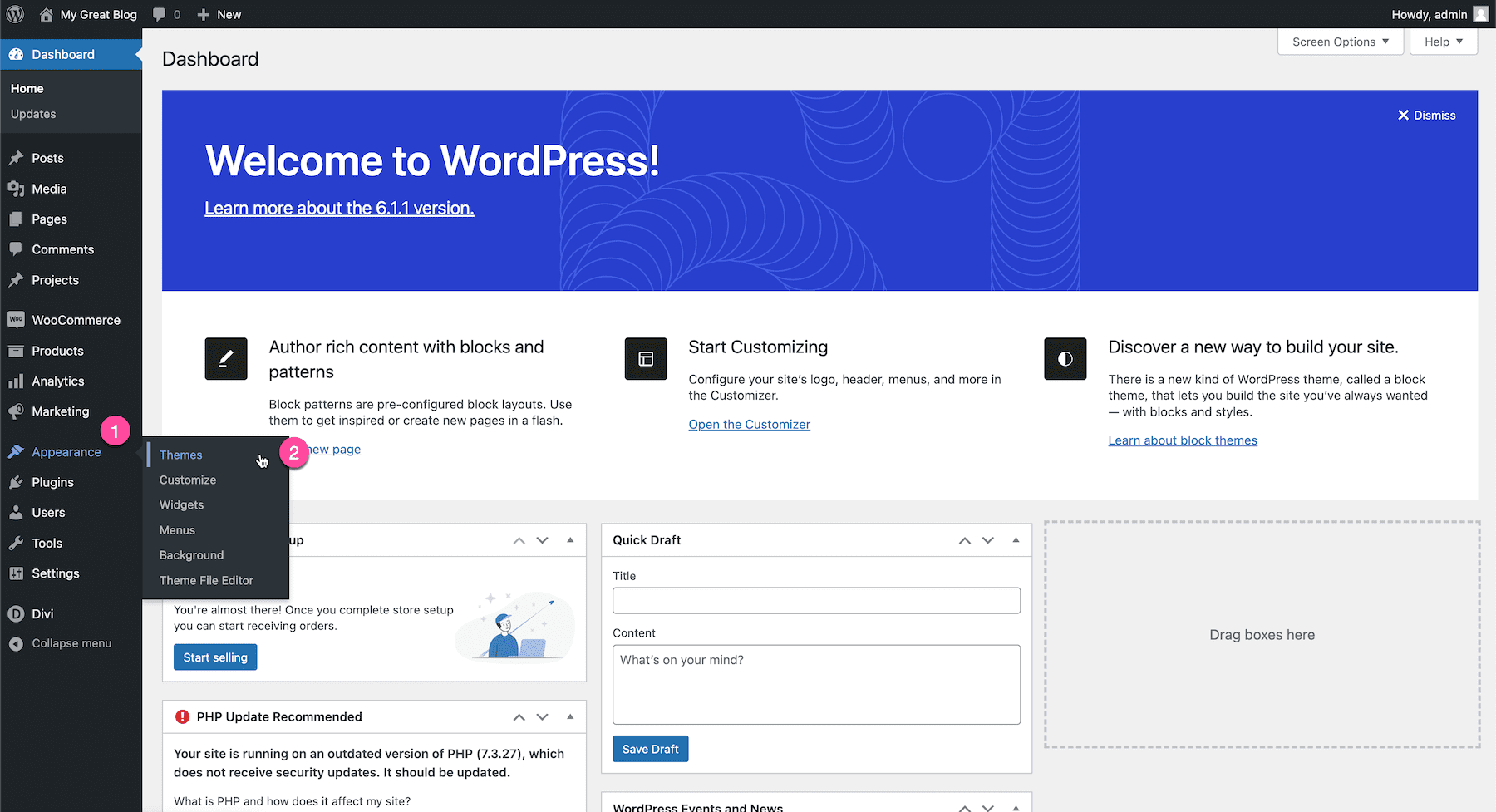
On the dashboard, find the Appearance tab. Click it and see the Themes option. This is where you can manage your website’s look. It is important to be here to add new themes.
Click the Add New button at the top. Then, click Upload Theme. Choose the Divi zip file from your computer. Click Install Now. Once it’s done, click Activate. Now, your Divi theme is ready to use.
Activating Divi Theme
Activate the theme by going to your WordPress dashboard. Click on “Appearance” and then “Themes”. Find the Divi theme you uploaded. Click “Activate” to make it live. Your website now uses the Divi theme.
Configuring Basic Settings
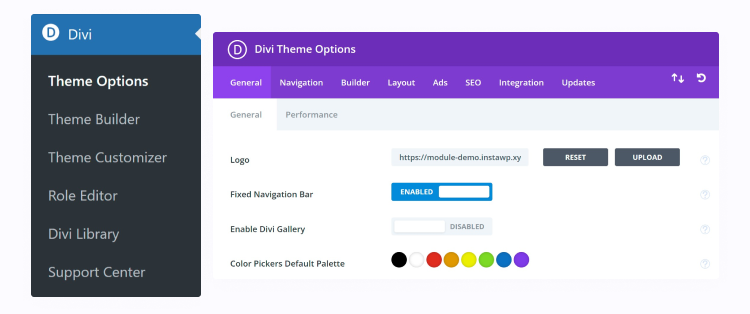
Open the Divi theme options by clicking on “Divi” in the dashboard. Set your site logo and favicon. Choose colors for your website. Select fonts that match your style. Save changes to keep settings.
Troubleshooting Common Issues
Sometimes, installation errors happen during theme upload. First, ensure the file is a ZIP format. WordPress only accepts this type. Check your internet connection. A weak signal can cause issues. Also, make sure your WordPress version is up-to-date. Older versions may not support the theme. If the problem remains, contact support for help.
Compatibility problems can arise with plugins or other themes. Disable all plugins, then try uploading again. If it works, enable each plugin one by one. This helps find the conflicting plugin. Some themes might not work well with others. Use only one active theme at a time. Regular updates can also prevent compatibility issues.
Credit: www.elegantthemes.com
Exploring Divi Features
Divi Builder helps you create beautiful pages. Drag elements to design your layout. Use the visual editor to see changes instantly. Add text, images, and buttons with ease. Choose from many options to style them. The responsive settings ensure your site looks good on any device. You can save your favorite designs to use later. Experiment with colors and fonts to match your brand. The possibilities are endless with Divi Builder.
Pre-made layouts make design simple. Select a layout that suits your needs. Import it with a click. Customize the layout to fit your brand. Change colors, fonts, and images easily. These layouts save time and effort. They offer many styles and designs. Choose a layout, then modify it to your liking. This feature helps you build a professional site quickly. Make your site unique with Divi’s pre-made options.
Optimizing Your Divi Site
Fast websites make users happy. They also help with SEO. First, keep your images small. This makes pages load quicker. Use tools like TinyPNG. They help to compress images. Next, limit the number of plugins. Too many can slow down your site. Choose only the important plugins you need. Lastly, use a caching plugin. It saves your site data. This helps pages load faster.
Good SEO brings more visitors. First, use keywords in titles and texts. Keywords help search engines find your site. Next, write clear titles and descriptions. They tell people what your page is about. Use an SEO plugin like Yoast. It guides you on making pages better. Lastly, build backlinks. These are links from other sites to yours. They show your site is trusted.

Credit: divitheme.net
Frequently Asked Questions
How To Import Divi Theme In WordPress?
To import the Divi theme in WordPress, go to your WordPress dashboard. Navigate to “Appearance” > “Themes. ” Click “Add New” and then “Upload Theme. ” Choose the Divi zip file, click “Install Now,” and activate it. Ensure you have a valid Divi license for updates and support.
How Do I Upload Divi To WordPress?
To upload Divi to WordPress, log into your WordPress dashboard. Navigate to “Appearance” > “Themes” > “Add New”. Click “Upload Theme”, choose the Divi zip file, and click “Install Now”. Activate Divi, and you’re all set!
How Do I Upload My Own Theme To WordPress?
Log in to WordPress admin. Go to “Appearance”, then “Themes”. Click “Add New”, then “Upload Theme”. Choose your theme file and click “Install Now”. Finally, activate your theme.
How To Install Divi Plugin On WordPress?
Log into WordPress and navigate to “Plugins” > “Add New. ” Click “Upload Plugin” and select Divi zip file. Install and activate.
Conclusion
Uploading the Divi Theme to WordPress is simple and straightforward. Follow each step carefully to ensure success. Start by logging into your WordPress dashboard. Navigate to the “Themes” section. Click “Add New,” then “Upload Theme. ” Choose your Divi Theme file and click “Install Now.
” Activate the theme once installed. Your website now has a fresh, stylish look. Troubleshooting is minimal with these steps. Enjoy customizing your site with Divi’s features. Remember, practice makes perfect. Explore Divi’s options to enhance your website’s appeal. Happy designing!