
Are you looking to make your WordPress site more powerful without writing complex code? Adding shortcodes is one of the easiest ways to do just that.
Shortcodes let you insert dynamic content quickly and effortlessly, saving you time and boosting your site’s functionality. In this guide, you’ll learn exactly how to add shortcodes in WordPress step-by-step. By the end, you’ll have the confidence to enhance your site and keep your visitors engaged.
Ready to unlock this simple trick? Let’s dive in!
Credit: kinsta.com
What Are Shortcodes
Shortcodes are small pieces of code in WordPress. They let you add features quickly without writing full code. You just insert a shortcode, and WordPress shows the content or function.
They are simple to use. Just type the shortcode inside square brackets. WordPress replaces it with the right content on your page or post.
What Does A Shortcode Look Like?
A shortcode looks like this: or [contact-form]. It can be just a word or have extra details inside.
For example, tells WordPress to show a medium-sized image gallery.
Why Use Shortcodes?
Shortcodes save time. They let you add complex items without coding. You can add buttons, videos, forms, and galleries fast.
They keep your content clean. No long code blocks in your posts. Just easy-to-read shortcodes.
Where Can You Use Shortcodes?
You can use shortcodes in posts, pages, and widgets. Many themes and plugins add their own shortcodes.
Just paste the shortcode where you want the feature to appear. WordPress does the rest.
Where To Use Shortcodes
Shortcodes offer a quick way to add dynamic content to many areas in WordPress. They save time and make your site more interactive. Knowing where to place shortcodes helps you get the best results. Here are common spots to use shortcodes in WordPress.
Posts And Pages
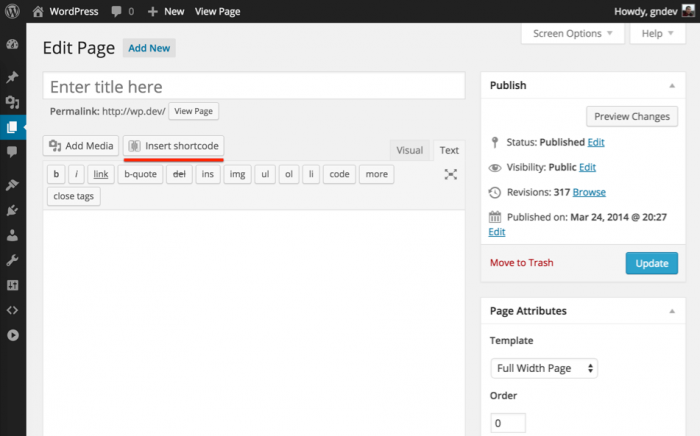
Posts and pages are the main content areas of a WordPress site. You can insert shortcodes directly into the text editor. This lets you add galleries, buttons, forms, or other features without coding. Use the shortcode in the content block or classic editor for easy integration.
Widgets
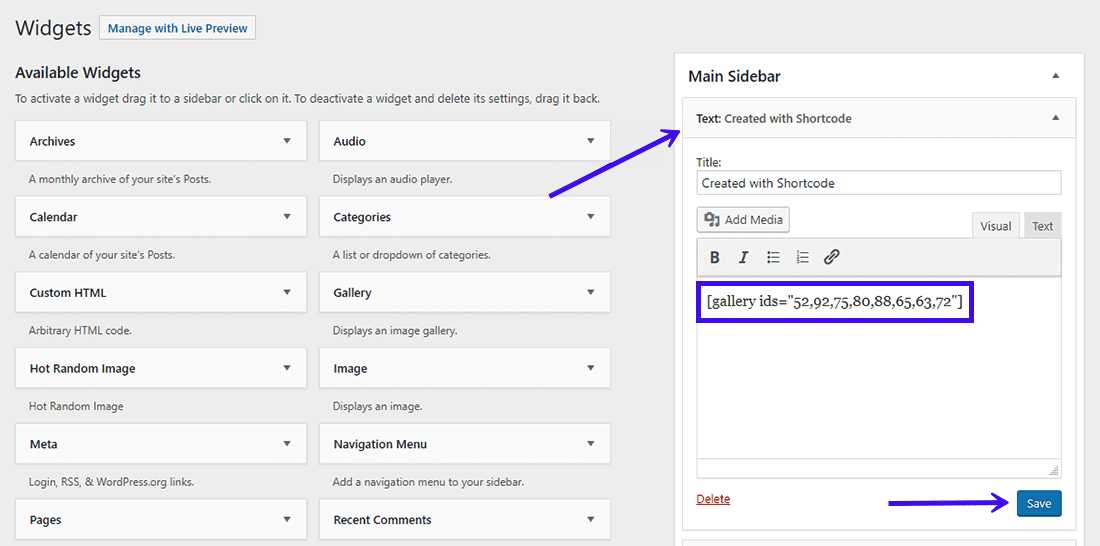
Widgets allow you to add extra content to sidebars or footers. Many WordPress themes support widgets that accept shortcodes. Place a shortcode in a text widget to display calendars, recent posts, or custom messages. This makes your sidebar or footer more useful and dynamic.
Theme Files
For advanced users, shortcodes can be added to theme files. You need to use PHP code to do this. By inserting do_shortcode('[your_shortcode]') in the theme template, you can show shortcode content anywhere. This method requires editing files like header.php or single.php.
Methods To Add Shortcodes
Shortcodes are small pieces of code that perform specific functions in WordPress. They help add features without writing long code. There are different ways to use shortcodes based on where you want them to appear. Understanding these methods makes it easier to customize your website.
Using The WordPress Editor
The WordPress editor allows you to insert shortcodes directly into posts or pages. Just open the editor and place the shortcode in the text area where you want the feature. The editor supports both the classic and block modes for shortcodes. In the block editor, use the shortcode block to keep things neat. This method is quick and works well for adding simple functions.
Inserting Shortcodes In Widgets
Widgets display content in sidebars or footers. Many themes support shortcodes inside widgets. To add a shortcode, go to Appearance > Widgets. Select a text or custom HTML widget and paste the shortcode there. Save the widget, and the shortcode will run in that widget area. This is useful for showing features site-wide without editing pages.
Adding Shortcodes To Theme Files
Sometimes, you may want shortcodes to run inside theme templates. This requires editing PHP files of your theme. Use the do_shortcode() function to insert shortcodes in theme files. For example, add php echo do_shortcode('[your_shortcode]'); ? where you want it. Be careful editing theme files, and always back up before changes. This method is for advanced customization and adds shortcodes to specific site parts.
Credit: www.wpbeginner.com
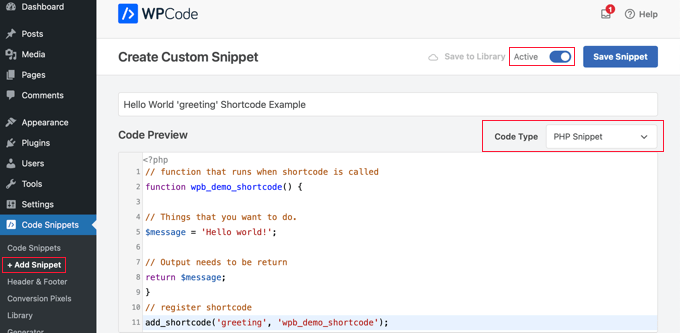
Creating Custom Shortcodes
Creating custom shortcodes in WordPress allows you to add unique features to your posts and pages. Shortcodes are small pieces of code that perform specific functions. You can build your own shortcodes to show content or add special effects easily.
Custom shortcodes save time and keep your site clean. They let you reuse code without repeating it. Even beginners can make simple shortcodes with little coding knowledge.
Basic Custom Shortcode
Start by creating a basic shortcode with a simple function. Open your theme’s functions.php file or a custom plugin file. Write a function that returns the content you want to show.
function my_simple_shortcode() { return "Hello, this is a custom shortcode!"; } add_shortcode('simple', 'my_simple_shortcode');Use the shortcode [simple] in your posts to display the text.
Adding Parameters
Shortcodes can take parameters to make them flexible. Parameters let you change the output without editing the code.
function my_param_shortcode($atts) { $atts = shortcode_atts(array( 'name' => 'Guest', ), $atts); return "Hello, " . esc_html($atts['name']) . "!"; } add_shortcode('greet', 'my_param_shortcode');Use [greet name="John"] to show “Hello, John!” or omit the name to show “Hello, Guest!”.
Using Shortcode With Functions
You can connect shortcodes to more complex functions. This method adds dynamic content and advanced features.
function display_current_year() { return "Current year is " . date('Y'); } add_shortcode('year', 'display_current_year');Use [year] to insert the current year anywhere on your site. This technique helps update content automatically without manual edits.
Common Mistakes To Avoid
Adding shortcodes in WordPress can save time and improve your website’s look. Yet, mistakes can cause errors or broken pages. Avoiding common pitfalls ensures your shortcodes work smoothly.
Understanding these mistakes helps you add shortcodes with confidence. Below are some frequent errors and tips to skip them.
Using Incorrect Shortcode Syntax
Shortcodes must have the right format. Always use square brackets like [shortcode].
Forget the brackets or add extra spaces. This breaks the shortcode.
Check for typos in the shortcode name. Even one wrong letter stops it from working.
Placing Shortcodes In The Wrong Area
Shortcodes do not work everywhere. Avoid placing them in plain text widgets or theme files.
Use shortcodes in the post editor or shortcode-enabled widgets only.
Inserting shortcodes in unsupported places may show raw code instead of content.
Ignoring Plugin Or Theme Conflicts
Some plugins or themes can block shortcodes. This causes them to fail or display errors.
Deactivate plugins one by one to find conflicts. Switch themes to check compatibility.
Always update plugins and themes to reduce shortcode issues.
Not Escaping Shortcodes In Custom Code
When adding shortcodes in PHP files, they need special handling. Use the do_shortcode() function.
Adding shortcodes directly in code without this function will not work.
Escape shortcodes properly to display the correct output on your site.
Overusing Shortcodes In One Post
Too many shortcodes slow down your page. This affects visitor experience and SEO.
Limit the number of shortcodes per page for better speed and performance.
Combine or simplify shortcodes where possible to keep pages fast.
Credit: www.active24.co.uk
Helpful Plugins For Shortcodes
Shortcodes make WordPress easy to customize. They help add features without coding. Using plugins can add many useful shortcodes to your site. These plugins save time and effort. They also work well with themes and other plugins.
Below are some helpful plugins for shortcodes. Each plugin offers different options. Choose the one that fits your needs.
Wp Shortcode By Mythemeshop
This plugin offers over 24 shortcodes. It covers buttons, columns, sliders, and more. Easy to use with a simple interface. Helps create clean, organized content quickly.
Shortcodes Ultimate
Includes many design elements like tabs, buttons, and boxes. User-friendly and flexible for beginners. Supports custom CSS for advanced users. Works well with most WordPress themes.
Column Shortcodes
Perfect for creating columns inside posts and pages. Helps arrange content neatly in rows and columns. Simple to use with shortcodes for each column size. Makes your page look professional and clean.
Easy Bootstrap Shortcode
Add Bootstrap elements without coding. Includes buttons, alerts, panels, and grids. Great for responsive design. Works smoothly with the Bootstrap framework integrated sites.
Frequently Asked Questions
What Are WordPress Shortcodes Used For?
WordPress shortcodes embed dynamic content in posts or pages easily. They save time by adding complex features with simple codes.
How Do I Add Shortcodes In WordPress Posts?
To add shortcodes, simply paste the shortcode text into the WordPress editor where you want the feature displayed. Update or publish to apply.
Can Shortcodes Be Added To WordPress Widgets?
Yes, shortcodes can be added to text widgets using the shortcode block or enabling shortcode support in widgets via functions. php.
Are WordPress Shortcodes Customizable?
Most shortcodes are customizable with parameters. You can modify attributes to change how the shortcode content appears or behaves.
Conclusion
Adding shortcodes in WordPress helps you add features quickly. You can place them in posts, pages, or widgets. They save time and make your site more flexible. Just copy and paste the shortcode where you want the feature. Test it to see if it works right.
Keep practicing to get comfortable with shortcodes. They make your WordPress site easier to manage and update. Simple steps can improve your website’s look and function. Try adding shortcodes today and see the difference.



