
Are you ready to make your WordPress site truly yours? Setting up a homepage is one of the most important steps to grab your visitors’ attention right away.
But if you’re not sure how to add a homepage in WordPress, don’t worry—you’re in the right place. This guide will walk you through simple, clear steps to create a homepage that reflects your style and purpose. By the end, you’ll have a homepage that welcomes your audience and keeps them coming back for more.
Let’s get started!
Choose A Homepage Type
Choosing the right homepage type is an important step in setting up your WordPress site. The homepage is the first thing visitors see. It shapes their impression of your site. WordPress offers two main options: a static page or a page showing your latest posts. Each type serves a different purpose and fits different needs.
Static Page Vs Latest Posts
A static page stays the same unless you update it. It often acts like a welcome page. You can add text, images, and buttons to guide visitors.
Pages showing the latest posts update automatically. They display your newest blog posts at the top. This option works well for news sites or blogs.
Benefits Of Each Option
A static homepage lets you control the message visitors see first. You can highlight key information clearly. It works well for businesses or portfolios.
The latest posts homepage keeps your site fresh. Visitors see new content regularly. It encourages repeat visits and engagement.
Credit: cyberchimps.com
Create A New Page
Creating a new page in WordPress is the first step to set up your homepage. This page will act as the front door to your website. You can customize it to show your welcome message, images, or any content you want visitors to see first. The process is simple and does not need any coding skills.
Setting Up Your Homepage Content
Start by deciding what content you want on your homepage. Keep it clear and simple. Include a headline that tells visitors what your site is about. Add a short introduction or welcome text. Use images to make the page attractive. Make sure the content matches the style of your site. This helps visitors understand your message quickly.
Using The WordPress Editor
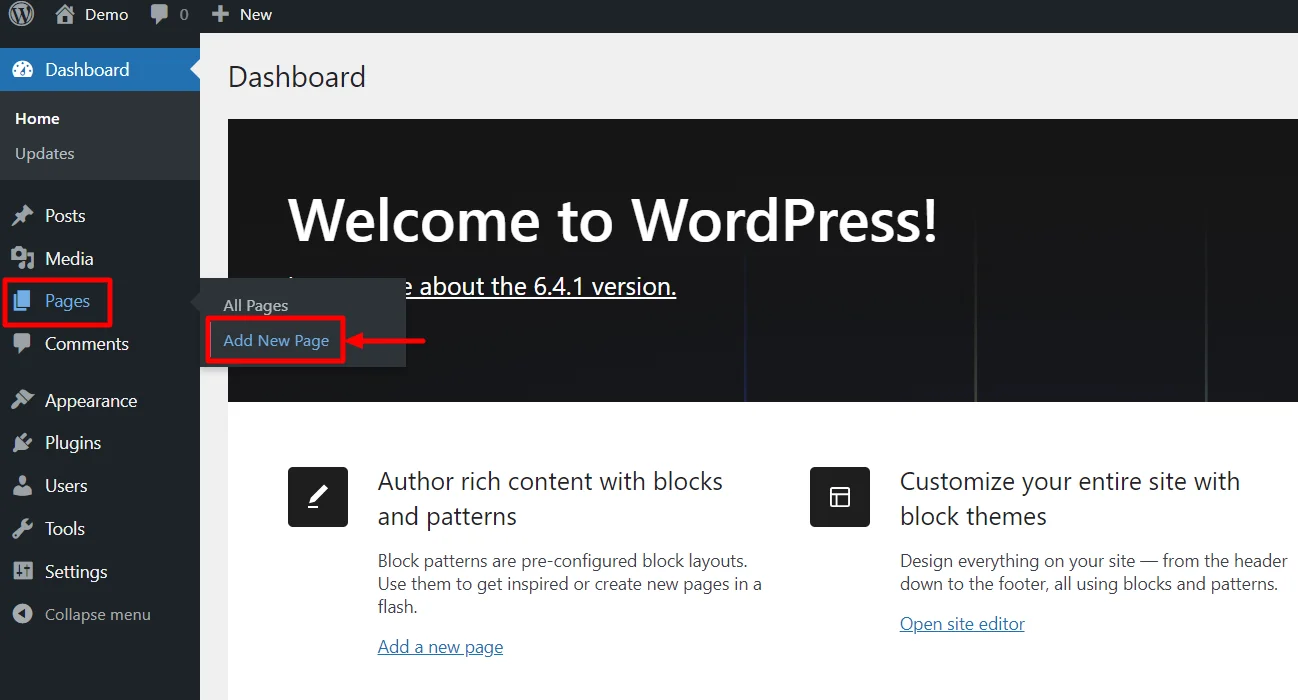
Go to the WordPress dashboard and click “Pages” then “Add New.” Enter a title, like “Home” or “Welcome.” Use the WordPress editor to add text, images, and blocks. The editor is easy to use and works like a word processor. You can drag and drop blocks to change the layout. Preview the page to see how it looks. Save the page once you are happy with it.
Set The Homepage In Settings
Setting the homepage in WordPress is a simple step that shapes the first impression of your site. This setting lets you choose what visitors see first. You can pick a static page or your latest posts. Adjusting this is important for guiding visitors and improving site navigation.
Navigate To Reading Settings
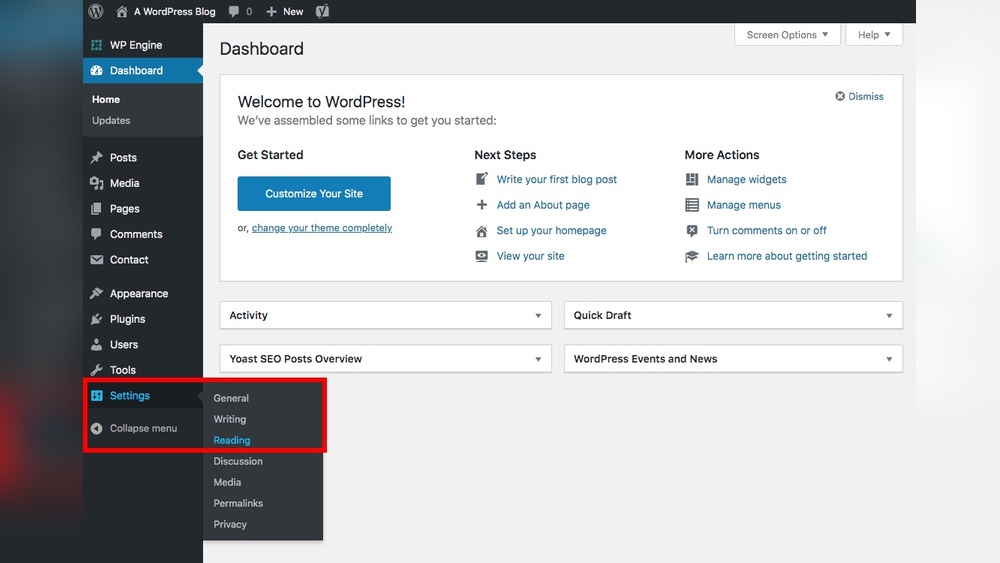
Start by logging into your WordPress dashboard. Look for the “Settings” menu on the left side. Click on “Reading” under this menu. This area controls how your content shows on the front end of your site.
Select Your Homepage
In the Reading Settings, find the section labeled “Your homepage displays.” Choose the option “A static page.” Then, use the dropdown menu to select the page you want as your homepage. Save your changes by clicking the “Save Changes” button at the bottom.
Customize Your Homepage
Customizing your homepage makes your website unique and user-friendly. It helps visitors find important information fast. A well-customized homepage improves user experience and keeps visitors engaged.
Add Widgets And Menus
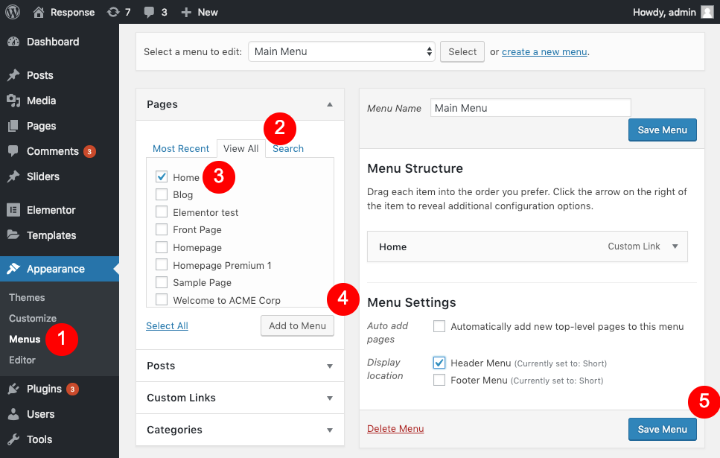
Widgets add extra features to your homepage. You can include search bars, recent posts, or contact forms. Use the WordPress dashboard to place widgets in sidebars or footers. Menus help visitors navigate your site easily. Create custom menus for main pages and categories. Arrange menu items in the order you want visitors to see them.
Use Page Builders For Design
Page builders let you design your homepage with drag-and-drop tools. They require no coding skills. Popular page builders include Elementor and Beaver Builder. You can add sections, columns, and media with ease. These tools help you create a professional layout quickly. Adjust colors, fonts, and spacing to match your brand style.
Optimize For Mobile And Speed
Optimizing your WordPress homepage for mobile and speed is crucial. Many visitors use phones or tablets. A fast, mobile-friendly site keeps them engaged. Slow or hard-to-use pages drive users away. Focus on responsive design and quick loading times. This improves user experience and boosts search rankings.
Responsive Design Tips
Choose a WordPress theme that adjusts to all screen sizes. Test your homepage on different devices often. Use flexible images that scale with the screen. Avoid fixed-width layouts that break on small screens. Keep navigation simple and easy to tap. Use larger buttons and clear fonts. Remove clutter to enhance readability on mobile. Responsive design makes your site look good everywhere.
Speed Enhancement Techniques
Use a caching plugin to serve pages faster. Optimize images by compressing them without losing quality. Minimize CSS and JavaScript files to reduce load time. Use a Content Delivery Network (CDN) to speed up delivery. Keep your WordPress and plugins updated for best performance. Limit the number of plugins to avoid slowdowns. Fast loading pages improve user satisfaction and SEO.

Credit: www.wpxpo.com
Troubleshoot Common Issues
Troubleshooting common issues is key to setting up your WordPress homepage right. Problems can stop your site from showing the homepage properly. Fixing these issues makes your site look professional and works well for visitors.
Homepage Not Displaying Correctly
The homepage might show the wrong page or look broken. Check if you set the right page as your homepage in WordPress settings. Go to Settings > Reading and pick the correct page under “Your homepage displays.”
Sometimes, themes or plugins cause display problems. Try switching to a default theme like Twenty Twenty-One. Deactivate plugins one by one to find the cause. Clear your browser cache and reload the page.
Permalink And Cache Problems
Permalinks affect how URLs appear and work. Go to Settings > Permalinks and click “Save Changes” to refresh them. This can fix broken links on your homepage.
Caching plugins and server cache store old versions of your site. Clear all cache from these sources. This step ensures visitors see the latest homepage changes. Check if caching causes the homepage not to update.
Credit: cyberchimps.com
Frequently Asked Questions
How Do I Set A Homepage In WordPress?
Go to WordPress Dashboard > Settings > Reading. Select “A static page” and choose your homepage from the dropdown. Save changes to apply the new homepage.
Can I Use A Custom Page As My Homepage?
Yes, you can create any page and set it as your homepage under Reading settings. This allows full customization.
What Is The Difference Between Homepage And Blog Page?
The homepage is your site’s main landing page. The blog page displays your posts in chronological order. You can set both separately.
How To Change Homepage Layout In WordPress?
Use a page builder plugin or your theme’s customization options to adjust the homepage layout. No coding is needed for most themes.
Conclusion
Setting a homepage in WordPress is simple and quick. Just follow the steps carefully. Choose a page, set it as your homepage, and save changes. Your website visitors will see the page you want first. This helps guide them and improve their experience.
Keep your homepage clear and easy to navigate. Now, your WordPress site looks more professional and user-friendly. Try it today and see the difference yourself.


