
Are you thinking about canceling your WordPress account but don’t know where to start? You’re not alone.
Many people find the process confusing or worry about losing their content. The good news is, canceling your WordPress account is easier than you might think—and doing it the right way can save you time and hassle. You’ll get clear, simple steps to close your account safely and what to expect along the way.
Keep reading, and take control of your WordPress presence today.
Reasons To Cancel A WordPress Account
Many users decide to cancel their WordPress account for various reasons. Understanding these reasons helps you make a clear choice. It also prepares you for what comes next. Some find better options elsewhere. Others want to reduce their online footprint. Cost can also be a big factor.
Switching To Another Platform
Some people want a different website builder. They may prefer simpler tools or more features. Other platforms might fit their needs better. Moving to a new platform means canceling the WordPress account.
Reducing Online Presence
Not everyone wants to be online all the time. Some users want to limit their digital footprint. They may want fewer social media or blog accounts. Canceling WordPress helps reduce their online activity and data.
Cost Considerations
WordPress offers free and paid plans. Paid plans can become expensive over time. Users may find cheaper or free alternatives. To save money, canceling the WordPress account makes sense.
Preparing To Cancel Your Account
Preparing to cancel your WordPress account needs careful steps. These steps keep your work safe and your readers informed. Skipping this may cause loss of data or confuse your audience. Follow the steps below to prepare well before cancellation.
Backing Up Your Content
Backing up content saves your posts, pages, and media files. It creates a copy you can use later. Use WordPress tools or plugins to back up everything. Store your backup on your computer or cloud storage. This prevents losing important information after cancellation.
Exporting Data
Exporting data lets you download your site’s information. WordPress offers an easy export feature in the dashboard. Choose what to export: posts, pages, comments, or all content. Save the exported file safely. This file helps you move your content to another platform.
Notifying Your Audience
Inform your readers about the account cancellation. Write a post or send an email explaining your decision. Tell them when your site will go offline. Suggest where they can find your future updates. This keeps your followers connected and aware.
Step-by-step Cancellation Process
Cancelling a WordPress account is straightforward. Follow these clear steps to complete the process quickly. Each step guides you through the necessary actions. This helps avoid mistakes and confusion. The following sections explain the process in simple terms.
Logging Into Your WordPress Dashboard
Start by going to the WordPress login page. Enter your username and password carefully. Click the “Log In” button to access your dashboard. The dashboard is your account’s control center. It shows all your site settings and options.
Navigating To Account Settings
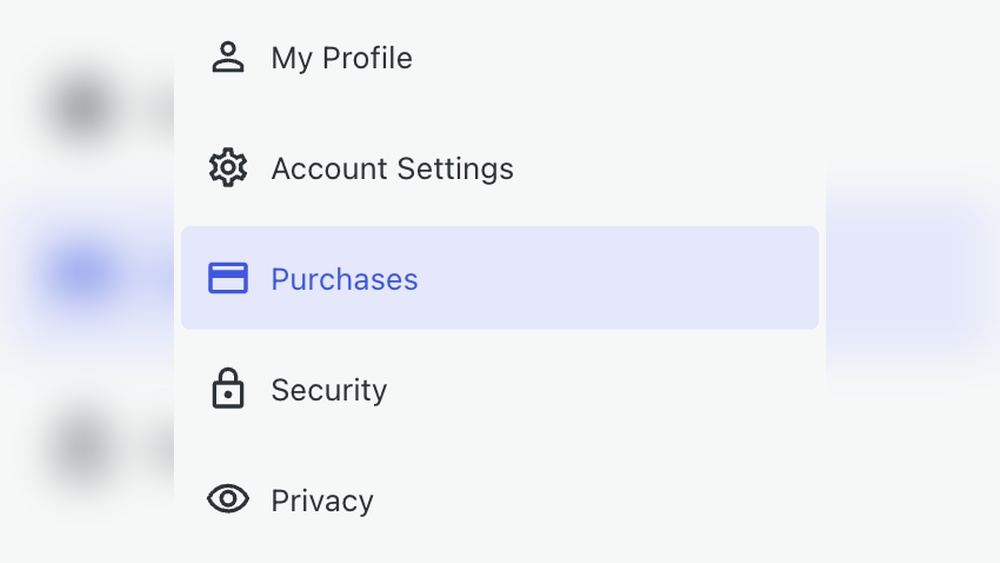
Once inside the dashboard, look for the account settings. Usually, this is under the profile or user menu. Click on your profile icon or name at the top right corner. Select “Account Settings” or “Profile” from the dropdown. This page holds your personal and subscription details.
Initiating The Cancellation
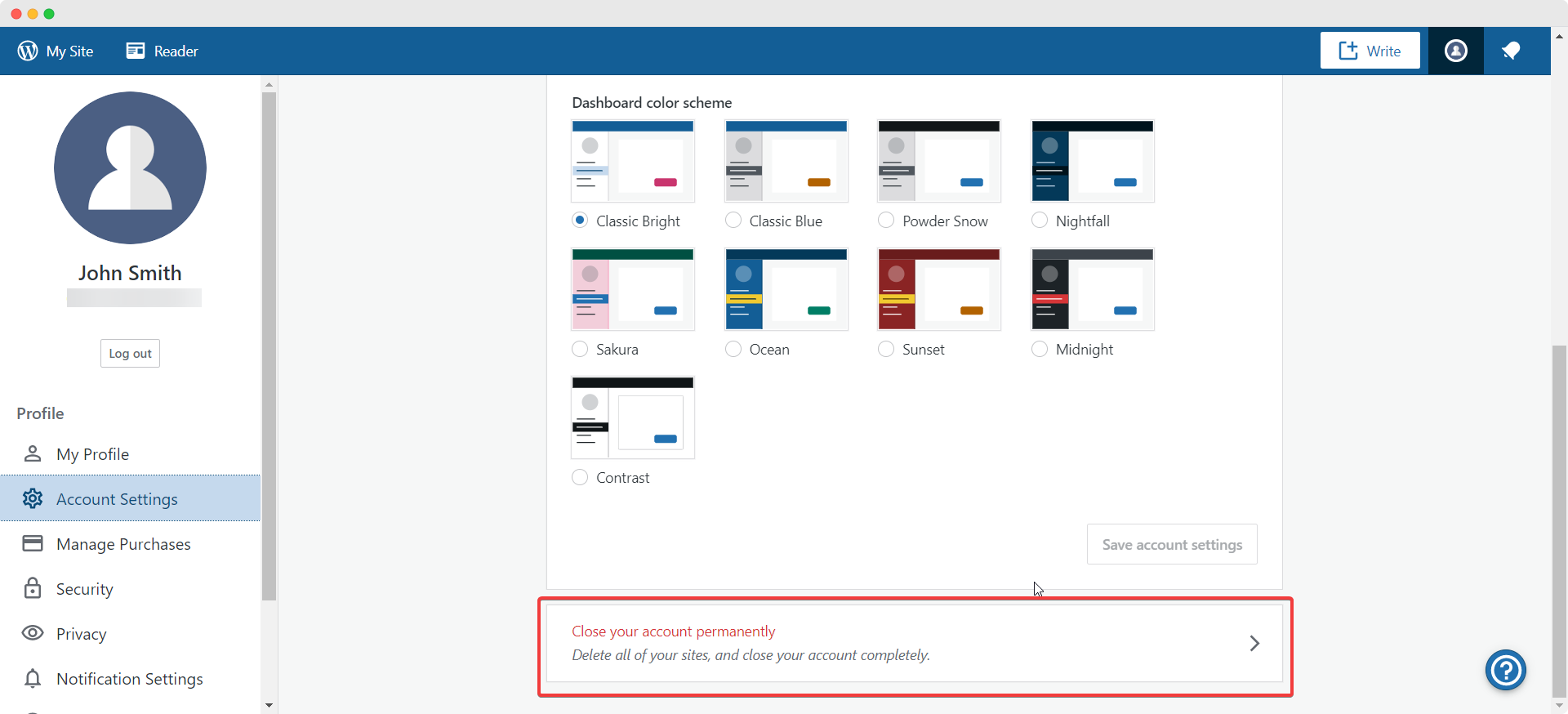
Scroll down to find the cancellation or delete account option. WordPress may ask why you want to cancel. Choose your reason from the list or type a short explanation. Click the button to start the cancellation process. This step moves you closer to closing your account.
Confirming Account Deletion
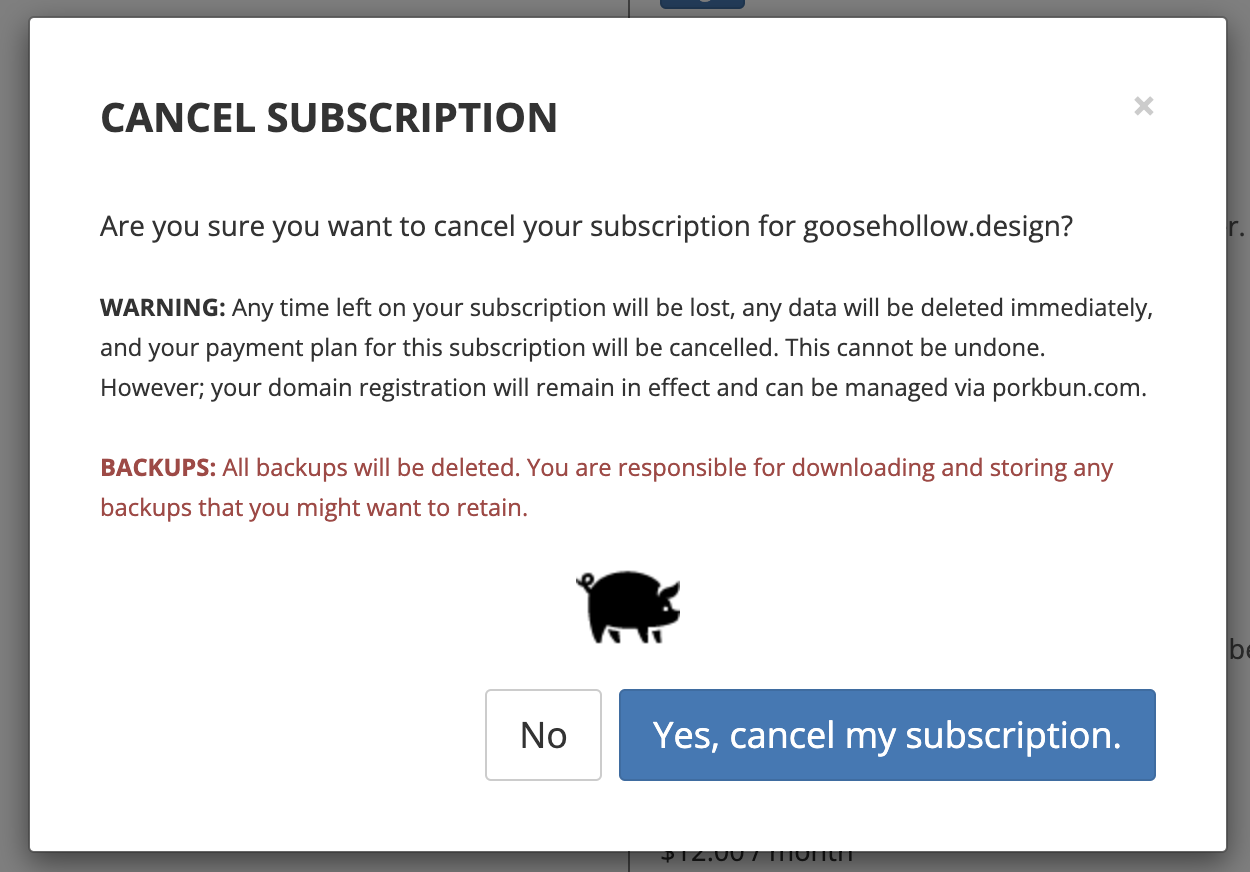
WordPress will ask for confirmation before deleting your account. Read the warning carefully to understand what you lose. Confirm your decision by clicking the final delete or cancel button. You might need to enter your password again. After confirmation, your account will be deleted permanently.
Credit: kb.porkbun.com
Post-cancellation Actions
After canceling your WordPress account, some important steps remain. These help avoid unexpected charges and keep your data safe. Taking a few actions now saves trouble later.
Checking For Active Subscriptions
Check if any paid plans or services are still active. WordPress may keep billing you if subscriptions remain open. Log into your account and review the billing section carefully. Cancel any active subscriptions to stop future charges. This step protects your wallet and stops surprises.
Removing Linked Services
Disconnect any apps or services linked to your WordPress account. These could include social media or email marketing tools. Linked services may continue using your data or send messages without your control. Visit your account settings to remove these connections safely. This action helps keep your online presence clean and secure.
Monitoring Email For Confirmation
Watch your email inbox for cancellation confirmation from WordPress. This message proves your account is closed and subscriptions ended. Sometimes, WordPress sends follow-up instructions or feedback surveys. Keep this email for your records. It ensures you have proof of cancellation if needed later.
Common Issues And Solutions
Cancelling a WordPress account may bring some challenges. Users often face common issues during the process. Understanding these problems helps solve them quickly. Below are typical troubles and how to fix them effectively.
Troubleshooting Login Problems
Login issues stop users from accessing their accounts. Check your username and password carefully. Use the “Lost Password” link to reset your password. Clear your browser cache and cookies. Try logging in with another browser or device. Disable browser extensions that might block the login. If problems persist, contact WordPress support for help.
Handling Billing Disputes
Billing disputes can delay account cancellation. Review your payment history on the WordPress dashboard. Check for any unpaid invoices or subscription renewals. Contact WordPress billing support to clarify charges. Provide proof of payment if needed. Cancel all active subscriptions to avoid future charges. Keep records of all communications for reference.
Recovering Deleted Content
Deleted content loss worries many users. WordPress keeps backups for a limited time. Check the Trash folder in your dashboard first. Restore pages or posts from there if possible. Use backup plugins or hosting backups for older data. Contact WordPress support if you cannot find your content. Act fast, as deleted content may not be recoverable after some time.

Credit: yoast.com
Alternatives To Deleting Your Account
Deleting your WordPress account is a big step. It means losing all your content and settings. Many users want to avoid this. They look for ways to keep their site but reduce costs or pause activity. WordPress offers several options to help with this. These choices let you keep your work safe and come back anytime. Explore these alternatives before deciding to delete your account.
Downgrading Your Plan
Downgrading your plan lowers your monthly cost. You keep your site and content intact. It removes advanced features you may not need now. This option suits users wanting to save money. Your site stays online without interruption. You can upgrade again later if needed.
Temporarily Deactivating Your Site
Temporarily deactivating your site hides it from visitors. Your content stays saved on WordPress servers. Visitors cannot see your site but you can access it. This option works well during breaks or site redesigns. No data loss occurs while your site is inactive.
Transferring Ownership
Transferring ownership hands your site to another user. The new owner manages the account and content. This helps if you no longer want to run the site. It keeps the site active and accessible. You remain free without losing the work.
Credit: wpdeveloper.com
Frequently Asked Questions
How Do I Cancel My WordPress Account?
To cancel your WordPress account, log in and go to Account Settings. Select “Delete your account” and follow the prompts to confirm.
Can I Recover My WordPress Account After Cancellation?
No, once you cancel your WordPress account, recovery is not possible. Make sure to back up your data first.
What Happens To My Content After WordPress Account Cancellation?
All your content, including posts and media, will be permanently deleted and cannot be restored after cancellation.
Is There A Fee To Cancel My WordPress Account?
No, canceling your WordPress account is free. However, any active paid plans must be canceled separately to avoid charges.
Conclusion
Canceling your WordPress account is simple and clear. Follow the steps carefully to avoid mistakes. Back up your content before closing the account. Once canceled, you lose access to your site and data. Take time to review all information before finalizing.
This way, you stay in control of your online presence. Stay calm and follow the guide step by step. You can always start fresh later if you want. Ending your WordPress account can be smooth and stress-free.


