Are you looking to personalize your WordPress site with the Astra theme by changing the header background color? You’re in the right place!
A simple tweak like altering the header’s background can give your website a fresh and professional look, making it stand out to visitors. But here’s the best part—it’s easier than you think. In this guide, you’ll discover a straightforward way to make this change without any technical hassle.
Imagine the impact of a header that truly reflects your brand’s personality. Keep reading, because you’re about to learn the secrets to making your website more visually appealing and memorable.
Accessing WordPress Dashboard
First, log into your WordPress account. Use your username and password. Once inside, look for the dashboard. It’s your main control center. You can see many options here.
Click on the “Appearance” section. It’s usually on the left side. This area lets you change how your site looks. Find the “Customize” button next. This button will take you to theme options.
Changing colors is easy here. Select the “Header” settings. This section is where you change the header’s look. Look for the “Background Color” option. Click it to pick a new color. Save your changes. Your header will now have the new color.
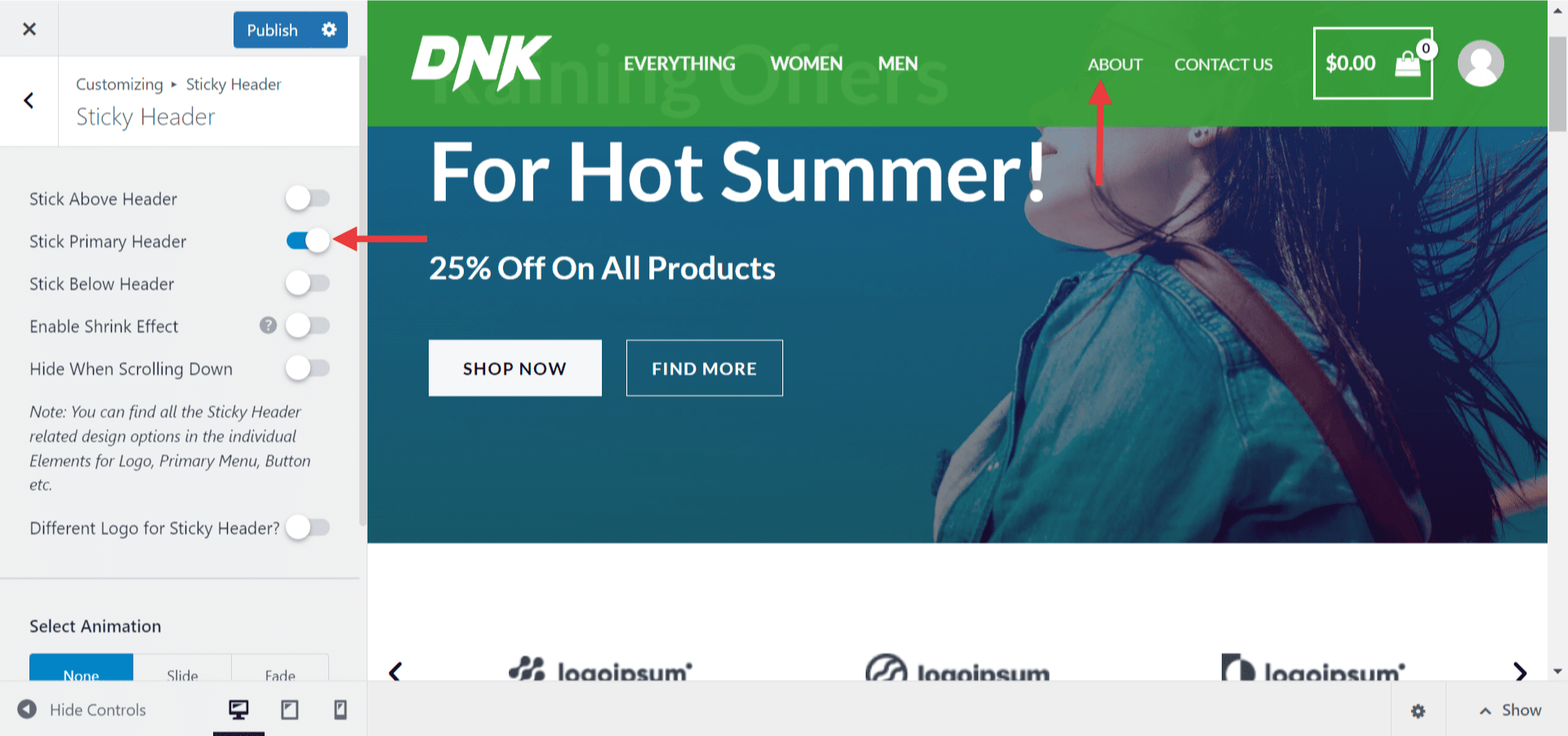
Credit: wpastra.com
Locating Astra Theme Options
Finding the Astra theme options is easy. First, log into your WordPress site. Next, go to the dashboard. Look for Appearance in the menu. Click on it.
Now, select Customize. You will see many options. Find the Header section. Click to open it. This is where you change the header color.
Explore the options here. You can pick any color you like. Try different colors. See what looks best for your site. Once you choose, click Publish. Your changes are now live.
Navigating To Header Settings
Begin by logging into your WordPress dashboard. Look for the “Appearance” option in the menu on the left. Click on it. You will see another option called “Customize”. Click this to open the customizer. A new page will load with many options. Find the “Header” settings. This is where you can change the header background color.
In the header settings, find the “Background” option. Here you can choose a new color. Click on the color box. A color picker will appear. Choose the color you like. Once done, click “Publish” to save your changes.

Credit: www.wpglossy.com
Customizing Header Background
Open your WordPress dashboard. Go to Appearance and click Customize. Find the Header section. Look for Background Color settings. Click the color box. Select your favorite color. Click Publish to save changes. Enjoy your new header look!
Gradients add a special touch. Go to your Customizer again. Open the Header settings. Search for Background Gradient options. Choose two colors. Adjust the gradient angle. Press Publish to save. See how the colors blend beautifully!
Images make headers pop! Visit the Customizer. Head to the Header section. Click on Background Image. Upload or select an image. Adjust its position. Click Publish to save. Now, your header has a unique image!
Using Custom Css For Advanced Changes
Change your header background color in the Astra theme using custom CSS. Access WordPress dashboard, navigate to Appearance, then Customize. Add your desired CSS code to modify the header’s appearance easily.
Accessing Additional Css Panel
Open your WordPress dashboard. Navigate to Appearance and click on Customize. Find the Additional CSS option. Click on it to open the panel. This is where you can add your CSS code. Make sure you know your theme’s specific CSS selectors. You can check them using the browser’s inspect tool.
Writing Css Code For Background
First, identify the header’s CSS selector. Common selectors are .site-header or .main-header. Write your code like this: .site-header { background-color: #yourcolor; }. Replace #yourcolor with your desired color code. You can use hex codes or color names. After writing, click Publish to save changes. Refresh your site to see the new color.

Credit: wpastra.com
Previewing And Publishing Changes
After changing the header color, it’s important to preview the changes. This helps you see how the new color looks on your site. To preview, click the “Preview” button on the top right corner. A new window will open, showing your site with the new header color. If you like how it looks, you can publish it.
To make the change live, click the “Publish” button. This button is next to the preview button. Once clicked, your changes will be saved. Now everyone can see the new header color on your site. Remember to always preview before publishing. This ensures everything looks good.
Troubleshooting Common Issues
Color Not Updating: Sometimes, the header color doesn’t change. This can be frustrating. Check the customizer settings first. Ensure you saved the changes properly. Clear your browser cache. This often fixes the problem. If the issue persists, try refreshing the page. Some themes require this step.
Responsive Design Considerations: The header color should look good on all devices. Test it on mobile and desktop. Adjust the color if it looks strange. Use contrasting colors. This helps text stand out. Make sure the header is readable. Users should see it clearly on all screens.
Exploring Astra Pro Features
Astra Pro offers powerful customization tools. You can change the header background color easily. The options are user-friendly and simple. Choose from a variety of colors. Match your site’s theme or style. Make your website unique and appealing. The interface is intuitive. Navigate through settings without hassle. Personalize every aspect effortlessly.
With Astra Pro, you can add extra design elements. Include custom fonts and layouts. Choose from multiple header styles. Enhance your site’s appearance with ease. The theme supports advanced design features. Create a site that stands out. Adjust settings to fit your needs. Explore various customization options. Make your website look professional.
Frequently Asked Questions
How To Change Header Color In WordPress Astra?
Go to WordPress dashboard, navigate to Appearance > Customize > Header > Header Colors. Choose your desired color and save changes.
How To Change Header Background Color In WordPress Theme?
Go to WordPress Dashboard, click on “Appearance”, then “Customize”. Choose “Colors” and modify header background color. Save changes.
How To Change Background Color In WordPress Astra Theme?
Go to WordPress Dashboard, select “Appearance”, then “Customize”. Click “Colors & Background” to change the background color in Astra theme. Adjust settings and save changes.
How Do I Change The Color Of The Header Menu In WordPress?
Go to the WordPress Dashboard. Navigate to Appearance > Customize. Select “Header” or “Menu” options. Use the color picker to change the menu color. Save changes.
Conclusion
Changing the header background color in the Astra theme is simple. Follow the steps carefully. Begin by accessing the WordPress dashboard. Navigate to Appearance, then Customize. Select Header, then Site Identity. Choose your desired color. Save changes to apply them.
Your site now has a fresh look. This customization enhances your site’s appeal. A unique header color attracts visitors. Explore more design options within Astra. Keep your site engaging and visually pleasing. Regular updates keep your site lively. Experiment with different colors and styles.
Make your website stand out effortlessly.