Are you looking to improve your WordPress site’s navigation and keep visitors engaged longer? Knowing how to link to an internal WordPress page is one of the simplest yet most powerful ways to do this.
When you connect your pages smoothly, you guide your readers exactly where you want them to go, making their experience seamless and your site more effective. You’ll discover easy steps to create these links quickly, even if you’re not tech-savvy.
By the end, you’ll have a clear strategy to boost your website’s usability and keep your audience coming back for more. Let’s dive in!
Credit: www.elegantthemes.com
Benefits Of Internal Linking
Internal linking is a simple yet powerful tool for your WordPress website. It connects your pages and helps both visitors and search engines navigate your site better. Understanding its benefits can help you improve your site’s performance and user satisfaction.
Boosting Seo Rankings
Internal links help search engines find and index your pages faster. They show which pages are important on your site. This can improve your rankings in search results. More links to a page tell search engines that it is valuable.
Enhancing User Experience
Links guide visitors to related content. This keeps them on your site longer. Visitors find information quickly without searching. A smooth navigation experience makes your site friendly and easy to use.
Distributing Page Authority
Page authority spreads through internal links. Linking strong pages to new or weaker pages shares some authority. This helps improve the ranking potential of many pages. It balances the strength across your whole website.
Credit: ultimateblocks.com
Preparing Your WordPress Site
Preparing your WordPress site is a key step before linking to internal pages. A well-organized site makes linking easier. It also improves user experience and SEO. Proper preparation helps visitors find content quickly and keeps your site tidy. Focus on setting up permalinks and organizing your content clearly.
Choosing The Right Permalink Structure
Permalinks are the URLs of your pages and posts. Choose a simple and clear structure. Go to WordPress settings and select “Permalinks.” Select “Post name” for clean and readable URLs. Avoid using numbers or special characters. Clear URLs help search engines and users understand your page content. This choice improves your site’s SEO and linking process.
Organizing Content For Linking
Organize your content into categories and tags. Group related posts and pages together. Use descriptive titles and headings for each page. Create a logical hierarchy of pages, from broad to specific. This organization makes it easier to find and link pages. Visitors can navigate your site smoothly. Well-structured content supports better internal linking and SEO strength.
Creating Internal Links In WordPress
Creating internal links in WordPress helps connect your content. It improves navigation and keeps visitors on your site longer. Internal links also help search engines understand your site structure. This section explains how to create internal links using different WordPress tools.
Using The Block Editor
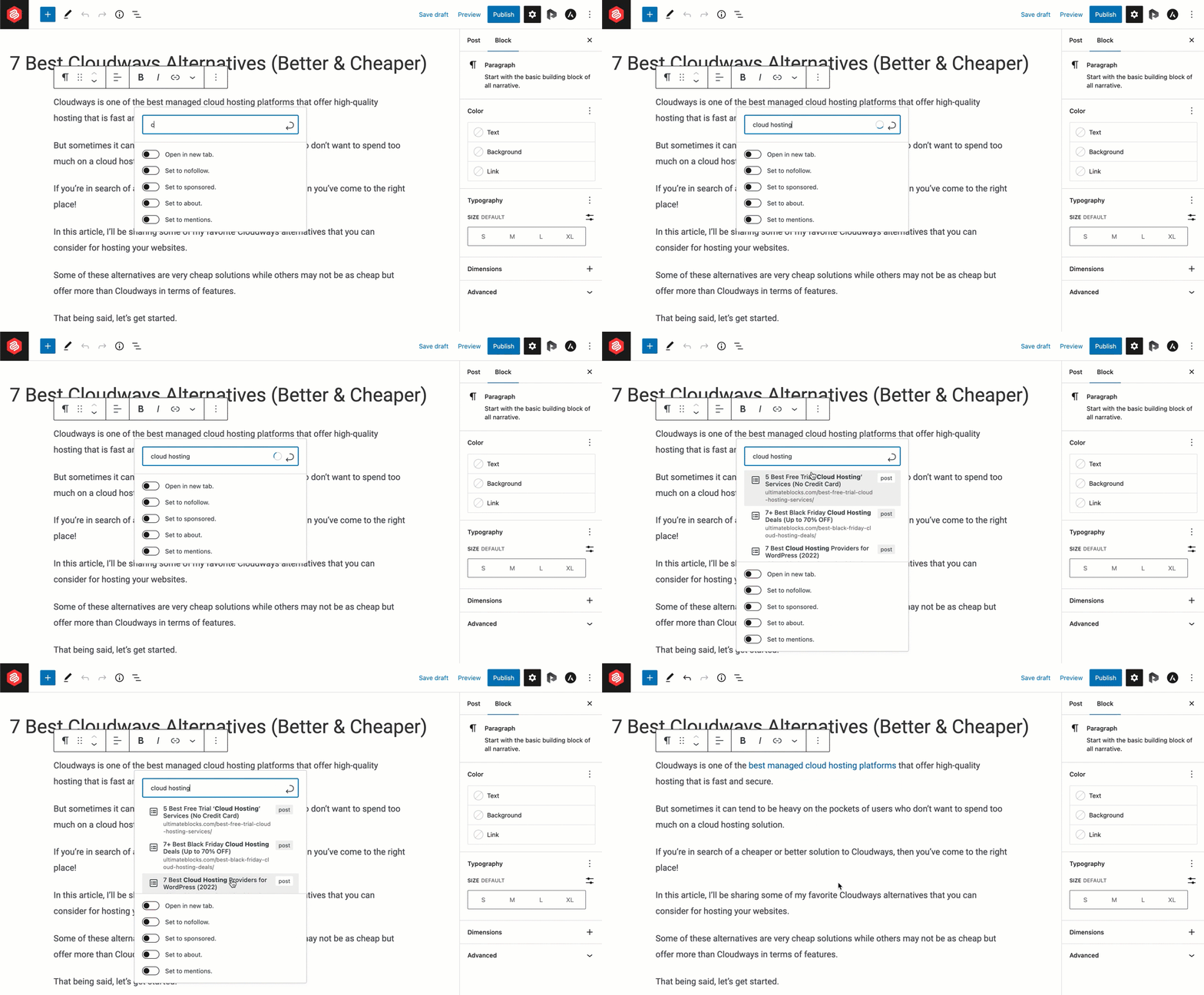
The Block Editor makes linking easy and fast. Highlight the text you want to link. Click the link icon in the toolbar above. A small box appears to enter the URL or page name. Start typing the page title to find the right page quickly. Select the page from the list. Click “Apply” or press Enter. The text now links to the internal page.
Adding Links In Classic Editor
In the Classic Editor, highlight the text you want to link. Click the chain link icon in the toolbar. A popup box will appear for the URL. Paste or type the page’s URL or slug. To find the URL, open the page in a new tab. Copy the full address from the browser. Click “Add Link” to finish. The text will now link to the chosen page.
Linking Via Menus And Widgets
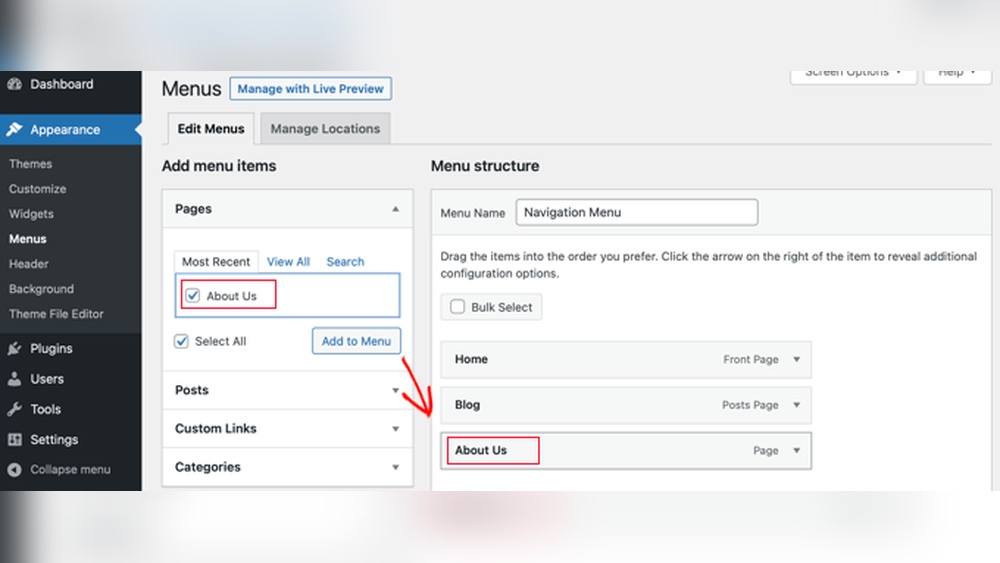
Menus and widgets also allow internal linking. Go to Appearance > Menus in your dashboard. Select the pages to add from the list. Click “Add to Menu” and arrange them as needed. Save the menu to display links in navigation areas. For widgets, go to Appearance > Widgets. Add a Custom HTML or Text widget. Insert links using simple HTML anchor tags. Save the widget to show links in sidebars or footers.
Best Practices For Internal Linking
Internal linking helps visitors find related content inside your website. It improves user experience and boosts SEO. Following best practices ensures your links work well and bring real value.
Using Relevant Anchor Text
Anchor text tells readers and search engines what the linked page is about. Use clear and descriptive words. Avoid vague phrases like “click here.” Choose keywords that match the linked page topic. This helps both humans and search engines understand the connection.
Linking To High-value Pages
Not all pages have equal importance. Link to pages that offer useful information or support your main topics. These pages may include product pages, guides, or key blog posts. Highlighting valuable pages helps search engines rank them better and guides visitors to important content.
Avoiding Overlinking
Too many links on a page can confuse readers and lower SEO value. Use internal links thoughtfully. Limit the number of links in each paragraph. Focus on quality rather than quantity. This keeps your content clean and easy to read, while still improving navigation.
Tools To Manage Internal Links
Managing internal links helps improve your website’s structure and user experience. Using the right tools saves time and keeps links organized. These tools make it simple to add, edit, and track links inside your WordPress site. They also help find broken or outdated links. Good link management supports SEO and keeps visitors engaged.
Plugins For Link Management
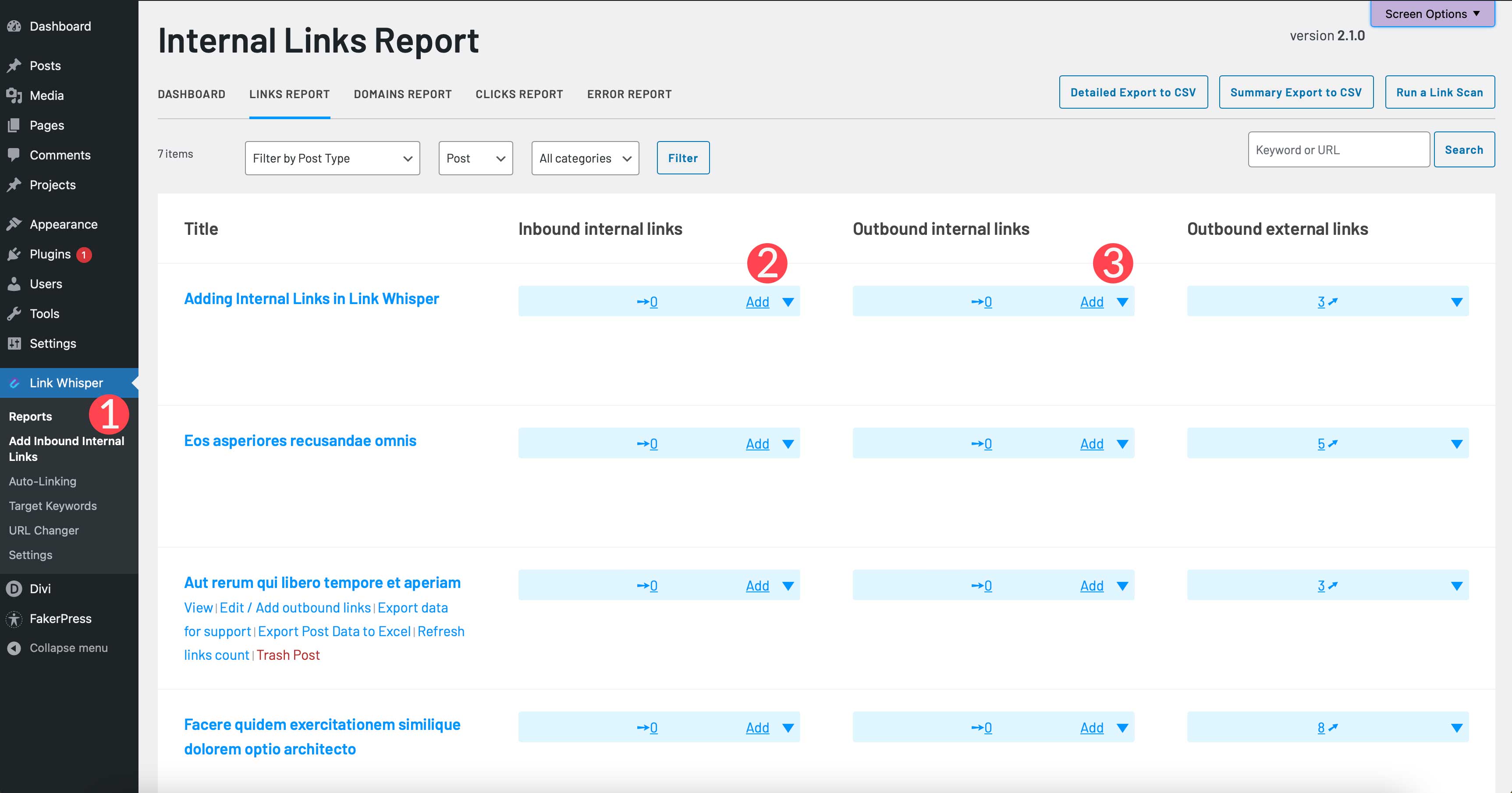
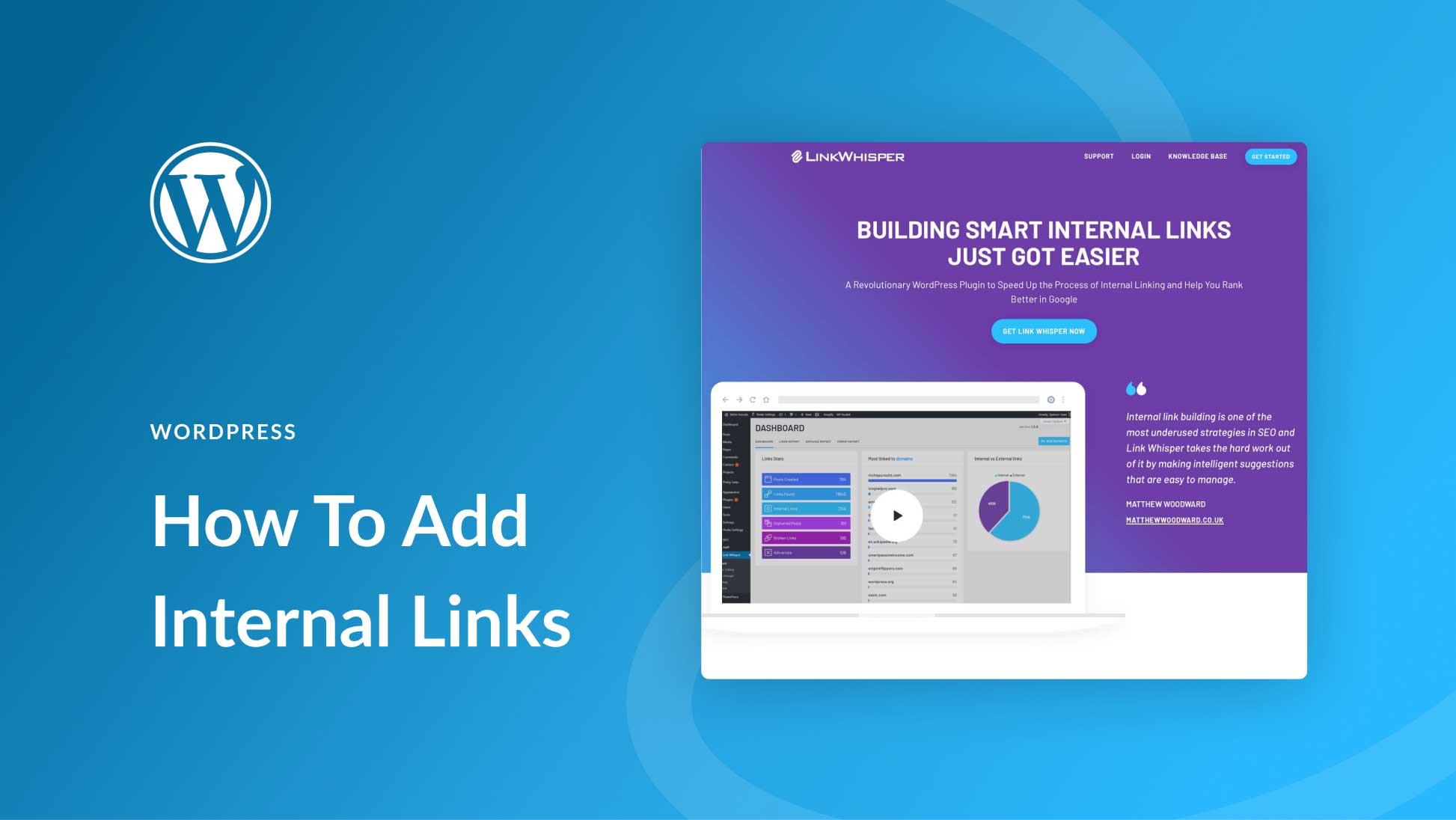
WordPress offers many plugins to manage internal links easily. Plugins like “Internal Link Juicer” automate link building inside your content. They suggest relevant pages to link based on your keywords. “Broken Link Checker” finds broken links and lets you fix them fast. Plugins reduce manual work and help keep your links healthy.
Seo Tools To Monitor Links
SEO tools track how your internal links perform over time. Tools like Ahrefs and SEMrush show which pages get the most internal links. They identify orphan pages with few or no links. Monitoring helps improve link flow and site structure. These tools provide reports that guide link improvements for better SEO.
Credit: www.elegantthemes.com
Fixing Common Internal Linking Issues
Fixing common internal linking issues improves your site’s user experience and SEO. Broken or outdated links frustrate visitors and hurt your search rankings. Regularly checking and updating internal links keeps your website healthy and easy to navigate.
Identifying Broken Links
Broken links lead to error pages that confuse visitors. Use tools like Broken Link Checker or online crawlers to find these links. Scan your site often to catch new broken links. Fix them quickly by replacing or removing the faulty URLs.
Updating Outdated Links
Outdated links point to pages that no longer exist or have moved. This reduces your site’s credibility and SEO value. Review your internal links regularly to find outdated URLs. Update them with the current, correct links to maintain smooth navigation and SEO strength.
Frequently Asked Questions
How Do I Link To An Internal WordPress Page?
To link internally, copy the page URL and highlight your anchor text. Use the WordPress editor’s link tool to paste the URL. This creates a clickable link that directs users to another page within your site, improving navigation and SEO.
Why Use Internal Links In WordPress Posts?
Internal links help users find related content quickly. They boost SEO by distributing page authority across your site. Linking also improves site structure, making it easier for search engines to index your pages effectively.
Can I Link To A WordPress Page From A Menu?
Yes, you can add internal WordPress pages to your site’s menu. Go to Appearance > Menus in the dashboard, select the page, and add it to your menu. This helps visitors navigate your site easily.
What Is The Best Anchor Text For Internal Links?
Use descriptive and relevant anchor text that clearly indicates the linked page’s content. Avoid generic terms like “click here. ” Good anchor text improves user experience and boosts SEO by signaling page relevance.
Conclusion
Linking to an internal WordPress page helps visitors find related content easily. It improves your website’s structure and boosts SEO. Use clear anchor text that matches the page topic. Keep links relevant and natural within your content. Regularly check links to avoid broken pages.
This simple step makes your site more user-friendly and organized. Start adding internal links to guide readers smoothly through your website.