
Are you ready to dive into the world of web development and host your very own website locally? Setting up a local host web server might sound like a complex task, but with the right command, you’ll be up and running in no time.
Imagine having the power to test your web applications in a private, controlled environment before they go live. The command to start a local host web server is the key to unlocking this capability. Whether you’re a beginner or a seasoned developer looking to refresh your skills, understanding this fundamental step can open new doors for your projects.
Keep reading to discover how easy it can be and why mastering this command can give you an edge in your web development journey.
Credit: spoofing.medium.com
Basics Of Local Host Web Servers
Local host web servers help you test websites on your computer. Easy to use for learning and development. You need a simple command to start them. Apache and Nginx are common choices.
Use Terminal on Mac or Linux. Open Command Prompt on Windows. Type `apachectl start` for Apache. For Nginx, use `nginx`. Both commands will start the server. Now, your computer is ready for testing websites.
Web pages will load from your computer. No need for internet. Great tool for beginners. Practice HTML, CSS, and JavaScript easily. Understand how websites work without external servers.

Credit: camerondwyer.com
Common Commands For Different Environments
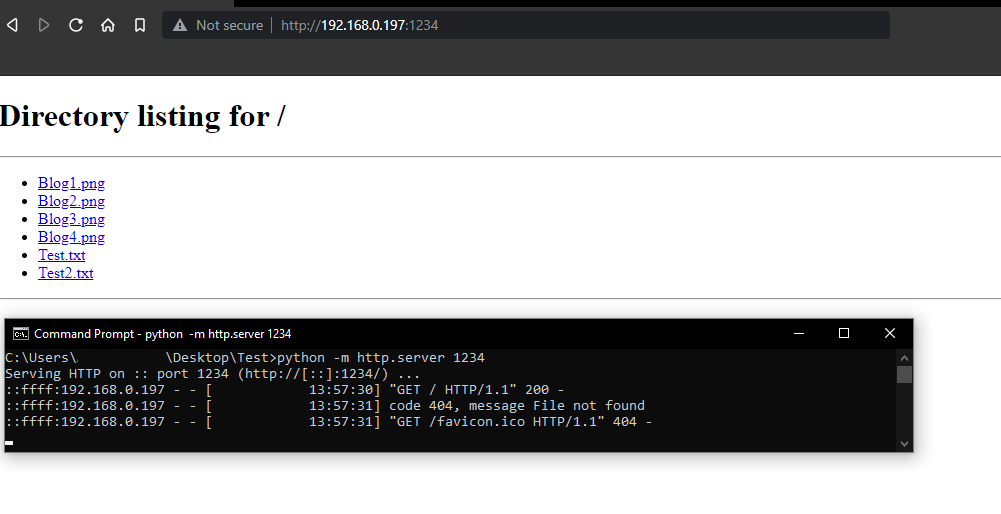
Starting a local web server is easy. Different environments use different commands. In Node.js, use node server.js. For Python, the command is python -m http.server. Ruby users can type ruby -run -e httpd . -p 8000. Each command is simple. Just open a terminal and type the command.
PHP servers are popular. Open your terminal. Type php -S localhost:8000. This starts a server. The server runs on port 8000. You can change the port. Use another number if needed.
Apache and Nginx are powerful. Use a package manager. Install them first. For Apache, type apachectl start. For Nginx, use nginx command. These commands start the servers. They are stable and fast.
Starting A Local Server With Python
To start a local server using Python 2.x, open your terminal. Navigate to the directory where your files are located. Use the command python -m SimpleHTTPServer to begin. This will start a server on port 8000. You can access it by typing localhost:8000 in your browser.
Python 3.x offers a similar way to start a server. Open your terminal and navigate to your file directory. Type the command python -m http.server. This command will start the server on port 8000. Visit localhost:8000 in your browser to see your files.
Setting Up A Server With Node.js
First, open your terminal or command prompt. Type npm install http and press enter. This installs the HTTP module. Create a new file named server.js. Write a simple server code in it. Use http.createServer() to create the server. Specify the port, for example, 3000. Now, save your file. Go back to terminal. Run node server.js command. Your server should start. Open the browser. Type localhost:3000 to see your server.
Express makes things easier. First, install Express using npm install express. Create a new file named app.js. Write simple code using express() function. Set the port to 3000. Use app.listen() to start the server. Save the file. Run node app.js in terminal. Your server is running. Visit localhost:3000 in your browser. See how it works.
Php Built-in Web Server
To start a simple server, use the command line. Open the terminal. Navigate to your project directory. Type: php -S localhost:8000. Press Enter. Your server is now live. Use any web browser. Visit localhost:8000 to see your site. This method is easy and fast. Great for simple projects. No need for extra software. Just PHP and your files.
For more settings, create a router file. Name it router.php. Add custom rules inside. Use php -S localhost:8000 -t . router.php. This command uses your router file. It helps manage complex routes. You can set custom URLs. Control how your site behaves. Change settings as needed. This gives you more power. Perfect for larger projects. PHP’s built-in server is flexible.
Running A Local Server With Ruby
WEBrick is a simple server for Ruby. To start, open the terminal. Type “ruby -run -e httpd . -p 8000”. This command starts the server. Your files are now on localhost:8000. WEBrick is great for small projects. It is easy to use and setup. Remember, keep the terminal open. If you close it, the server stops.
Sinatra is another way to run a server. First, install Sinatra using “gem install sinatra”. Create a new file named “app.rb”. In this file, write “require ‘sinatra'” and “get ‘/’ do ‘Hello World!’ end”. Run the server with “ruby app.rb”. Visit localhost:4567 to see your page. Sinatra is good for more complex apps.
Utilizing Local Server Tools
WAMP is a tool for Windows. It helps run a local server. To start, download and install WAMP. Once installed, find the WAMP icon on your desktop. Click it to launch. A green icon means it is ready. Visit “localhost” in your browser to see it working.
MAMP is for Mac users. It works like WAMP. Download and install MAMP. Open the MAMP application. Click “Start Servers.” When both lights turn green, it is ready. Go to “localhost” in your browser. You will see the MAMP start page.
XAMPP is for all users. It is free and easy to use. Download and install XAMPP on your computer. Open the XAMPP Control Panel. Click “Start” next to Apache. This will start your server. To check, type “localhost” in your browser. You should see the XAMPP page.
Credit: www.varonis.com
Troubleshooting Common Issues
Starting a local host web server involves simple commands. Use “python -m http. server” for Python. For Node. js, type “http-server” after installing it globally. These commands help troubleshoot common issues effectively, ensuring your server runs smoothly and efficiently.
Port Conflicts
Port conflicts happen when two programs use the same port. Only one program can use a port at a time. Check which program is using the port. Use the command netstat -ano to see active ports. Look for the program’s PID. You can stop the conflicting program. Use the command taskkill /PID [PID number] /F. This will free up the port. Then, try starting your web server again.
Permission Errors
Permission errors occur when you don’t have rights to access files. Make sure you have correct permissions. Use the command chmod 755 [filename] to change permissions. This allows reading, writing, and executing files. Check if your user has admin rights. Admin rights help in accessing necessary files. If you still face issues, check your user settings. Ensure your user is added to the right group.
Security Best Practices
Restrict who can see your web server. Use a strong password. Only give access to trusted people. This keeps your data safe. Make sure to limit permissions. Allow only necessary actions. Avoid sharing public links. Keep your server private. Always check user access levels. Change passwords regularly. This prevents unauthorized entry.
Set up a firewall. Block unwanted traffic. Allow only safe connections. Firewalls protect your server. They stop bad hackers. Configure rules for incoming and outgoing traffic. Keep your network secure. Regularly update firewall settings. Check logs for suspicious activity. This helps in early detection of threats. Always keep your firewall active.
Frequently Asked Questions
How To Start Localhost Server?
To start a localhost server, install a web server like Apache or Nginx. Configure and run the server using command line tools. Access the localhost by typing “localhost” in your web browser. Ensure necessary permissions and firewall settings are adjusted for smooth operation.
How To Start A Local Server In Cmd?
Open Command Prompt. Navigate to your project directory. Type `python -m http. server` for Python 3. x or `php -S localhost:8000` for PHP. Press Enter. Your local server starts on port 8000.
How To Launch A Website On Localhost?
Install a local server like XAMPP or WAMP. Place your website files in the “htdocs” or “www” folder. Start the server and open your browser. Enter “localhost/your-folder-name” to view your website. Ensure all required databases are set up in your local server.
What Is The Command For Local Host?
To access the local host, use the command “localhost” or “127. 0. 0. 1” in your web browser’s address bar. This directs you to the server running on your computer, allowing you to test web applications locally before deployment.
Conclusion
Starting a local host web server is easier than it seems. Simple commands can launch your server smoothly. Practice these steps regularly. Build your confidence. Experiment with different settings. Gain more control over your projects. Troubleshooting becomes easier. Understanding these basics is key.
Improve your web development skills. Be patient and explore each command. Results will follow with persistence. Always keep learning. Web technology evolves constantly. Stay updated with new tools and techniques. Enjoy the process of creating and testing. Your journey in web development starts here.
Keep experimenting and growing your skills.


