Unlocking the secrets of your WordPress site can feel like solving a puzzle, especially when it comes to understanding what controls the home page. If you’ve ever wondered why your website’s front door behaves the way it does, you’re not alone.
The answer lies in the WordPress hierarchy and how PHP files work behind the scenes. By diving into this topic, you can gain control over your site’s appearance and functionality, ensuring it aligns perfectly with your vision. Imagine the satisfaction of knowing exactly which file to tweak to bring your homepage dreams to life.
Stay with us, and you’ll learn how to master this crucial aspect of WordPress, putting you in the driver’s seat of your website’s success.
WordPress Template Hierarchy
Templates are the building blocks of a WordPress site. They decide how content looks. Each template controls different parts of the site. For the home page, index.php is often used first. Other templates can change this order. They give designers control over layout. Templates ensure the site stays organized. They help manage themes and styles.
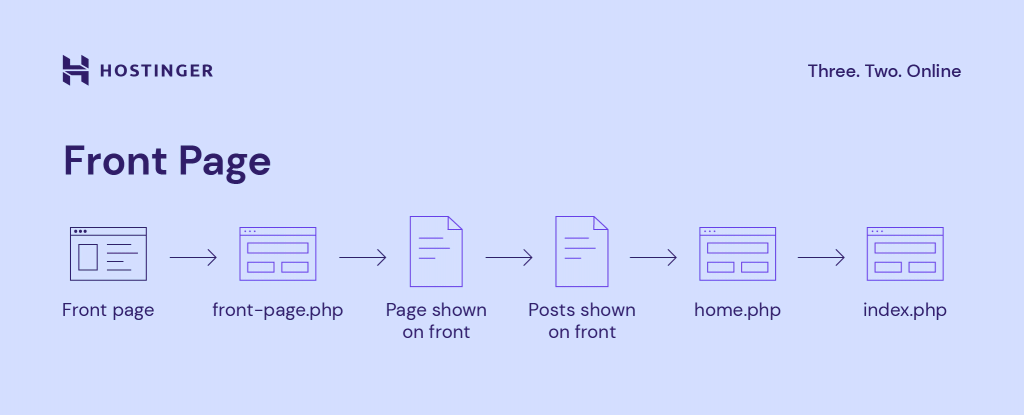
WordPress uses a hierarchy system. It picks templates in a set order. This affects how pages show up. Home page is first checked by index.php. Other files can change this. Functions like is_home() decide which template to use. This makes sure the right page is shown. It keeps the site running smoothly. Hierarchy helps in customization.
Home Page Specific Templates
index.php is used as a fallback. This file shows content if no other template is found. It’s like a safety net for your site. Every WordPress site has this file. It is the most basic template.
The home.php file is for blog posts. This file controls how blog posts look on the home page. If you want to change the blog view, edit this file. It’s optional, but very useful.
front-page.php sets a static front page. This template is for non-blog sites. It shows a fixed page as the home page. Good for business sites and portfolios. It overrides other templates for the home page.
Customizing The Home Page
Custom templates help create a unique look for your site. They allow more control over the design. This is useful for a personalized home page. WordPress uses the index.php file for the home page by default. To change this, you can create a home.php file. This file takes priority over index.php. It helps in building a custom layout that fits your needs.
The WordPress Customizer is a handy tool. It allows you to change themes quickly. You can adjust colors, fonts, and widgets. This tool offers a preview of changes in real-time. Using the customizer is easy. It gives your site a fresh look without much effort.

Credit: developer.wordpress.org
Php Files Impacting The Home Page
The functions.php file is a key player. It adds features to your site. You can customize the site with this file. It allows you to add code snippets. You can include widgets and menus here. This file helps in enhancing theme capabilities. It also handles scripts and styles.
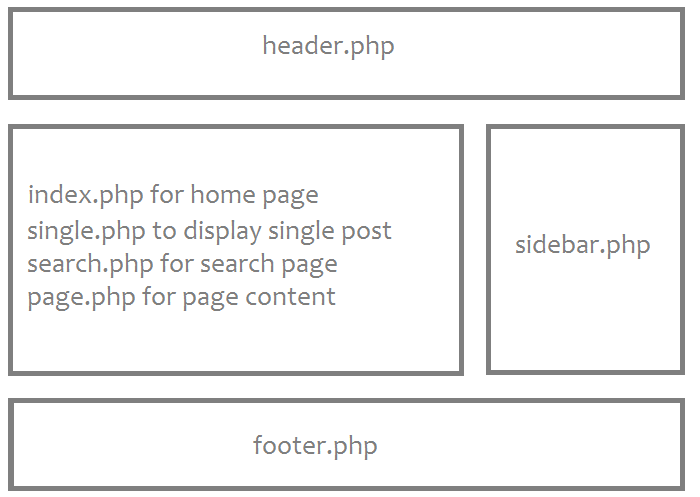
Header.php and footer.php shape the site’s layout. The header file sets the top part of the page. It includes navigation and logos. The footer file manages the bottom section. It often contains contact info and links. These files ensure a consistent look. They are crucial for user experience.
Common Issues And Troubleshooting
Template conflicts can cause a lot of trouble. Themes and plugins might not work well together. This can break your site. Check your active theme. Sometimes, it is not the one you need. Change it to see if that helps. Deactivate plugins one by one. This helps find the problem. Updating themes and plugins can also fix things. Keep them up-to-date. Backup your site before making changes. This keeps your data safe.
Hierarchy problems can make your homepage look wrong. Check the index.php file. It controls the homepage. If changes here don’t work, check other template files. They might override it. Use a child theme. It helps keep changes safe. Error logs can show what’s wrong. Look at them for clues. Testing in a staging site is wise. It keeps your main site safe.
Credit: www.hostinger.com
Best Practices For Template Management
Template files help structure your website. Clear organization is key. First, name files clearly. Use descriptive names. This makes them easy to find. Group similar files together. Create folders for different types. For example, use a folder for header files. Another for footer files. This helps keep everything tidy. Organize files by function. This makes updates simpler.
Consistency in themes is important. It ensures a uniform look across pages. Use the same fonts and colors everywhere. Stick to a style guide. This keeps your site looking professional. Check for mistakes often. Correct them quickly. This keeps the theme consistent. Always test changes. Make sure they look good on all devices. This helps keep the user experience smooth. Consistency builds trust.
Credit: www.sitepoint.com
Frequently Asked Questions
What Is The WordPress Template Hierarchy?
The WordPress template hierarchy is a system that determines which template files are used to display content. It’s a logical structure that follows specific rules. This hierarchy allows you to customize the appearance of different parts of your website, such as the home page, posts, and archives, efficiently.
Which Php File Controls The Home Page?
The `home. php` file controls the home page in WordPress if it exists. If `home. php` is unavailable, WordPress uses `index. php`. This file serves as a fallback for displaying the home page when specific templates aren’t present, ensuring your site functions smoothly.
How Does WordPress Decide Which Template To Use?
WordPress uses a template hierarchy to decide which template to use. It checks for specific files in a predefined order. For the home page, it looks for `home. php`, `index. php`, and other templates. This systematic approach ensures consistent and predictable display of your site’s content.
Can I Customize My WordPress Home Page?
Yes, you can customize your WordPress home page using the template hierarchy. By creating or modifying `home. php`, you can change its appearance and functionality. Additionally, you can use page builders or themes to further enhance customization, tailoring your site to meet specific needs and preferences.
Conclusion
Understanding the WordPress hierarchy is key to customizing your home page. PHP files control how your site’s front page displays. The hierarchy dictates which template file WordPress uses. Knowing this helps you make precise changes. Start with index. php if unsure.
It serves as a fallback. Experiment with different templates to see changes. Customize to match your design goals. Always remember to back up your site before making changes. This ensures you can recover easily if needed. With this knowledge, you can enhance your WordPress site effectively.