
Imagine opening your WordPress themes folder and knowing exactly what each file does and why it’s there. Sounds like a dream, right?
If you’ve ever felt lost in the maze of folders and files, you’re not alone. Many WordPress users wonder what their themes folder should look like and how to organize it effectively. Your themes folder is more than just a collection of files; it’s the heartbeat of your site’s design.
Getting it right means smoother updates, easier troubleshooting, and a more secure site. Intrigued? Let’s dive in and demystify your WordPress themes folder, so you can manage your site like a pro. Whether you’re a newbie or a seasoned WordPress user, understanding the layout of your themes folder can save you time and headaches. Ready to take control? Keep reading!
Credit: jetpack.com
Folder Structure Basics
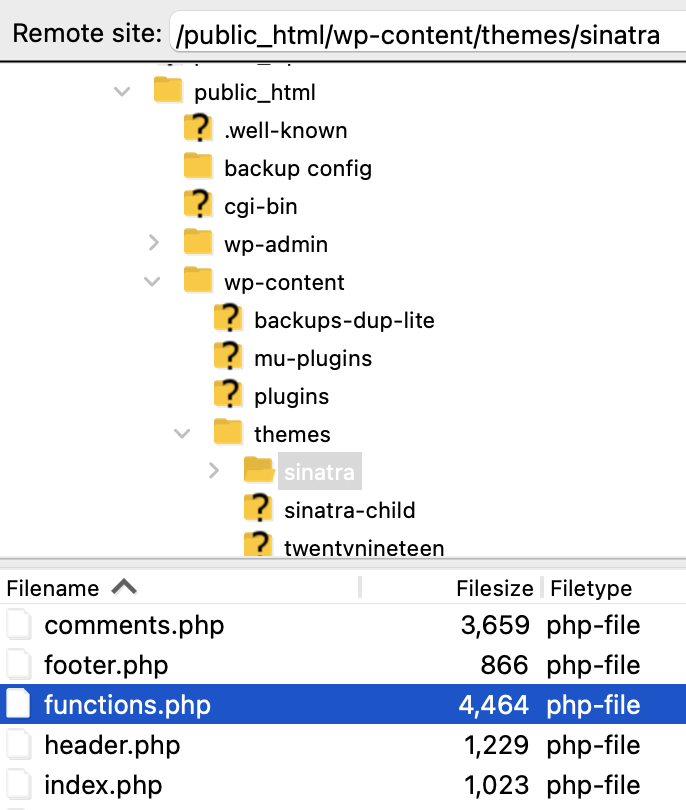
WordPress themes have a special folder. This folder should be neat. Inside, you will find important files. These files make the theme work.
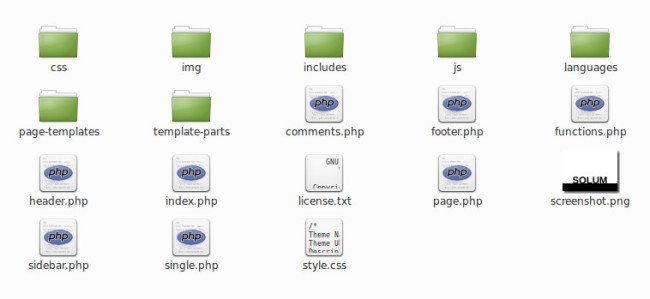
The first file is style.css. This file tells the theme how to look. It shows the colors and shapes. Next is functions.php. This file helps with special tasks. It is like a helper file.
Then, there are template files. These files are for pages. Each page can have its own template. index.php is the main file. It shows the main page. Other files help with posts, pages, and comments.
A clean folder is easy to use. It helps the theme run well. Always keep files in order. This makes WordPress happy.
Credit: themefoundation.com
Core Theme Files
The style.css file is like the clothes for your site. It makes the website look nice. This file tells the browser what colors and fonts to use. Without it, your site may look plain. It is the main file for design.
The index.php file is the heart of your theme. It pulls content from your database and shows it on the page. This file is important for displaying posts. Without it, your site might not show anything.
The functions.php file is like a toolbox. It adds special features to your site. You can add custom menus or widgets with it. This file helps make your site unique. It is a key part of any theme.
Template Files
The header.php file holds the top part of your website. It includes the site title and navigation menu. This file sets the look of your page header. It often contains links to stylesheets and scripts. A well-designed header helps visitors understand your site easily. It offers a first impression of your site. Make sure your header is clear and simple.
The footer.php file is at the bottom of the page. It often includes copyright information and social media links. Many sites use this area for contact details or a site map. The footer gives a finishing touch to your site. A neat footer helps users find important links easily. It wraps up your website’s layout smoothly.
The sidebar.php file creates the side area of your page. This space often holds widgets like recent posts or categories. Sidebars are useful for extra content. They help visitors navigate your site better. Many websites use sidebars for advertisements. A clean sidebar improves the user experience. It makes your site more organized and easy to explore.
Assets Directory
Every theme needs an images folder. This folder holds all the pictures. You can find logos, backgrounds, and icons here. Keep images organized. Name them clearly. This helps find them later.
CSS styles the website. The CSS folder has files that change how things look. Colors, fonts, and sizes live here. Keep files tidy. Use clear names. This makes it easy to edit.
JavaScript makes the website interactive. The JavaScript folder holds scripts. These scripts can make buttons work. They can also create slideshows. Name scripts well. Organize them properly. This helps with updates.
Theme Customization
Custom templates let you change your site’s look. They offer unique styles. Every theme folder should have custom template files. These files are often named with “template” in them. Custom templates help personalize your site. It’s like giving your site its own outfit. You can make your site special. Use custom templates to stand out.
Custom Templates
Custom templates are great for special pages. They can change the layout. Maybe add a sidebar. Or remove it. Custom templates are easy to find. They are usually in the theme folder. Look for files with “template” in their name. Use them to make your site unique.
Child Themes
Child themes are like a safety net. They keep changes safe. You can update the main theme without losing edits. Child themes are stored separately. They use files from the parent theme. They help protect your changes. It’s smart to use child themes. They make theme customization easy.
Theme Compatibility
A theme must fit all devices. This is called responsive design. Phones, tablets, and computers all need to show your site well. Look for themes that adapt to screen size. This helps users have a good experience. Mobile users should not struggle to read text. Images should not look stretched or shrunk. A good theme will automatically adjust its layout.
Web browsers are different. Chrome, Firefox, and Safari are popular ones. A theme should work well on all of them. Users may use any browser to visit your site. Some themes may look great on Chrome but not on Safari. Always check compatibility with multiple browsers. This ensures everyone sees your site as intended. Cross-browser support is crucial for user satisfaction.
Best Practices
A tidy folder helps in managing your WordPress themes. Each theme should have its own folder. Label these folders clearly. This helps in finding themes easily. A typical theme folder has files like style.css and index.php. Keep these files in their respective folders. It helps you know which theme you are working on.
Clean code is easy to read. It also makes editing simple. Use comments in your code. This helps you remember what each part does. Stick to a consistent coding style. This means using the same format throughout. Others will find it easier to read your code. Clean code also helps your site run smoothly.
Credit: usablewp.com
Frequently Asked Questions
What Is The Purpose Of The Themes Folder?
The themes folder in WordPress stores all your site’s themes. Each theme consists of templates, stylesheets, and files that control the site’s appearance. Proper organization in this folder ensures seamless theme management and updates, allowing you to switch designs effortlessly and maintain your site’s aesthetics.
How Do I Find My WordPress Themes Folder?
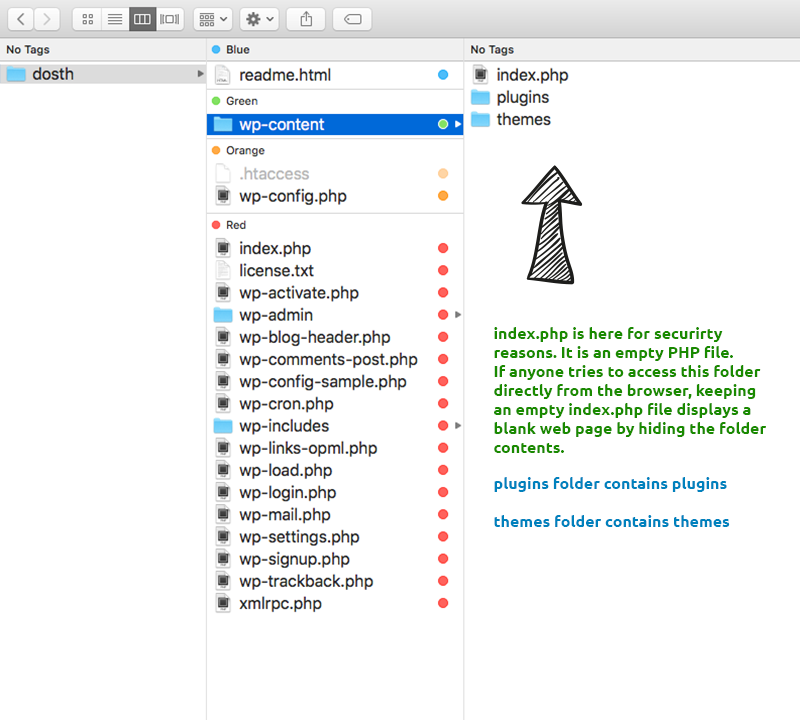
To find your WordPress themes folder, access your hosting server via FTP or cPanel. Navigate to the `/wp-content/themes/` directory. Here, you’ll see folders for each installed theme. This directory structure helps in organizing and managing multiple themes for easy customization and updates.
Can I Delete Unused Themes From The Folder?
Yes, you can delete unused themes to free up space. Removing them reduces security risks and clutter. However, always keep at least one default theme as a fallback. Deleting themes is straightforward: simply access your themes folder and remove the folder of the theme you wish to delete.
How Often Should Themes Be Updated?
Themes should be updated regularly, ideally whenever a new version is released. Updates often include security patches, new features, and bug fixes. Regular updates ensure compatibility with the latest WordPress version and enhance the site’s performance and security.
Conclusion
Understanding your WordPress themes folder is crucial. It keeps your site organized. Follow best practices for a smooth experience. Ensure each theme has its own directory. This prevents confusion and errors. Regularly update themes for security and performance. Use child themes for custom changes.
This protects your main theme. Backup your themes folder often. Safe data is happy data. Explore and learn more about your WordPress setup. It can be fun and rewarding. A well-maintained folder leads to a better website. Happy blogging!



